

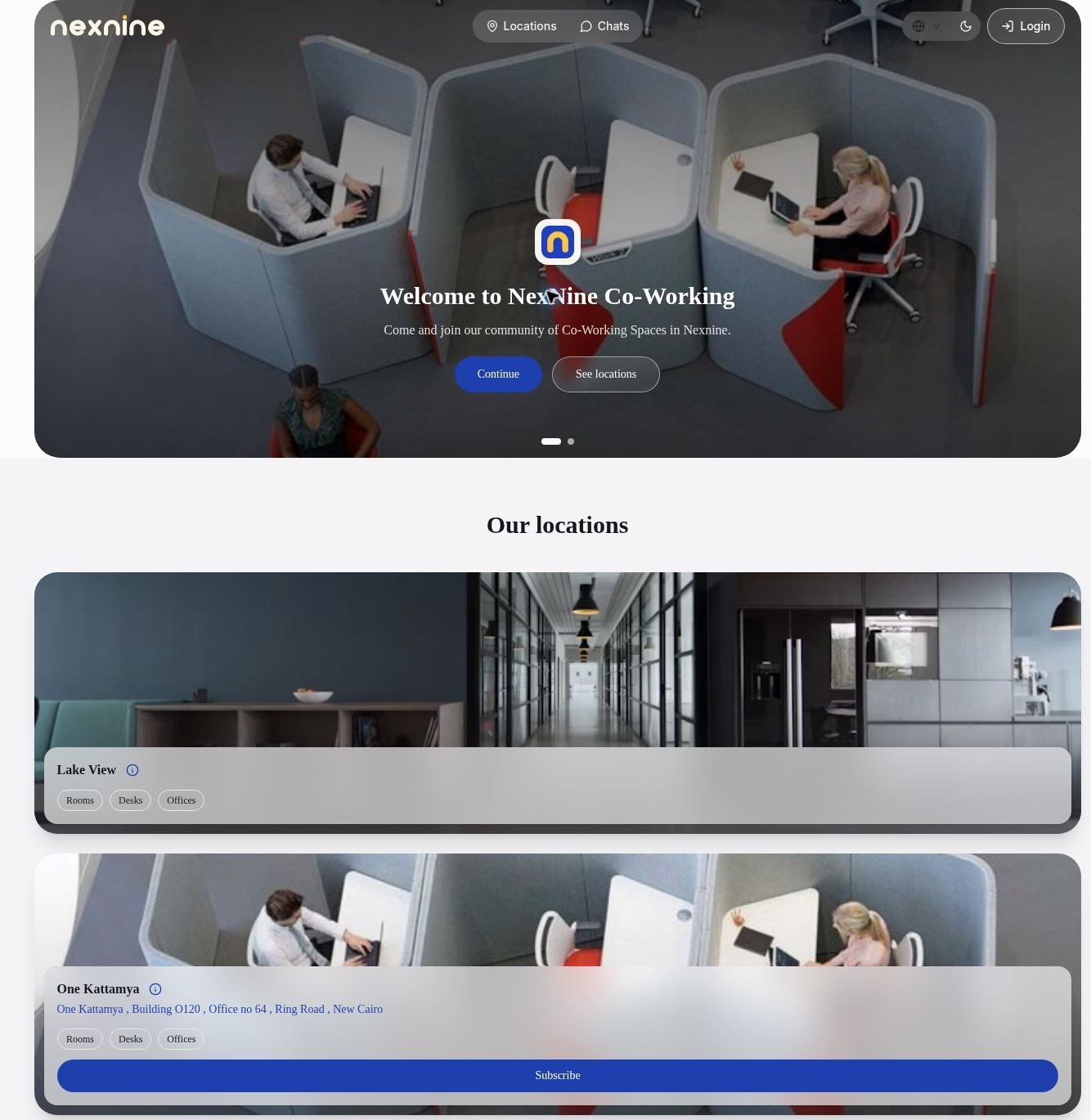
Open the landing page
- Click Member web portal at the bottom left of the admin portal. Your landing page opens in a new browser tab.
- Copy the address from that tab to share your landing page or promote it through your marketing channels.
Write the headline and description
- Go to Rntor as an owner.
- Open Settings for your network.
- Go to Member web portal > Landing page.
- Enter a Headline. Use keywords that help your landing page appear in search results, for example “The best coworking space in San Francisco”. Leave it blank to use “Welcome to” followed by your network name.
- Enter a Description. It appears under the headline and is also the text search engines show, so mention your city or country if the headline does not. Keep it within 700 characters for the best display, or leave it blank to use a default text.

Set the layout
- Go to Settings > Member web portal > Landing page.
- Click Edit beside Layout.
- Change each setting to customize the layout of your landing page. Each change appears in the preview immediately.
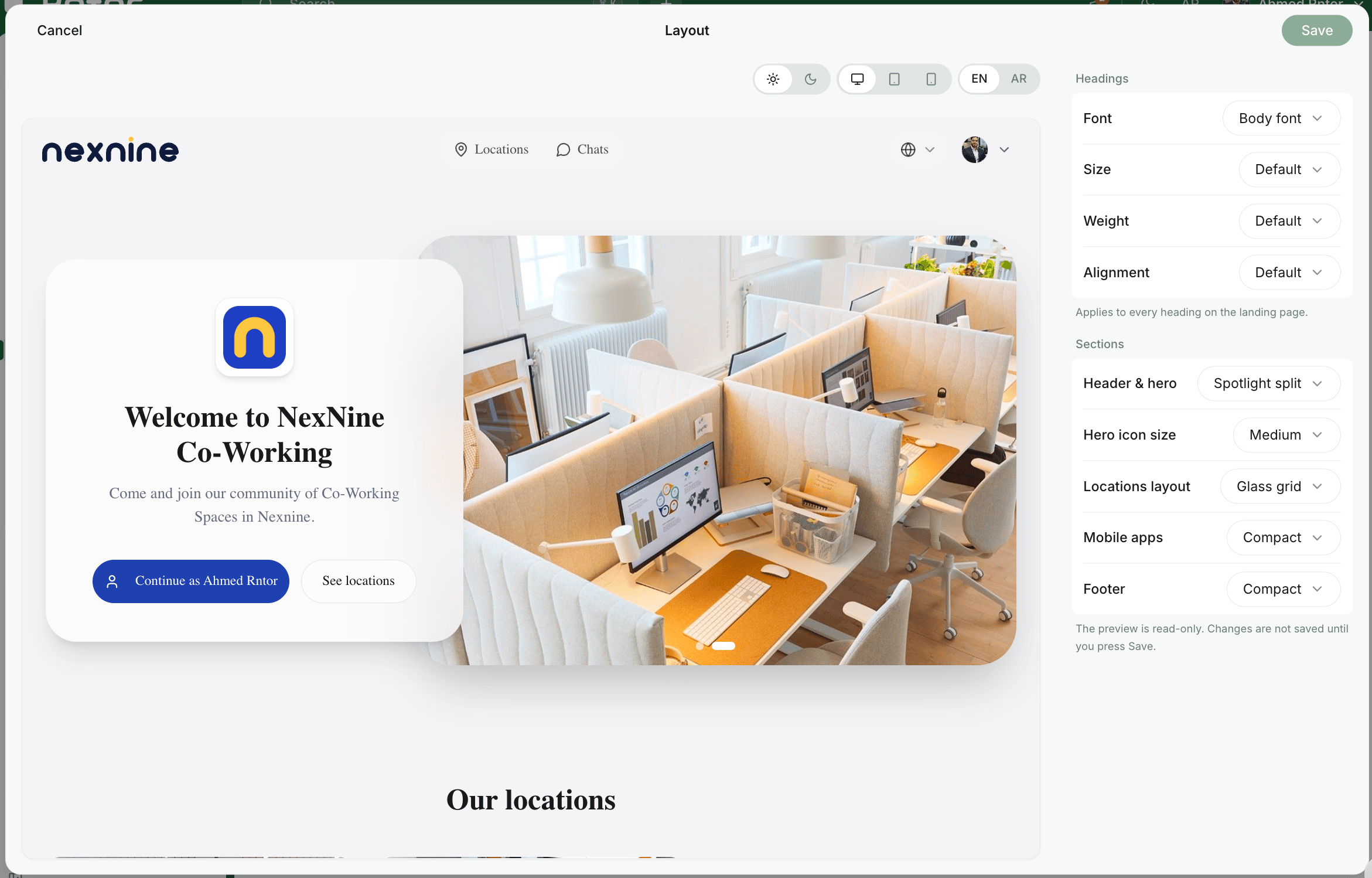
- Font — the font of every heading on the page.
- Size — how large the headings are.
- Weight — how thick the heading text is.
- Alignment — whether headings use the default, start or center alignment.
- Header & hero — the header and top of the page, with your headline, description and location media. Choose Spotlight split, Center stage, Panorama frame, Full background or Contained background. Full background spans the page; Contained background aligns with Our locations.
- Hero icon size — hide the hero icon or choose Small, Medium or Large.
- Locations layout — how your locations are listed: Glass grid, Overlay tiles or Feature rows.
- Mobile apps — the block with your app store badges.
- Footer — what the footer contains.
- Click Save to apply all changes at once, or Cancel to discard them.
The Layout settings shape the landing page only, not the rest of the member web portal.
Use EN | AR beside Headline and Description to enter both languages. Arabic visitors see the Arabic text; empty Arabic fields fall back to English. The selector changes the content being edited, not the dashboard language.
Add the content the landing page shows
Most of the content on your landing page comes from the locations and plans you added.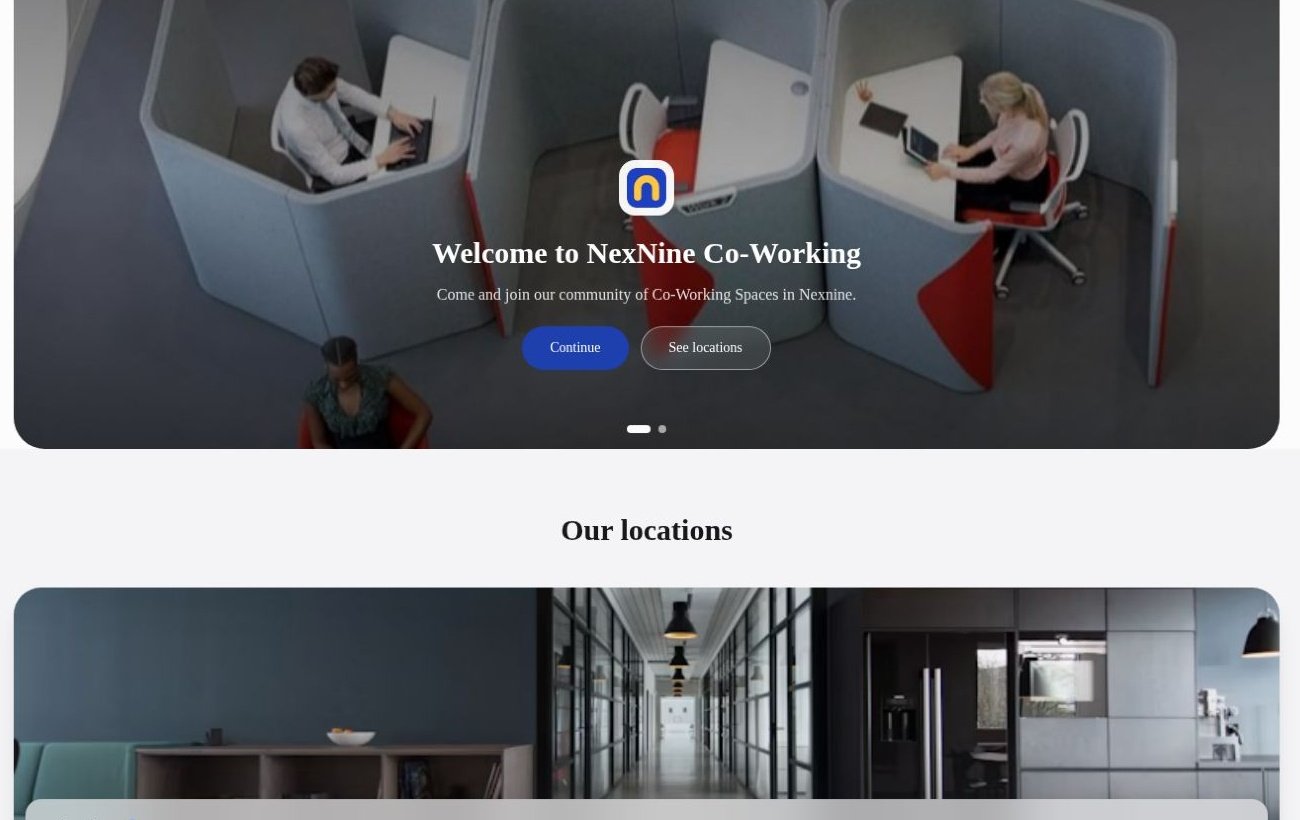
- Upload cover photos and videos for each location. All cover media across your locations plays as a slideshow in the hero, and the first item appears under the location’s name in the Our locations section.
- Update each location’s address on the same page, so it appears under the location’s name.
- Create membership plans for the location and turn on their Sign-up switch, so a Sign up button appears for that location.
- Enable other pages and set their visibility to Public, or add content with public visibility to them, so they appear as buttons under the location’s name.
- Connect Calendly or the HubSpot Meeting Scheduler to each location, so a Book a tour button appears and lets interested people book a tour of your space.
- Set up the member mobile app add-on and your app-store links so the App Store and Google Play badges appear. This section is hidden without the add-on.
Control search engine visibility
Your landing page is visible to search engines by default.- Go to Settings > Member web portal > Landing page.
- Turn the Index in search engines switch on to let search engines list your landing page in their results, so new customers can find you.
- Turn it off to ask search engines not to index the landing page. The public page remains accessible by its URL.
After you turn the switch off, search engines may take time to remove your landing page from their results.