

What should privacy policy include
Your privacy policy must include:- Disclosing the types of personal and sensitive user data the app accesses, collects, uses, and shares; and any parties with which any personal or sensitive user data is shared. RNTOR will collect your users’ personal information and is, therefore, a data processor. We advise you to disclose RNTOR as your data processor with the following information:
- Company name: Rntor Technologies L.L.C-FZ (Dubai, U.A.E.)
- Website: rntor.com
- Purpose: provision of shared space software services
- RNTOR Privacy policy: https://rntor.com/privacy/
- Secure data-handling procedures for personal and sensitive user data.
- RNTOR’s data retention and deletion policy, available in our privacy policy.
Create privacy policy
Use a sample we suggest and include your network name there, or use any other resources to create your privacy policy.Manage privacy policy
- Log in to RNTOR as an owner.
- Open Settings from the dashboard sidebar.
- Under your network settings, go to General > Information.
- Tap Privacy policy.
- Paste the new text of your privacy policy or edit the existing text, and press
Save. The changes apply immediately.
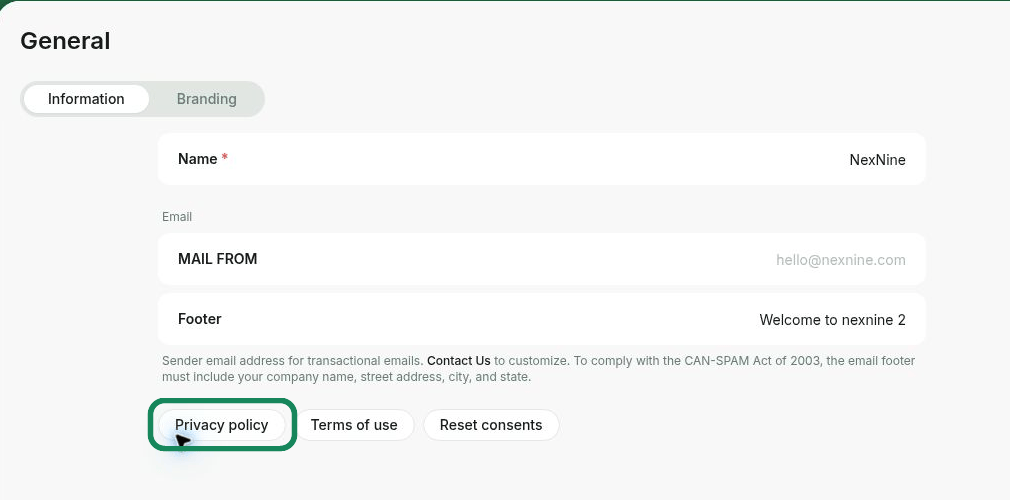
Where and how users accept your privacy policy
The moment a user starts a booking, signs up for a plan, or begins any other interaction in your member portal for the first time, they’re prompted to enter and verify their email address. At that point, they see a prompt that by pressing Continue, they agree to your privacy policy.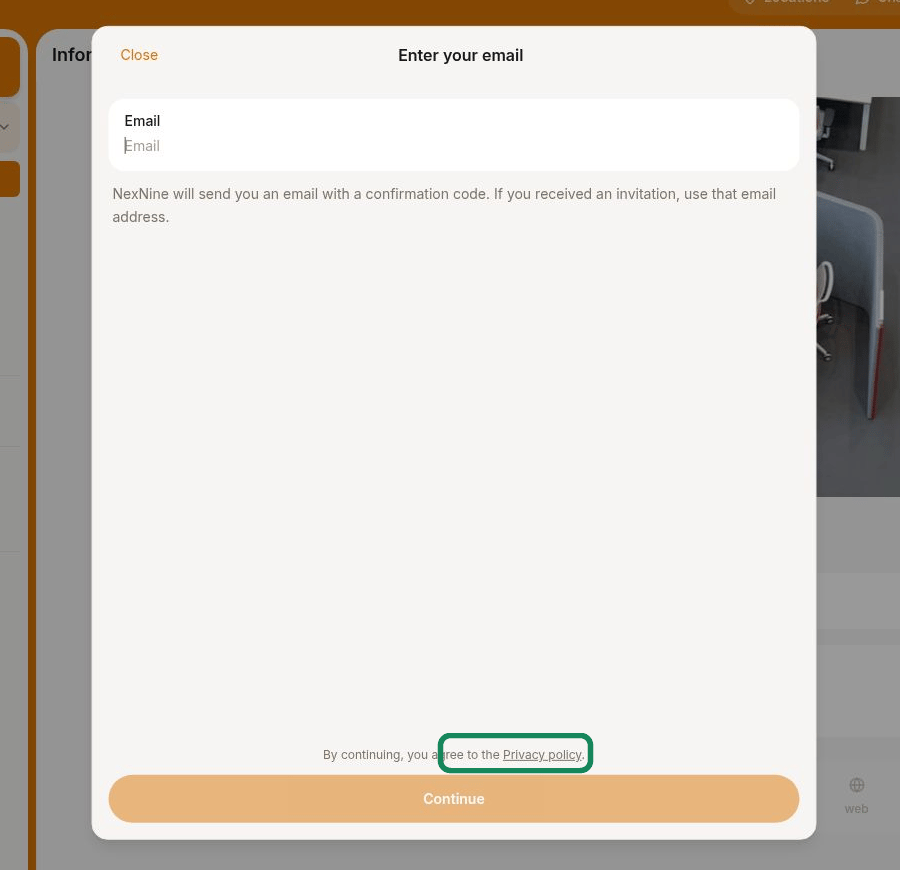
- The Account page of the member web portal and mobile app.
- Your Google Play Store app listing.
- Your Apple App Store app listing.
Prompt users to reaccept the updated privacy policy
If you’ve updated your privacy policy and need users to review and accept it again:- Open Settings from the dashboard sidebar.
- Under your network settings, go to General > Information.
- Click Reset consents and confirm the action.
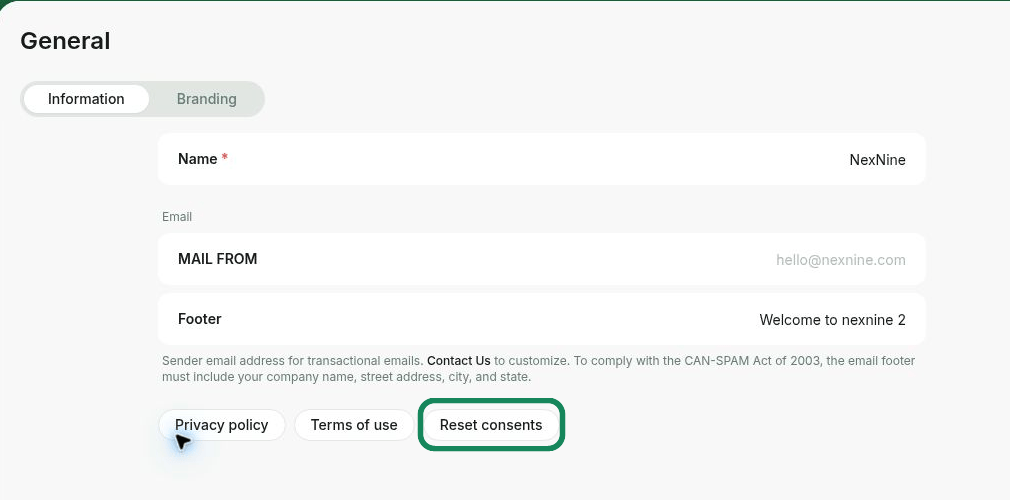
The updated reset and reacceptance flow becomes available with the next Rntor web release. The mobile app does not show the reacceptance prompt yet.
Share your privacy policy
Your policy has a public page athttps://<your-network>.rntor.com/privacy-policy. Add ?lang=ar for Arabic. Members and visitors can open and share it without signing in. On the member portal’s Privacy policy page, Open in new tab opens this same link (available with the next web release).