

Member invitations and invitation reminders
When you invite a new member, they receive a default invitation email. To customize member invitation email:- Go to Location settings > Customers page.
- In the Custom emails section, enable Invitation.
- Paste your custom email text.
- The invitation email always includes:
- A greeting at the beginning
- A call-to-action at the end for the user to sign in with their email address.
- Your custom text will replace the middle section of the email.
- The invitation email always includes:
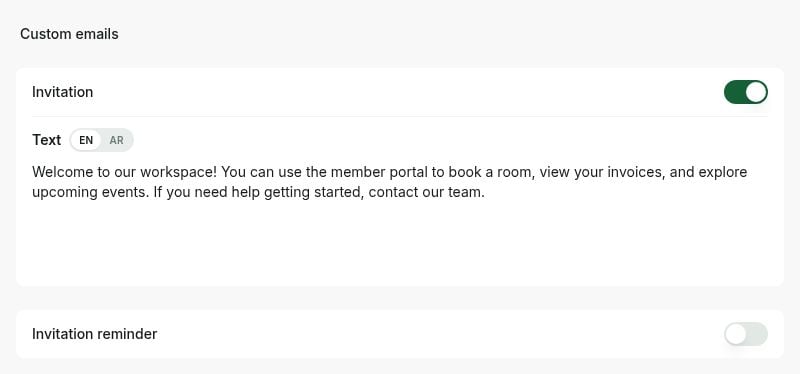
- Enable Invitation reminder to customize it as well, if preferred. This reminder is automatically sent 3 days after the initial invitation if the user has not yet activated their account.
Booking confirmations
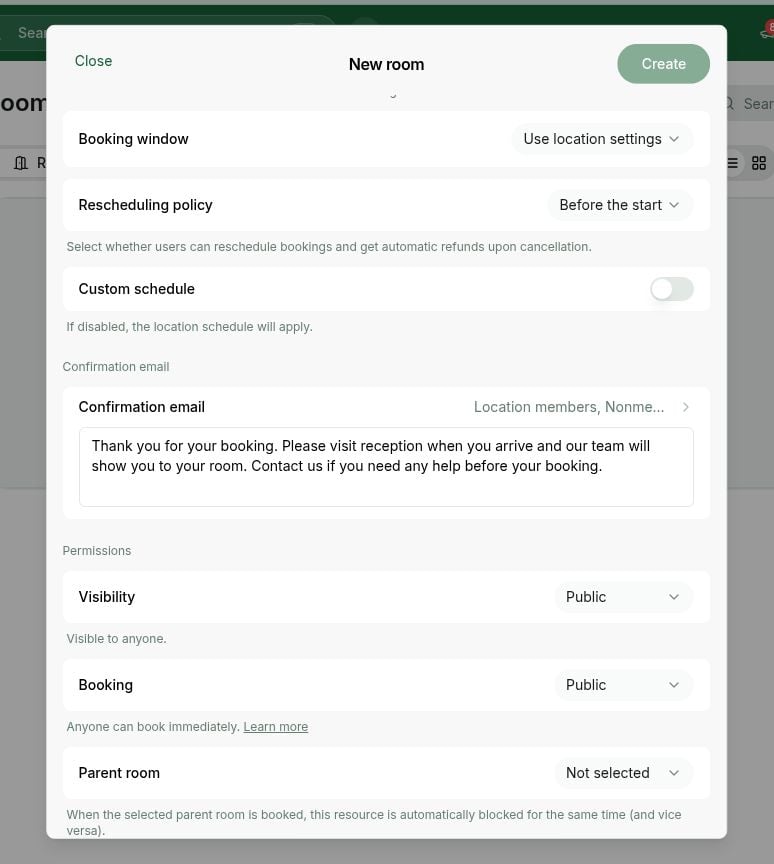
Booking confirmation emails are optional. Enable them for the relevant booking creators on each resource.- Open Resources > Rooms, Desks, Parking, or Equipment.
- Create or edit the resource and find Confirmation email.
- Select the categories of people whose bookings should trigger the email. You can select more than one:
- Administrators — an administrator creates the booking.
- Location members — a member of this location creates the booking.
- Network members — a member of another location in the network creates the booking.
- Nonmembers — a nonmember creates the booking.
- Enter your custom text and save the resource.
Event joining confirmations
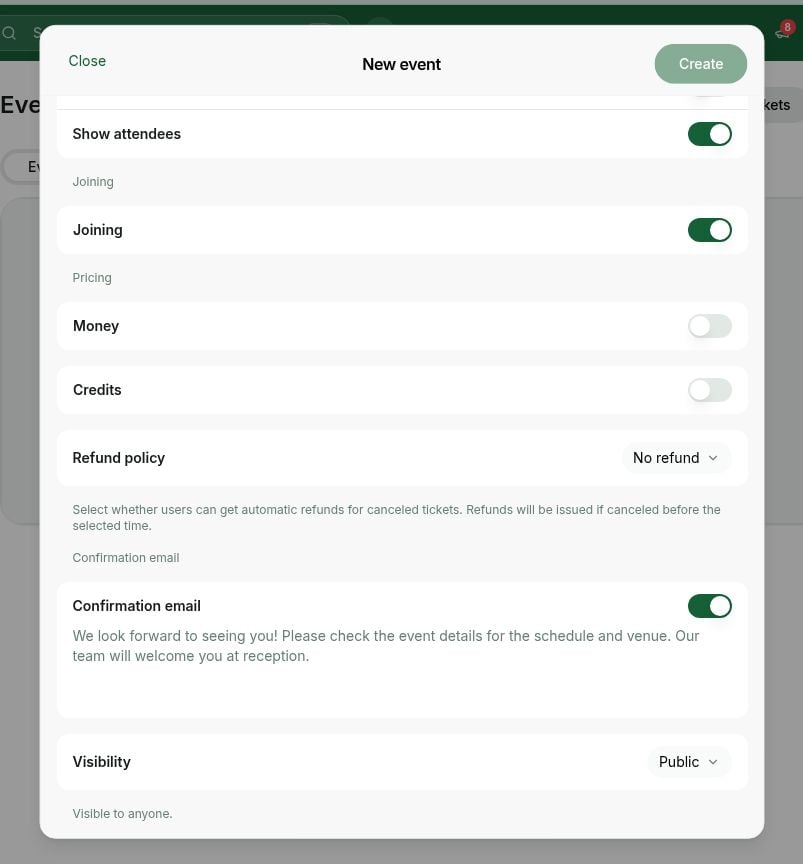
To enable the confirmation setting for an event, open Events, create or edit the event, and enable Confirmation email.Custom event-confirmation text is not currently retained when the event is saved.
Shop order confirmations
By default, for shop orders, users do not receive confirmation emails. They only receive a payment confirmation (receipt) if they paid via a payment gateway. To send your custom confirmation email to users after all orders:- Go to the Location settings > Service page > Shop tab
- Enable Order confirmation email, and paste your email text.
- The shop order confirmation email, by default, includes:
- A ‘Thank you’ for the order
- Purchase details: order number, products, and total amount paid.
- Your custom text will be inserted in the middle.
- The shop order confirmation email, by default, includes:
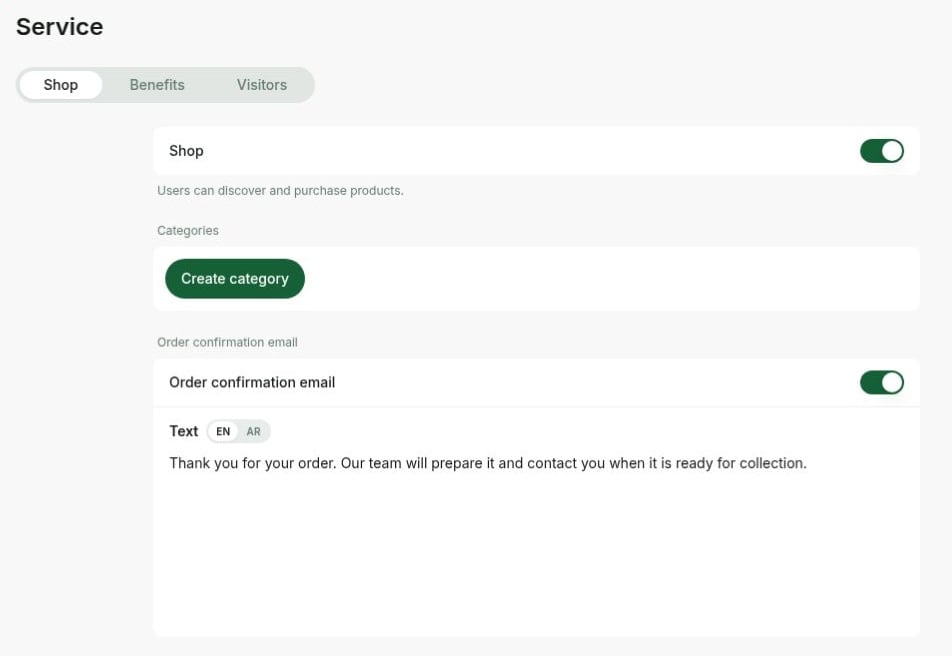
The same confirmation email setting applies to all shop orders. To configure individual emails for the specific product, use Zapier.
Benefit application confirmations
By default, for benefit applications, users do not receive confirmation emails. To send your custom confirmation emails to benefit applicants:- Go to the Benefits page.
- When creating or editing a benefit, enable Confirmation email and paste your email text.
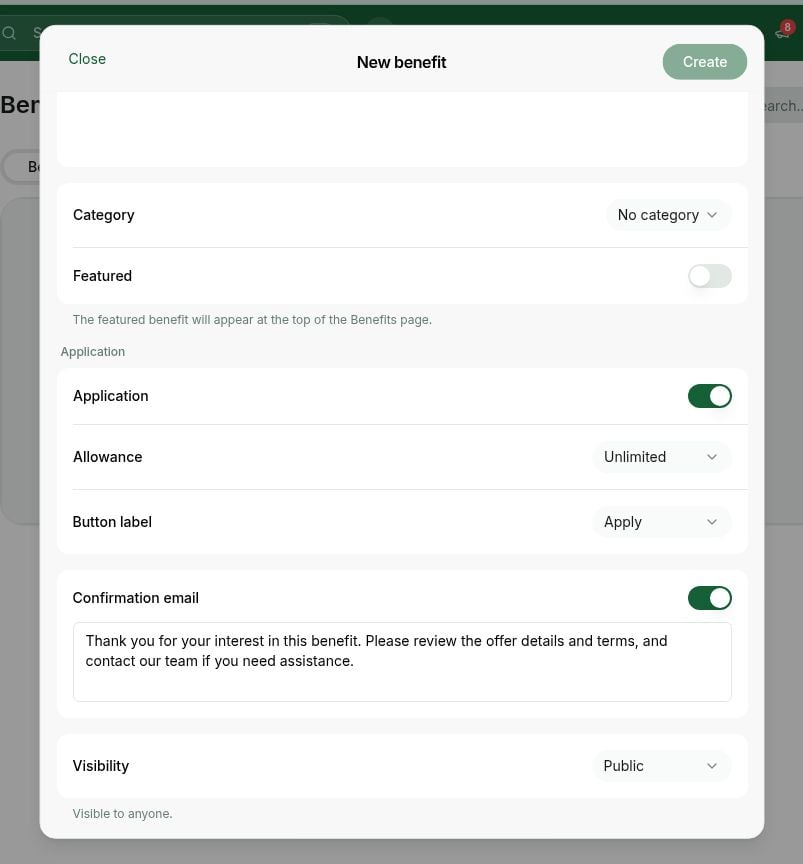
- The benefit application email, by default, includes a ‘Thank you’ for applying for the benefit.
- Your custom text will be pasted after it.
Visit invitations
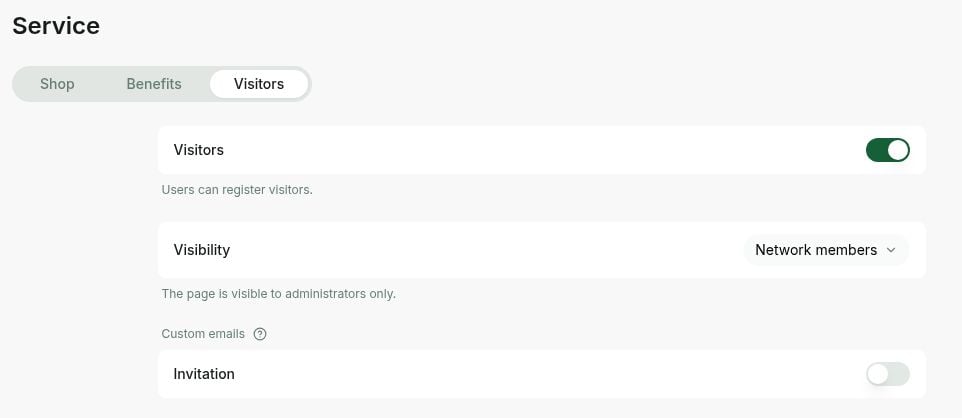
When members invite a visitor, the visitor receives a default invitation email. To customize the visitor invitation email:- Go to Location settings > Service page > Visitors tab
- In the Custom emails section, enable Invitation.
- Paste your custom email text.
- The visit invitation email, by default, includes:
- The invitation to visit your space
- Date and time of the visit
- Visit code
- Your custom text will be pasted after it.
- The visit invitation email, by default, includes:
FAQs
Where can I see all notifications and email notifications sent to my customers?
Where can I see all notifications and email notifications sent to my customers?
To check recorded email deliveries, open Email activity. For the types of notifications users can receive, see Understand user notifications.
How can I customize notifications or emails that aren't directly customizable in RNTOR?
How can I customize notifications or emails that aren't directly customizable in RNTOR?
Use Zapier integration to customize other notifications, not included on this list of customizable emails. It supports a wide range of RNTOR trigger events, allowing you to send your own custom notifications or emails to customers based on those events.
How do I send new members a welcome email with onboarding instructions?
How do I send new members a welcome email with onboarding instructions?
You don’t need to write an email yourself. When you invite a member from the admin portal, RNTOR automatically sends them a default invitation email that already covers what a new member needs to get started.The default email includes a personalized greeting, lists what they can do in the app and has an “Activate my account” button which takes them directly to the member portal.If you want to add your own text — such as space-specific details or extra onboarding notes — you can customize the invitation email:
- Go to Location settings > Customers.
- In the Custom emails section, enable Invitation.
- Paste your custom text. It replaces the middle of the email, between the greeting and the activation button.