

- Add a person to a location as a member or nonmember.
- Review users across the network and their location relationships.
- Check recorded activity and terms acceptance, and export the directory.
View all users in your network
As the network owner:- Open Settings from the dashboard sidebar.
- Under your network settings, select Users.
- Open Directory to view users across your locations. Use the search field to find a person.
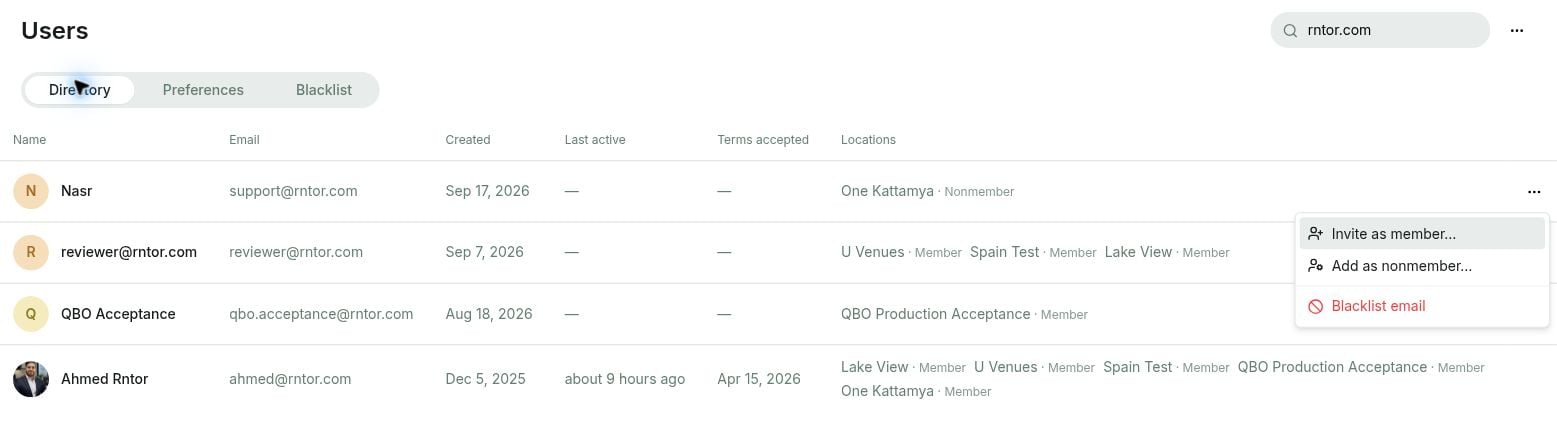
- Created — when the person was first invited or joined your network.
- Last active — their latest recorded activity in this network’s member web portal.
- Terms accepted — their current terms acceptance date. The column stays empty until they accept, including after you reset consents. Hover over the date to see the exact time, labelled Cairo time.
- Locations — the person’s member or nonmember relationship at each location. Select a location name to open their profile there.
Require profile fields
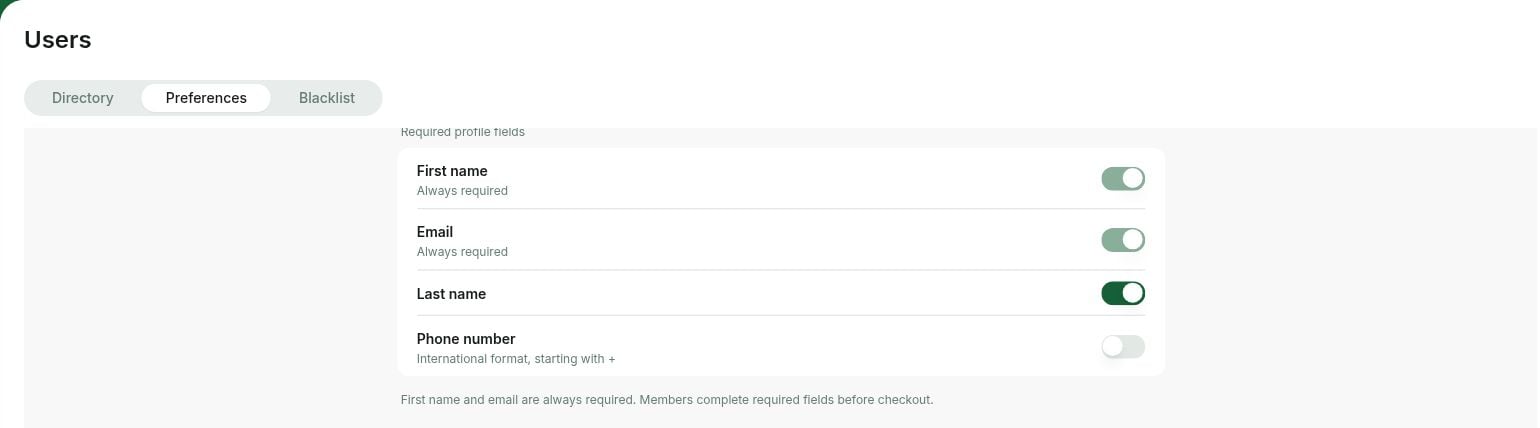
First name and email are always required. The owner can also require a last name and phone number. Members are asked for missing required details before completing a checkout, such as a booking, plan purchase, shop order or event registration.- Open Settings and select Users under your network settings.
- Select Preferences.
- Under Required profile fields, enable Last name or Phone number.
Manage visibility of user information
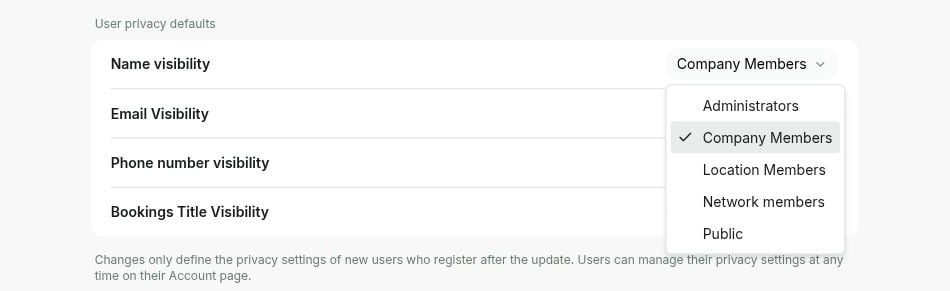
The owner can set the initial visibility of users’ personal information. For example, names and booking titles can be shared with company members while contact details remain visible only to administrators.- Open Settings and select Users under your network settings.
- Select Preferences.
- Under User privacy defaults, choose who can see each type of information.
- Name visibility and Bookings Title Visibility: Company Members.
- Email Visibility and Phone number visibility: Administrators.
Blacklist users
The owner can restrict access to the network by blacklisting an email address. For someone already in the directory:- Open Settings and select Users under your network settings.
- On Directory, find the person.
- Open their (…) menu, select Blacklist email, and confirm.
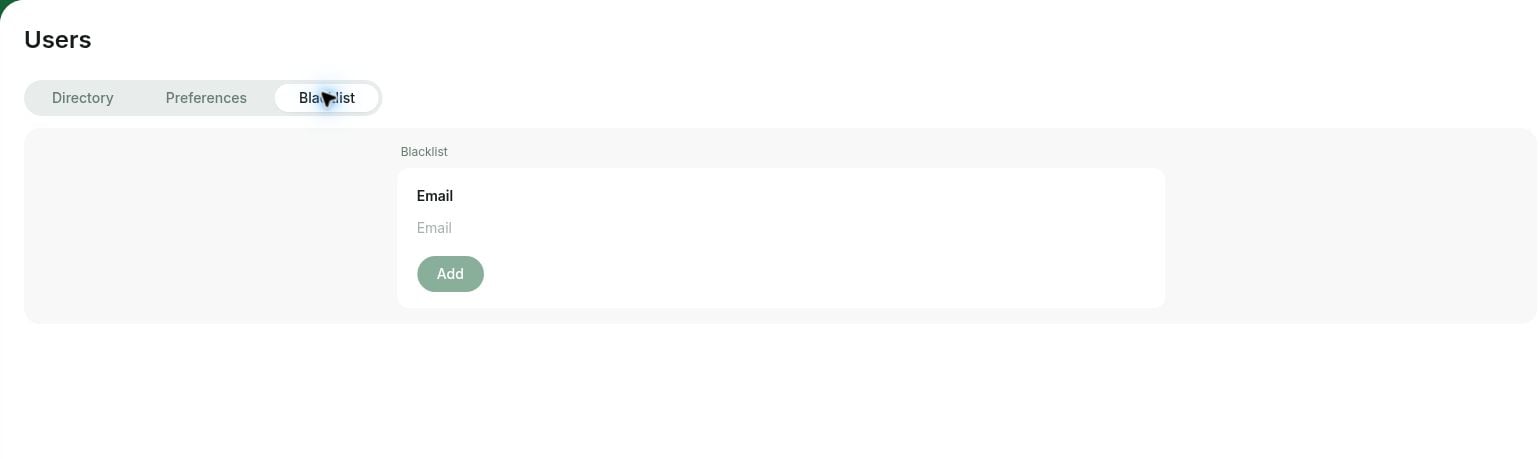
- Open Users > Blacklist.
- Enter the address in Email.
- Select Add.
How the blacklist works
- The member portal refuses access to the blocked network. An already-open portal displays an access-blocked message when it checks the member’s access.
- The restriction covers the network’s locations and does not sign the person out of other networks.
- The Directory marks blacklisted users with a red crossed-out shield.
- To restore eligibility, open the person’s (…) menu and select Remove email from blacklist.
FAQs
How can I check a user's latest activity?
How can I check a user's latest activity?
Open Settings > your network’s Users > Directory, and check Last active. It shows the latest recorded member web portal activity for that network. A blank value means no activity is recorded yet.
Can I hide the member and company directory from members?
Can I hide the member and company directory from members?
Yes. Open Settings, select Customers under the relevant location, and set Visibility to Administrators.Members can no longer browse that location’s member and company directory. Administrators retain access. See visibility settings.