

Upload your logo and favicon
- Go to Rntor as an owner.
- Open Settings for your network.
- Go to General > Branding.
- Upload Logo light mode: a wide logo for the portal header, at least 512 px wide. The portal supports SVG or transparent PNG.
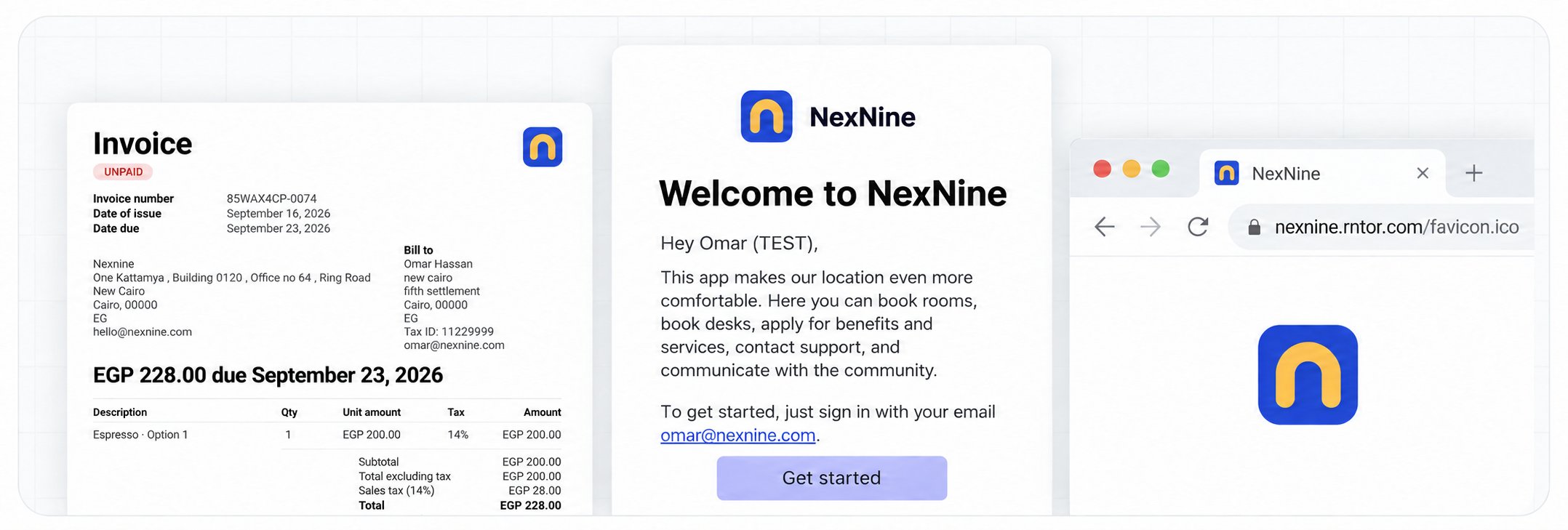
Your light-mode logo is used in emails and PDFs as well as the portal. SVG logos are converted to an email-compatible image before sending. For a logo that also appears in PDFs, use PNG because PDF support for SVG is limited.
- Optionally upload Logo dark mode, a version that stays readable on dark portal surfaces. It is used for dark headers, not as a separate email or PDF logo.
- Upload Favicon, a square brand icon. Use SVG, PNG or ICO; 512 × 512 px is recommended.
The favicon is used in browser tabs and compact portal surfaces, including Welcome, the sidebar and footer. Keep the design simple so it remains recognizable at small sizes. The Welcome and compact marks can use the logo when no favicon is available; browser icons do not use the wide logo as a substitute.
Set the theme
- Go to Settings > General > Branding and click Edit beside Theme.
- Change each setting. Each change appears in the preview immediately.
- Switch between Landing page, Locations and Portal pages, and between Light and Dark. Check desktop, tablet and mobile sizes and EN / AR.
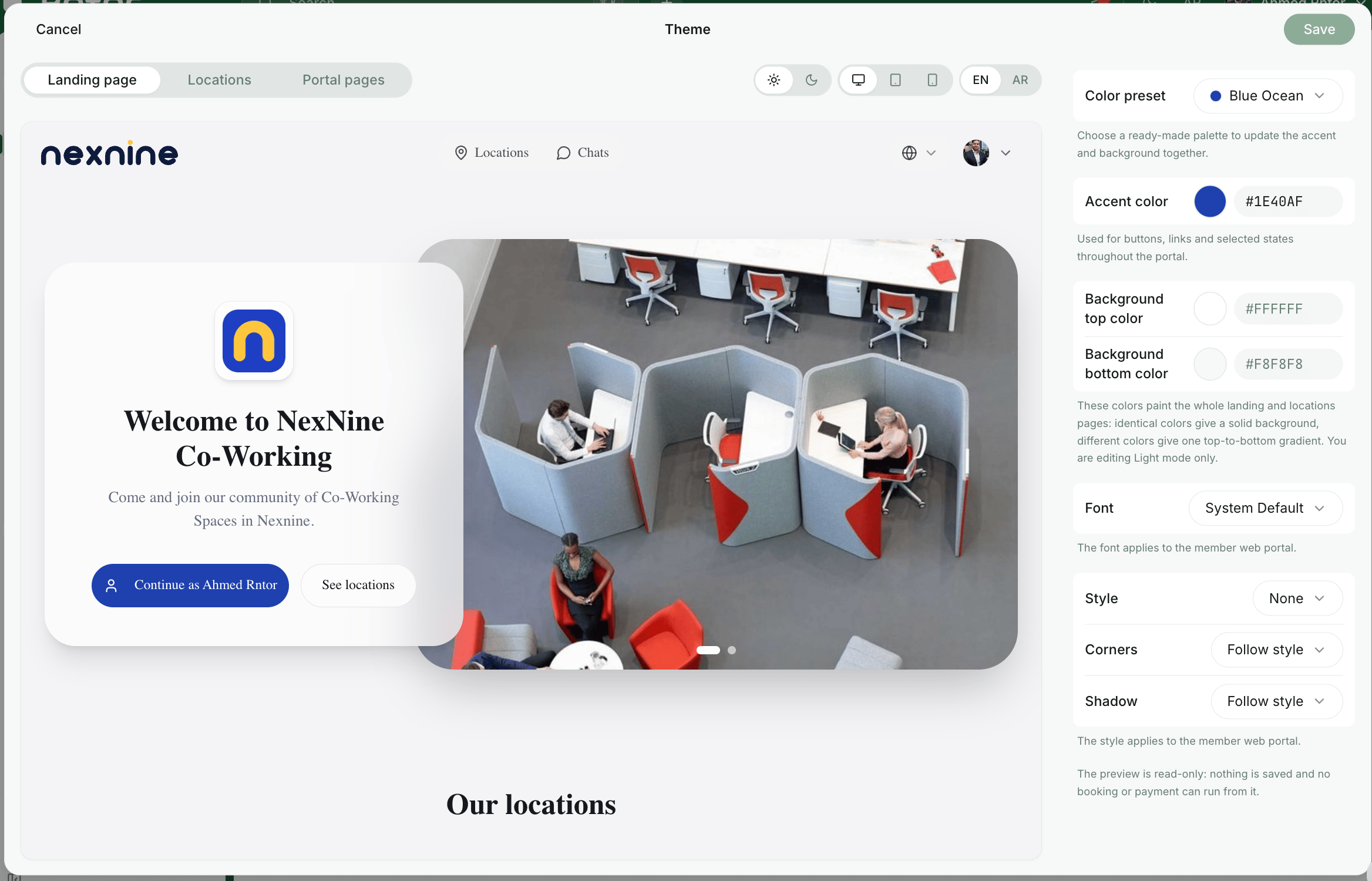
- Color preset — choose a ready-made palette to update the accent and background together.
- Accent color — the color of buttons, links and selected states throughout the member portal.
- Background top color and Background bottom color — the background of the landing and locations pages. Matching colors create a solid background; different colors create a top-to-bottom gradient. Light and dark backgrounds are configured separately: check which mode you are editing.
- Font — the member portal’s text font. Choose System Default or a font from the searchable list.
- Style — how the member portal presents its interface. Leave it on None for the standard appearance.
- Corners — how rounded interface elements are. Follow style uses the selected style’s corners.
- Shadow — the depth of cards and panels. Follow style uses the selected style’s shadow.
- Click Save to apply the changes, or Cancel to discard them.
Your accent color is used for buttons and links in the emails your network sends to members. Font and Shadow apply to the member web portal only, and theme settings do not change PDFs. Platform emails from Rntor, such as plan invoices, are not styled with your theme.
With the next Rntor release, Style and Corners also apply to member invitation, visitor and booking emails: None keeps your exact accent and standard corners; Soft uses a lighter shade with a light brand tint; Strong uses a deeper shade. Shades stay readable with white text. Follow style uses the style’s corners; Sharp, Soft and Rounded override them. The font list will also search about 2,000 Google Fonts, loading a font only when selected.
The preview is read-only: it cannot create bookings or payments, and changes are not saved until you click Save.