

- Automatically generating eInvoices and credit notes in the required format
- Registering and storing invoice records, then submitting them to AEAT
- Adding QR codes to invoice PDFs that customers receive
- Tracking eInvoice sync status for issued invoices
- Validating billing details before invoices are issued
This feature is currently in beta. Its functionality and appearance are subject to change, and it may not be fully stable. We welcome your feedback at support@rntor.com.
Prerequisites
To enable eInvoicing, ensure the following requirements are completed. To enable eInvoicing, ensure the following requirements are completed.Complete location billing details
Your location billing details must be complete and accurate.- Go to Location settings > General page > Billing details tab.
- Fill in your location billing details.
- Legal business name
- Address: Country, Address line 1, City, and Postal code are mandatory
- Tax ID
- Contact details: Email is mandatory
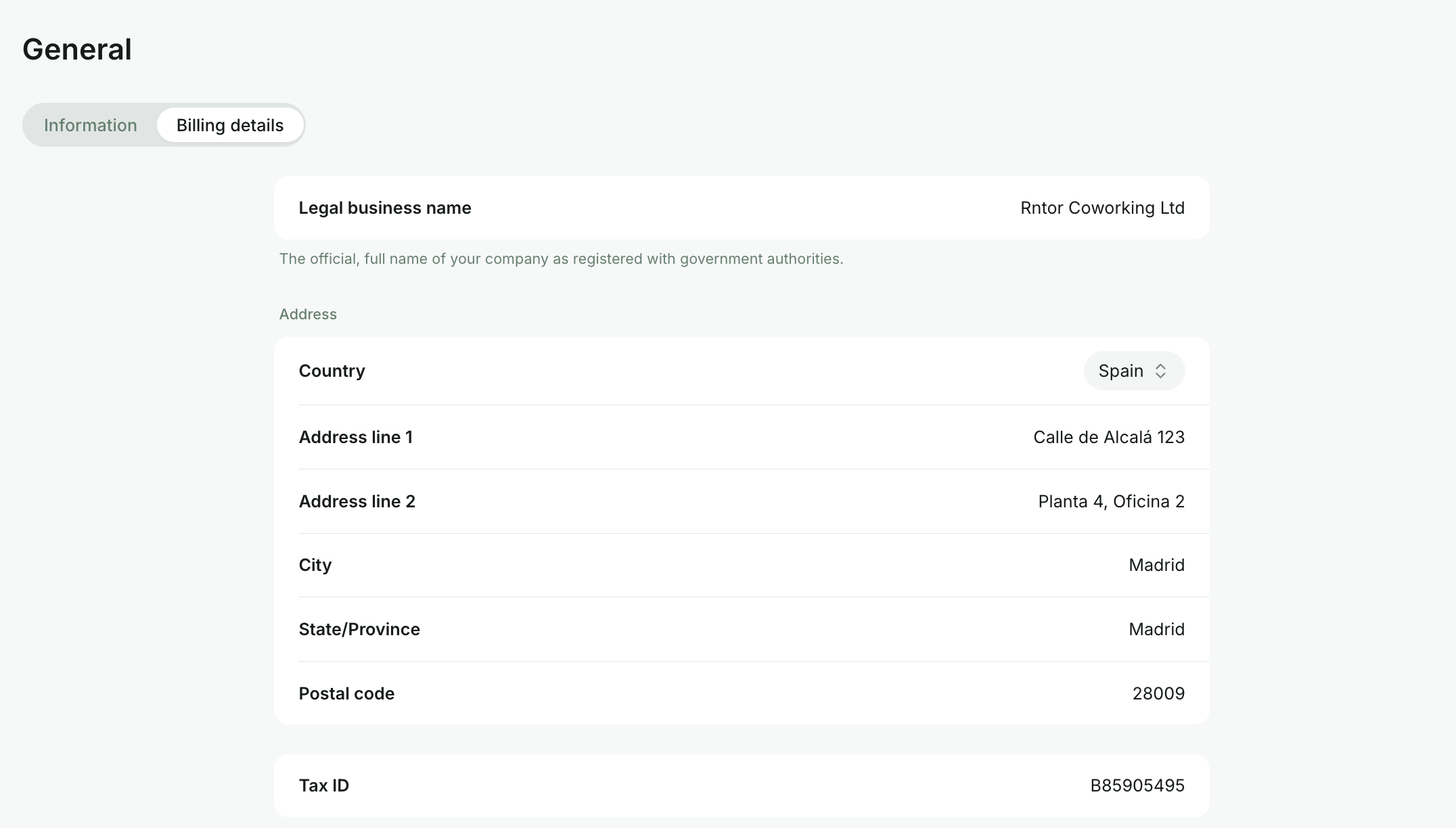
Location billing details
Make sure your billing country is set to Spain.
Spain eInvoicing is only supported for invoices in EUR.
Complete customer billing details
Each customer must also have accurate billing details.- Go to Location settings > Customers and manage the Require billing details setting depending on your needs:
- Enable this requirement for both individual users and companies.
- Or only for companies, if you need to generate eInvoices only for companies.
- New customers will be prompted to fill out their billing details at the first payment.
- Existing customers missing billing details will be prompted to update their details during their next payment.
- To review or update customer details manually:
- Go to the Customers page, open each customer profile, and locate the Billing details section.
- Alternatively, ask customers to update billing details on their own under Membership > Billing.
Requirements for companies
For companies, complete billing details are required for eInvoices to be generated and synced. If a company billing profile is incomplete or invalid, invoices for that company will remain in Draft status with a warning and cannot be issued.Requirements for individual users
For individual members, only fill in billing details if you want their invoices to be generated as eInvoices and synced as well.- If you do not want to generate eInvoices for individual members, leave their billing details, especially Legal business name and Tax ID, empty.
- If at least one of these fields is filled for an individual member, RNTOR will attempt to sync their invoices as eInvoices.
- If you do not want to generate eInvoices for individual members, leave their billing details, especially Legal business name and Tax ID, empty.
- If at least one of these fields is filled for an individual member, RNTOR will attempt to sync their invoices as eInvoices.
Enable eInvoicing
- Go to Location settings > Billing.
- In the Invoices tab, enable the eInvoicing switch.
- In the VERI FACTU registration section, click Start verification process.
- Complete the registration form with your company and legal representative billing details, and sign the agreement authorizing invoice record submission to AEAT.
- Your billing details and signed agreement will be submitted for verification.
- Verification may take a few business days. You can monitor it from the registration status.
- If prompted, click Restart verification to update billing details or take any required action.
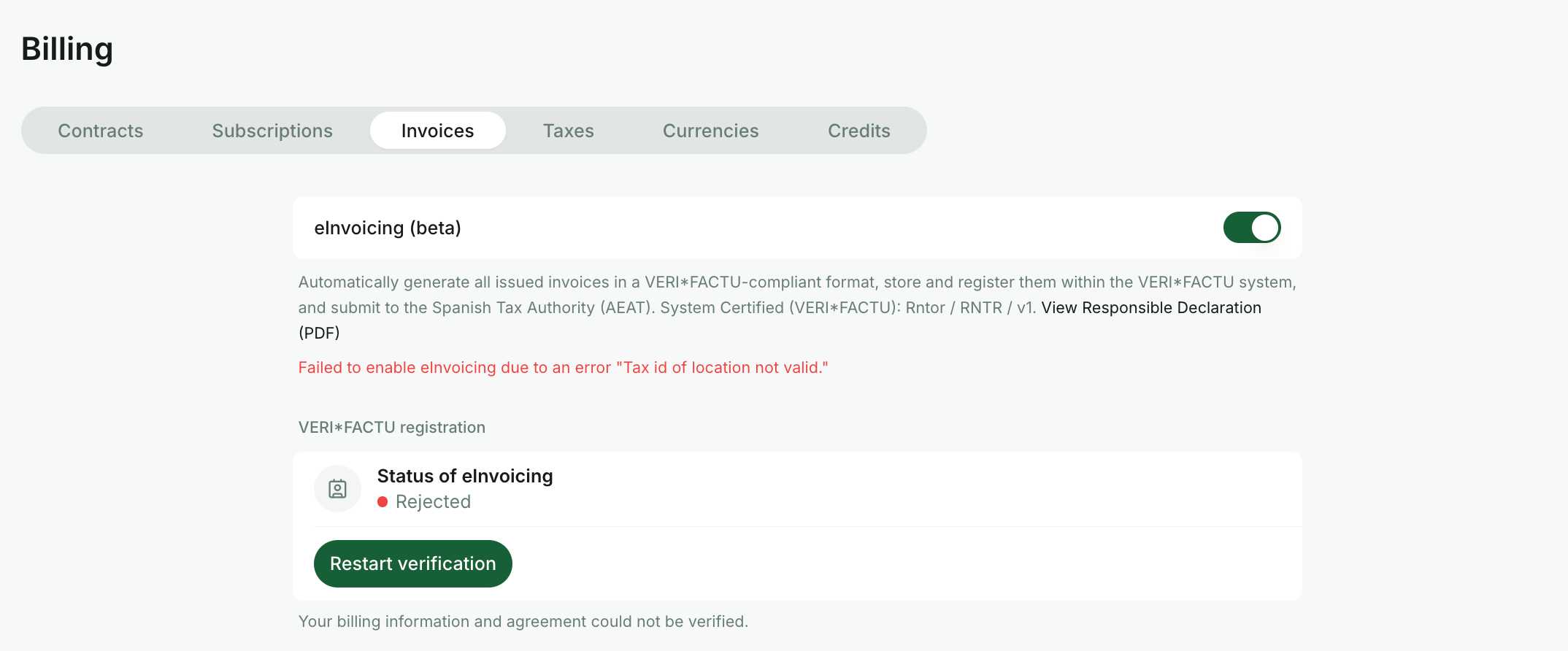
Enable eInvoicing in Billing
How eInvoicing works
After eInvoicing is enabled and the location is verified:- All invoices for customers with valid billing details are automatically converted into compliant eInvoices, registered in the Spain eInvoicing system, and submitted to AEAT.
- In parallel, customers continue receiving standard PDF invoices, now including a QR code linking to the invoice record.
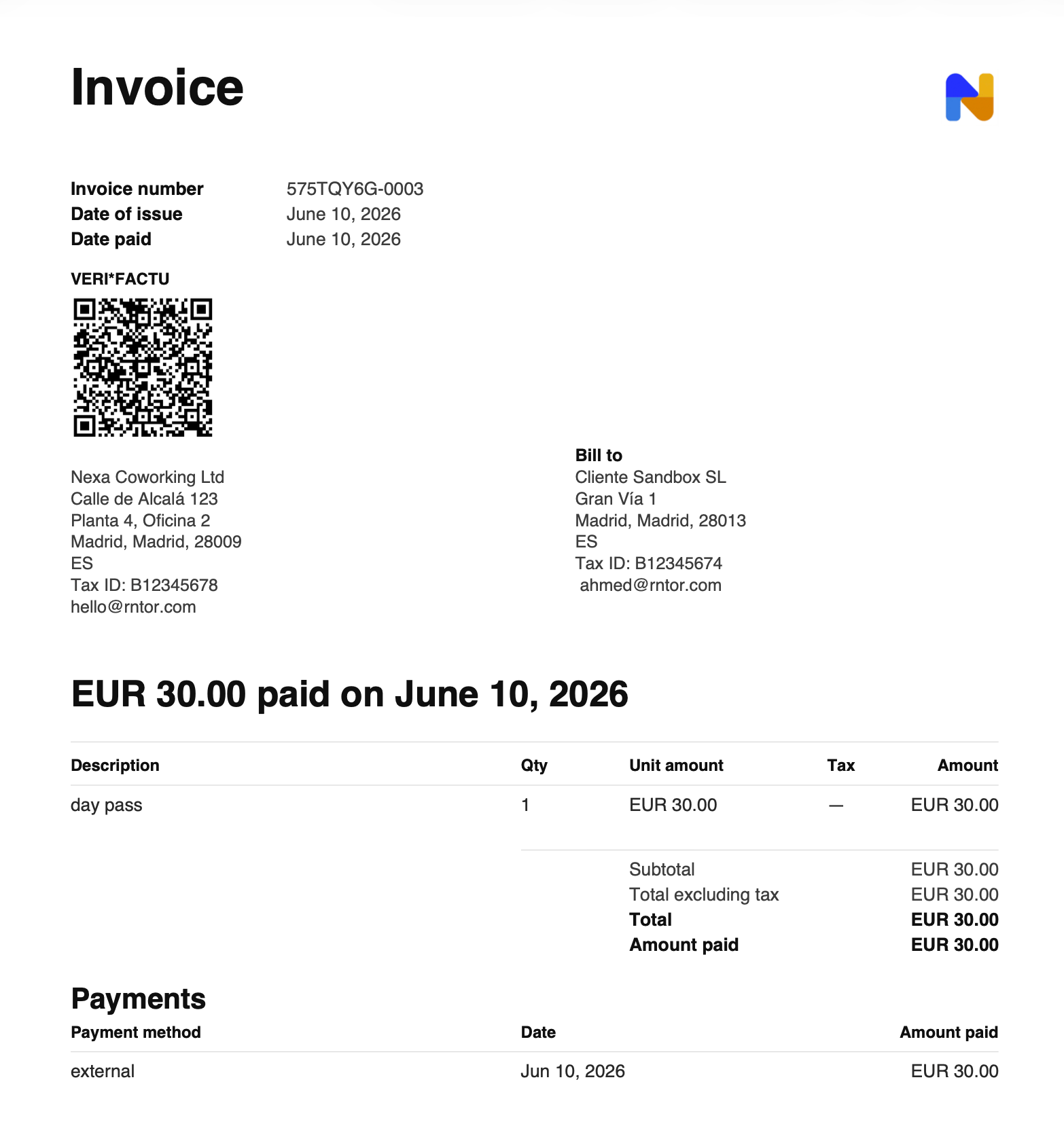
QR code on invoice PDF
- Credit notes are also submitted if their original invoice was successfully synced.
- Credit notes are also submitted if their original invoice was successfully synced.
Track eInvoice syncing
Each invoice has the eInvoice sync status indicated.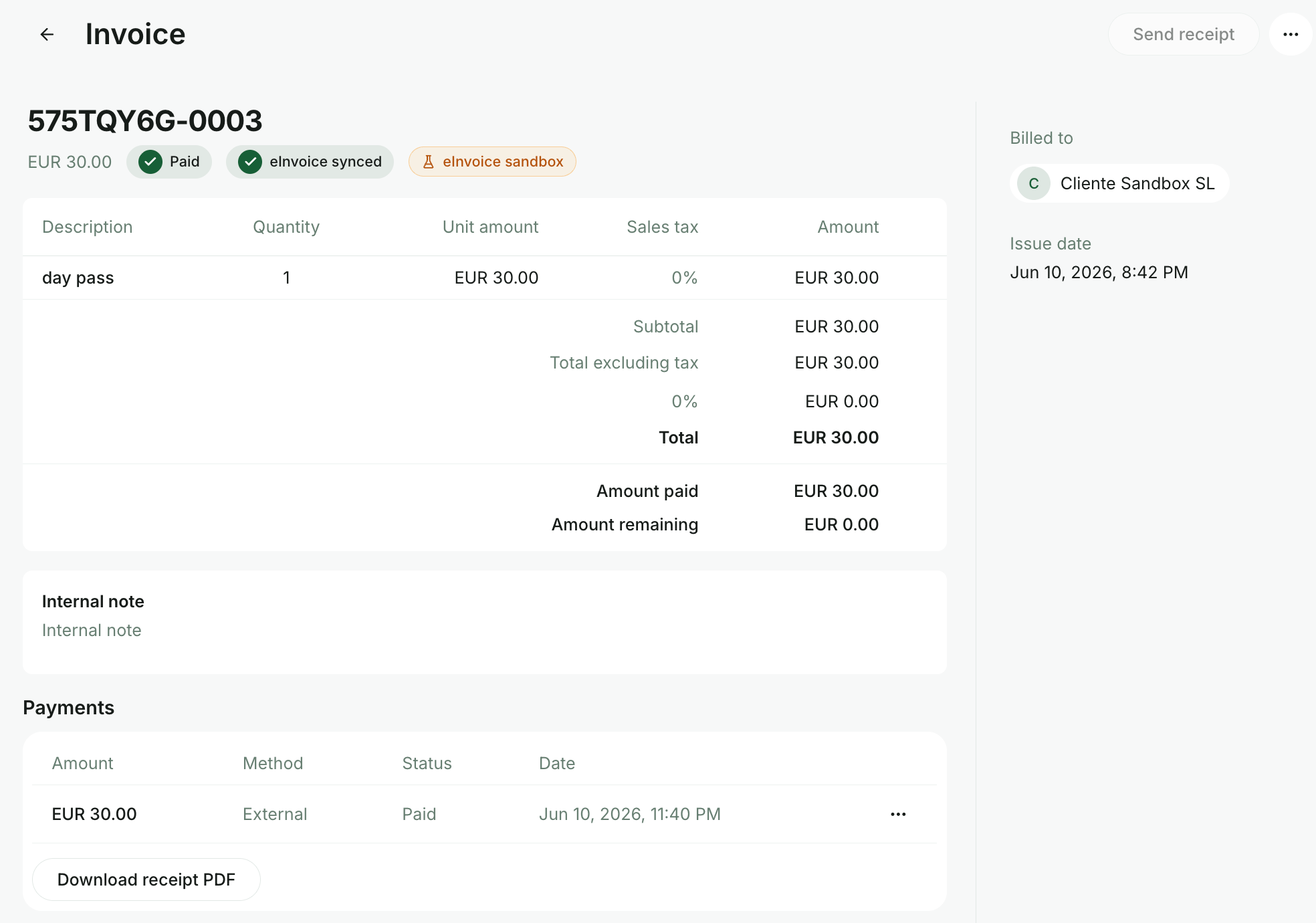
eInvoice synced status
- The invoice will not be issued.
- The system will display:
- eInvoice sync failed status
- A warning next to the affected invoice
- A warning in the customer billing details area when details must be updated
- The invoice will not be issued.
- The system will display:
- eInvoice sync failed status
- A warning next to the affected invoice
- A warning in the customer billing details area when details must be updated
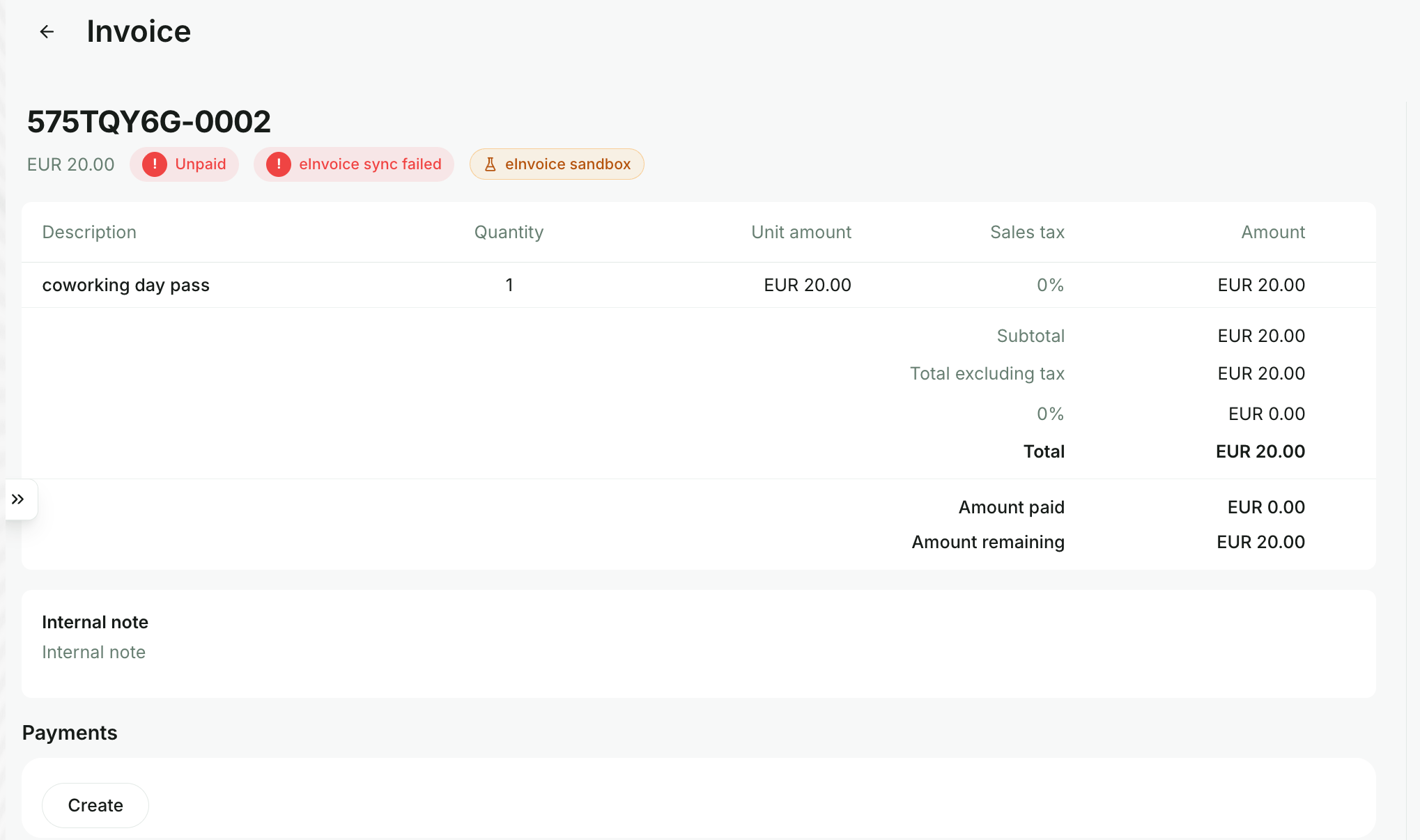
eInvoice sync failed example