View all invoices
To view all the invoices, follow these steps:- Go to Billing > Invoices on the left-side panel.
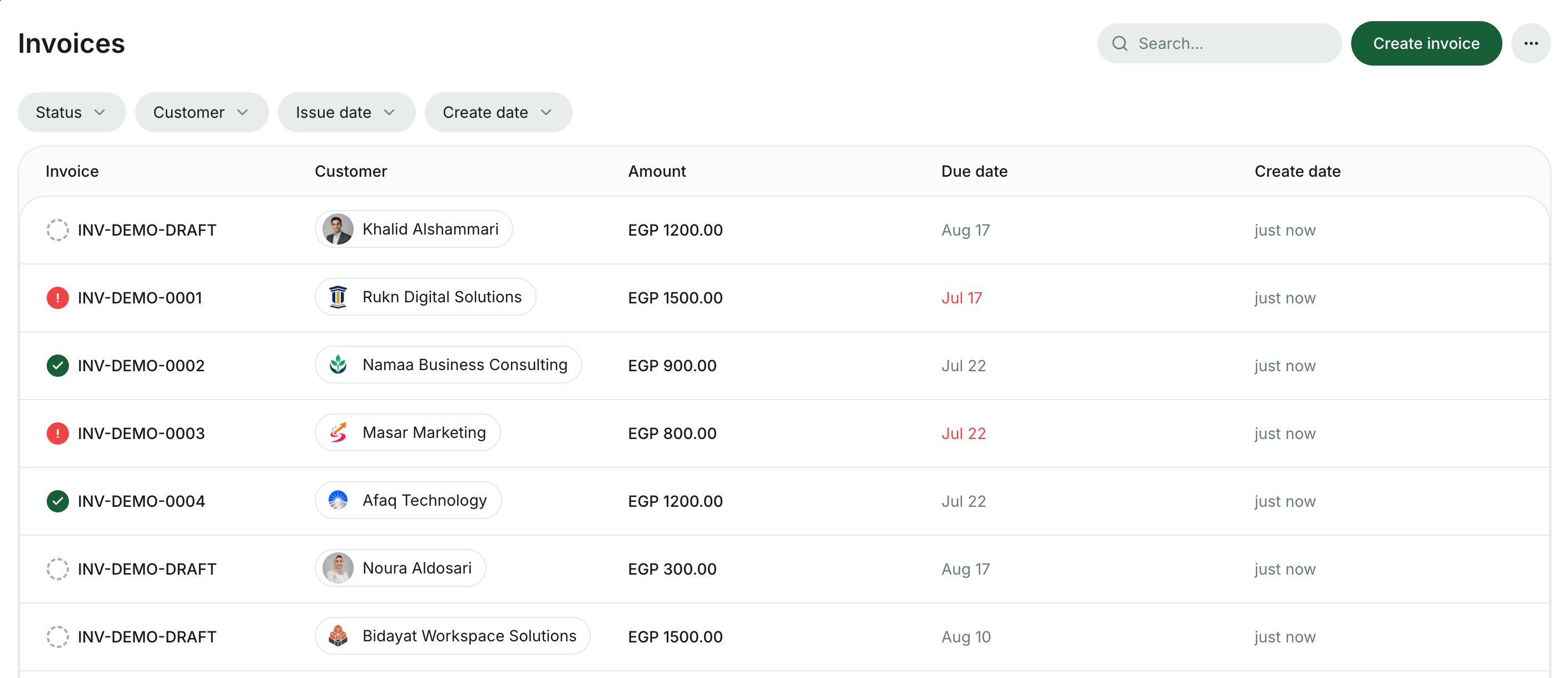
- Use the filters at the top of the page to quickly find and manage the necessary invoices:
- Status – See all invoices of the specific status: Draft, Issued, Paid, or Voided.
- Customer – See all invoices of a specific company or individual member.
- Issue date – See all invoices issued within a date range.
- Create date – See all invoices created within a date range, including drafts.
The Issued invoice status filter replaces the former Unpaid status and includes only unpaid invoices.
Manage invoices
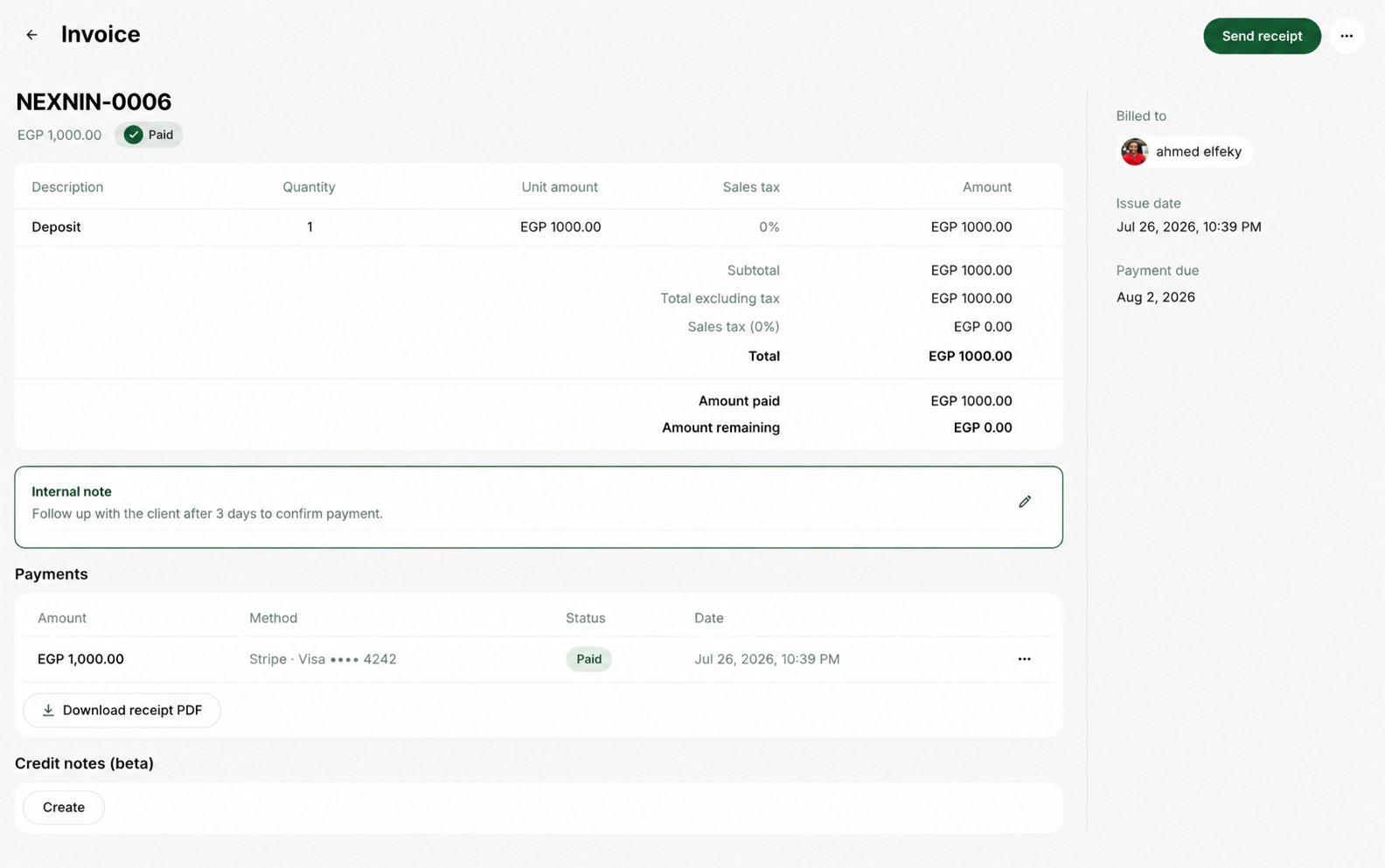
By clicking on a specific invoice on the Invoices page, you can quickly manage it:Notifications about invoice payments appear on the Notifications page by default. If you don’t see notifications about invoice payments, manage your notification settings.
How to handle unpaid invoices
Although RNTOR automates payment retries and reminders for invoices, sometimes it’s useful to see who has an unpaid invoice to follow up manually.- Use the Issued status filter on the Invoices page to quickly see all unpaid invoices across all customers.
- Check the Due date next to each invoice to track payment deadlines. This helps you quickly identify which invoices need your immediate attention.
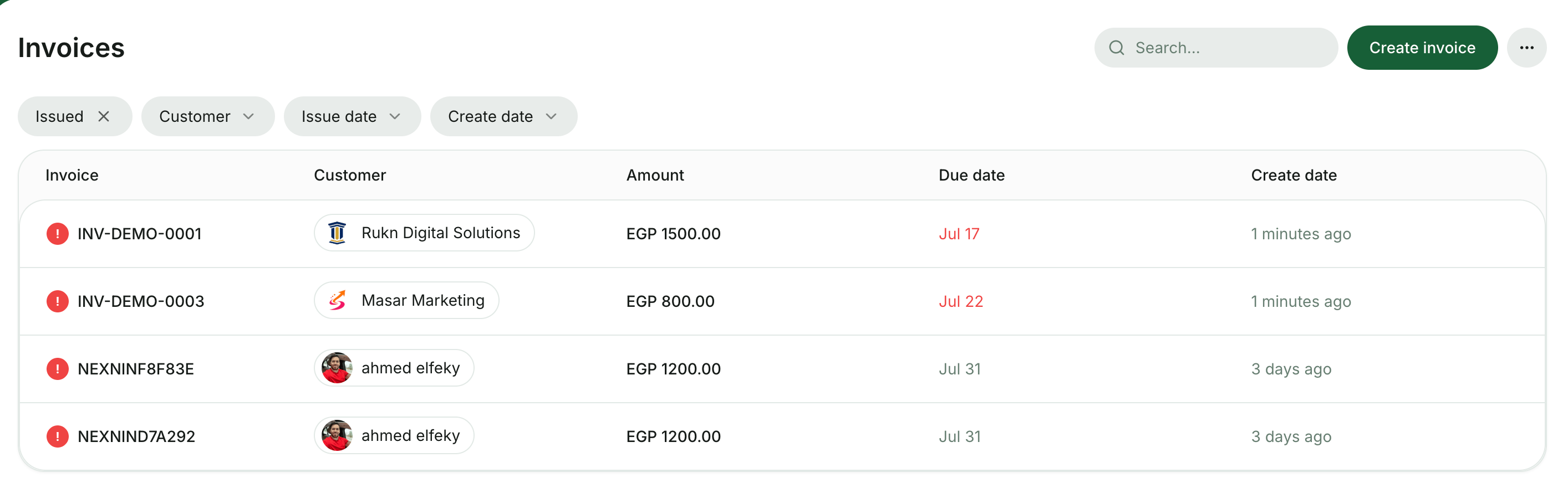
- Black color indicates the invoice is still within the payment terms.
- Red color highlights overdue invoices.
- Click on the invoice and use the Resend invoice button to send the customer a reminder about the due invoice payment.
- The customer will receive an automatic payment reminder via email.
How to handle failed invoice payments
Invoice payments can fail due to various reasons, such as insufficient funds, the customer’s bank restrictions, or issues with the payment gateway. To promptly notice failed invoice payments and reduce the risk of missed payments, follow these steps:- Enable automatic payment retries and reminders.
- Enable notifications about invoice Payments failed on the Account > Notifications page in RNTOR.
- Once you notice a notification about a failed invoice payment, tap on it to view the details.
- Contact the customer via chat to assist them in resolving the issue.
- Resend the invoice to the customer if an additional reminder is needed after 2 automatic ones.
Add internal notes to invoices
In RNTOR, you can add internal notes to any invoice at any time for record-keeping and tracking. You can use internal notes on voided invoices for audit purposes, leave internal notes to improve team collaboration, and add internal notes when processing external invoice payments to specify the payment source or other key details. To add an internal note, go to Billing > Invoices, open the relevant invoice, and enter your note in the Internal note field. Internal notes are visible only to administrators and are also included in the Invoices report.