

Automatic payment
When a subscription issues a recurring invoice, the system charges it automatically as long as all of the following are true:- The customer has a default payment method on file.
- Auto-pay is turned on for the customer.
- Your connected payment gateway supports Auto-pay.
Manual payment
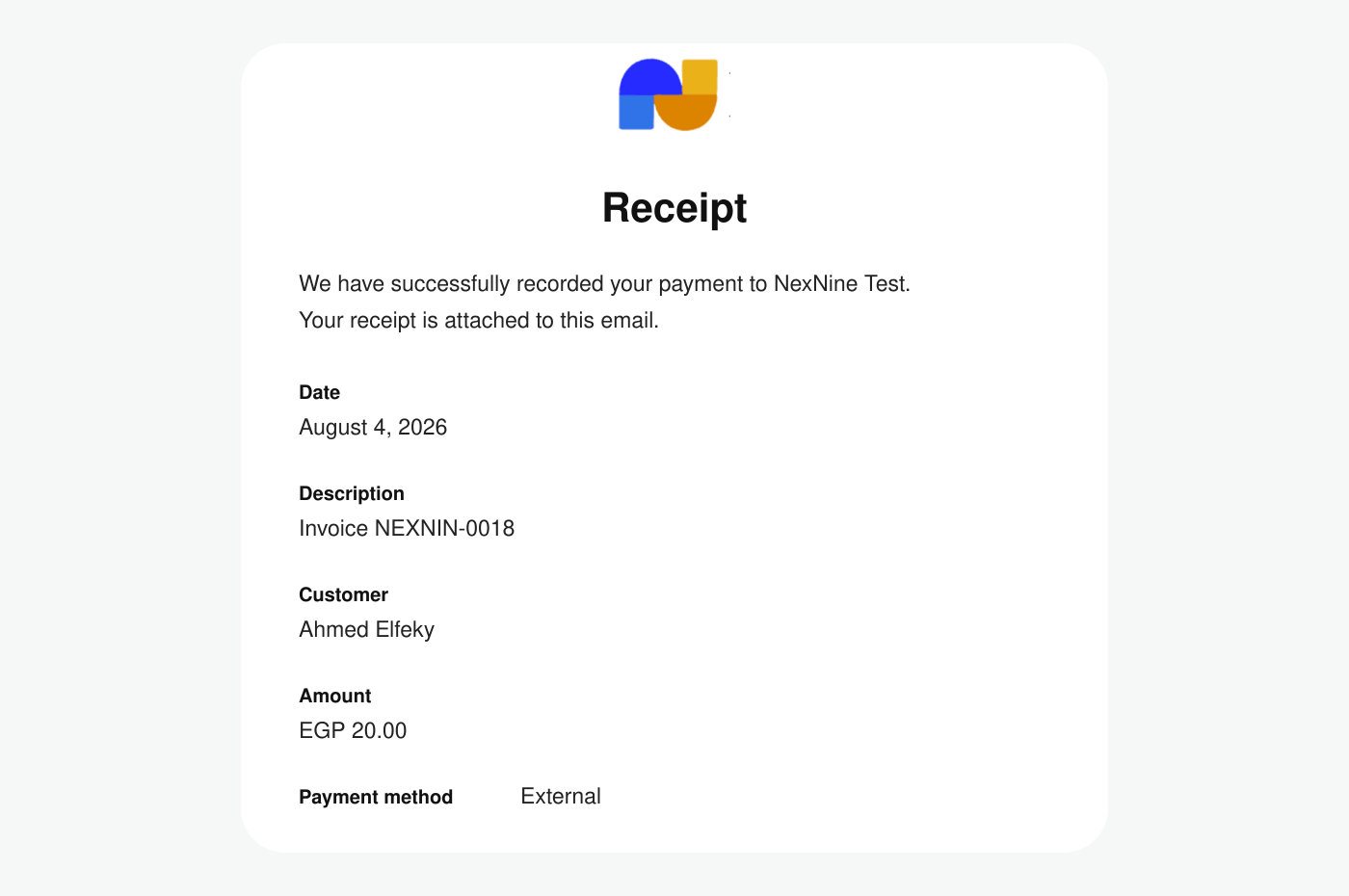
When Auto-pay can’t charge an invoice, the customer pays it manually. This happens when:- The customer has no default payment method on file.
- Auto-pay is turned off for them.
- Your connected payment gateway doesn’t support Auto-pay.
- To pay a personal invoice, go to Membership > Billing > Invoices, select the unpaid invoice, and choose a payment method.
- To pay a company invoice, company managers go to Membership > Billing > Invoices under the company name, select the unpaid invoice, and choose a payment method.
Record payments as an administrator
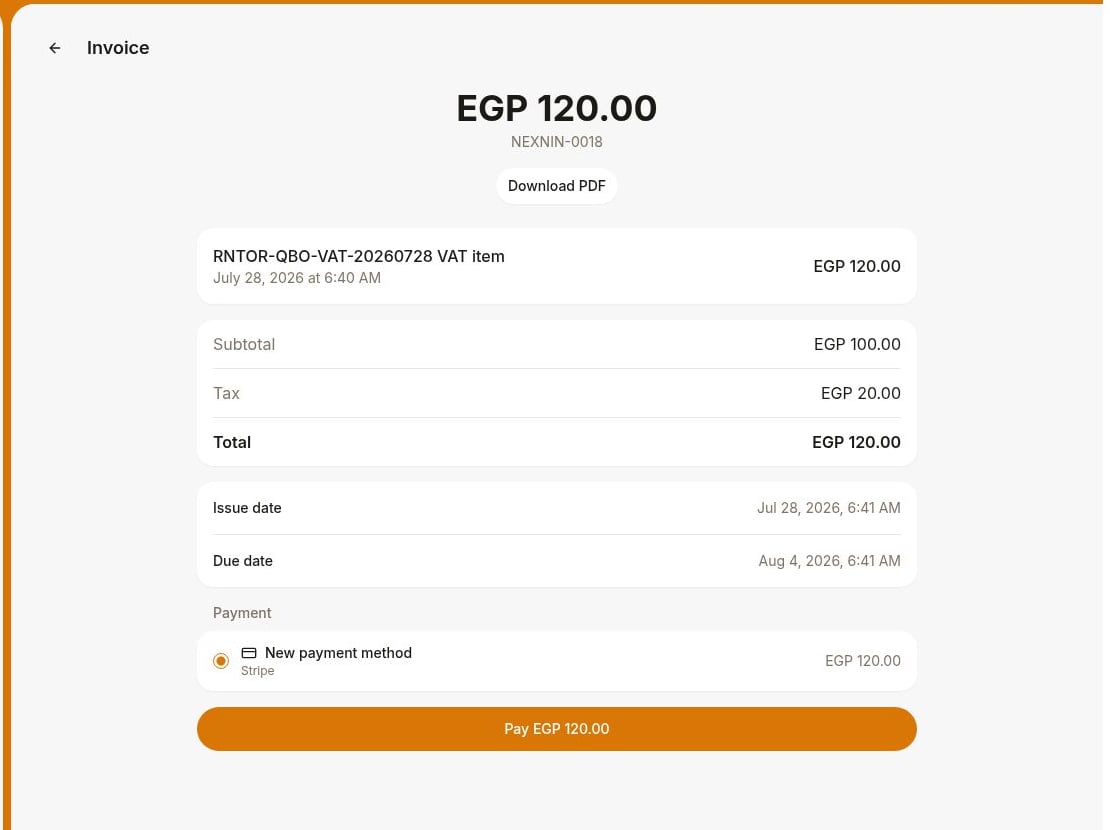
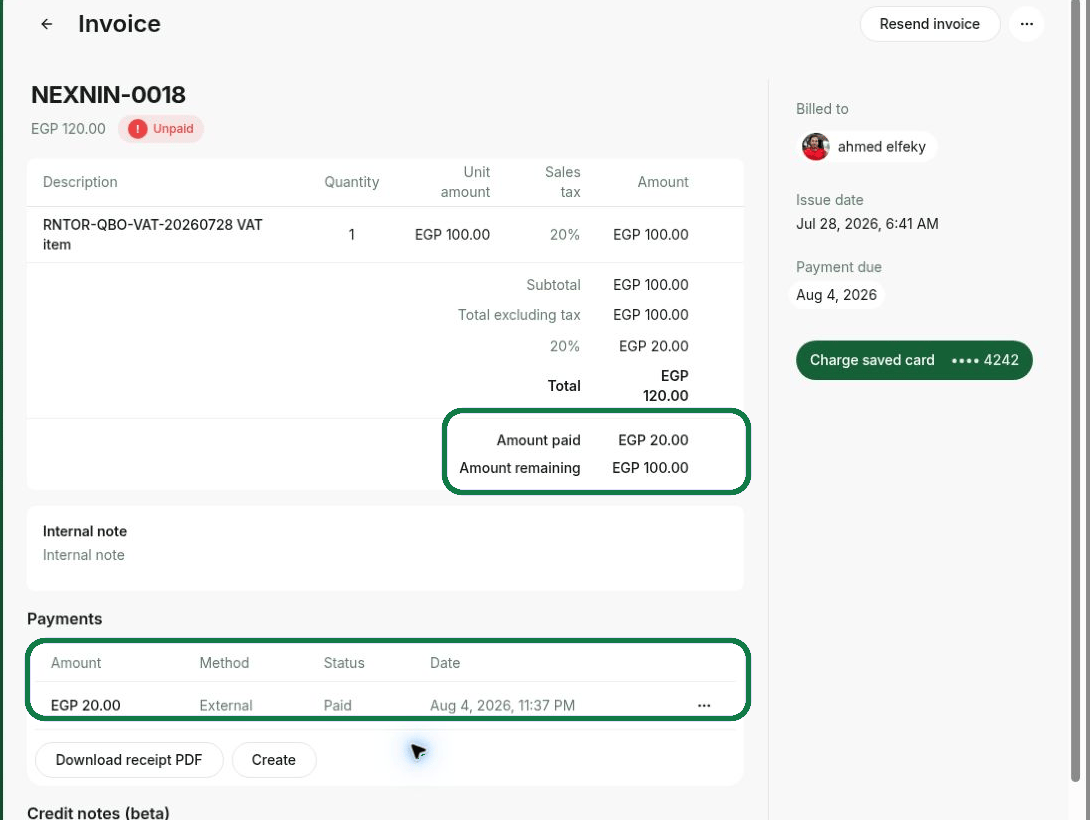
Administrators can record a full or partial payment against an invoice—either by charging the customer’s saved payment method or by logging a payment received outside RNTOR. This keeps your financial records accurate and auditable.Use cases
- Record a partial payment when a customer doesn’t pay the full balance at once.
- Log a payment received outside RNTOR, such as cash, check, or bank transfer.
- Retry a failed payment to collect on an unpaid invoice.
Create invoice payments
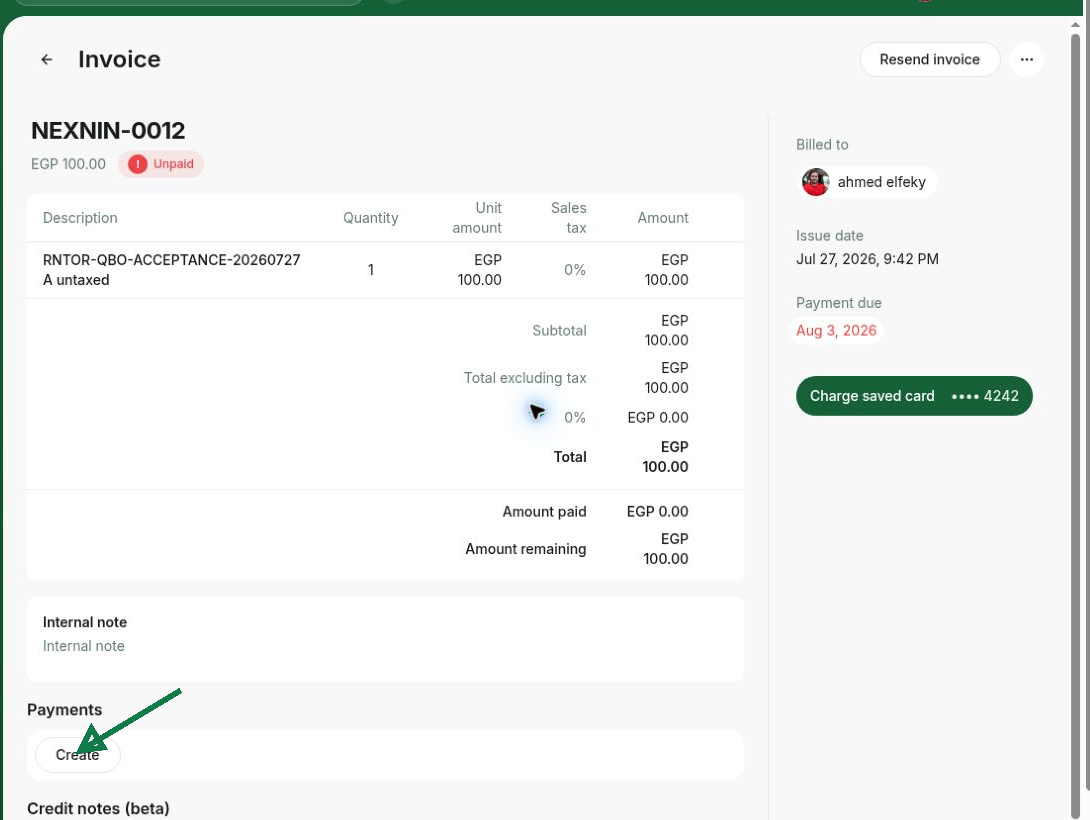
- Go to Billing > Invoices and open the invoice.
- In the Payments section, press Create.
-
Enter the amount and select the payment method:
- Select the customer’s saved payment method to charge them now.
- Select External if the customer already paid with cash, check, or bank transfer.
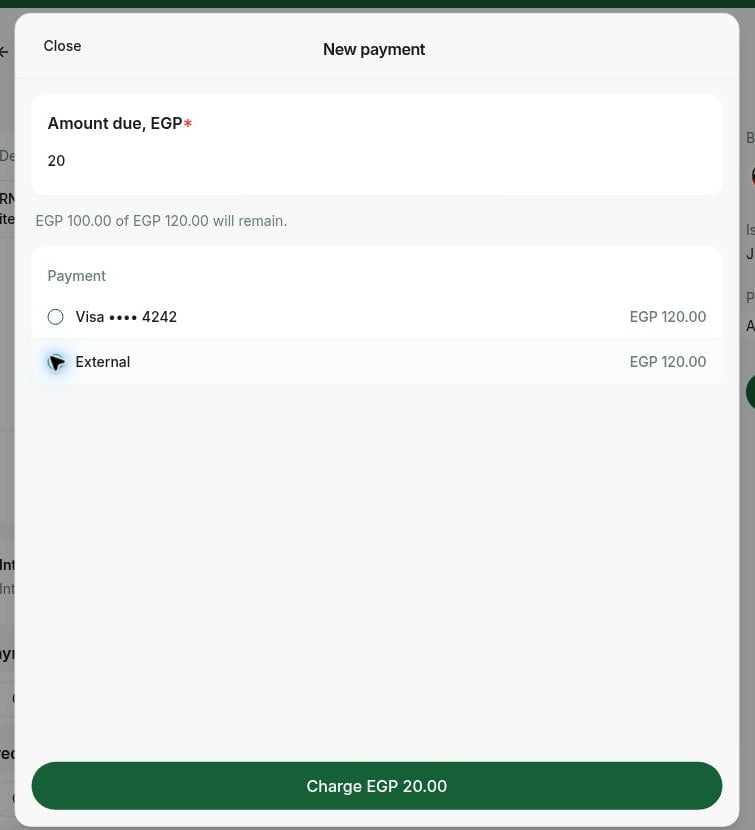
- Press Charge.
You can charge the invoice only if the customer has a saved payment method.
FAQs
How can I check what payment gateway the user paid with for the invoice?
How can I check what payment gateway the user paid with for the invoice?
To find out what payment gateway the user paid with for the invoice, follow the next steps:
- Navigate to Analytics > press the Create report button in the top right and select the Invoices type.
- Set the necessary start and end dates and status, and press Download.
- Find the necessary invoice and check the Payment type row to see the payment gateway.