

Manage customer’s money balance
Administrators can view and manage the customer’s money balance in the customer’s profile.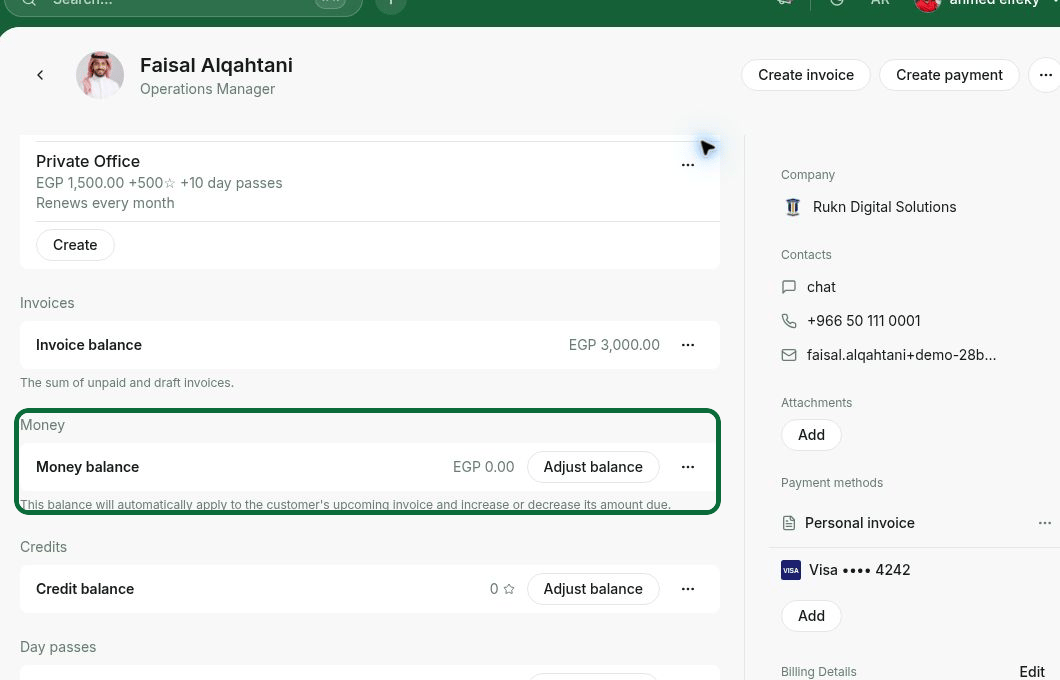
Automatic increase by issuing a credit note
- If you issue a credit note on an invoice with Paid status and choose Customer balance in the Add credit option property, the credit amount will automatically be added to the customer’s money balance and applied to their next invoice.
- If you issue a credit note for an invoice that already has an applied balance, and the total credit amount becomes greater than the invoice total, the difference is automatically added to the customer’s Money balance and applied to their next invoice.
Manual adjustments by administrator
Administrators can also manually adjust the customer’s balance to add or deduct funds.- Navigate to the customer’s profile.
- Next to Money balance, click Adjust balance and select the adjustment type.
- Enter the Amount to be added or deducted.
- Type a reason in the Internal note field. This helps your administrator team track and recognize the adjustment later.
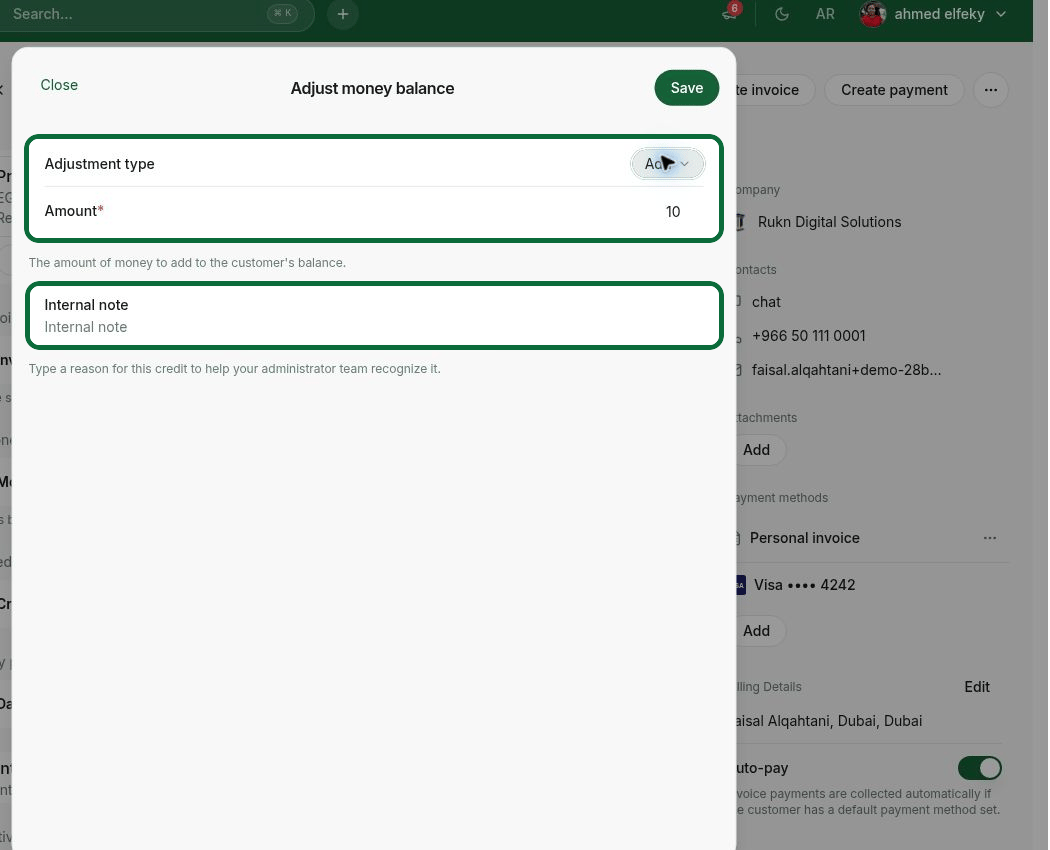
Customers don’t receive notifications about adjustments made to their balance.
How money balance works
When the customer’s next invoice is issued, the money balance is automatically applied to its total post-tax amount due. It is reflected on the invoice as Applied balance.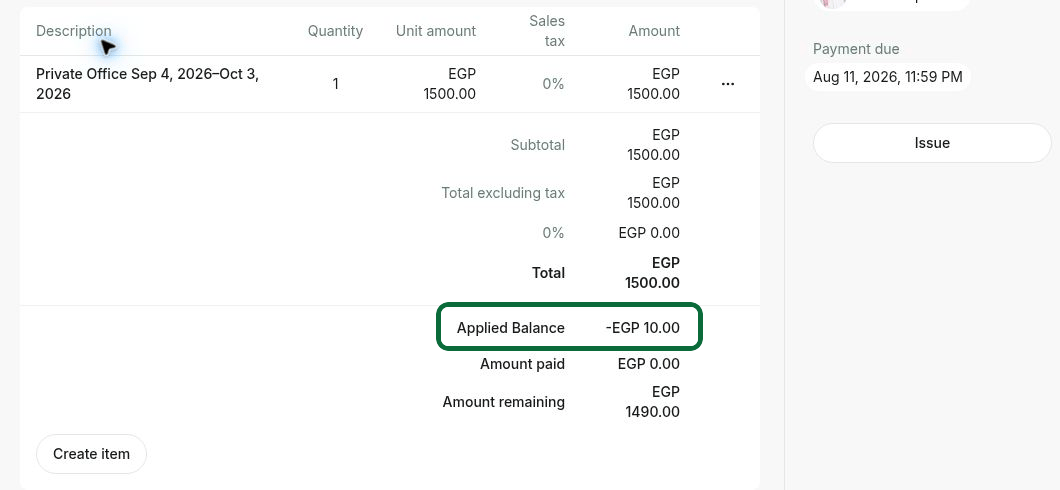
Track balance adjustments
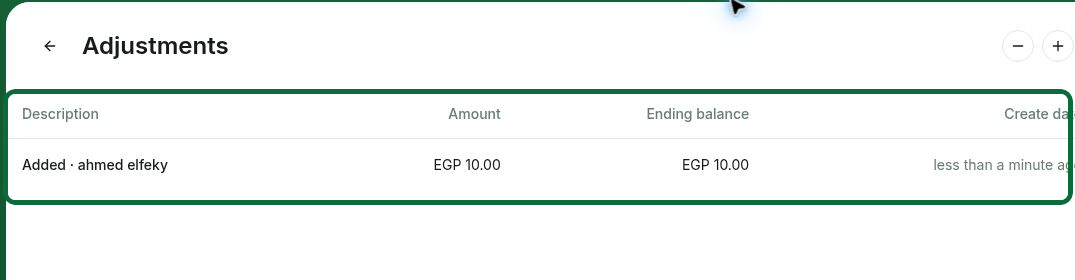
All changes to the customer’s money balance are recorded on the Adjustments page. To locate it, press the (…) menu button and select View adjustments.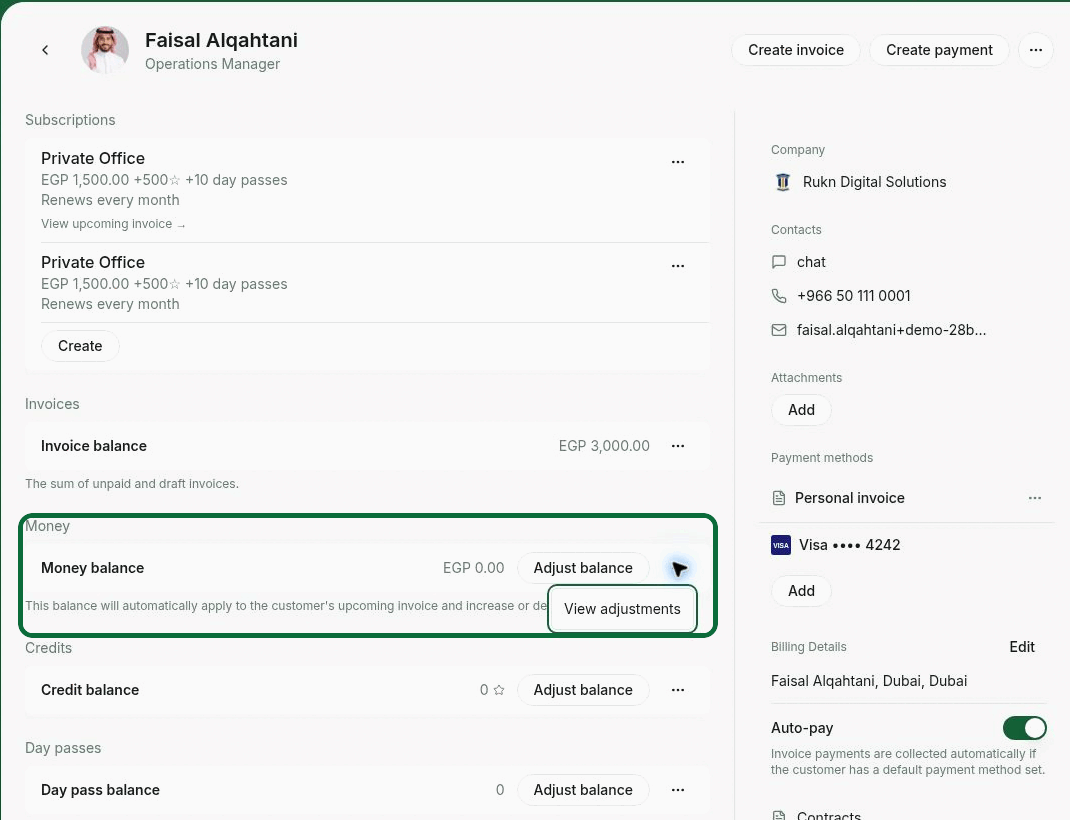
- Automatic increases with credit notes
- Manual adjustments by administrators
- Automatic application of the balance to invoices
How customers view their money balance
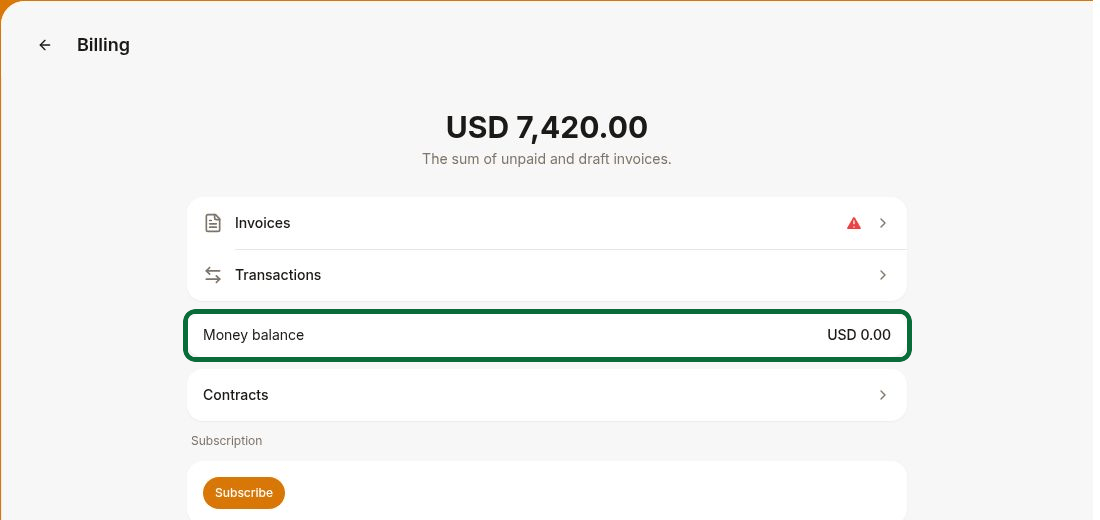
- Customers go to the Membership page in the member web portal or mobile app.
- In the personal or company section, open the Billing page.
- Check Money balance.
FAQs
When is it best to use the money balance, and when a credit note?
When is it best to use the money balance, and when a credit note?
- It’s best to issue a credit note when you need to reduce an already issued invoice.
- The money balance is ideal for recording a credit or debit that should be applied to the customer’s next invoice or invoices.