

Add billing details
- Go to Location settings > General > Billing details tab.
- Fill out your space’s Legal business name, Address, Tax ID, and Contact details.
- If your business is located in a country that requires additional bank or payment details, fill out the relevant billing fields or invoice footer. You can also configure QR-bill invoices.
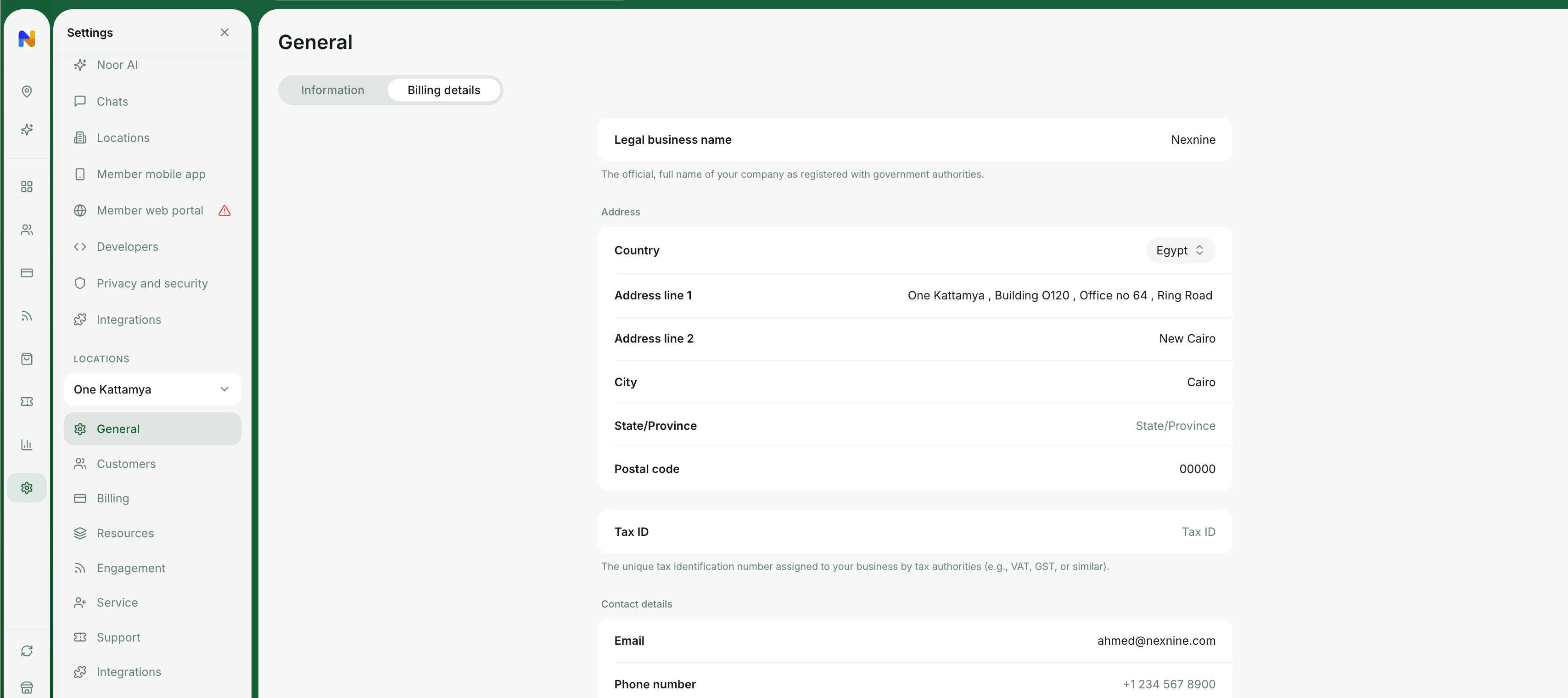
Changes to billing details apply only to newly issued invoices and receipts. Previously issued invoices will remain unchanged.
Configure subscriptions settings
- Go to Location settings > Billing > Subscriptions tab.
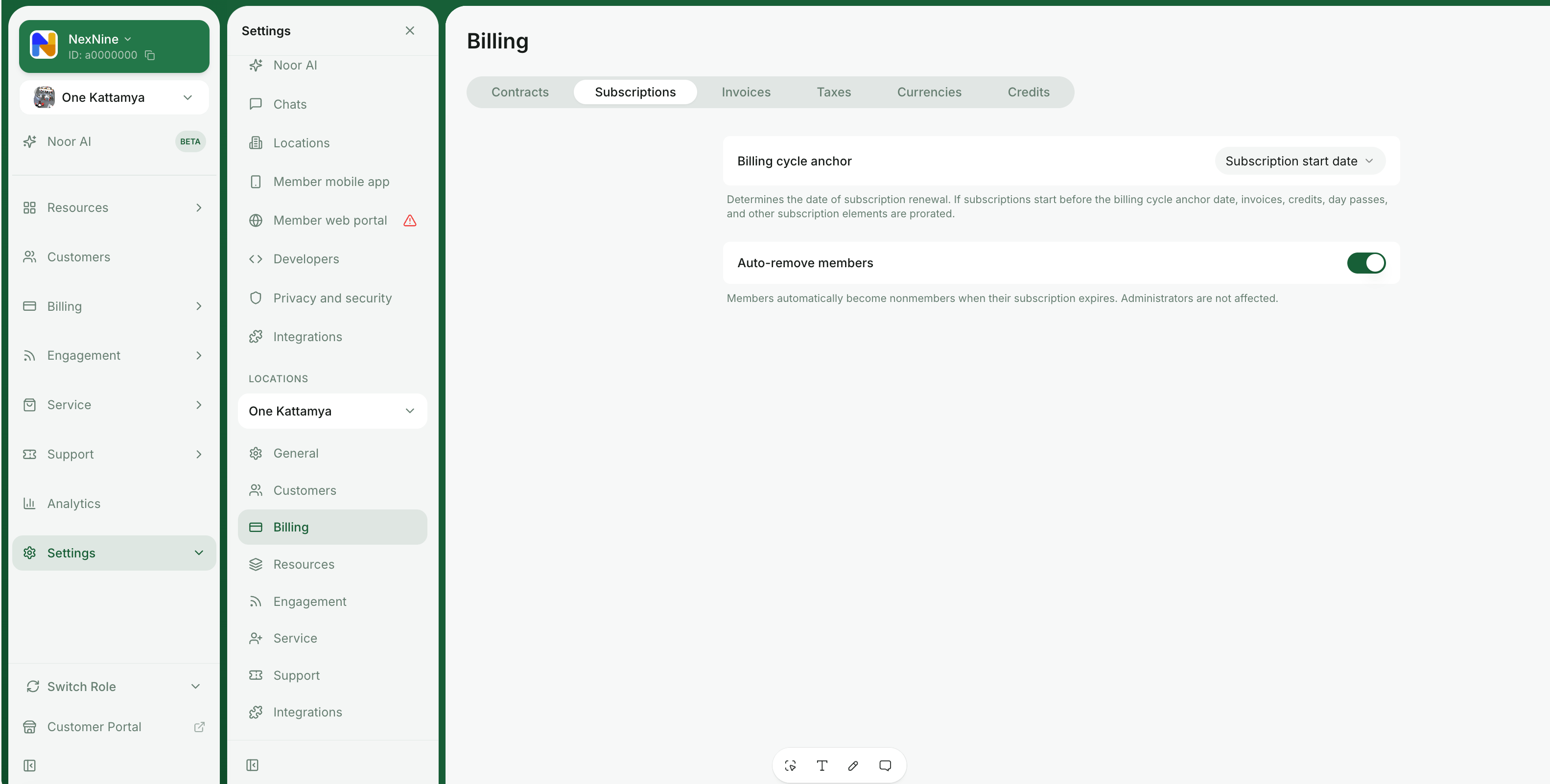
Subscriptions settings
Configure invoice settings
- Go to Location settings > Billing > Invoices tab.
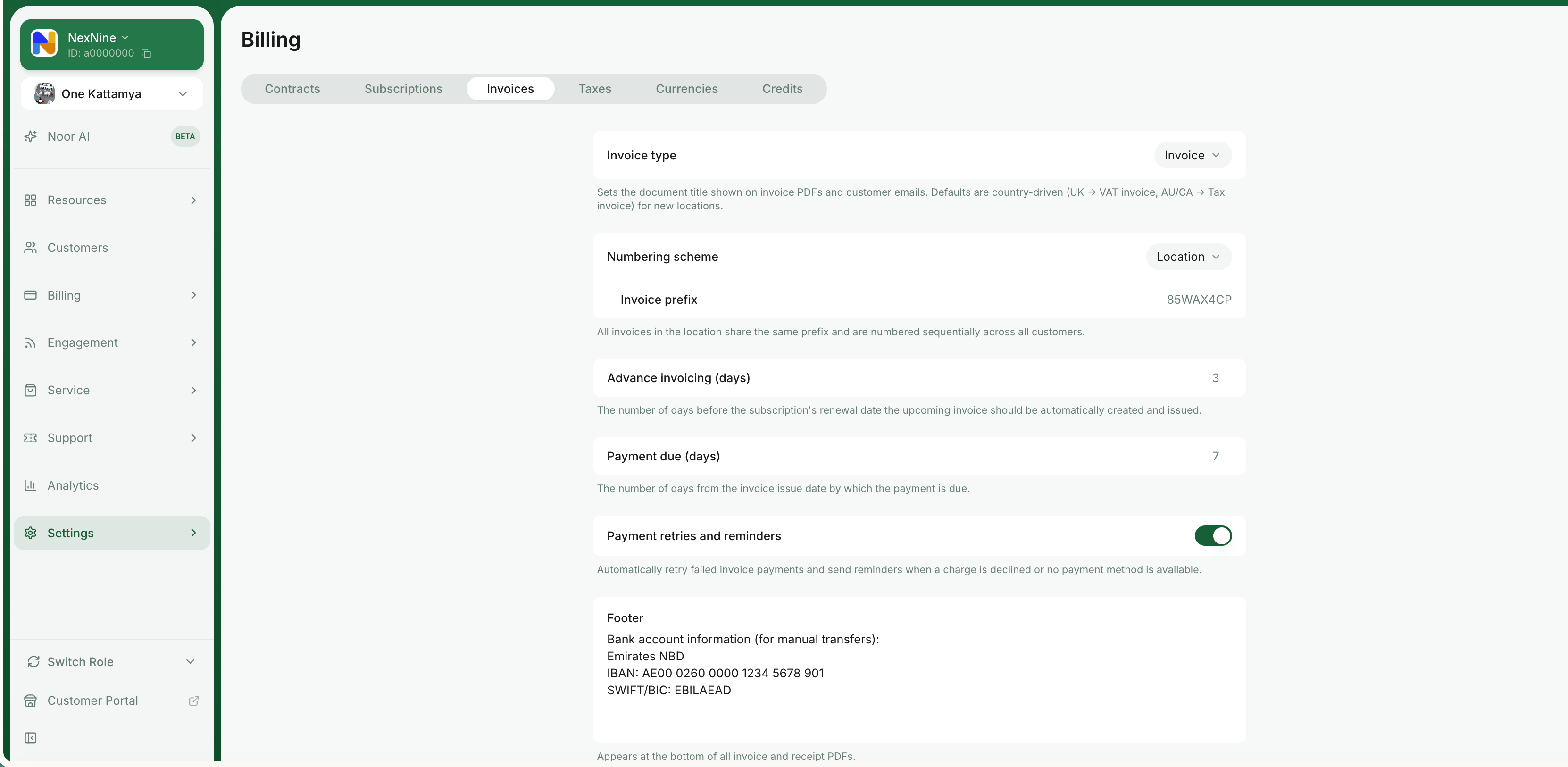
Invoice settings
- If your country is Belgium or Spain, you can enable eInvoicing.
- Choose the “Invoice type”:
- Invoice — all invoices and related emails will be titled “Invoice”.
- Proforma invoice — all invoices and related emails will be titled “Proforma invoice”.
- VAT invoice — all invoices and related emails will be titled “VAT invoice”.
Set by default if your location country is the UK. - Tax invoice — all invoices and related emails will be titled “Tax invoice”.
Set by default if your location country is Australia or Canada.
- In the “Numbering scheme”, choose how invoice numbers are generated for your location: Note: This setting also affects contract titles, which follow the same numbering scheme.
- Customer — each customer will have their own invoice prefix. Invoices for every customer will be numbered sequentially within their individual series.
- Location — invoices within the location will share the same prefix and be numbered sequentially across all customers. The invoice prefix is generated automatically when the location is created.
- Use the Advance invoicing field to schedule how many days before their subscription renewal date customers should receive invoices. It is useful if you want customers to receive and settle invoices earlier than their next subscription period begins.
- Specify the Payment due number of days after the invoice issuance date. RNTOR automatically calculates and sets the due date for each invoice. You can customize the payment due for individual invoices.
- Manage Payment retries and reminders.
- Fill in the Footer field to add extra details appearing at the bottom of all invoice and receipt PDFs. For example, your bank account if you accept manual transfers.
- In the Accounting email field, add your accounting system’s inbox email. All invoices and receipts from this location will be sent to this email. Integrate with your accounting app.
Configure taxes
- Go to Location settings > Billing > Taxes tab.
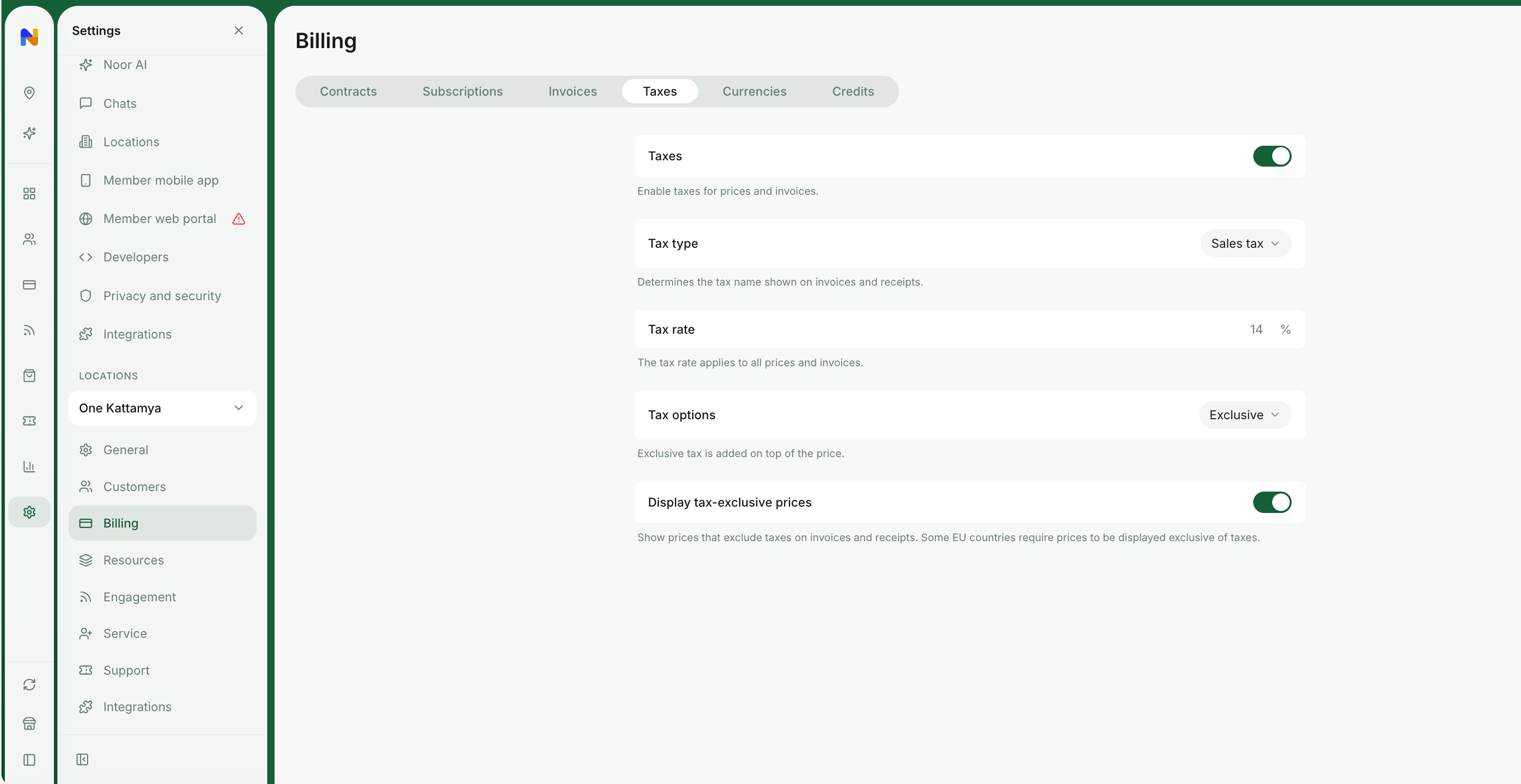
Taxes settings
Configure currencies
- Go to Location settings > Billing > Currencies tab.
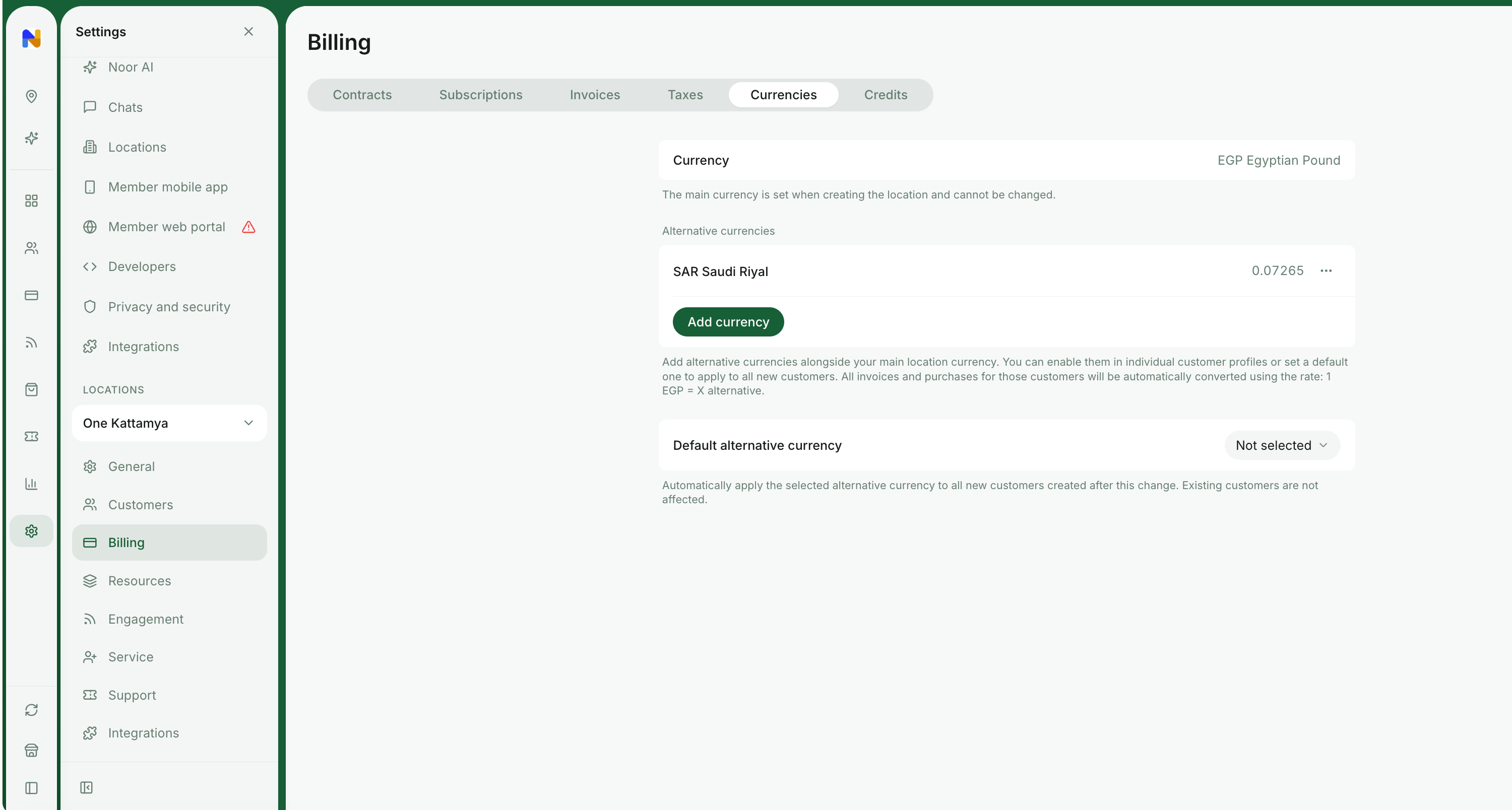
Currencies settings
- If needed, add alternative currency(-ies) alongside your main location currency. You can then apply them to convert invoices and purchases for all or specific customers.
- Select a Default alternative currency to apply to all new customers. This setting affects only users who register after the change.
If you only need to apply the alternative currency to specific customers, keep the Default alternative currency not selected.
FAQs
Our billing details have changed. How to update them in the system so that new billing details appear on invoices?
Our billing details have changed. How to update them in the system so that new billing details appear on invoices?
To update billing details on invoices sent to your customers:
- Go to Location settings > General > “Billing details” tab.
- Update your legal business name, address, or tax ID.
- Go to Location settings > Billing > “Invoices” tab.
- Update the invoice “Footer”, if needed.
- As an owner, go to Merchant settings > Billing page.
- In the “Billing details” section, click
Edit.
Why do some users not receive invoices automatically?
Why do some users not receive invoices automatically?
There are several reasons why a member might not receive their invoice:
- Email delivery issues: The email address on file may be incorrect, or the invoice email may be blocked by spam filters. Double-check that the member’s email is accurate and active.
- Spam or junk folder: Invoices might be delivered, but end up in the member’s spam or junk folder. Encourage members to check these folders and mark the sender as safe.
- Paused payment collection: Payment collection may be paused for the customer’s subscription, which means their invoices won’t be auto-issued.
- No company manager assigned: If the invoice is meant to be sent to a company, make sure a company manager has been assigned. Without one, the invoice is generated but not delivered to anyone.