

Configure notification preferences
Admin notifications fall into two main categories:- Activities related to other users’ accounts
- Integration errors and disconnections
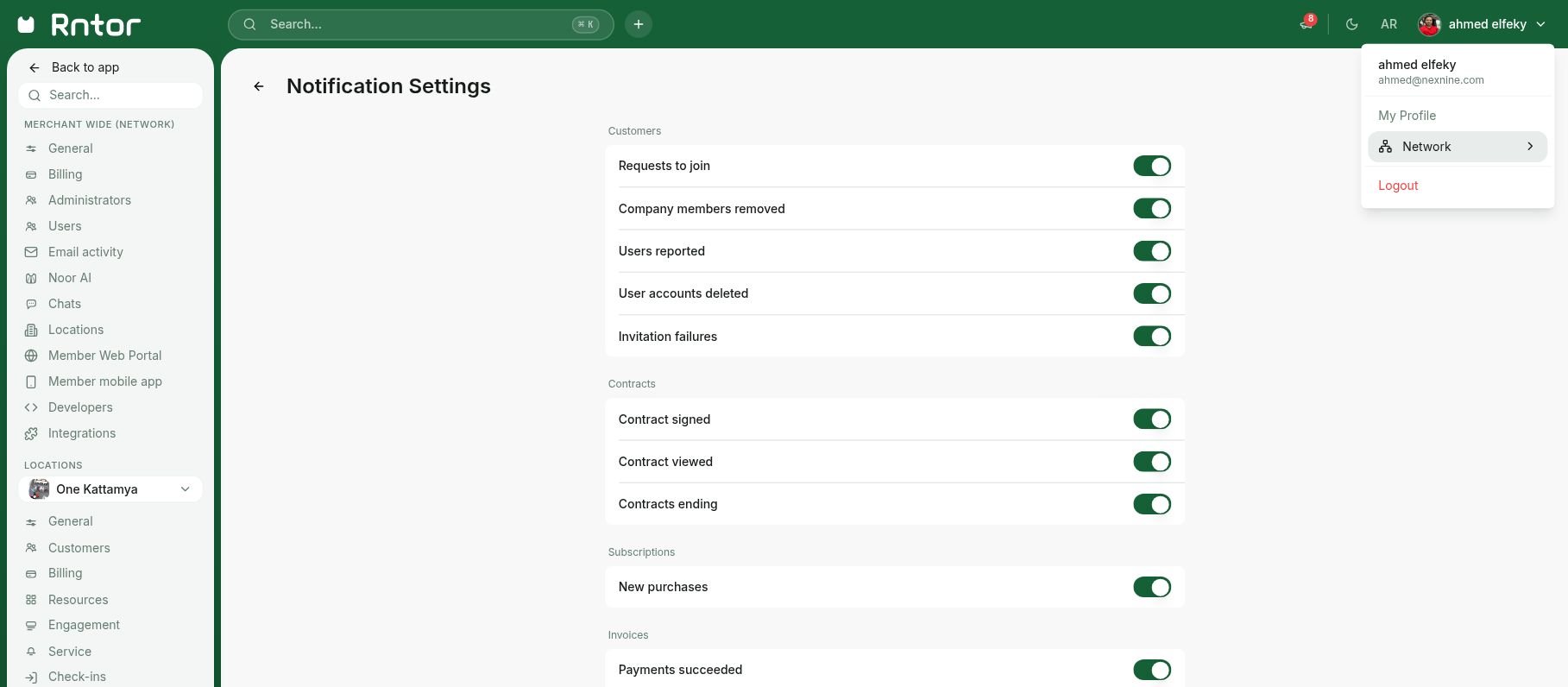
- Open your profile menu in the top bar and select My Profile.
- Go to Notifications.
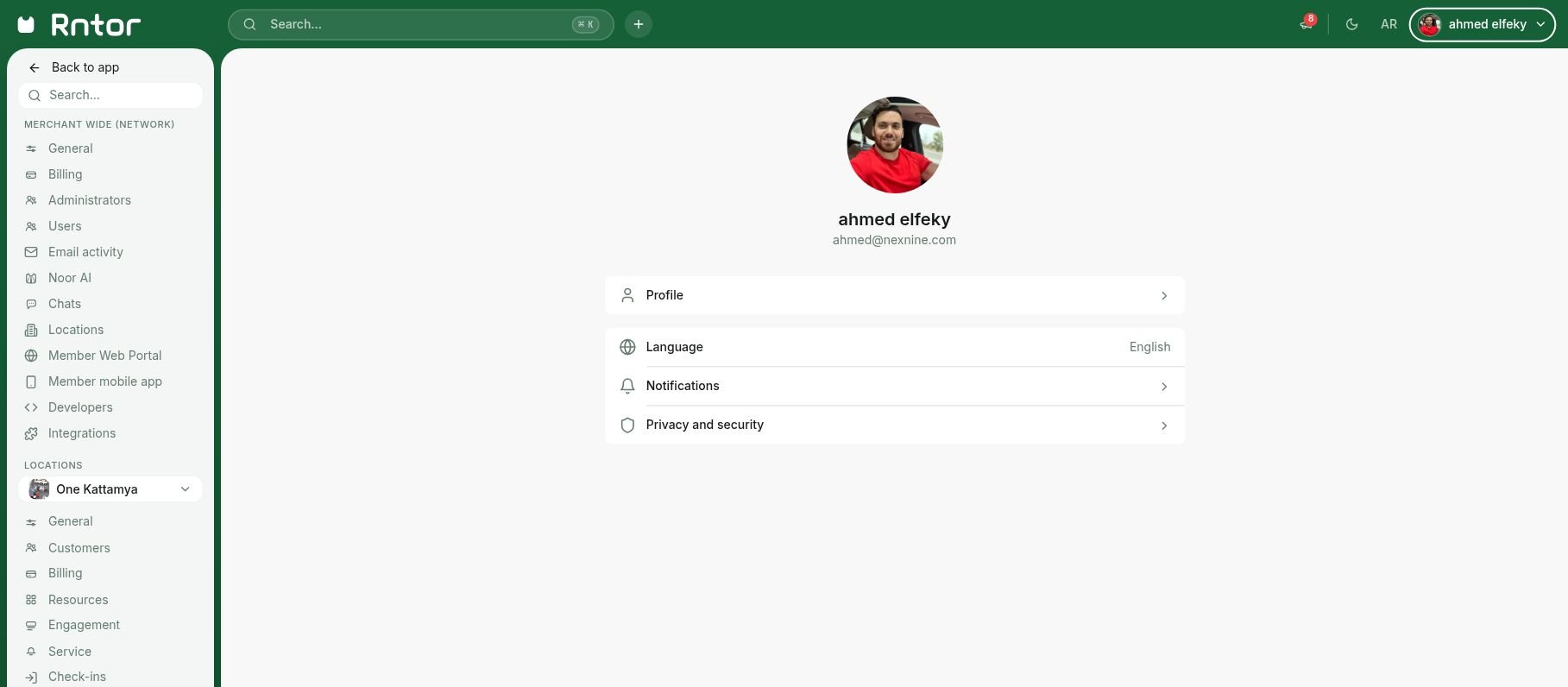
- Toggle the switches for the notifications you want to receive:
For bookings, administrators can also choose whose bookings trigger notifications:
- Administrators
- Location members
- Network members
- Nonmembers
Nonmembers’ and invoice activity notifications are enabled by default.
Administrators receive notifications only about user activities they can manage according to their permissions.
Track notifications
Use three channels to follow the activities you enable:- Inbox: view and manage notifications in the admin portal.
- Push notifications: enable the channel and allow notifications in your browser.
- Email: optionally receive the same enabled notifications at your account email address.
Push notifications
In My Profile > Notifications, scroll to Channels and enable Push notifications. Allow Rntor notifications when your browser asks. If permission was previously blocked, update the browser’s site permissions before trying again.Desktop (admin web portal)
Administrators must grant notification permissions for RNTOR in their browser settings. Follow the guidelines for your browser: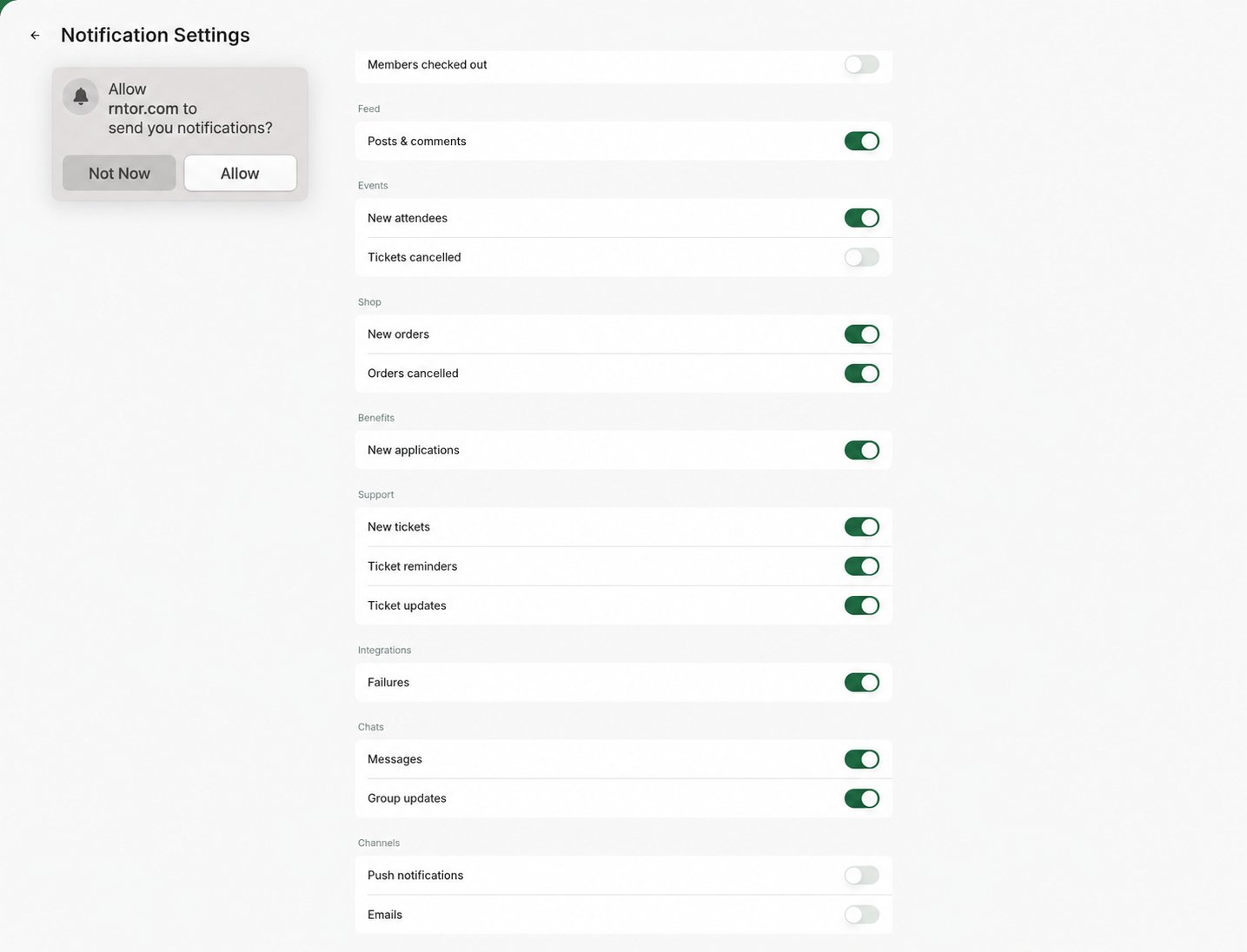
Email notifications
In addition to push notifications, you can choose to receive all enabled notifications by email. Go to the My Profile > Notifications page and enable the Emails switch at the bottom.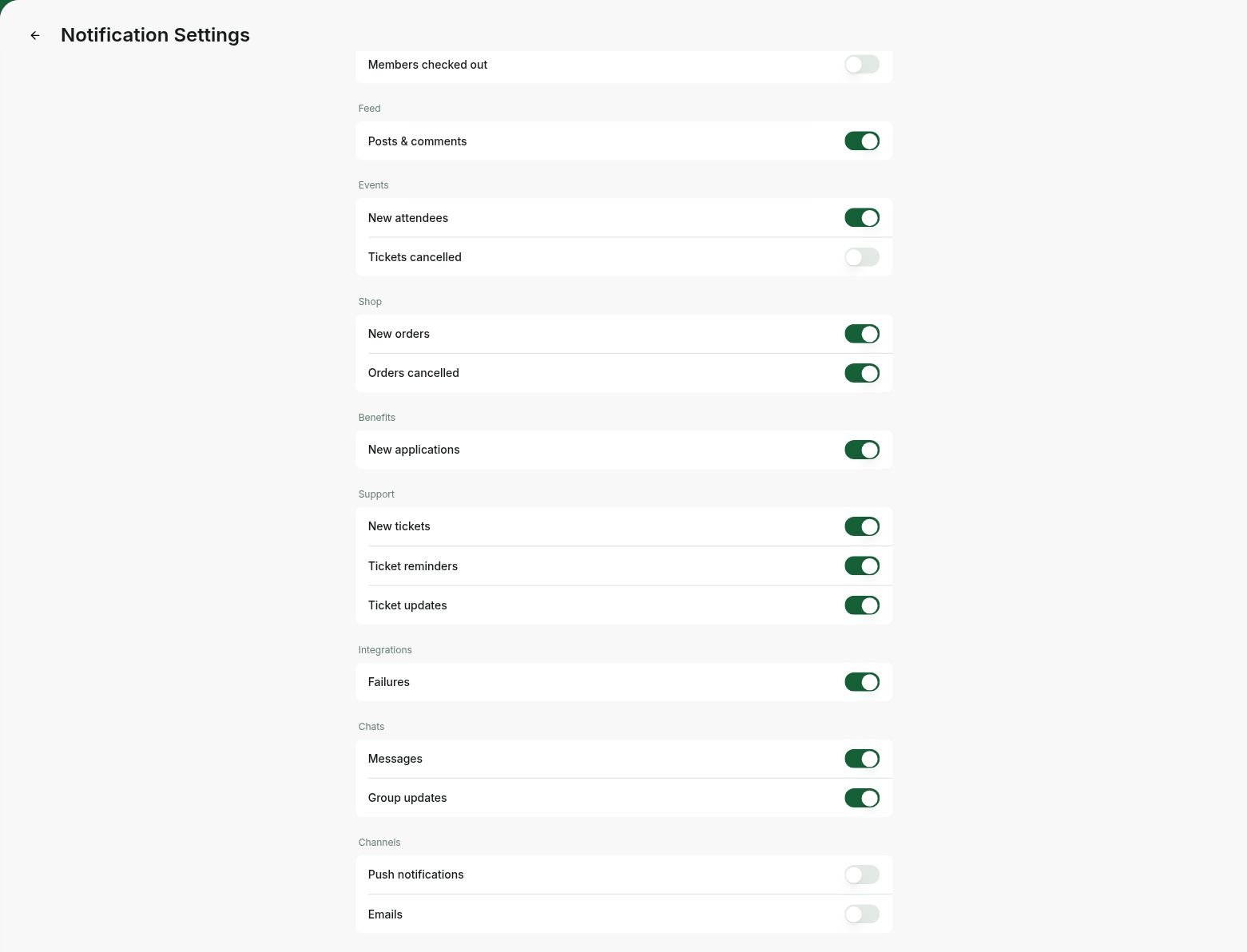
If an administrator logs out or disables push notifications in their browser or device, RNTOR cannot deliver push notifications to them. If email notifications are enabled, they will receive notifications by email instead.
Inbox in your admin portal
Enabled admin notifications appear in RNTOR on the Inbox page — your main page to stay up-to-date with everything happening in your admin and member portals.The Inbox was previously called Notifications. It’s the same feature under a new name and interface. All the same notifications still appear here and work exactly as before.
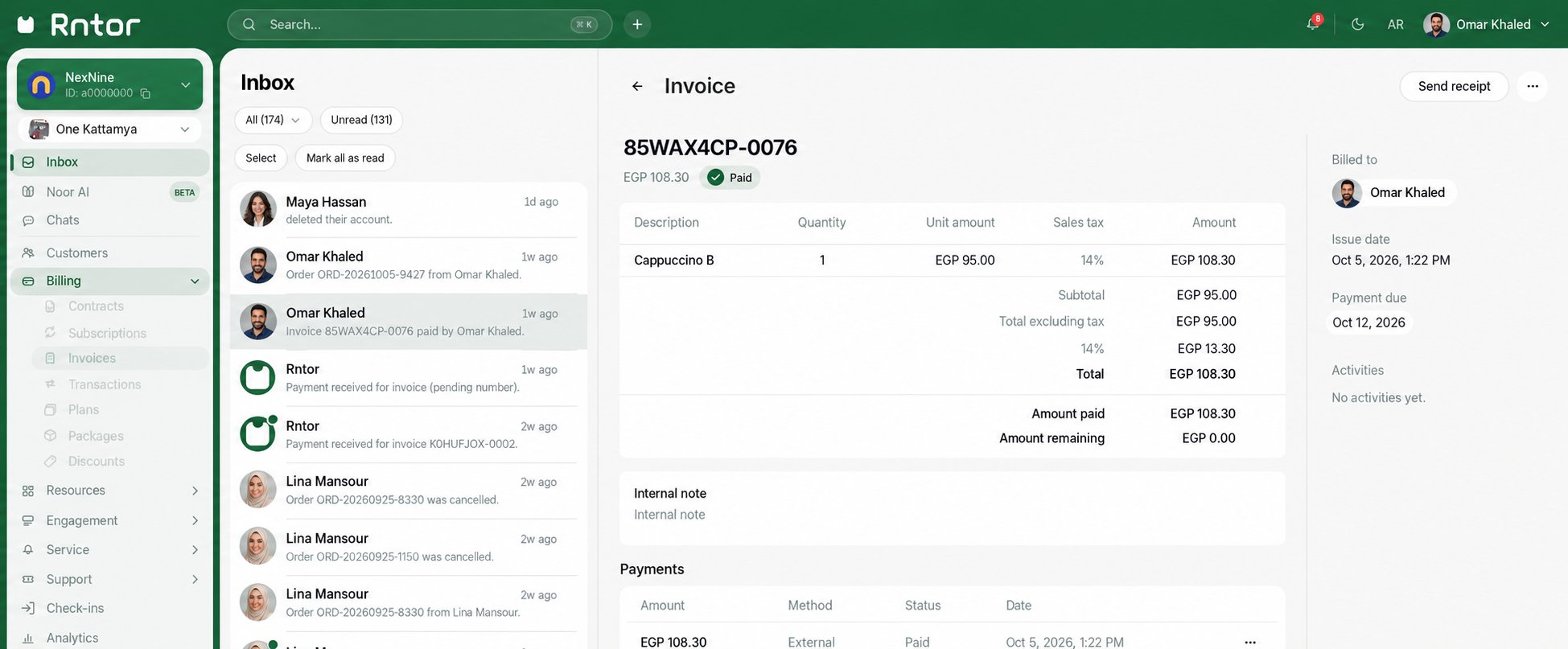
- Each notification shows the name of the user or company, a description of their action, and the RNTOR service they interacted with (a resource, a plan, a product, and so on).
- Click a notification to preview its item alongside the list; double-click to open the item directly.
- A dot marks unread items. Use Unread to show them, and the category menu to narrow the list.
- Select Mark all as read to mark your notifications as read.
- Use Select to mark or dismiss selected items. Dismissing a notification removes it from your Inbox, without deleting the related item.
Administrators receive notifications only about other users’ bookings and actions. You won’t receive notifications about your own actions.
FAQs
I am not getting admin notifications about certain user activity. What should I do?
I am not getting admin notifications about certain user activity. What should I do?
- Check your notification settings:
- Open your profile menu in the top bar and select My Profile.
- Go to My Profile > Notifications.
- Ensure that notifications for the specific user activity and user group you’re interested in are enabled.
- If you’re not receiving push notifications, check in your device or browser settings that you’ve allowed receiving notifications from RNTOR:
- In the admin web portal, enable Push notifications and allow push notifications via your browser.
- If you are not receiving email notifications, go to the My Profile > Notifications page and enable the Emails switch at the bottom.
- Check that you have permission to manage the activity at the relevant location.
How to set sending notifications about specific user activity to a certain email address?
How to set sending notifications about specific user activity to a certain email address?
There are two ways to set sending notifications to a certain email address.If the employee whose email address you want to notify is an administrator of your space:
- Invite them as an administrator to RNTOR.
- Set their administrator permissions, as needed, if your RNTOR plan allows for this feature.
- Ask them to log in to RNTOR, navigate to the My Profile > Notifications page, enable the desired notifications, and then toggle on the Emails switch at the bottom of the page.
- Create a Zapier automation designed to send emails.
- In the Trigger step, select RNTOR and choose the specific user activity event you wish to send notifications about.
- In the Action step, select your preferred email application (e.g., Gmail, Outlook) and enter the dedicated email address where you want to receive notifications.