

Delete a member company
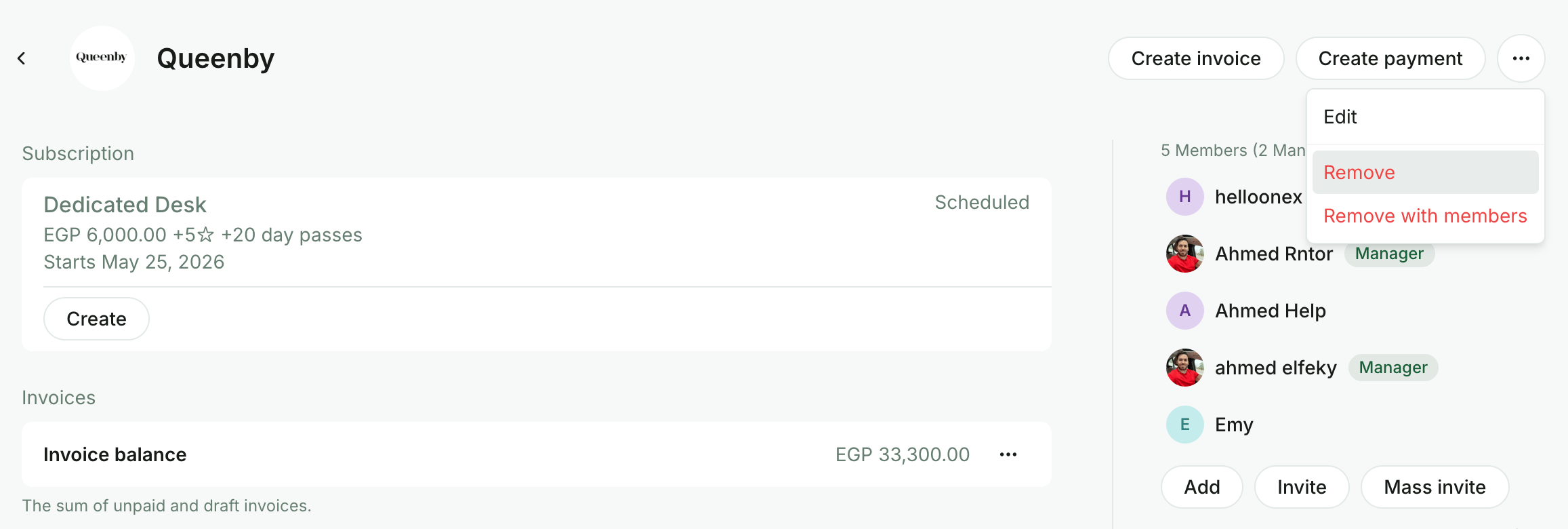
If you want to remove a company from the Customers page because it no longer rents a space or its contract has ended, follow these steps:- Go to Customers → click the necessary company → press the menu (…) top right.
- Choose one of the following options:
- Press
Removeif you want to move the company itself to Nonmembers, but keep its members on the Customers page under the Users tab. - Press
Remove with membersif you want to move the company together with all of its members to Nonmembers.
- Press
- Confirm your choice.
What happens when you remove a company from the Customers
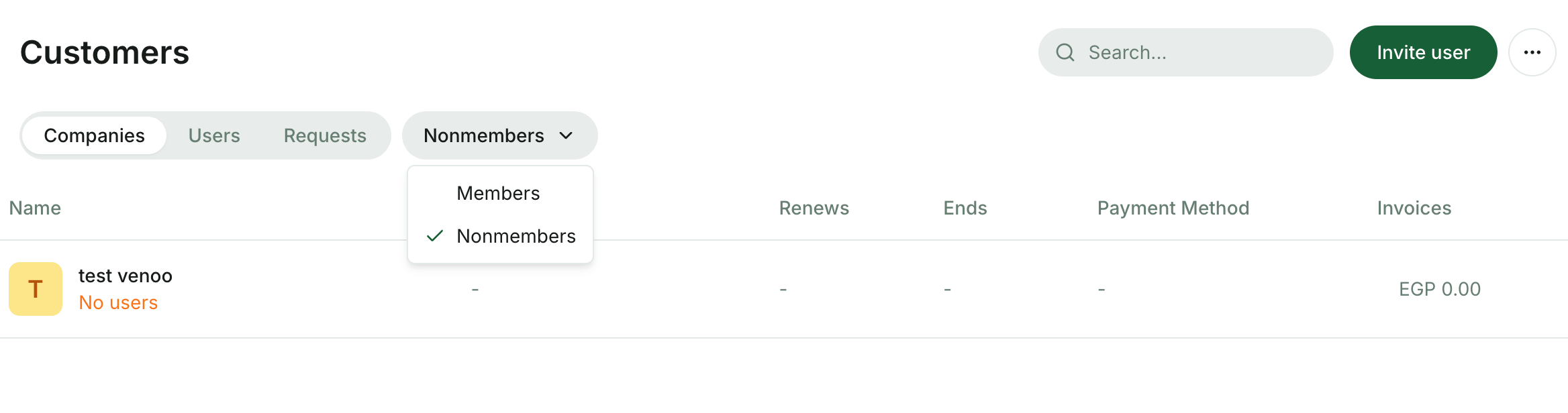
- The company becomes a nonmember and appears for administrators on the Customers → Nonmembers page.
- The company’s active subscription is automatically deactivated.
- The company’s default payment method remains attached for further charges if needed.
- The history of the company’s credits, payments and invoices is preserved.
- The company disassociates from company members. Nonmember companies do not contain users.
- Administrators can restore the company at any time.
Delete a nonmember company
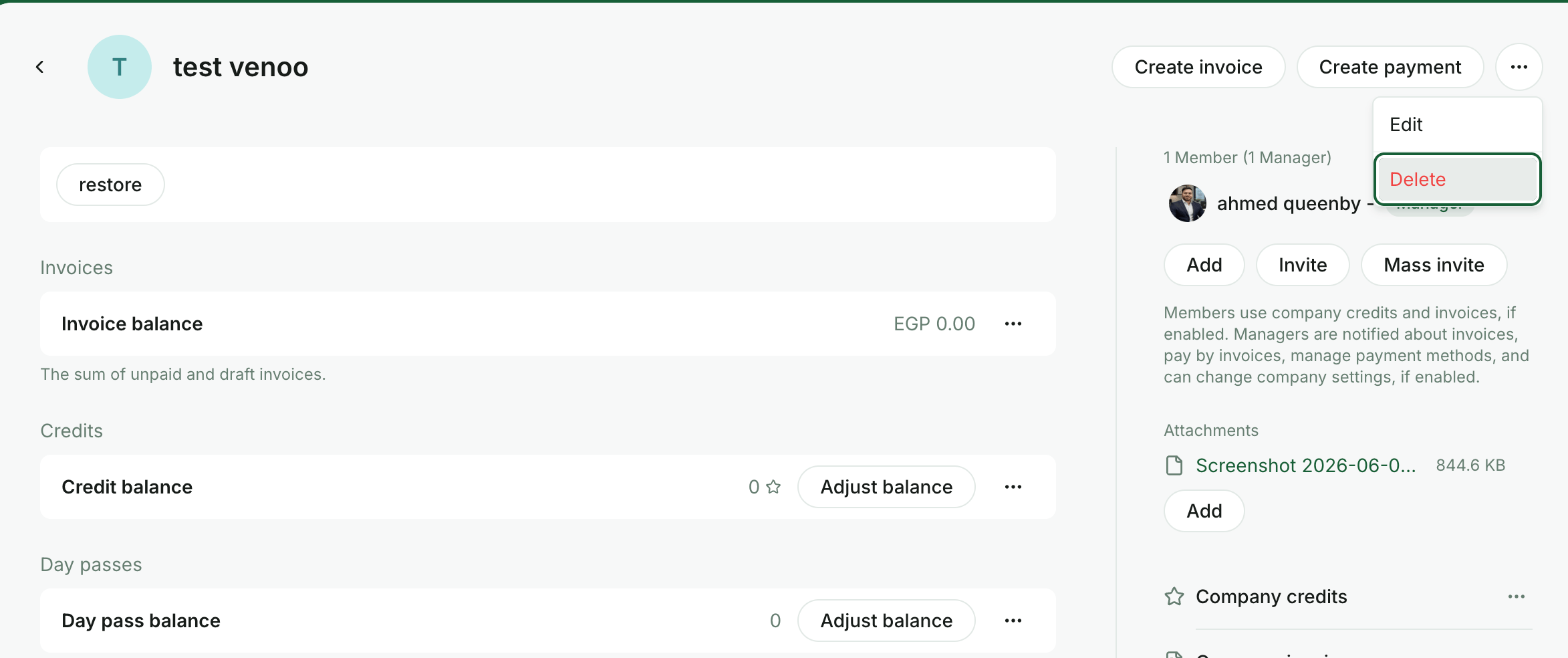
If you want to remove companies that are no longer needed, or clear your database, administrators can permanently delete a nonmember company from the location by following these steps:- Go to Customers page.
- Select the Nonmembers option in the drop-down list.
- Click the necessary company to open its profile.
- Press the menu (…) top right → select
Delete→ confirm your choice.
Restore a company
To move a company that appears on the nonmembers list back to the Customers page, follow these steps:- Go to Customers → menu (…) top right → Nonmembers tab.
- Select a company and tap
Restore.
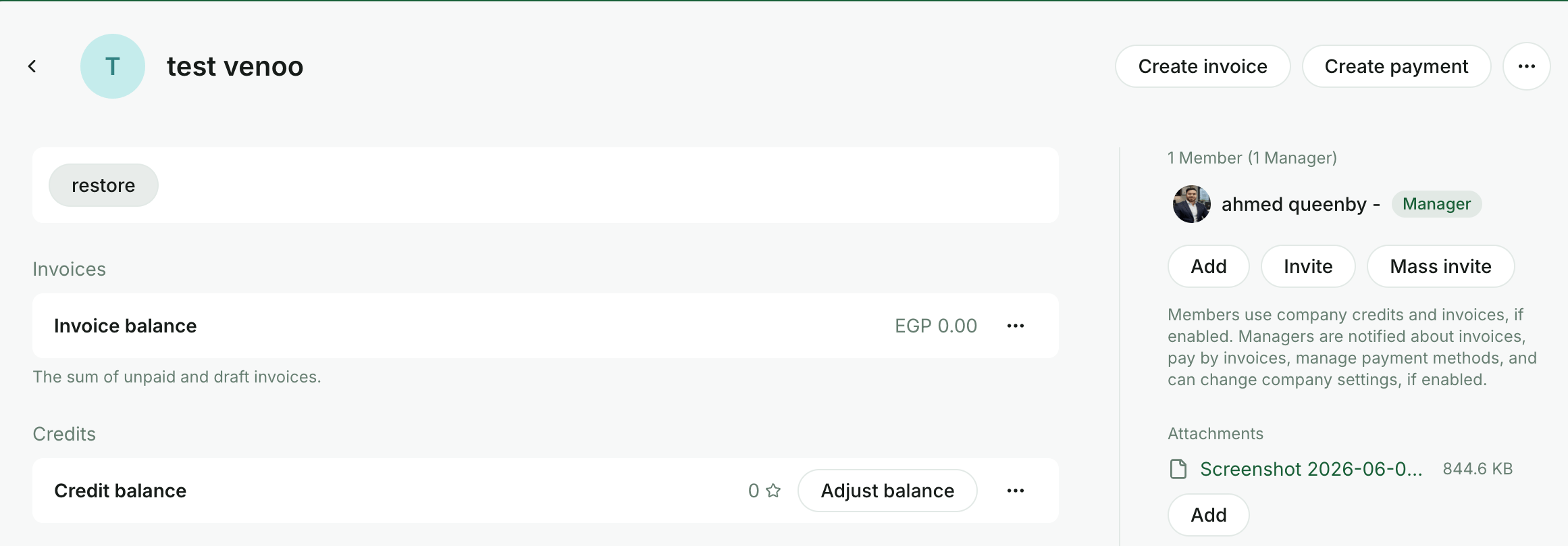
The company is restored to the Customers without the company users who belonged to the company earlier.