Create, issue, and manage digital contracts to formalize customer agreements
Contracts are individual agreements between you and your customers. The Contracts module provides a seamless, centralized way to store and manage all customer agreements in one place. Contracts are designed to simplify your onboarding process and ensure legal protection:- When you need members to formally sign off on liability waivers, building rules, or regulations, such as liability for damages or general conduct.
- To require a digital signature before a member is allowed to proceed to payment or activate their plan, ensuring compliance precedes financial commitment.
- To attach specific, separate legal agreements to individual membership plans.
- To eliminate the administrative burden of using third-party tools by allowing administrators to create, send, track, and file contracts seamlessly within Rntor.
- To generate contracts that automatically reflect the dedicated resource being leased, such as a specific desk or office, and link the document to the customer.
Prerequisites
To start using contracts, make sure you’ve completed the following prerequisites:- Enable the Contracts switch on the Location settings > Contracts page.
- Upload a contract template.
- Create your membership plans, resources, and one-off services.
Create a contract
- Go to the Billing > Contracts page.
- Press
Create contractin the top-right corner.

- Fill out the contract details:
- Customer
- Template
- Expiration date — set the deadline for signatories to sign. If the contract is not signed by that date, it will be automatically declined.
The expiration date cannot be in the past.
- Items — add recurring and/or one-off services the customer will receive under this contract.
- For each item, specify the quantity, adjust the unit price if needed, or apply a coupon discount.
You can apply coupons only to recurring items in contracts.
- Start date
- You can create backdated contracts, too.
- End renewal — select On date to specify an end date, or choose Never if the contract has no specific end date.
- Create subscription from contract
- If enabled, the customer’s subscription will activate automatically on the selected start date after all parties sign.
- If disabled, the administrator must manually create a subscription for the customer.
When adding both recurring and one-off items, the one-off items are included only on the customer’s first subscription invoice. They are automatically removed from the subscription after the first billing period.
- Issue invoice from contract
- If enabled, the customer will automatically receive an invoice containing the selected items when the contract is fully signed.
- If disabled, the administrator must manually issue the invoice to the customer.
- Signatories
- Enter the signatory’s name, email address, phone number (optional), and party: customer side or location side.
- You can add unlimited signatories on both sides.
- Drag and drop the signatories to define the order in which they should receive the contract email for signature when using eSignature.
The contract may have no location signatories, but it must have at least one customer-side signatory.
- Press
Create. Then review all details before issuing the contract.
Issue a contract
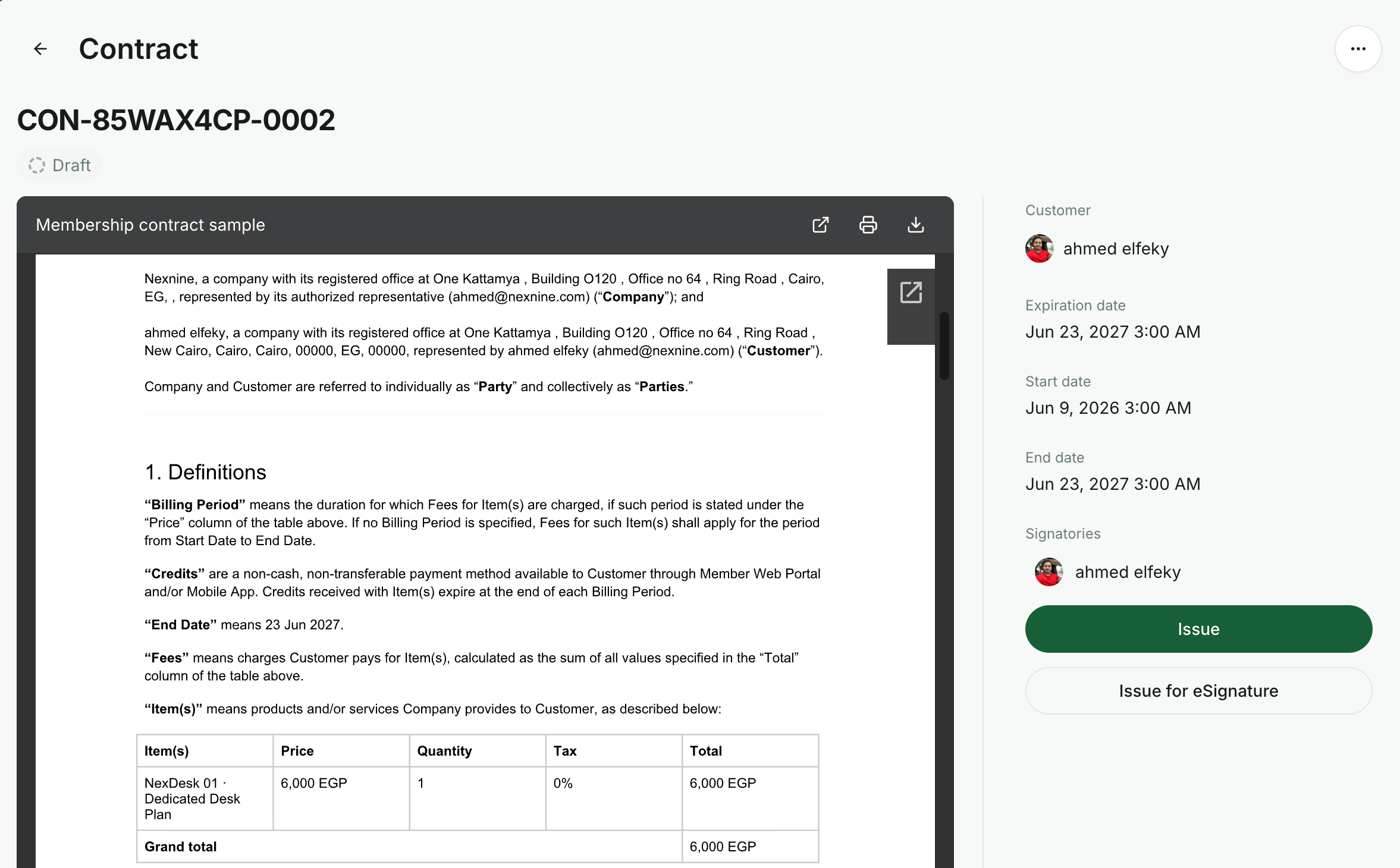
- Open the contract and select one of the following options:
- Press
Issueto collect the contract signature manually. - Press
Issue with eSignatureto collect the contract signature automatically.
- Press
- With eSignature, the customer receives an email and can sign the contract digitally. Learn how to issue contracts for eSignature.
- Without eSignature, share the contract with the customer externally for signature. In this case, the contract is not sent automatically.
Manage contracts
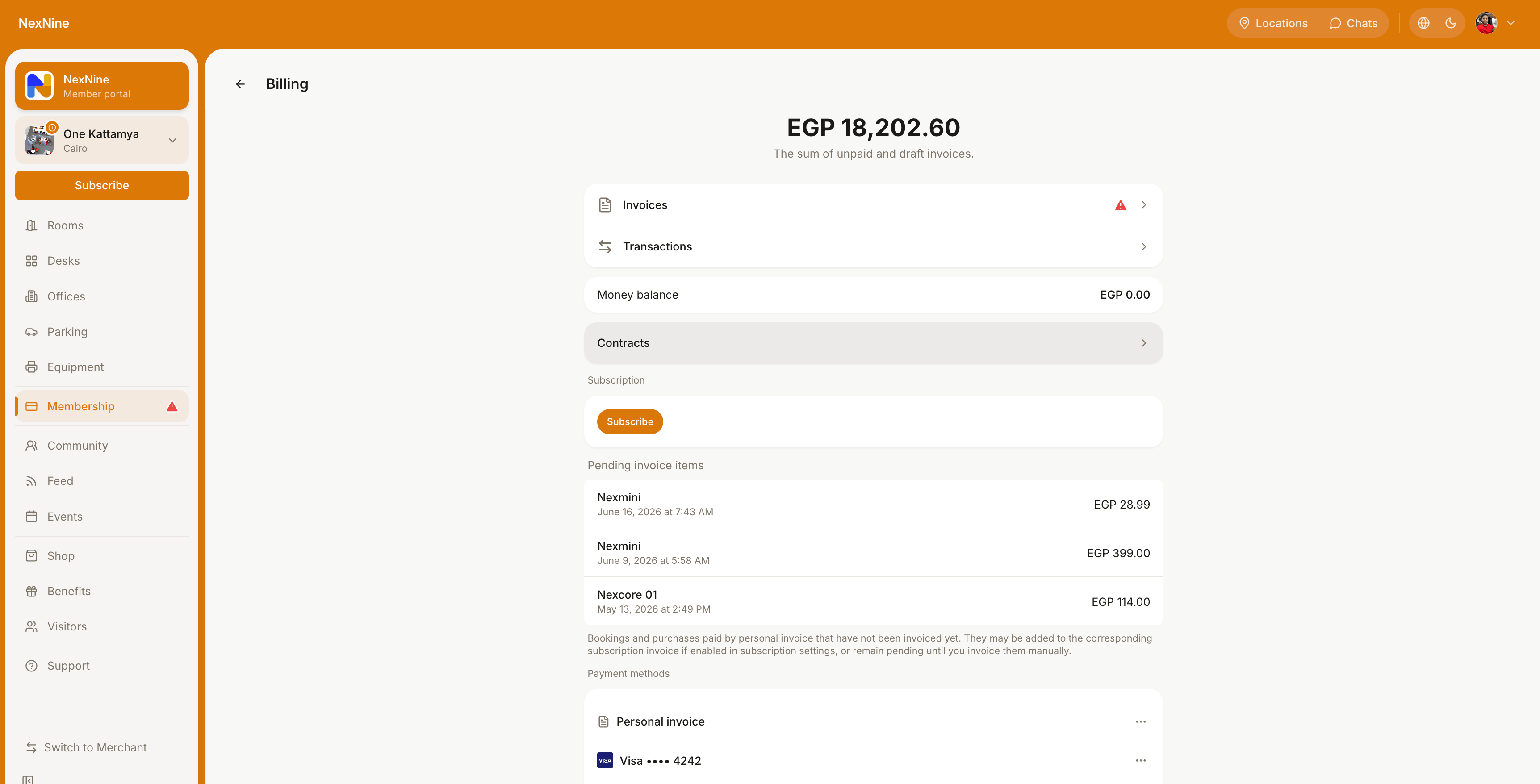
To view all contracts or find a specific customer contract, administrators:- Go to the Billing > Contracts page.
- Use the filters to find a specific contract by status or customer.
- Open the contract.
- Click the (…) button in the top-right corner.
- Select
Editto adjust the contract details orDeleteto remove the draft.
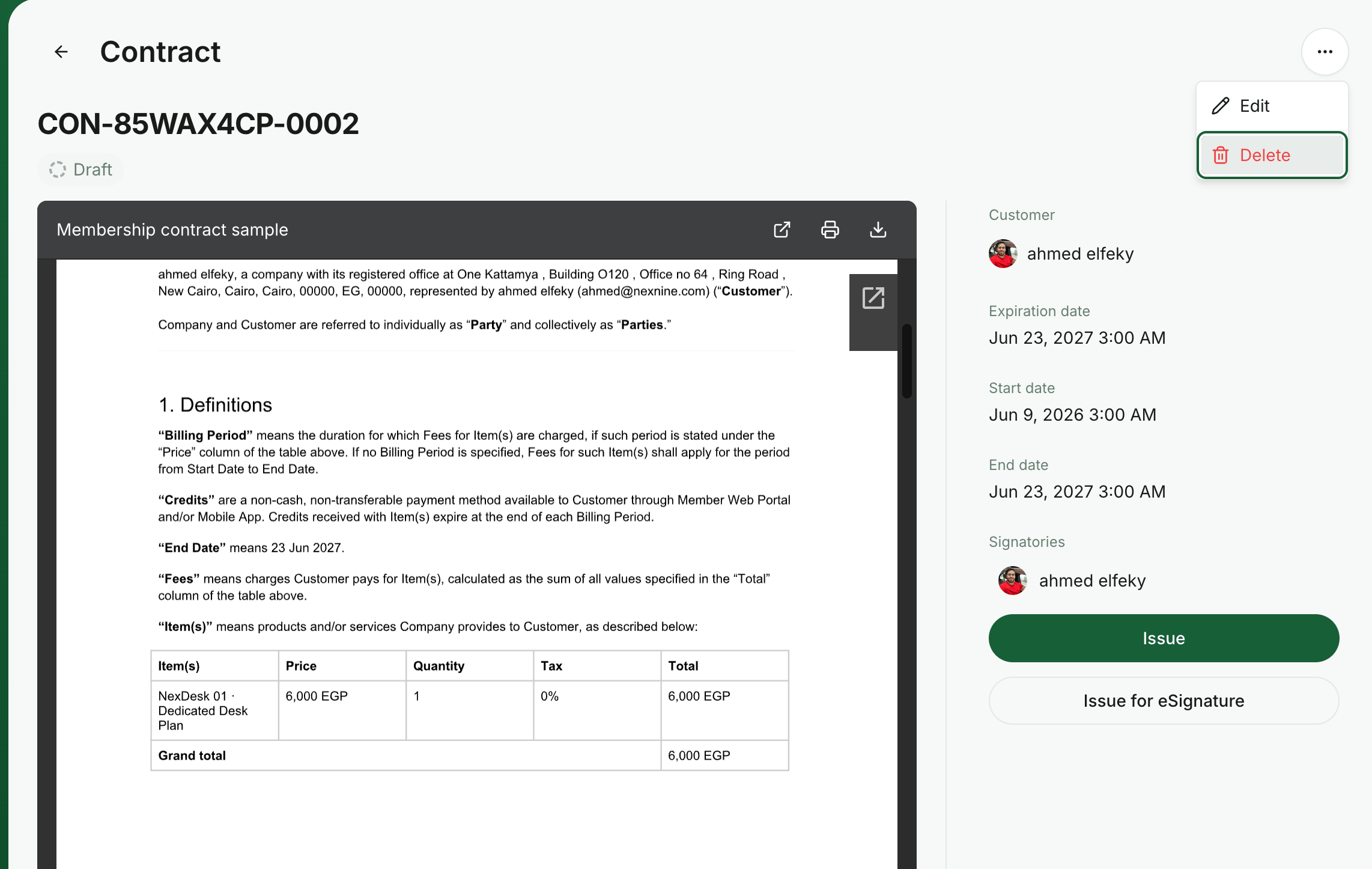
Deleting a contract is irreversible and cannot be undone.
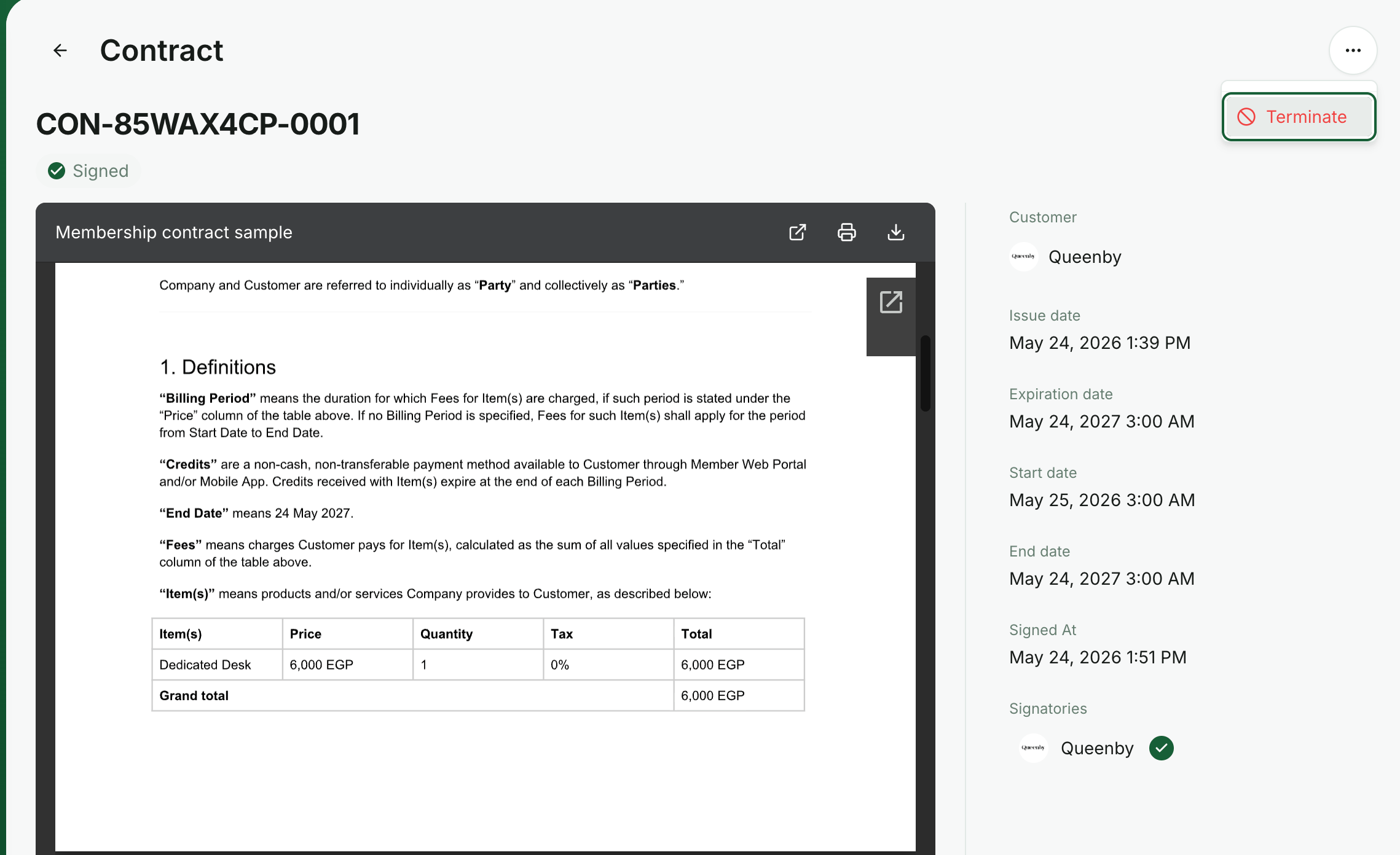
- Open the contract and click the (…) button in the top-right corner.
- Select
Terminateand choose the termination reason.