> ## Documentation Index
> Fetch the complete documentation index at: https://docs.rntor.com/docs/llms.txt
> Use this file to discover all available pages before exploring further.
# Shop
> Understand how users browse shop products and place or cancel orders
Users can enjoy a convenient shopping experience with instant access to your products and easy payments.
## Order a product
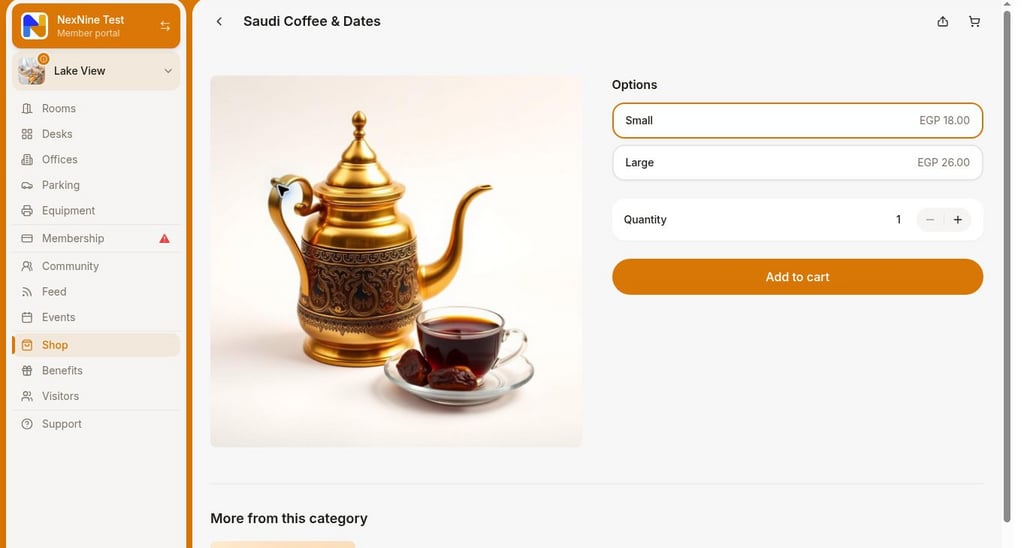
1. Go to the **Shop** page.
2. Select the desired product option, quantity, and press **Add to cart**.
3. If necessary, select more products and add them to the cart, too.
4. Press **Go to cart** or the **Cart** sign.
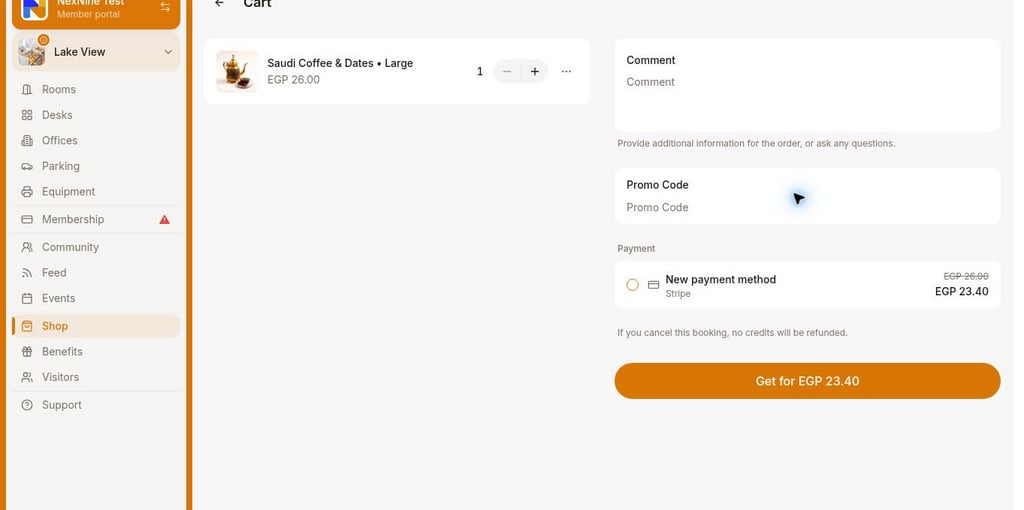
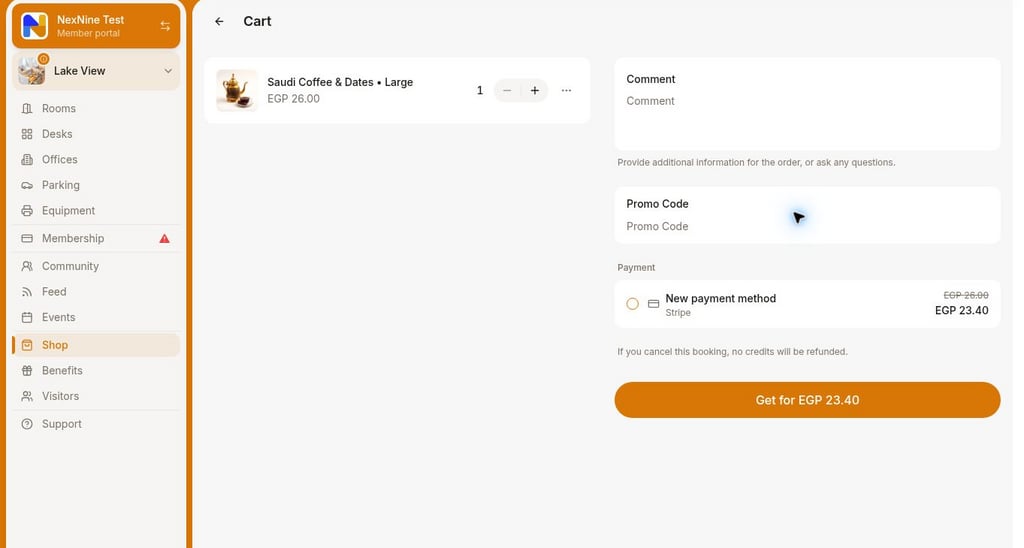
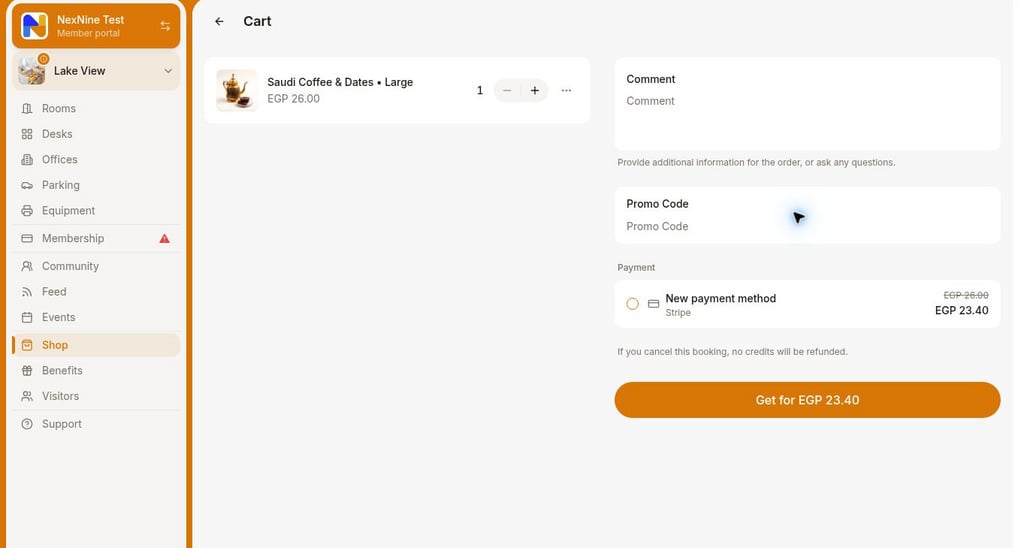
 5. Once in the cart, leave a comment if necessary, and enter a [promo code](/docs/admin/billing/discounts/coupons-and-promo-codes#create-promo-codes) to redeem a discount if they qualify for one.
6. Select a payment option, and press the **Continue** button.
5. Once in the cart, leave a comment if necessary, and enter a [promo code](/docs/admin/billing/discounts/coupons-and-promo-codes#create-promo-codes) to redeem a discount if they qualify for one.
6. Select a payment option, and press the **Continue** button.
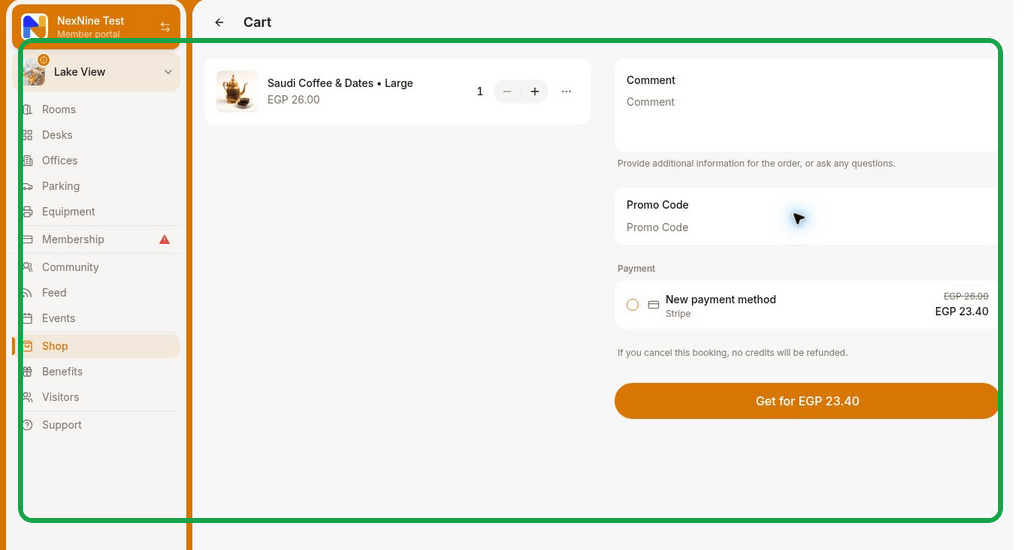
 7. Enter your [billing details](/docs/admin/customer-management/billing-details), if you haven't yet. Billing details fields appear depending on the [**Require billing details** setting.](/docs/admin/customer-management/billing-details) Press the **Get for...** button.
Users can view their orders by going to the **Account** page > **Orders**.
7. Enter your [billing details](/docs/admin/customer-management/billing-details), if you haven't yet. Billing details fields appear depending on the [**Require billing details** setting.](/docs/admin/customer-management/billing-details) Press the **Get for...** button.
Users can view their orders by going to the **Account** page > **Orders**.
 Users cannot combine items with different payment methods in a single order. If the cart contains a mix of items with “Money”, “Credits”, or “Free” payment methods, users must place a separate order for them.
## Cancel an order
1. Go to the **Account** page > **Orders**.
2. Open the necessary order > press **Cancel** > confirm their choice.
Users cannot combine items with different payment methods in a single order. If the cart contains a mix of items with “Money”, “Credits”, or “Free” payment methods, users must place a separate order for them.
## Cancel an order
1. Go to the **Account** page > **Orders**.
2. Open the necessary order > press **Cancel** > confirm their choice.
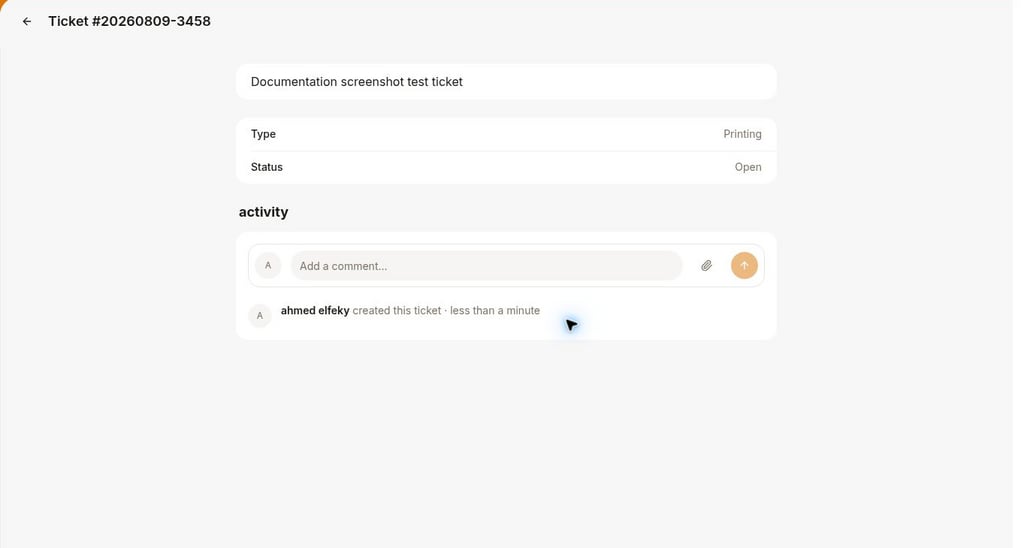 Users can only cancel for a full [refund](/docs/admin/billing/payments/refunds) if all items in the transaction qualify. If only part of the order is refundable, administrator must [issue a credit note](/docs/admin/billing/invoices/credit-notes) to refund specific items or the total balance.
**FAQs**
**Percentage discounts** The discount applies exclusively to the eligible items in the cart. Each eligible item is discounted individually by the specified percentage.
Users can only cancel for a full [refund](/docs/admin/billing/payments/refunds) if all items in the transaction qualify. If only part of the order is refundable, administrator must [issue a credit note](/docs/admin/billing/invoices/credit-notes) to refund specific items or the total balance.
**FAQs**
**Percentage discounts** The discount applies exclusively to the eligible items in the cart. Each eligible item is discounted individually by the specified percentage.
 **Fixed amount discounts**
The total discount amount is proportionally distributed across all eligible items based on their individual prices.
**Fixed amount discounts**
The total discount amount is proportionally distributed across all eligible items based on their individual prices.
 * Products in each category are sorted by their update date, from the most recently updated to the oldest.
* Product options for each product are sorted alphabetically by title.
* Products in each category are sorted by their update date, from the most recently updated to the oldest.
* Product options for each product are sorted alphabetically by title.