> ## Documentation Index
> Fetch the complete documentation index at: https://docs.rntor.com/docs/llms.txt
> Use this file to discover all available pages before exploring further.
# Book equipment
> Understand how users book equipment, and view, manage or cancel their equipment bookings from the member web portal or mobile app
## Create equipment booking
To book equipment, users go to **Locations** > **Equipment** and select the following details:
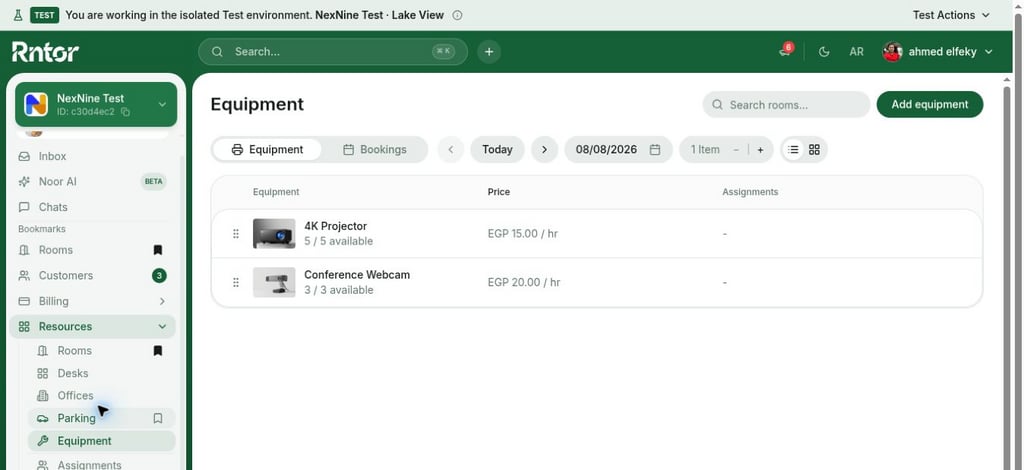 * **Equipment** — what they want to book.
* **Date** — the necessary rental date.
* **Quantity/Items** — the number of units needed.
* **Time** — the desired time slot (if equipment is available for hourly booking).
Users and administrators can book any available current or future slot, but only administrators can log past bookings through the admin web portal.
* **Repeat** — available only if the equipment is completely free. Choose one of the suggested recurrence patterns or select **Custom** to set your own recurrence pattern.
* **End repeat** — choose:
* **On date** — to set a specific final booking date, or
* **Never** — to set an open-ended recurrence.
* For **Custom** recurrences, users can also choose **After number of occurrences** to schedule a specific number of recurring bookings.
Users can create recurring bookings only for completely free equipment. If the equipment booking is paid, administrators can create a [recurring booking](/docs/admin/resource-management/resources/manage-bookings#create-a-recurring-booking) for the customer and charge them separately.
* **Equipment** — what they want to book.
* **Date** — the necessary rental date.
* **Quantity/Items** — the number of units needed.
* **Time** — the desired time slot (if equipment is available for hourly booking).
Users and administrators can book any available current or future slot, but only administrators can log past bookings through the admin web portal.
* **Repeat** — available only if the equipment is completely free. Choose one of the suggested recurrence patterns or select **Custom** to set your own recurrence pattern.
* **End repeat** — choose:
* **On date** — to set a specific final booking date, or
* **Never** — to set an open-ended recurrence.
* For **Custom** recurrences, users can also choose **After number of occurrences** to schedule a specific number of recurring bookings.
Users can create recurring bookings only for completely free equipment. If the equipment booking is paid, administrators can create a [recurring booking](/docs/admin/resource-management/resources/manage-bookings#create-a-recurring-booking) for the customer and charge them separately.
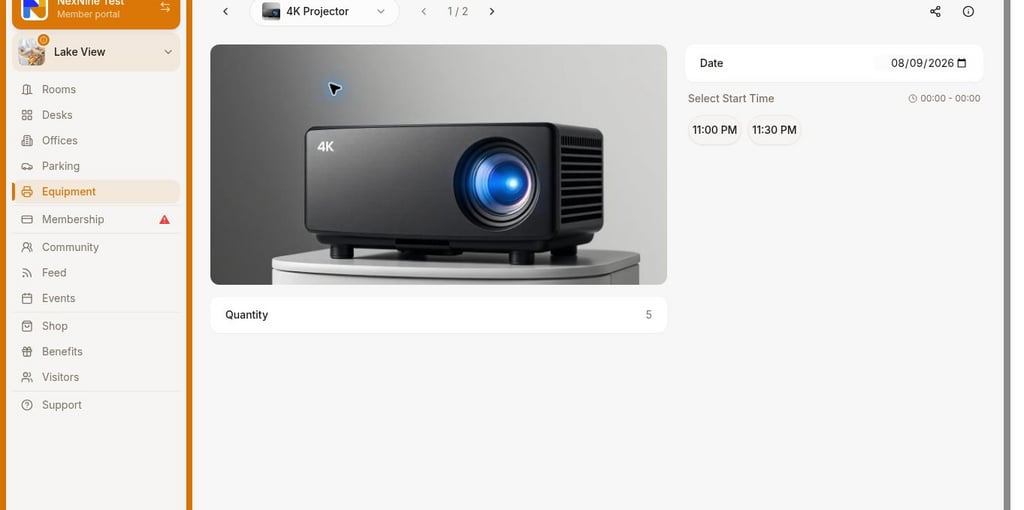 You can set up equipment for hourly or full-day rentals by [configuring Min time, Max time, and Availability increment.](/docs/admin/resource-management/resources/set-up-resources#equipment)
In the booking form, users choose:
* **Booker** — the user for whom the booking is made. Booker selection is available only to [administrators](/docs/admin/administration/administrators/administrators) or [company managers](/docs/admin/customer-management/companies/company-members-and-managers) who can create bookings for their [company members](/docs/admin/customer-management/companies/company-members-and-managers).
Company managers can make equipment bookings for other company members either with company credits or a company invoice.
When you book for another user, you choose whether to notify them about the booking.
* **Memo** — a private note visible only to the user and administrators.
* [**Promo code**](/docs/admin/billing/discounts/coupons-and-promo-codes#create-promo-codes) or [**coupon**](/docs/admin/billing/discounts/coupons-and-promo-codes) — allows a user to redeem a discount on the equipment booking if eligible.
* **Payment**. [Understand payment methods](/docs/admin/billing/payments/payment-methods). The total price for a booking is calculated based on the [price tiers](/docs/admin/resource-management/resources/set-up-pricing) added for this equipment, factoring in any applicable discount from the user's subscription or entered promo code.
* **Legal business name, Address,** and **Tax ID.** These fields appear depending on the [**Require billing details** setting.](/docs/admin/customer-management/billing-details)
You can set up equipment for hourly or full-day rentals by [configuring Min time, Max time, and Availability increment.](/docs/admin/resource-management/resources/set-up-resources#equipment)
In the booking form, users choose:
* **Booker** — the user for whom the booking is made. Booker selection is available only to [administrators](/docs/admin/administration/administrators/administrators) or [company managers](/docs/admin/customer-management/companies/company-members-and-managers) who can create bookings for their [company members](/docs/admin/customer-management/companies/company-members-and-managers).
Company managers can make equipment bookings for other company members either with company credits or a company invoice.
When you book for another user, you choose whether to notify them about the booking.
* **Memo** — a private note visible only to the user and administrators.
* [**Promo code**](/docs/admin/billing/discounts/coupons-and-promo-codes#create-promo-codes) or [**coupon**](/docs/admin/billing/discounts/coupons-and-promo-codes) — allows a user to redeem a discount on the equipment booking if eligible.
* **Payment**. [Understand payment methods](/docs/admin/billing/payments/payment-methods). The total price for a booking is calculated based on the [price tiers](/docs/admin/resource-management/resources/set-up-pricing) added for this equipment, factoring in any applicable discount from the user's subscription or entered promo code.
* **Legal business name, Address,** and **Tax ID.** These fields appear depending on the [**Require billing details** setting.](/docs/admin/customer-management/billing-details)
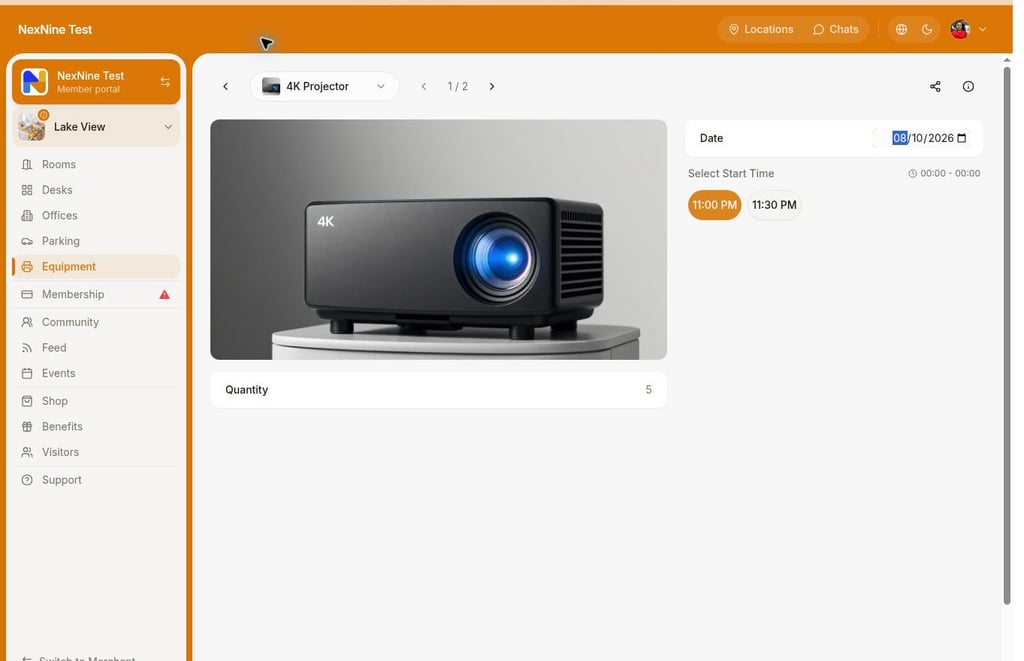 Once a booking is made, users can add it to their Google Calendar or Microsoft 365 Outlook.
 On the member mobile app, the **Add to calendar** button opens the default calendar on the user's device.
If you offer long-term rentals (weekly, monthly, etc.) of this equipment, you can [link the relevant plans](/docs/admin/billing/plans/immediate-plan-sign-ups) to subscribe directly to it.
## View equipment bookings
* Users can see their equipment bookings on the **Account** > **Bookings** page.
On the member mobile app, the **Add to calendar** button opens the default calendar on the user's device.
If you offer long-term rentals (weekly, monthly, etc.) of this equipment, you can [link the relevant plans](/docs/admin/billing/plans/immediate-plan-sign-ups) to subscribe directly to it.
## View equipment bookings
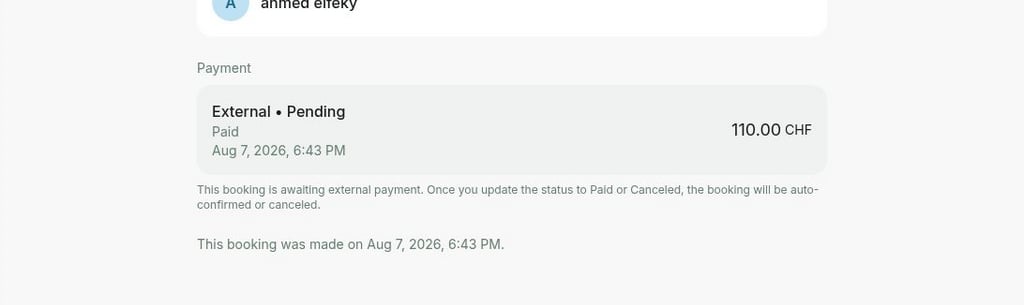
* Users can see their equipment bookings on the **Account** > **Bookings** page.
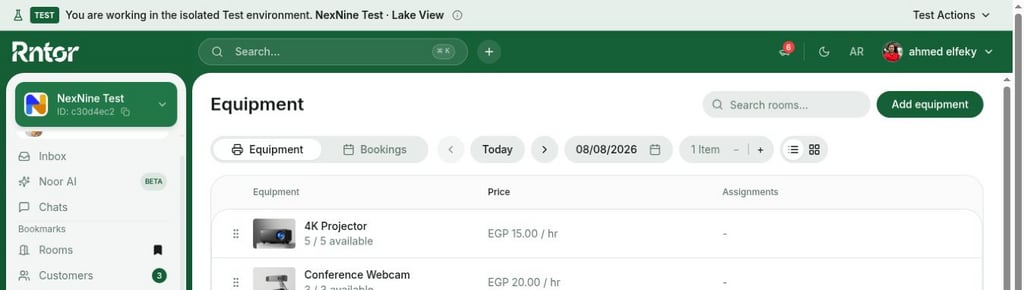
 * Users can also find their bookings on the **Equipment** page > **Bookings** tab.
 * Upcoming bookings appear for them as a reminder on the banner on the **Locations** page.
* Users receive notifications-reminders before the booking starts and ends. [Understand users' notifications](/docs/member/account/notifications)
## Manage equipment booking
To manage equipment booking, users follow these steps:
1. Open the booking > press **Edit** to make changes. [Edit a booking](/docs/admin/resource-management/resources/manage-bookings#edit-a-booking)
2. Press **Cancel** to cancel a booking.
3. Press **Add to calendar** to add the booking to your Google Calendar.
* Upcoming bookings appear for them as a reminder on the banner on the **Locations** page.
* Users receive notifications-reminders before the booking starts and ends. [Understand users' notifications](/docs/member/account/notifications)
## Manage equipment booking
To manage equipment booking, users follow these steps:
1. Open the booking > press **Edit** to make changes. [Edit a booking](/docs/admin/resource-management/resources/manage-bookings#edit-a-booking)
2. Press **Cancel** to cancel a booking.
3. Press **Add to calendar** to add the booking to your Google Calendar.
 **FAQs**
Equipment assigned to the customer appears first, followed by equipment with available items, and then the rest is sorted alphabetically by title and by creation date from oldest to newest.
**FAQs**
Equipment assigned to the customer appears first, followed by equipment with available items, and then the rest is sorted alphabetically by title and by creation date from oldest to newest.