> ## Documentation Index
> Fetch the complete documentation index at: https://docs.rntor.com/docs/llms.txt
> Use this file to discover all available pages before exploring further.
# Recurring add-ons
> Learn how to set up recurring services and add-ons, add them to customer subscriptions
It often happens that you provide additional services in your coworking space for your members, such as:
* Parking
* Lockers
* Coffee membership
* Office cleaning
* Fitness or yoga membership
...and others. You can easily organize recurring add-ons for your members by adding them as items to the member's subscription.
## Create recurring add-ons
To create a recurring add-on, follow the next steps:
1. [Create a distinct plan](/docs/admin/billing/plans/set-up-plans) with the name of the service you're offering. For example, create a **Parking** plan.
2. Disable the **Sign-up** option inside the plan.
## How members get recurring add-ons
Members need to contact an administrator and specify which add-on they require. Administrators can include an add-on to the member's subscription by following the next steps:
1. Navigate to the **Customers** page > open the user or company.
2. In the **Subscription** section, press **Create** or open an existing subscription > tap **Add**.
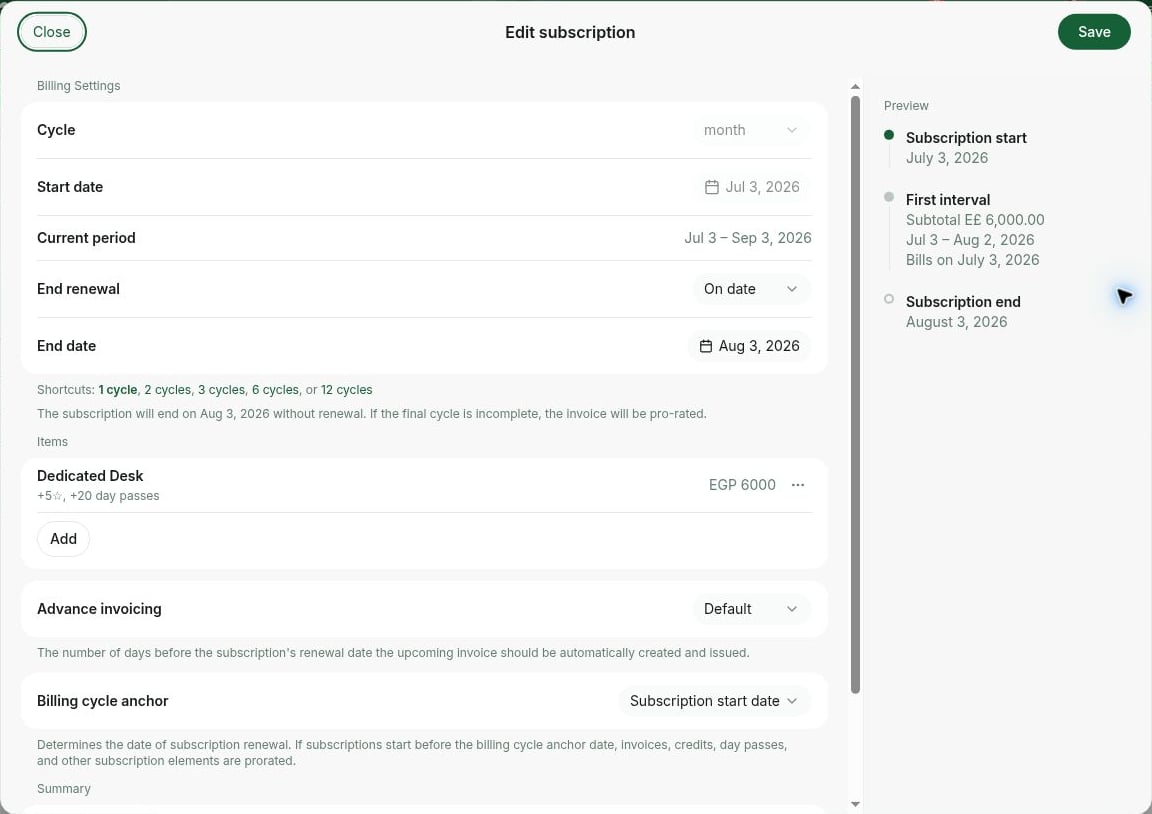 3. Select a preliminary created plan or create a custom plan with the name of your service. Press **Save** two times.
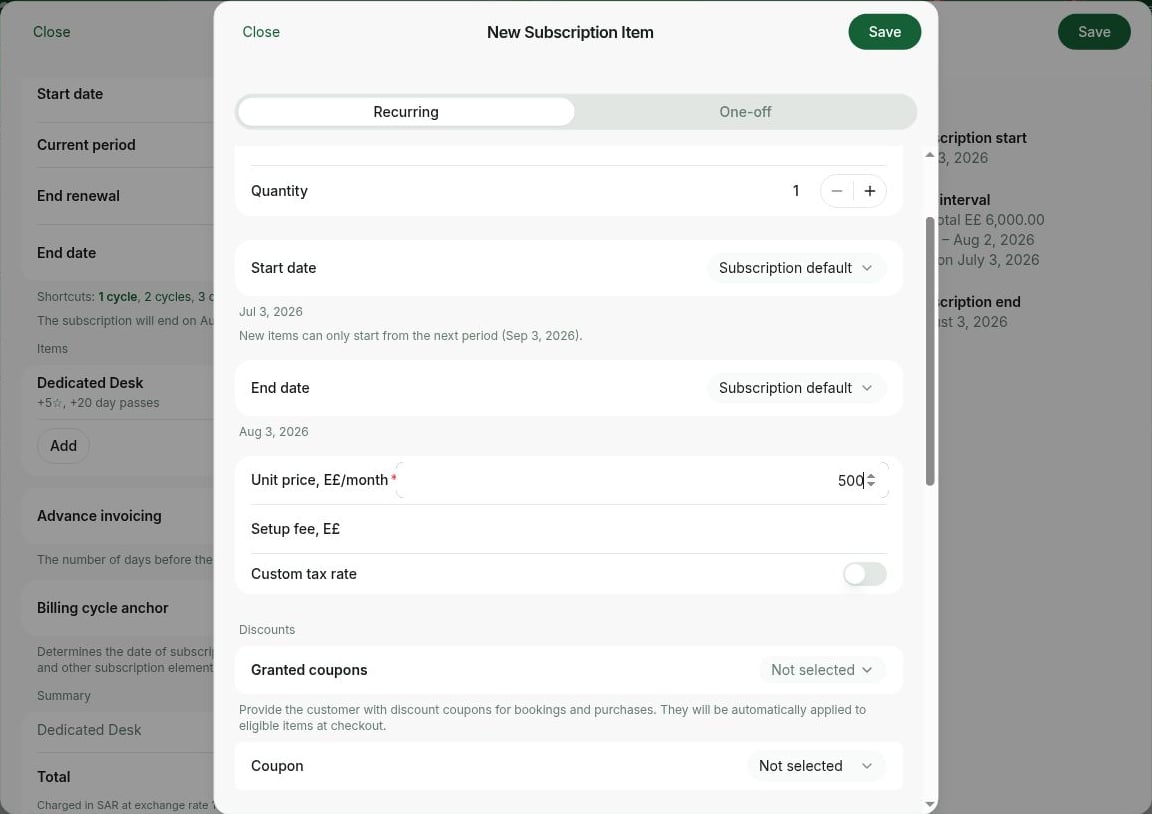 The member's subscription automatically reflects the name of the selected plans, the total price, and the number of credits or day passes.
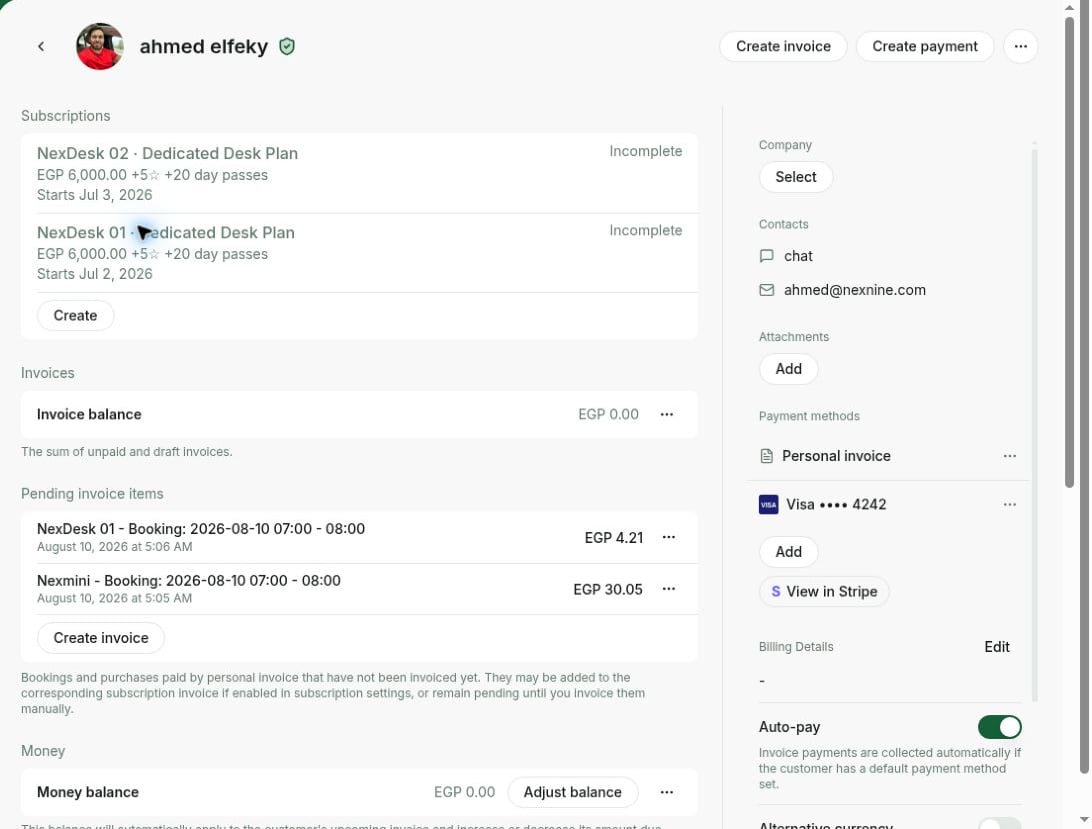 Adding subscription items takes effect with the next subscription renewal.
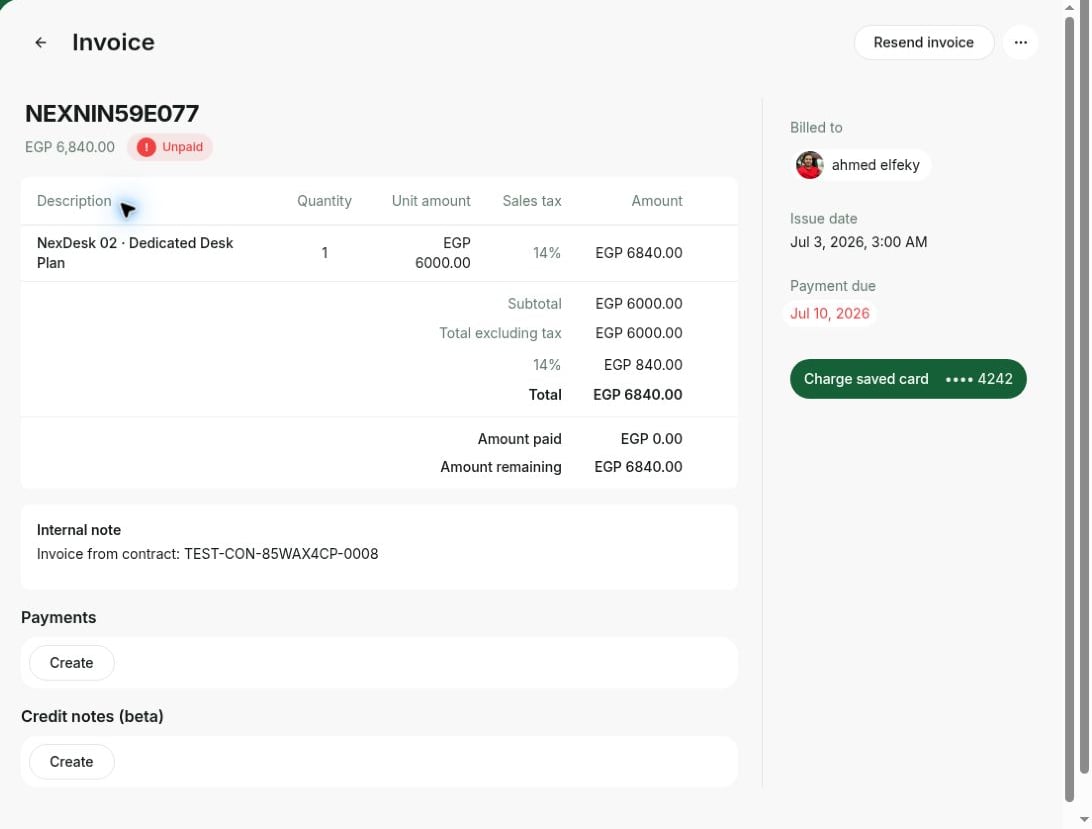
If you're creating a subscription from scratch and adding a recurring add-on, the first invoice arrives to the member with the subscription start date.
If you're editing an existing subscription and adding a recurring add-on, the member will receive an increased invoice with the next subscription renewal.
Adding subscription items takes effect with the next subscription renewal.
If you're creating a subscription from scratch and adding a recurring add-on, the first invoice arrives to the member with the subscription start date.
If you're editing an existing subscription and adding a recurring add-on, the member will receive an increased invoice with the next subscription renewal.
 ## How to remove recurring add-ons
Only an administrator can edit the subscription, so if the member needs to cancel the add-on, they contact an administrator to remove the add-on from the subscription.
For this, an administrator needs to follow the next steps:
1. Go to **Customers** > open the user or company > click on the subscription.
2. Press on the necessary item.
## How to remove recurring add-ons
Only an administrator can edit the subscription, so if the member needs to cancel the add-on, they contact an administrator to remove the add-on from the subscription.
For this, an administrator needs to follow the next steps:
1. Go to **Customers** > open the user or company > click on the subscription.
2. Press on the necessary item.
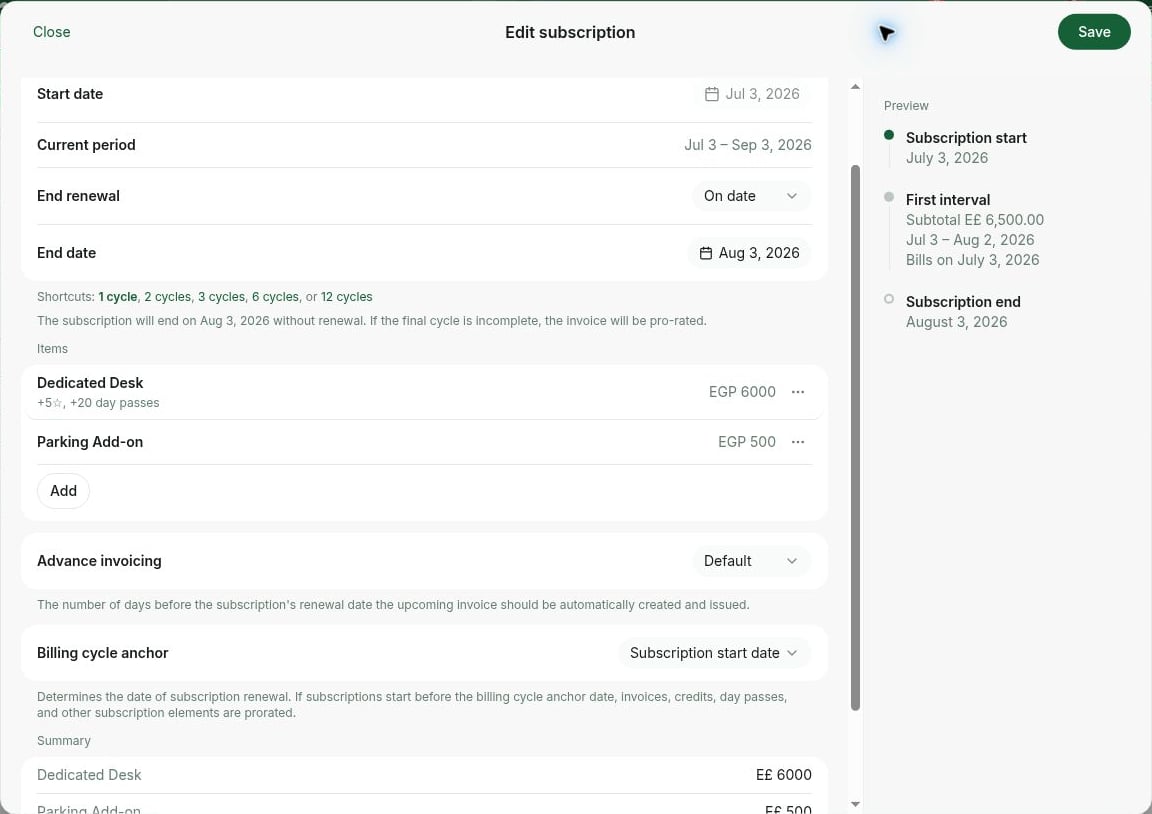 3. Scroll down and tap **Delete**. Press **Save** to save your changes.
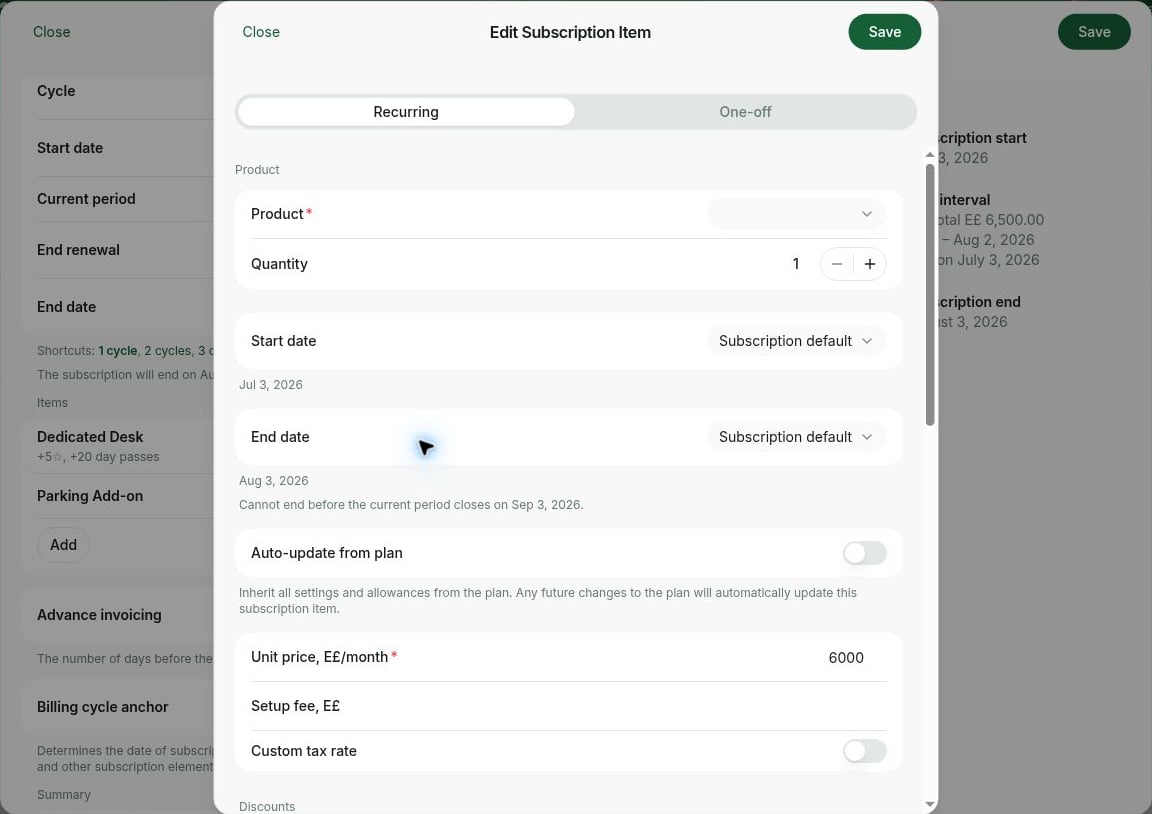 Removing subscription items takes effect with the next subscription renewal.