> ## Documentation Index
> Fetch the complete documentation index at: https://docs.rntor.com/docs/llms.txt
> Use this file to discover all available pages before exploring further.
# حجز مكتب
> احجز مكتباً مرناً أو محطة عمل.
## إنشاء الحجز
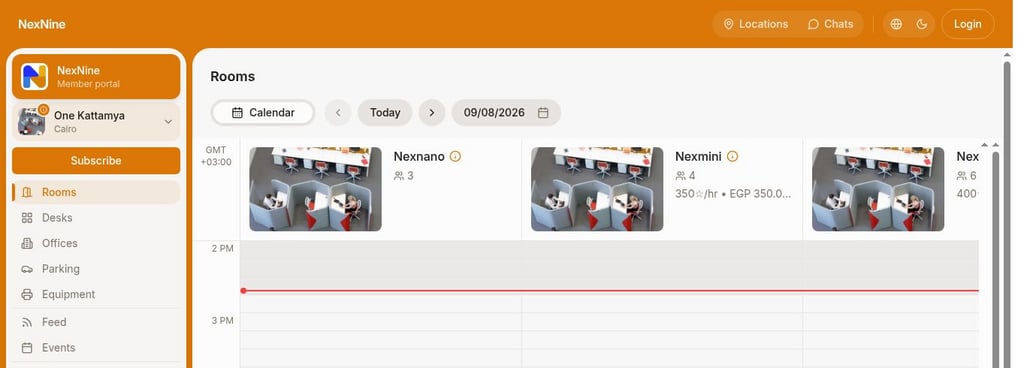
افتح **المواقع** > **المقاعد**، واختر التاريخ وعدد المقاعد. اضغط المقعد أو ⓘ لعرض وصفه وخصائصه.
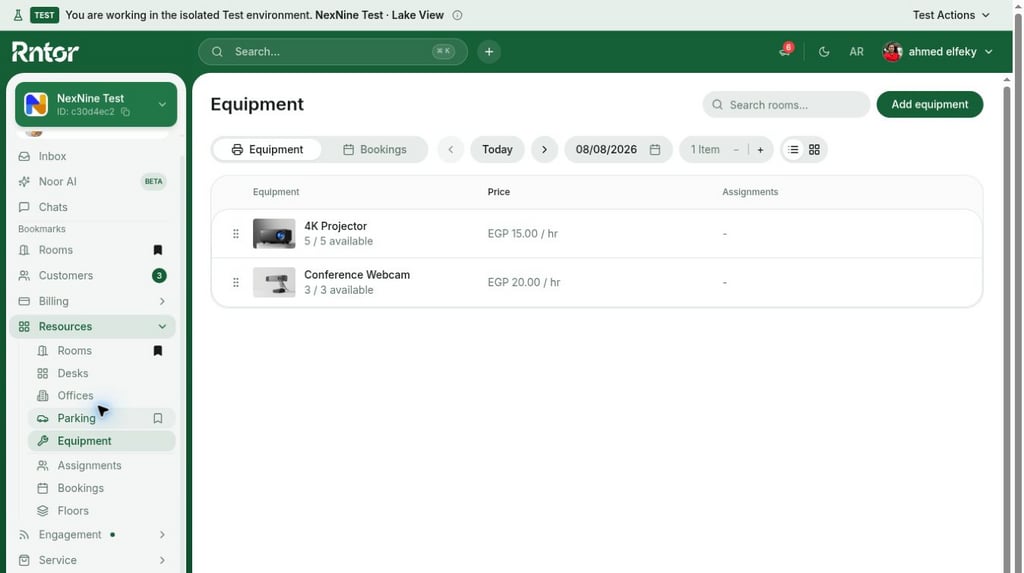 اختر:
* التاريخ وعدد المقاعد والوقت.
يمكن حجز وقت حالي أو مستقبلي متاح، ولا يسجل الحجز السابق إلا المسؤول.
* التكرار ونهايته للمقاعد المجانية بالكامل، بنمط جاهز أو مخصص وتاريخ نهاية أو عدد مرات.
للحجز المدفوع المتكرر، ينشئ المسؤول [الحجز المتكرر](/docs/ar/admin/resource-management/resources/manage-bookings) ويتولى التحصيل منفصلًا.
* صاحب الحجز، للمسؤول و[مدير الشركة](/docs/ar/admin/customer-management/companies/company-members-and-managers) للحجز لأعضاء الشركة باستخدام تصاريحها أو رصيدها أو فاتورتها. ويمكن اختيار إشعار صاحب الحجز.
* ملاحظة خاصة.
* [رمز ترويجي](/docs/ar/admin/billing/discounts/coupons-and-promo-codes).
* [طريقة الدفع](/docs/ar/admin/billing/payments/payment-methods).
* بيانات الفوترة إذا فُعل [طلبها](/docs/ar/admin/customer-management/billing-details).
اختر:
* التاريخ وعدد المقاعد والوقت.
يمكن حجز وقت حالي أو مستقبلي متاح، ولا يسجل الحجز السابق إلا المسؤول.
* التكرار ونهايته للمقاعد المجانية بالكامل، بنمط جاهز أو مخصص وتاريخ نهاية أو عدد مرات.
للحجز المدفوع المتكرر، ينشئ المسؤول [الحجز المتكرر](/docs/ar/admin/resource-management/resources/manage-bookings) ويتولى التحصيل منفصلًا.
* صاحب الحجز، للمسؤول و[مدير الشركة](/docs/ar/admin/customer-management/companies/company-members-and-managers) للحجز لأعضاء الشركة باستخدام تصاريحها أو رصيدها أو فاتورتها. ويمكن اختيار إشعار صاحب الحجز.
* ملاحظة خاصة.
* [رمز ترويجي](/docs/ar/admin/billing/discounts/coupons-and-promo-codes).
* [طريقة الدفع](/docs/ar/admin/billing/payments/payment-methods).
* بيانات الفوترة إذا فُعل [طلبها](/docs/ar/admin/customer-management/billing-details).
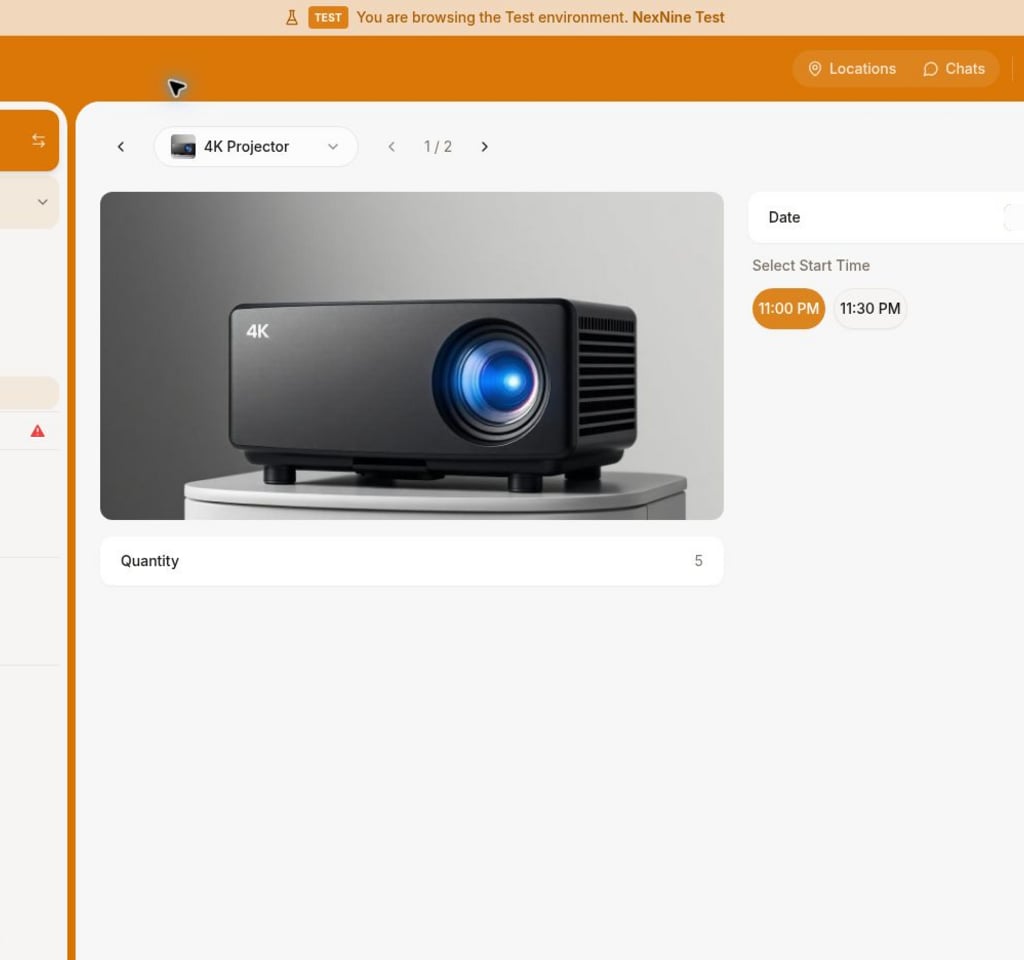 يمكن إضافة الحجز إلى Google أو Outlook، ويفتح التطبيق تقويم الجهاز.
 ## عرض الحجز
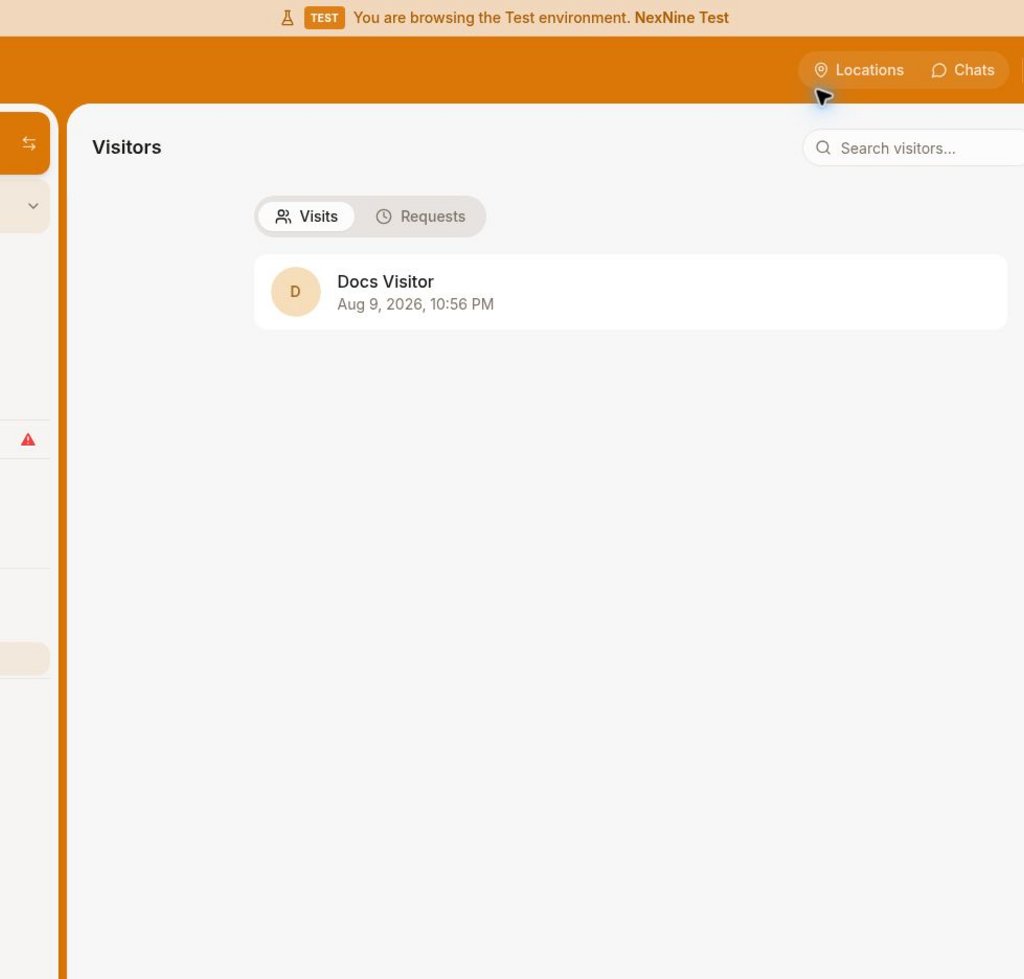
يظهر في **الحساب** > **الحجوزات**، و**المقاعد** > **الحجوزات**، وشريط المواقع. ويتلقى المستخدم [تذكيرات](/docs/ar/member/account/notifications).
## عرض الحجز
يظهر في **الحساب** > **الحجوزات**، و**المقاعد** > **الحجوزات**، وشريط المواقع. ويتلقى المستخدم [تذكيرات](/docs/ar/member/account/notifications).
 ## الإدارة
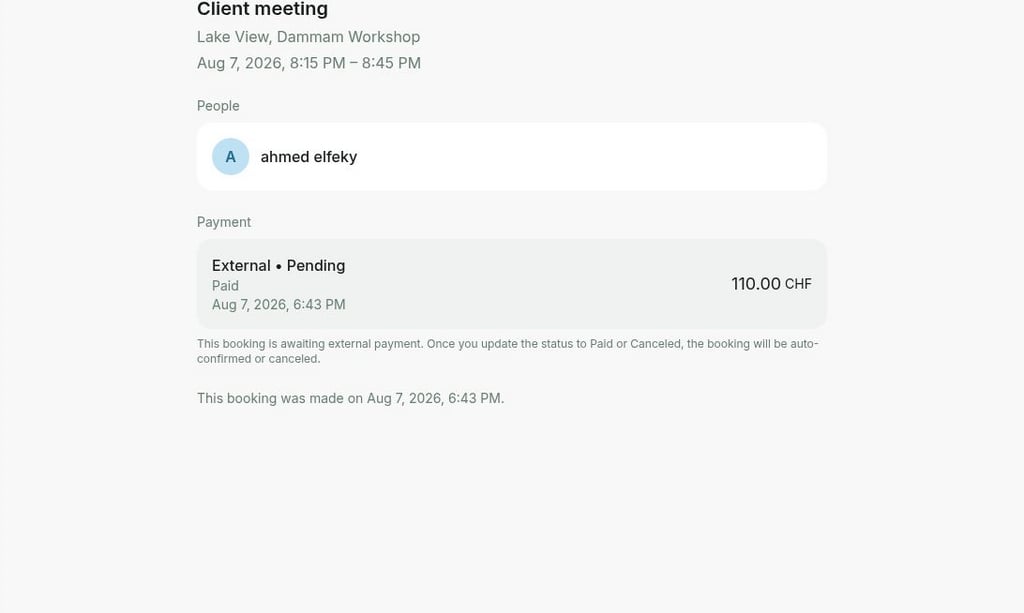
افتح الحجز واضغط **تعديل** أو **إلغاء** أو **إضافة إلى التقويم**. [تعديل الحجوزات](/docs/ar/admin/resource-management/resources/manage-bookings)
## الإدارة
افتح الحجز واضغط **تعديل** أو **إلغاء** أو **إضافة إلى التقويم**. [تعديل الحجوزات](/docs/ar/admin/resource-management/resources/manage-bookings)
 تظهر المسندة للعميل أولًا، ثم التي بها مقاعد متاحة، ثم التي تستوعب العدد المختار أو أكثر، ثم أبجديًا وحسب تاريخ الإنشاء من الأقدم.