> ## Documentation Index
> Fetch the complete documentation index at: https://docs.rntor.com/docs/llms.txt
> Use this file to discover all available pages before exploring further.
# Tickets
> Set up the Support page to let users report issues, learn how to process and manage customer tickets, assign administrators and update statuses
The **Support** page allows users to get answers to their questions and report issues or feedback.
## Enable Support
1. On the left-side panel, pless the menu **(...)** next to your location name.
2. Go to **Location settings** > **Support**.
3. Enable the switch and [manage the visibility](/docs/admin/location/visibility) of the **Support** page.
4. Configure [Noor AI agent behaviour](/docs/admin/noor-ai/auto-assign-and-auto-reply-to-support-tickets) for Support.
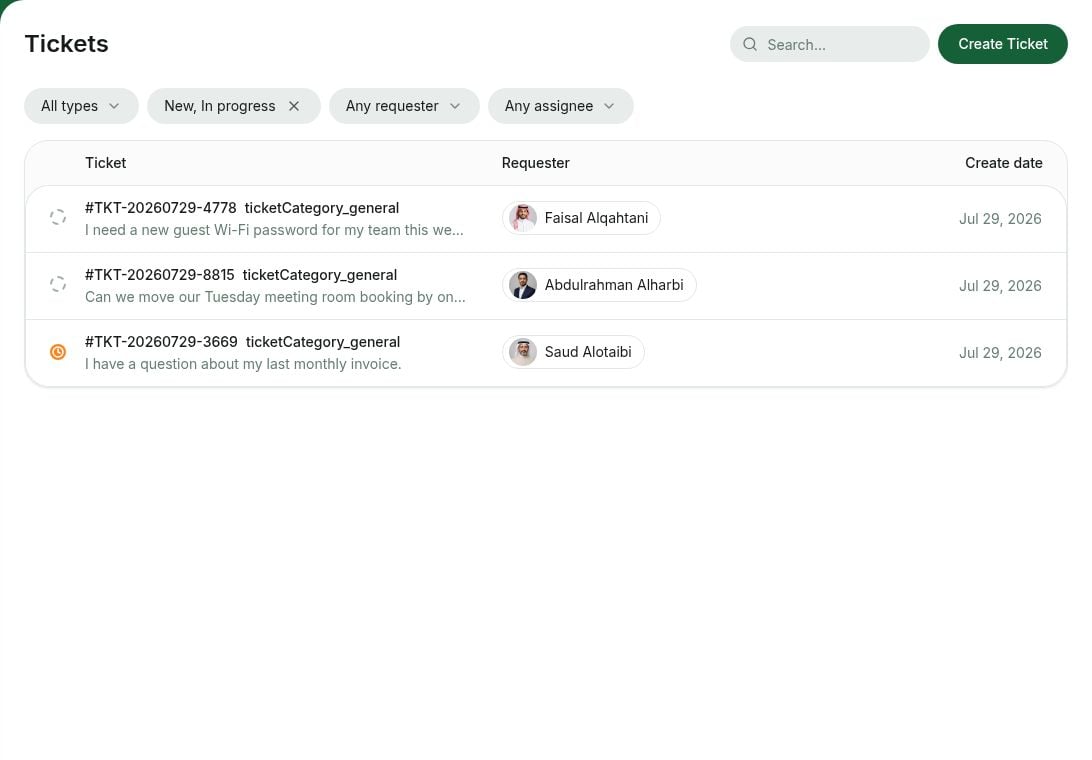 Your users will discover the **Support** page and will be able to search for answers to their questions and create support tickets. Administrators with the **Support** permission receive [notifications](/docs/member/account/notifications) about support tickets.
Consider making **Support** your exclusive issue reporting and feedback tool. This would allow you to organize tickets in one place, follow up transparently, and make data-driven decisions with **Analytics**. If members deliver feedback verbally, encourage them to create a ticket in **Support**. Print [QR codes](/docs/guides/promotion/use-qr-codes) with links to the **Support** page and place them all around your location.
Add location [guides](/docs/admin/support/guides) with helpful information and common questions about your space. These appear at the top of the **Support** page, helping users quickly self-serve before contacting your team.
## Manage support tickets
1. New user tickets appear on the **Support > Tickets** page, and administrators receive [notifications](/docs/admin/administration/your-account/notifications/set-up-notifications).
2. Each ticket has its unique number and issue type. They help to categorize tickets for workflows and analytics.
| **Ticket type** | **Meaning** |
| :------------------------------ | :--------------------------------------------------------------------------------- |
| **Access** | Issues with keys, keycards, in-app unlocking, or entry to the space |
| **Account and billing** | Membership, billing, payments, or account-related issues |
| **Bookings** | Issues with reserving rooms, desks, or other bookable resources |
| **Cleaning** | Cleanliness of the premises, disinfection, or sanitary conditions |
| **Discrimination / harassment** | Improper behavior of people or mistreatment |
| **Internet** | Issues with the internet connection. |
| **Mail and packages** | Deliveries, mailbox, post, shipment issues |
| **Noise and acoustics** | Issues related to the sound environment or loud noises |
| **Printing** | Issues related to the printing software, hardware, and supplies |
| **Repair and maintenance** | Issues related to fixing broken facilities and maintaining location infrastructure |
| **Temperature and ventilation** | Issues related to heating or cooling conditions, smells, and air circulation |
| **Website and app** | Issues with a marketing website, member web portal, or mobile app |
| **Other** | The requester's issue is unrelated to the above types |
Support tickets are sorted from newest to oldest.
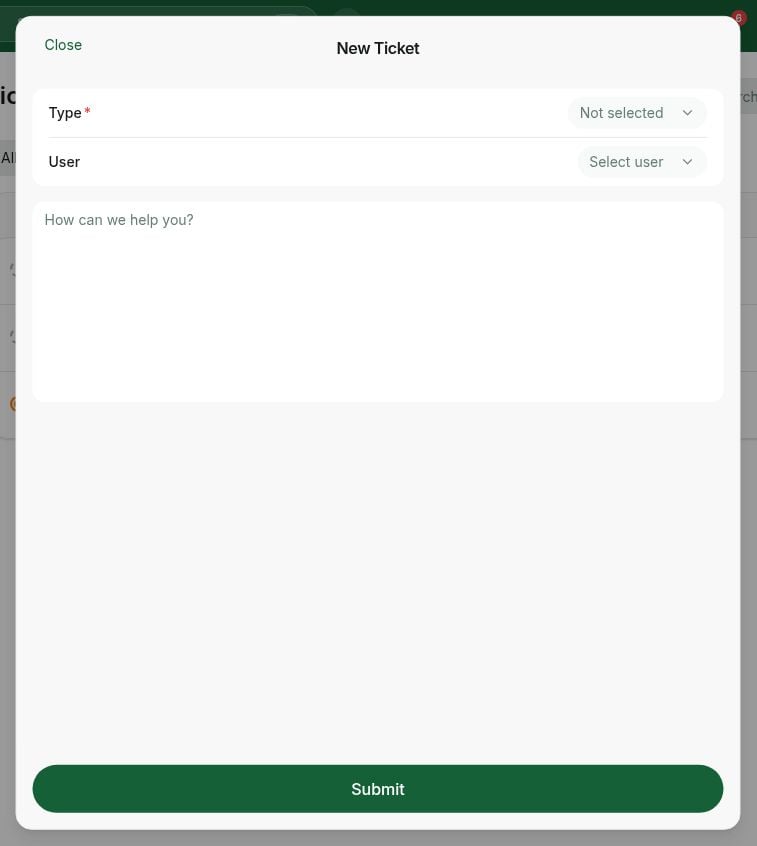
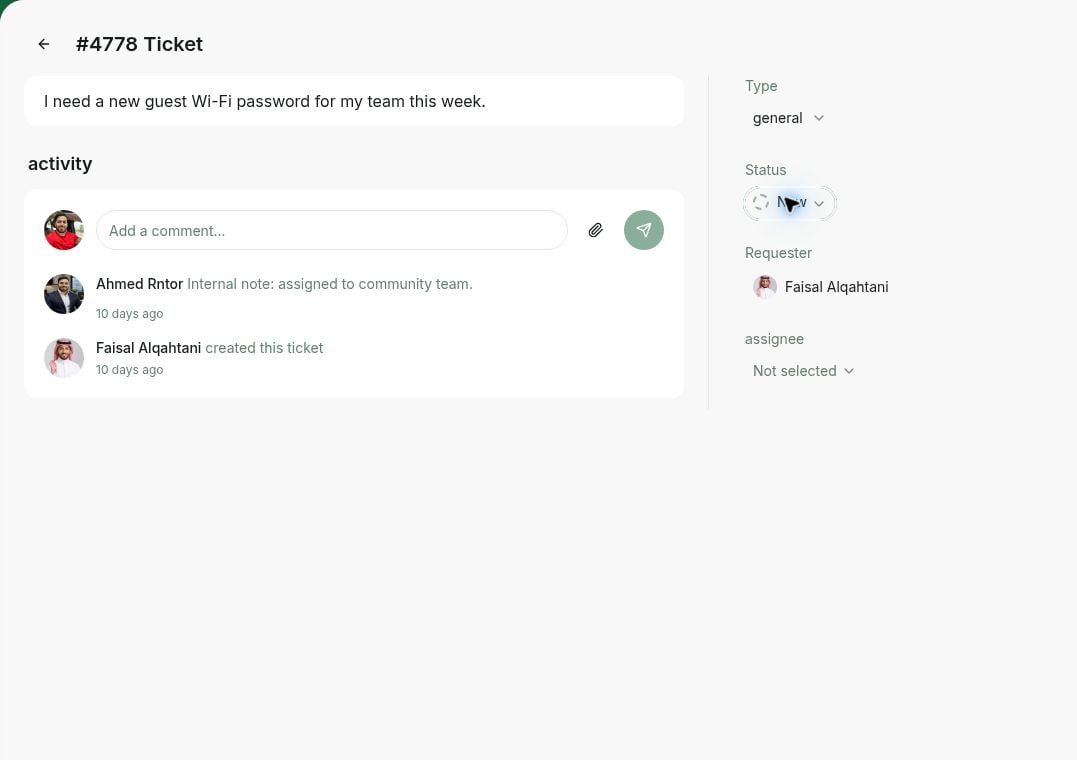
3. Administrators review the ticket description and proceed with managing it:
* Assign a responsible administrator
* Reply in comment to the user
* Update the status (click the **Status** icon next to the relevant ticket)
Your users will discover the **Support** page and will be able to search for answers to their questions and create support tickets. Administrators with the **Support** permission receive [notifications](/docs/member/account/notifications) about support tickets.
Consider making **Support** your exclusive issue reporting and feedback tool. This would allow you to organize tickets in one place, follow up transparently, and make data-driven decisions with **Analytics**. If members deliver feedback verbally, encourage them to create a ticket in **Support**. Print [QR codes](/docs/guides/promotion/use-qr-codes) with links to the **Support** page and place them all around your location.
Add location [guides](/docs/admin/support/guides) with helpful information and common questions about your space. These appear at the top of the **Support** page, helping users quickly self-serve before contacting your team.
## Manage support tickets
1. New user tickets appear on the **Support > Tickets** page, and administrators receive [notifications](/docs/admin/administration/your-account/notifications/set-up-notifications).
2. Each ticket has its unique number and issue type. They help to categorize tickets for workflows and analytics.
| **Ticket type** | **Meaning** |
| :------------------------------ | :--------------------------------------------------------------------------------- |
| **Access** | Issues with keys, keycards, in-app unlocking, or entry to the space |
| **Account and billing** | Membership, billing, payments, or account-related issues |
| **Bookings** | Issues with reserving rooms, desks, or other bookable resources |
| **Cleaning** | Cleanliness of the premises, disinfection, or sanitary conditions |
| **Discrimination / harassment** | Improper behavior of people or mistreatment |
| **Internet** | Issues with the internet connection. |
| **Mail and packages** | Deliveries, mailbox, post, shipment issues |
| **Noise and acoustics** | Issues related to the sound environment or loud noises |
| **Printing** | Issues related to the printing software, hardware, and supplies |
| **Repair and maintenance** | Issues related to fixing broken facilities and maintaining location infrastructure |
| **Temperature and ventilation** | Issues related to heating or cooling conditions, smells, and air circulation |
| **Website and app** | Issues with a marketing website, member web portal, or mobile app |
| **Other** | The requester's issue is unrelated to the above types |
Support tickets are sorted from newest to oldest.
3. Administrators review the ticket description and proceed with managing it:
* Assign a responsible administrator
* Reply in comment to the user
* Update the status (click the **Status** icon next to the relevant ticket)
 | **Ticket status** | **Meaning** |
| :---------------- | :------------------------------------------------------------------------ |
| New | Request received but not acted on yet; may be under review for assignment |
| In progress | The request is being processed |
| Solved | The issue has been resolved |
| Closed | The ticket was a mistake, spam, or not a real issue |
| | |
To mark multiple tickets as read or bulk-update their status, select their checkboxes, then choose **Mark as read** or **Status** in the toolbar that appears at the bottom of the page.
| **Ticket status** | **Meaning** |
| :---------------- | :------------------------------------------------------------------------ |
| New | Request received but not acted on yet; may be under review for assignment |
| In progress | The request is being processed |
| Solved | The issue has been resolved |
| Closed | The ticket was a mistake, spam, or not a real issue |
| | |
To mark multiple tickets as read or bulk-update their status, select their checkboxes, then choose **Mark as read** or **Status** in the toolbar that appears at the bottom of the page.
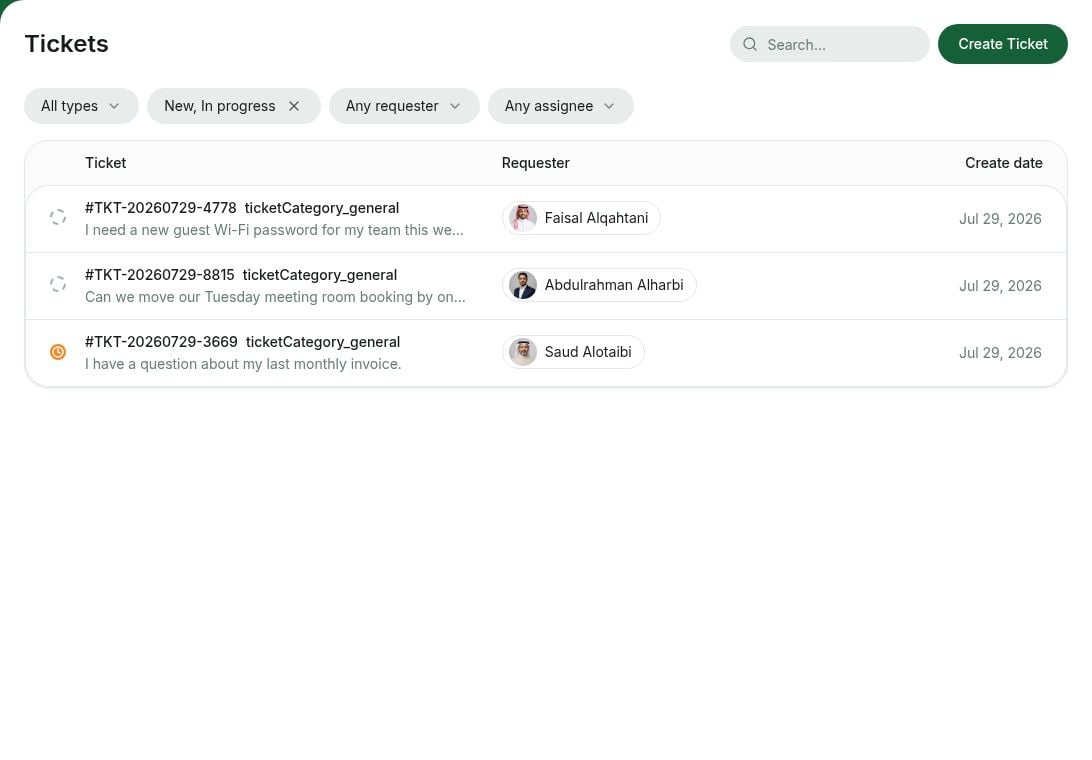 4. Both the requester and assignee are [notified](/docs/admin/administration/your-account/notifications/set-up-notifications) of new activity and can continue communication within the ticket. Every ticket activity is recorded in the **Activity** section:
* Ticket is created
* Administrator is assigned to the ticket
* Ticket status has changed
* Administrator's or requester's comments.
5. Once the issue is resolved, the administrator updates the ticket status to **Solved**.
* For users, **Solved** and **Closed** tickets are automatically archived after 30 days of inactivity and hidden from the **Support** page.
* For administrators, these tickets are hidden from the **Support** page immediately. By default, only **New** and **In Progress** tickets are displayed for convenience. Administrators can still view **Solved** and **Closed** tickets using the status filter.
4. Both the requester and assignee are [notified](/docs/admin/administration/your-account/notifications/set-up-notifications) of new activity and can continue communication within the ticket. Every ticket activity is recorded in the **Activity** section:
* Ticket is created
* Administrator is assigned to the ticket
* Ticket status has changed
* Administrator's or requester's comments.
5. Once the issue is resolved, the administrator updates the ticket status to **Solved**.
* For users, **Solved** and **Closed** tickets are automatically archived after 30 days of inactivity and hidden from the **Support** page.
* For administrators, these tickets are hidden from the **Support** page immediately. By default, only **New** and **In Progress** tickets are displayed for convenience. Administrators can still view **Solved** and **Closed** tickets using the status filter.
 ### Find support tickets
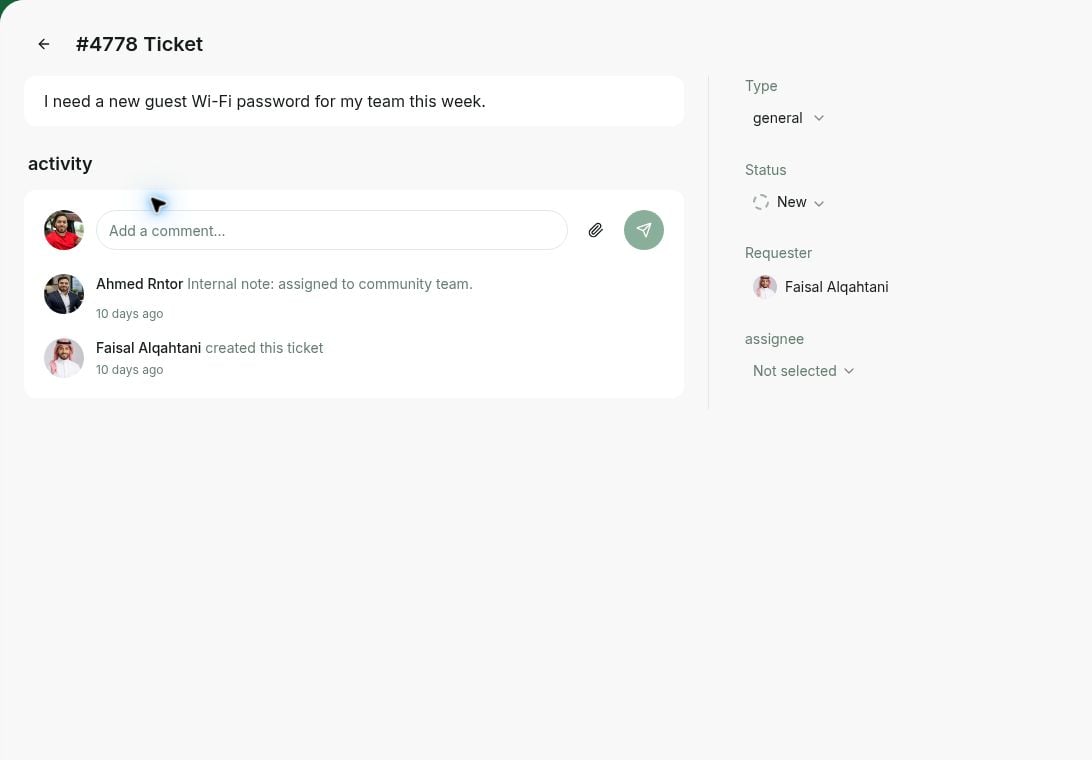
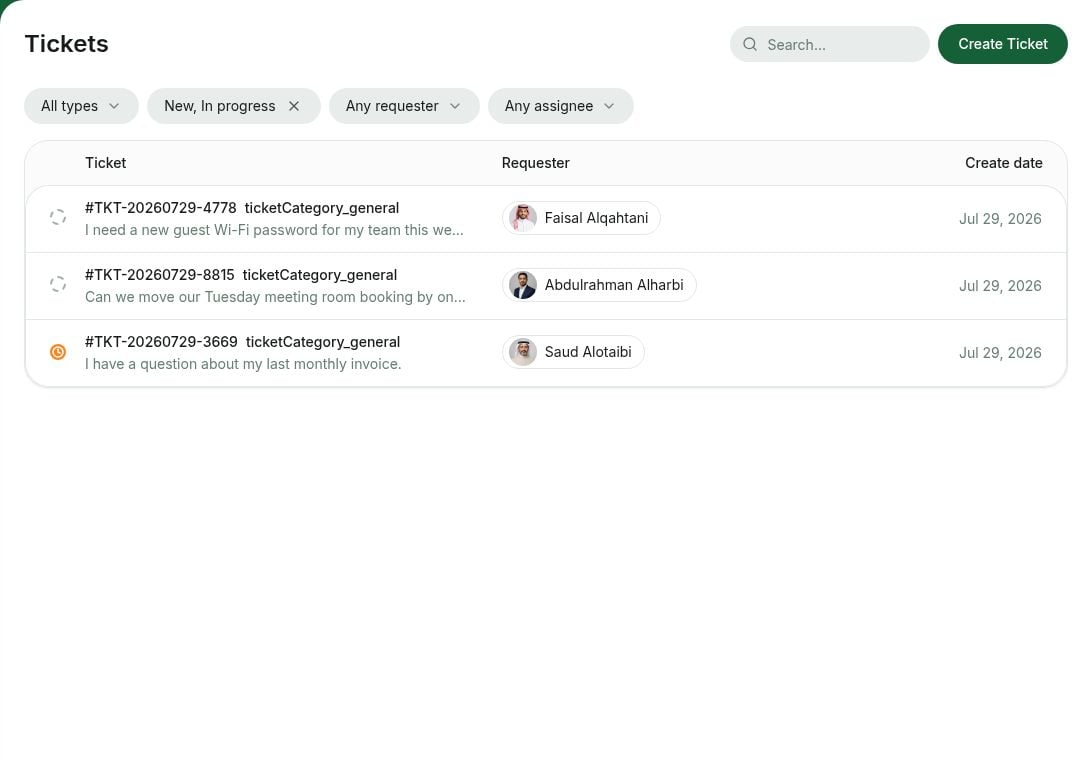
Find tickets on the general **Support** > **Tickets** page, or from a specific user's profile **Support tickets** page. Filter them on the **Tickets** page:
* Filter by **Type** to see tickets of a specific issue type.
* Filter by **Status** to see tickets with a specific status.
* Filter by **Requester** to see tickets submitted by a specific user.
* Filter by **Assignee** to see tickets assigned to a specific administrator.
* Filter by **Create date** to see tickets created on, before, after, or between specific dates.
### Find support tickets
Find tickets on the general **Support** > **Tickets** page, or from a specific user's profile **Support tickets** page. Filter them on the **Tickets** page:
* Filter by **Type** to see tickets of a specific issue type.
* Filter by **Status** to see tickets with a specific status.
* Filter by **Requester** to see tickets submitted by a specific user.
* Filter by **Assignee** to see tickets assigned to a specific administrator.
* Filter by **Create date** to see tickets created on, before, after, or between specific dates.
 Or use the search bar top right to search by ticket number, description keyword, requester, assignee, or status. To see when a ticket was created, check the **Create date** column or hover over the timestamp inside the ticket.
 **FAQs**
Administrators receive ticket reminders when a support ticket from the customer is still in **New** status and awaiting action. You'll receive up to two reminders:
* 1 day after the ticket is created.
* 3 days after the first reminder.
You can disable ticket reminders on your **Account > [Notifications](/docs/admin/administration/your-account/notifications/set-up-notifications)** page.
**FAQs**
Administrators receive ticket reminders when a support ticket from the customer is still in **New** status and awaiting action. You'll receive up to two reminders:
* 1 day after the ticket is created.
* 3 days after the first reminder.
You can disable ticket reminders on your **Account > [Notifications](/docs/admin/administration/your-account/notifications/set-up-notifications)** page.