> ## Documentation Index
> Fetch the complete documentation index at: https://docs.rntor.com/docs/llms.txt
> Use this file to discover all available pages before exploring further.
# Track and manage visits
> Track and manage all visits, monitor visit statuses and analytics
Once the **Visitors** module and the Reception app are [set up](/docs/admin/service/visitors/set-up-visitors), members can create and manage visits on the **Visitors** page, while administrators can track all visits there.
## How members manage visits
### Create visits
To create visits, members [preregister visitors or approve visit requests](/docs/member/visitors/preregister-and-approve-visit-requests) on the **Visitors** page.
### View visits
* Members can view all their past and upcoming visits and pending visit requests on the **Visitors** page.
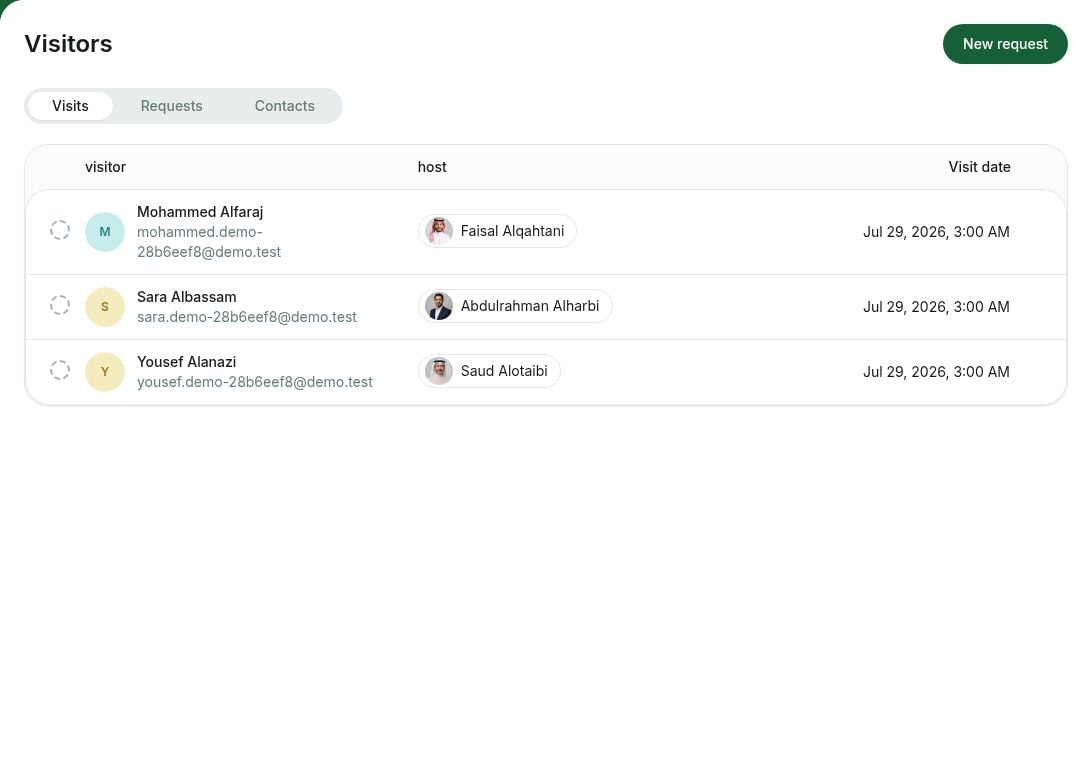 * They can click on a specific visit to check its details, contact the visitor, or [register this visitor again](/docs/member/visitors/preregister-and-approve-visit-requests).
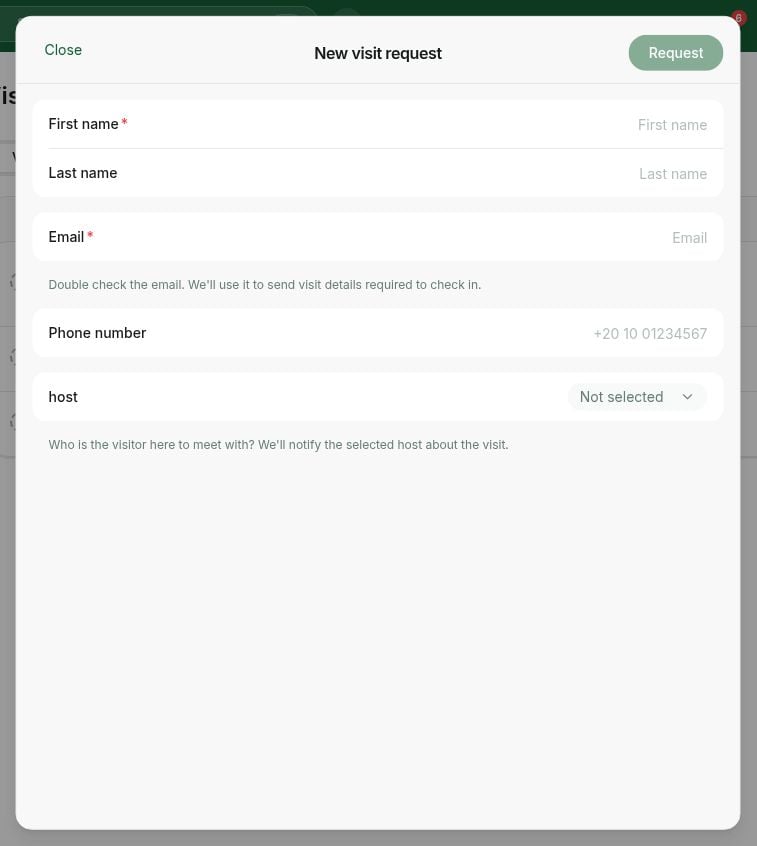 ### Edit visits
To update or cancel a visit, members follow these steps:
1. Go to the **Visitors** page and open the necessary visit.
2. Click the menu **(...)** top right > **Edit** to change the visit date or time.
3. Or press **Cancel** at the bottom of the visit page to cancel the visit.
### Edit visits
To update or cancel a visit, members follow these steps:
1. Go to the **Visitors** page and open the necessary visit.
2. Click the menu **(...)** top right > **Edit** to change the visit date or time.
3. Or press **Cancel** at the bottom of the visit page to cancel the visit.
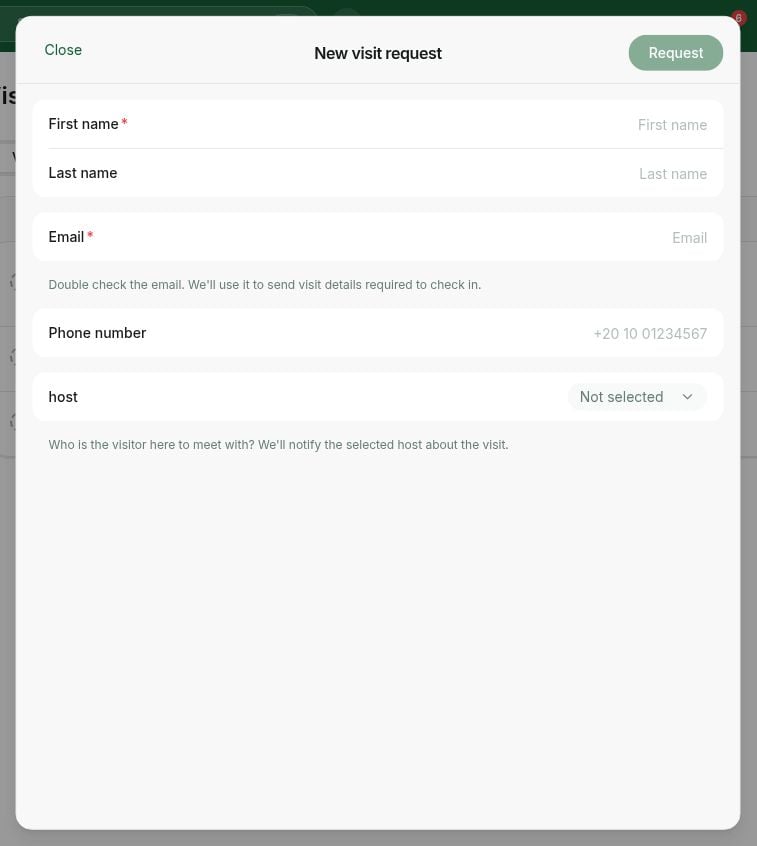 The visitor is notified by email if the visit is changed or canceled.
## How administrators manage visits
### Create visits
Administrators can [create visit requests](/docs/member/visitors/check-in-and-check-out) on behalf of visitors upon their arrival, if assistance is needed, or if the visitor cannot self-register.
### Track all visits
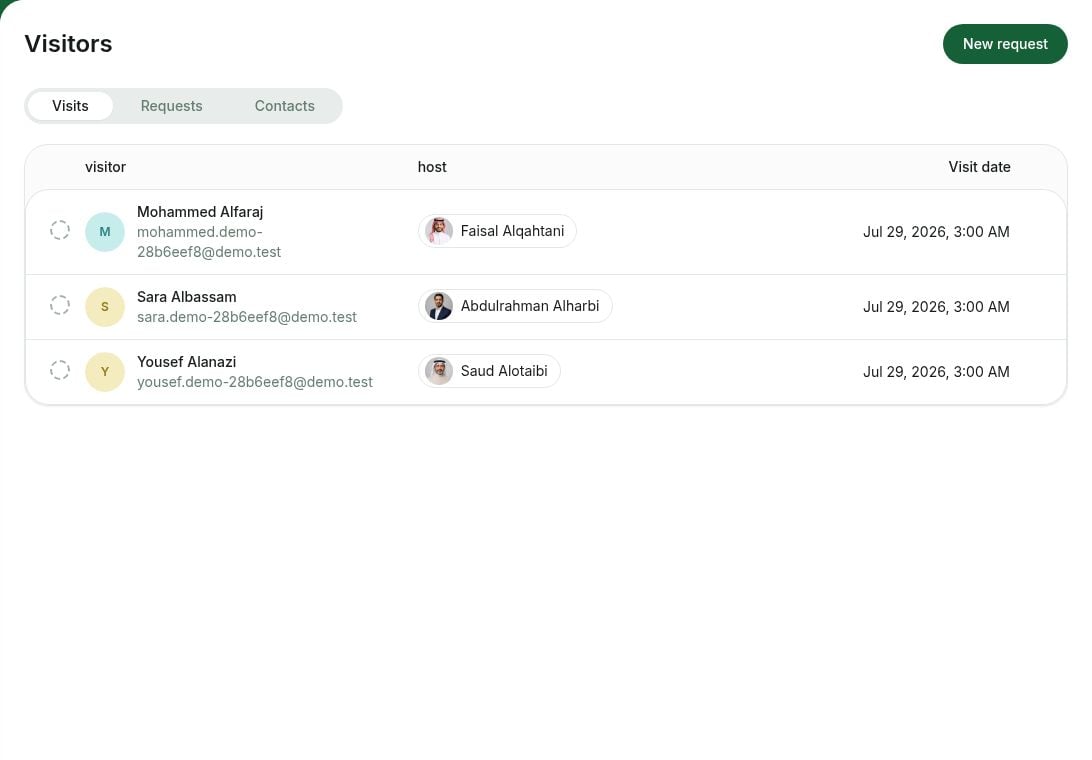
* Administrators can see all the visits, visit requests, and contacts on the **Service** > **Visitors** page in RNTOR. Each visit shows the visitor's name, host's name, visit date, and visit status at a glance:
* Empty circle - visitor hasn't checked in.
* Green circle - visitor has checked in.
* Purple circle - visitor has checked in and checked out.
The visitor is notified by email if the visit is changed or canceled.
## How administrators manage visits
### Create visits
Administrators can [create visit requests](/docs/member/visitors/check-in-and-check-out) on behalf of visitors upon their arrival, if assistance is needed, or if the visitor cannot self-register.
### Track all visits
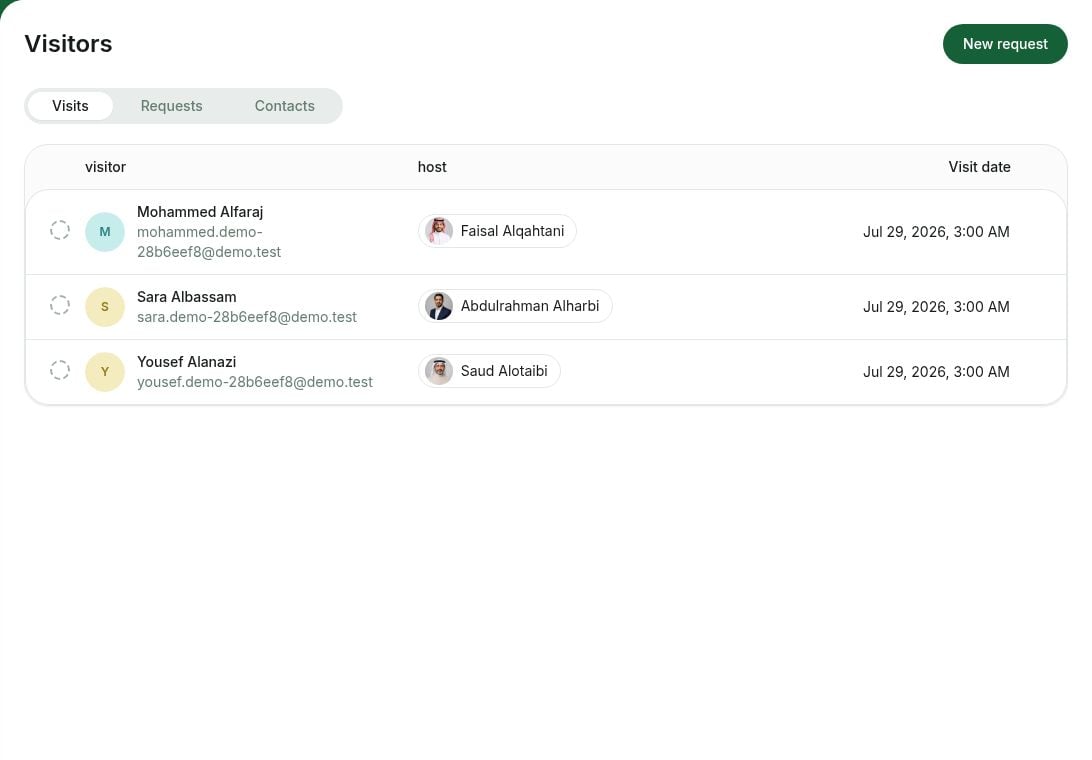
* Administrators can see all the visits, visit requests, and contacts on the **Service** > **Visitors** page in RNTOR. Each visit shows the visitor's name, host's name, visit date, and visit status at a glance:
* Empty circle - visitor hasn't checked in.
* Green circle - visitor has checked in.
* Purple circle - visitor has checked in and checked out.
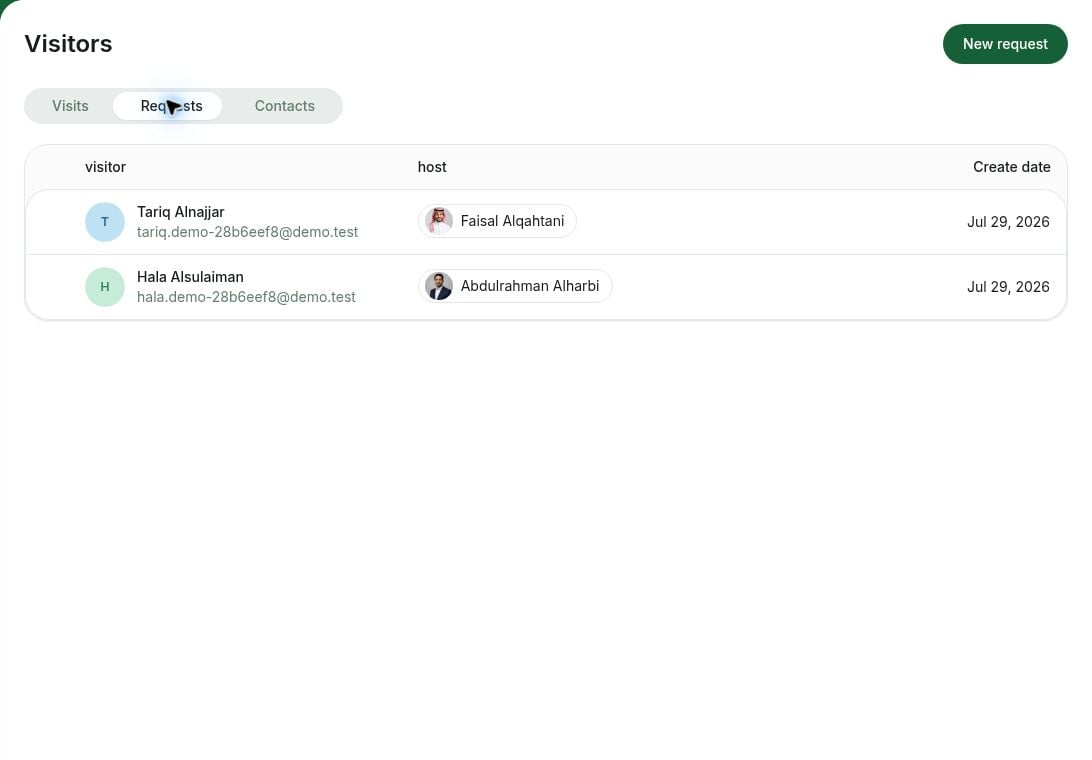 * Filter by **Date** to see visits scheduled on, before, after, or between specific dates.
* Filter by **Create date** to see visits created on, before, after, or between specific dates. On the **Requests** tab, you can filter visit requests by **Create date** the same way.
* Click on any visit to view more details, such as the visit code, check-in/out time, visit duration, or to contact the host or visitor.
* Filter by **Date** to see visits scheduled on, before, after, or between specific dates.
* Filter by **Create date** to see visits created on, before, after, or between specific dates. On the **Requests** tab, you can filter visit requests by **Create date** the same way.
* Click on any visit to view more details, such as the visit code, check-in/out time, visit duration, or to contact the host or visitor.
 * Administrators can check the visit statistics on the **Analytics** page > **Visitors** dashboard.
 * For a comprehensive overview of all visits in the selected time range, including the visit date and time, check-in and check-out time, visit durations, and the visitor's and host's contact information, generate the [**Visitors** custom report](/docs/admin/analytics-reports/reports) on the **Analytics** page.
### Edit visits
If necessary, administrators can edit visits by following these steps:
1. Go to the **Visitors** page and open the necessary visit.
2. Click on the menu **(...)** top right > **Edit** to change the visit date or time or add an internal note.
Internal notes are only visible to your team of administrators.
* For a comprehensive overview of all visits in the selected time range, including the visit date and time, check-in and check-out time, visit durations, and the visitor's and host's contact information, generate the [**Visitors** custom report](/docs/admin/analytics-reports/reports) on the **Analytics** page.
### Edit visits
If necessary, administrators can edit visits by following these steps:
1. Go to the **Visitors** page and open the necessary visit.
2. Click on the menu **(...)** top right > **Edit** to change the visit date or time or add an internal note.
Internal notes are only visible to your team of administrators.