> ## Documentation Index
> Fetch the complete documentation index at: https://docs.rntor.com/docs/llms.txt
> Use this file to discover all available pages before exploring further.
# Orders
> Process customers’ shop orders, manage order statuses, cancel orders and manage refunds
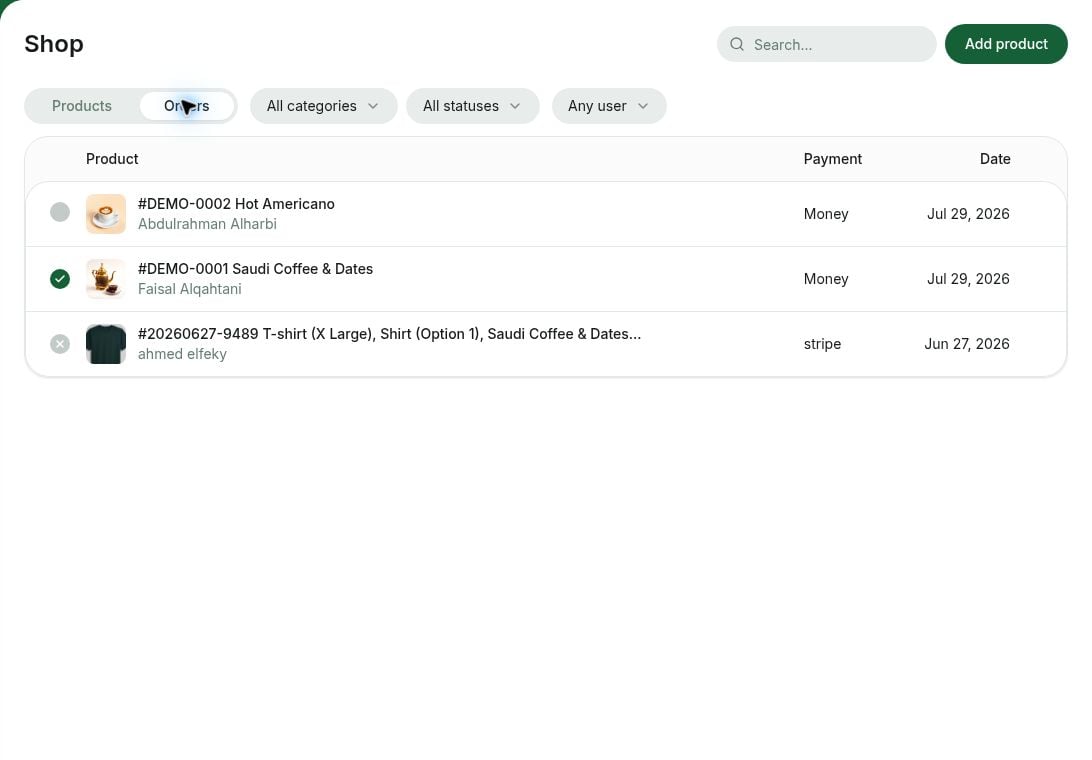
Administrators can track order revenue and manage orders by modifying their status and conducting a search for them.
When the order is created, it appears on the **Service** > **Shop** page > **Orders** panel. Orders are sorted from newest to oldest.
 ## Manage orders
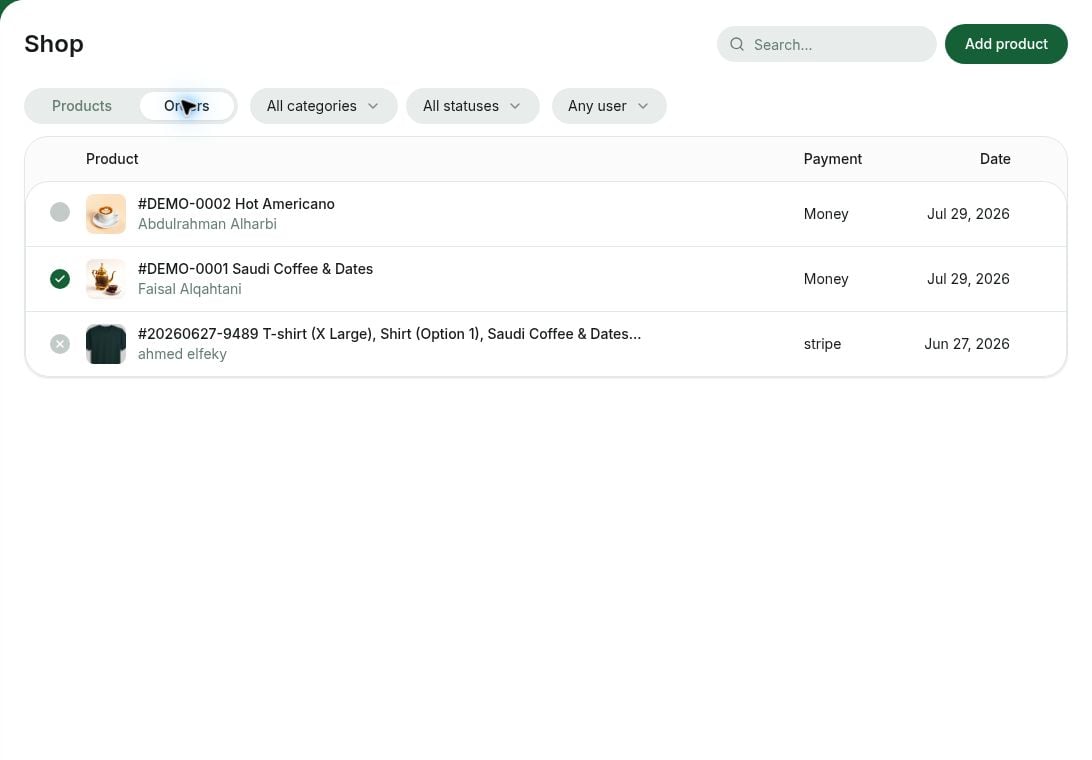
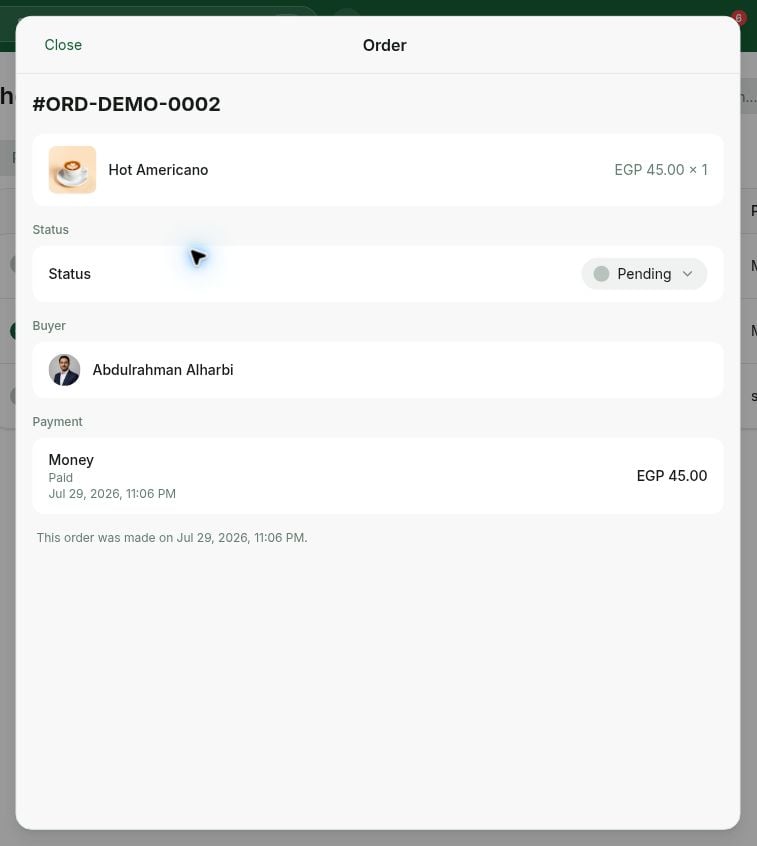
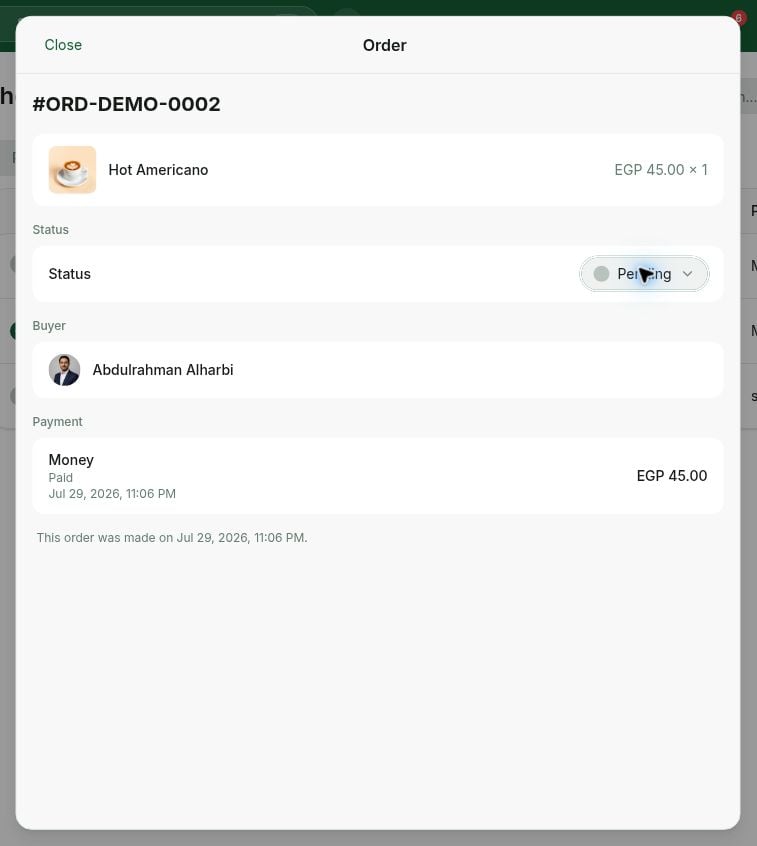
Once [a customer places an order](/docs/member/shop), open it from the **Orders** panel to view its details:
| **Value** | **Description** |
| :----------- | :---------------------------------------------------------------------------------------------------------------------------------------------------------------------------------------------------------------------------------------------------------------------------------------------------------------------------------------------------------------------------------------------------- |
| Order number | Every order has a unique number within a location (e.g., #30). |
| Option | The variation of the product. |
| Quantity | The quantity of the ordered product options. |
| Status | The order's readiness, set by an administrator. There are four statuses:
## Manage orders
Once [a customer places an order](/docs/member/shop), open it from the **Orders** panel to view its details:
| **Value** | **Description** |
| :----------- | :---------------------------------------------------------------------------------------------------------------------------------------------------------------------------------------------------------------------------------------------------------------------------------------------------------------------------------------------------------------------------------------------------- |
| Order number | Every order has a unique number within a location (e.g., #30). |
| Option | The variation of the product. |
| Quantity | The quantity of the ordered product options. |
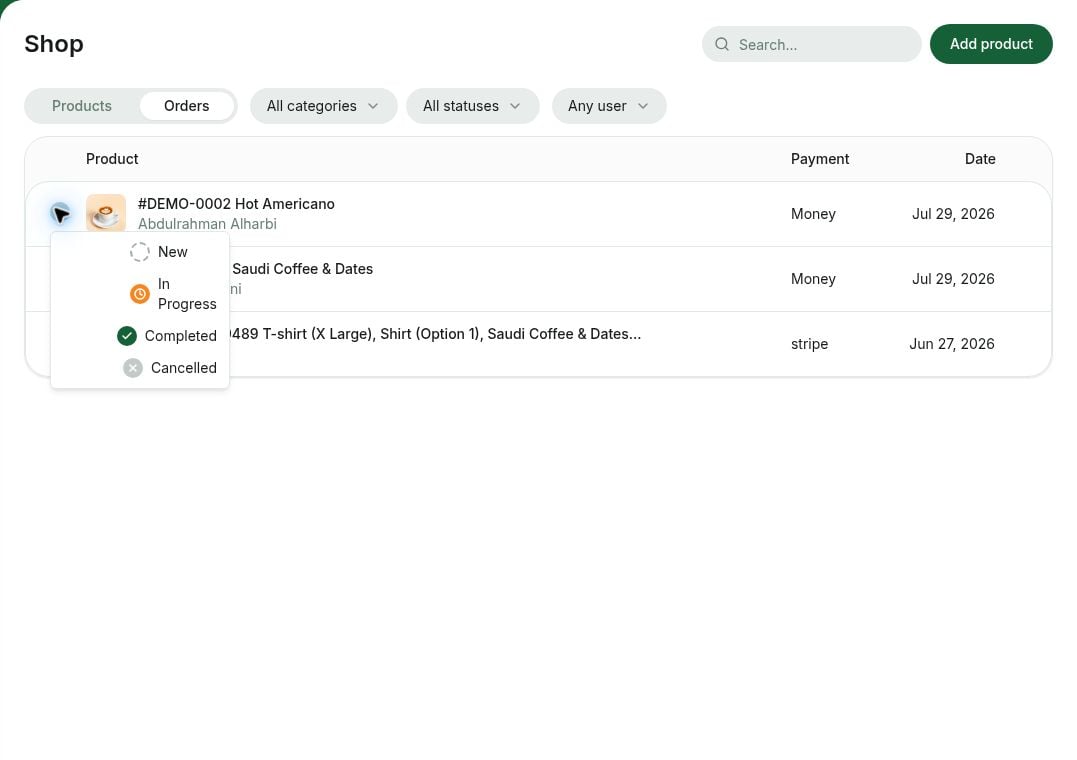
| Status | The order's readiness, set by an administrator. There are four statuses: - **New** - created but not processed yet. All new orders receive this status by default.
- **In progress** - currently being processed.
- **Completed** - successfully processed.
- **Canceled** - canceled by an administrator, or the customer couldn't proceed because payment failed.
|
| Buyer | The customer who placed the order. |
| Payment | The payment method the customer chose. |
[Configure the notifications](/docs/admin/administration/your-account/notifications/set-up-notifications) to be instantly notified about new shop orders.
### Find and filter orders
Filter orders on the **Orders** panel to find what you need:
* Filter by **Status** to see **New**, **In progress**, **Completed**, or **Canceled** orders.
* Filter by **Category** to see orders from a specific shop category.
* Filter by **Product** to see orders that include a specific product.
* Filter by **User** to see all orders of a specific customer.
* Filter by **Create date** to see orders created on, before, after, or between specific dates.
 ### Change an order's status
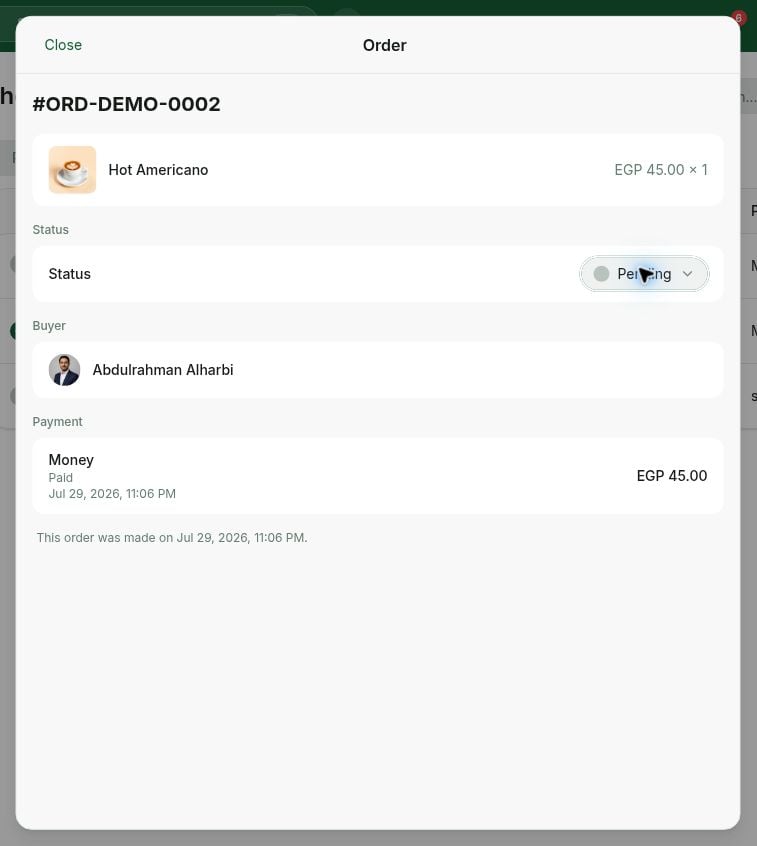
Only administrators can change an order's status. Click the **Status** icon next to the order — or open the order and use the **Status** field — and choose the new status. The customer receives [a push notification](/docs/member/account/notifications) when their order status changes.
### Change an order's status
Only administrators can change an order's status. Click the **Status** icon next to the order — or open the order and use the **Status** field — and choose the new status. The customer receives [a push notification](/docs/member/account/notifications) when their order status changes.
 ### Cancel an order and issue a refund
To cancel an order — for example, if the product is out of stock or there is an issue with it — set its status to **Canceled**. You'll be asked to confirm whether the customer is eligible for a refund; canceling does not refund automatically. If you confirm, the refund is issued automatically. [Understand refunds](/docs/admin/billing/payments/refunds)
### Cancel an order and issue a refund
To cancel an order — for example, if the product is out of stock or there is an issue with it — set its status to **Canceled**. You'll be asked to confirm whether the customer is eligible for a refund; canceling does not refund automatically. If you confirm, the refund is issued automatically. [Understand refunds](/docs/admin/billing/payments/refunds)
 ## View order status
Users can view the status of their order by following these steps:
1. Click on their profile picture in the bottom left corner to open the **Account** page.
2. Go to the **Orders** section to view the status of their orders.
## View order status
Users can view the status of their order by following these steps:
1. Click on their profile picture in the bottom left corner to open the **Account** page.
2. Go to the **Orders** section to view the status of their orders.
 ## Check analytics on order statuses
Get a consolidated overview of all orders with the specific status on the **Analytics** page.
1. Open the **Analytics** page > choose **Shop** dashboard.
2. Check the **Orders by status** graph and choose the specific time periods for the overview.
## Check analytics on order statuses
Get a consolidated overview of all orders with the specific status on the **Analytics** page.
1. Open the **Analytics** page > choose **Shop** dashboard.
2. Check the **Orders by status** graph and choose the specific time periods for the overview.