> ## Documentation Index
> Fetch the complete documentation index at: https://docs.rntor.com/docs/llms.txt
> Use this file to discover all available pages before exploring further.
# Room display
> Set up and configure Room display on tablets outside room entrances to show real-time room availability, enable instant QR bookings, and prevent abandoned bookings
Room display is an app that shows real-time room availability on a tablet next to the room entrance, so customers can find and book a free room without leaving the hallway.
## Prerequisites
* The tablet has a minimum screen size of 7 inches and supports the App Store.
* The tablet runs iOS or iPadOS 15.1 or later.
* Your [rooms are added](/docs/admin/resource-management/resources/set-up-resources#add-rooms) and configured in RNTOR with photos uploaded—the room photo is used as the Room display background.
## Set up Room display
1. Download [RNTOR Room Display from the App Store](https://apps.apple.com/us/app/rntor-room-display/id6759832576) to your tablet.
2. Open the app and press **Log in**.
 3. Log in with the account of an administrator for the location where you want to set up Room display.
4. Select your network and location.
3. Log in with the account of an administrator for the location where you want to set up Room display.
4. Select your network and location.
 5. Select a room from the list to activate Room display for it.
 6. Lock the tablet so strangers can't close the app or reopen the device: set up [Guided Access](https://support.apple.com/guide/ipad/lock-ipad-to-one-app-ipada16d1374/ipados) on iPad.
## How Room display works
### Availability indicators
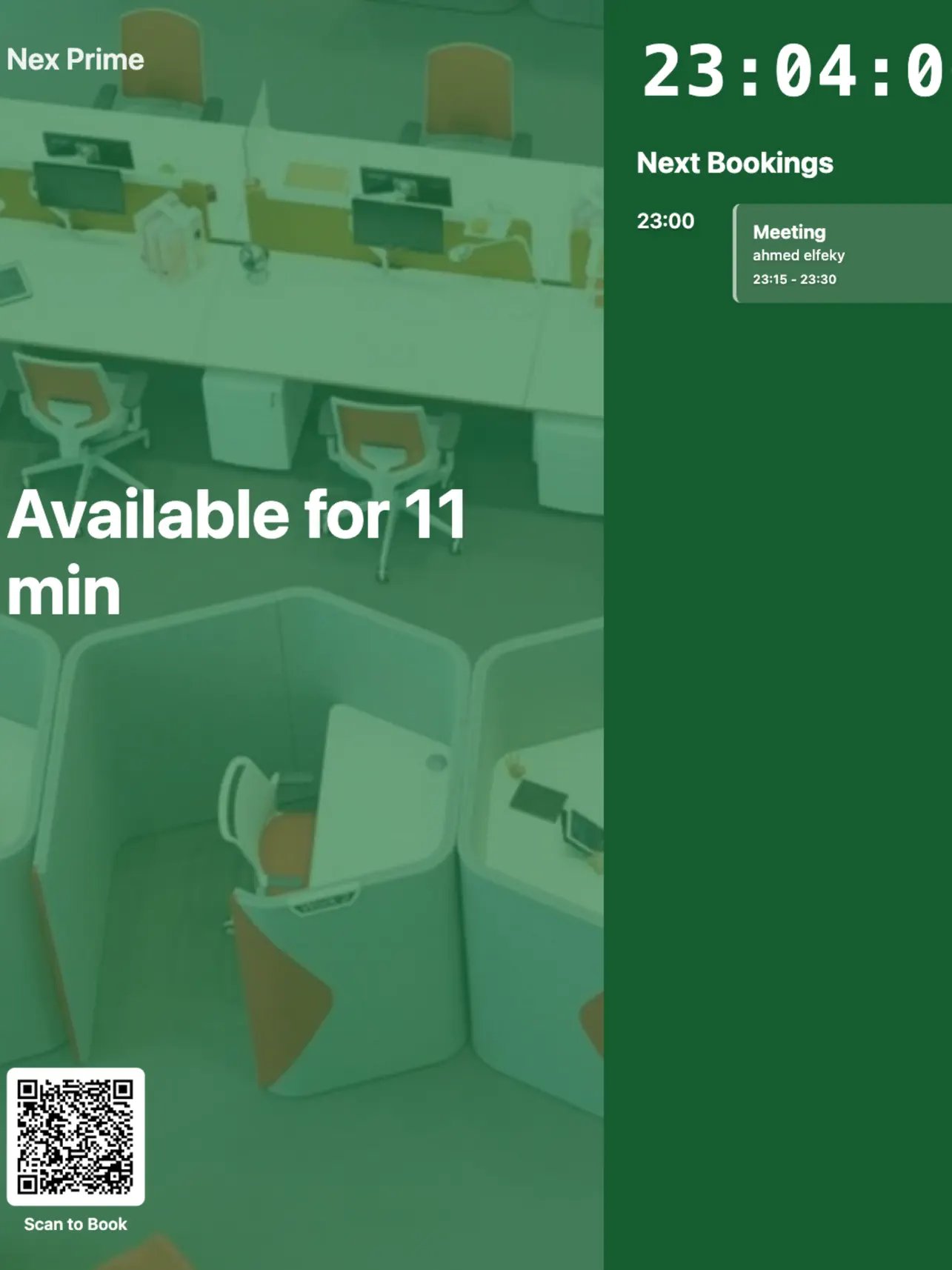
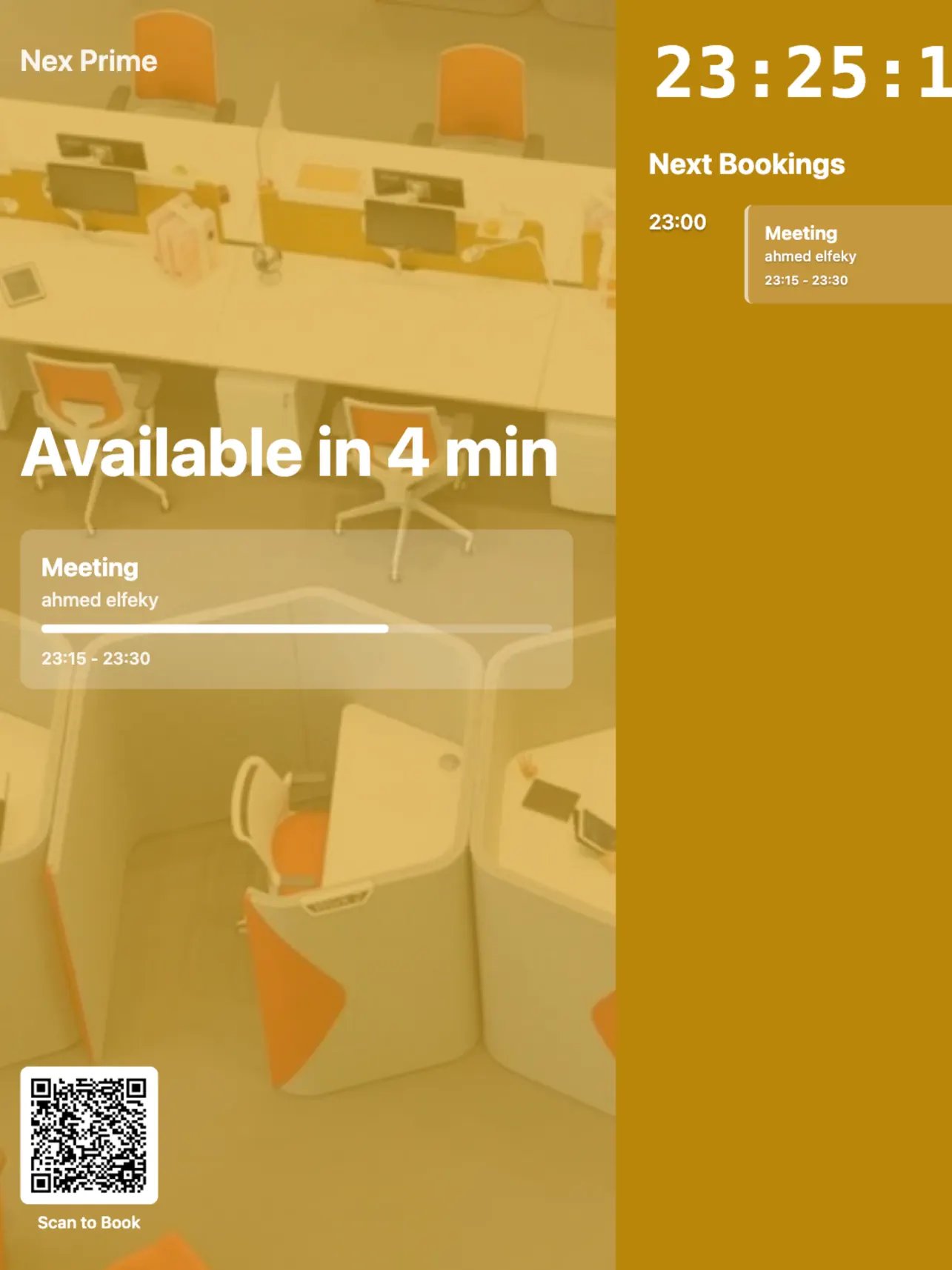
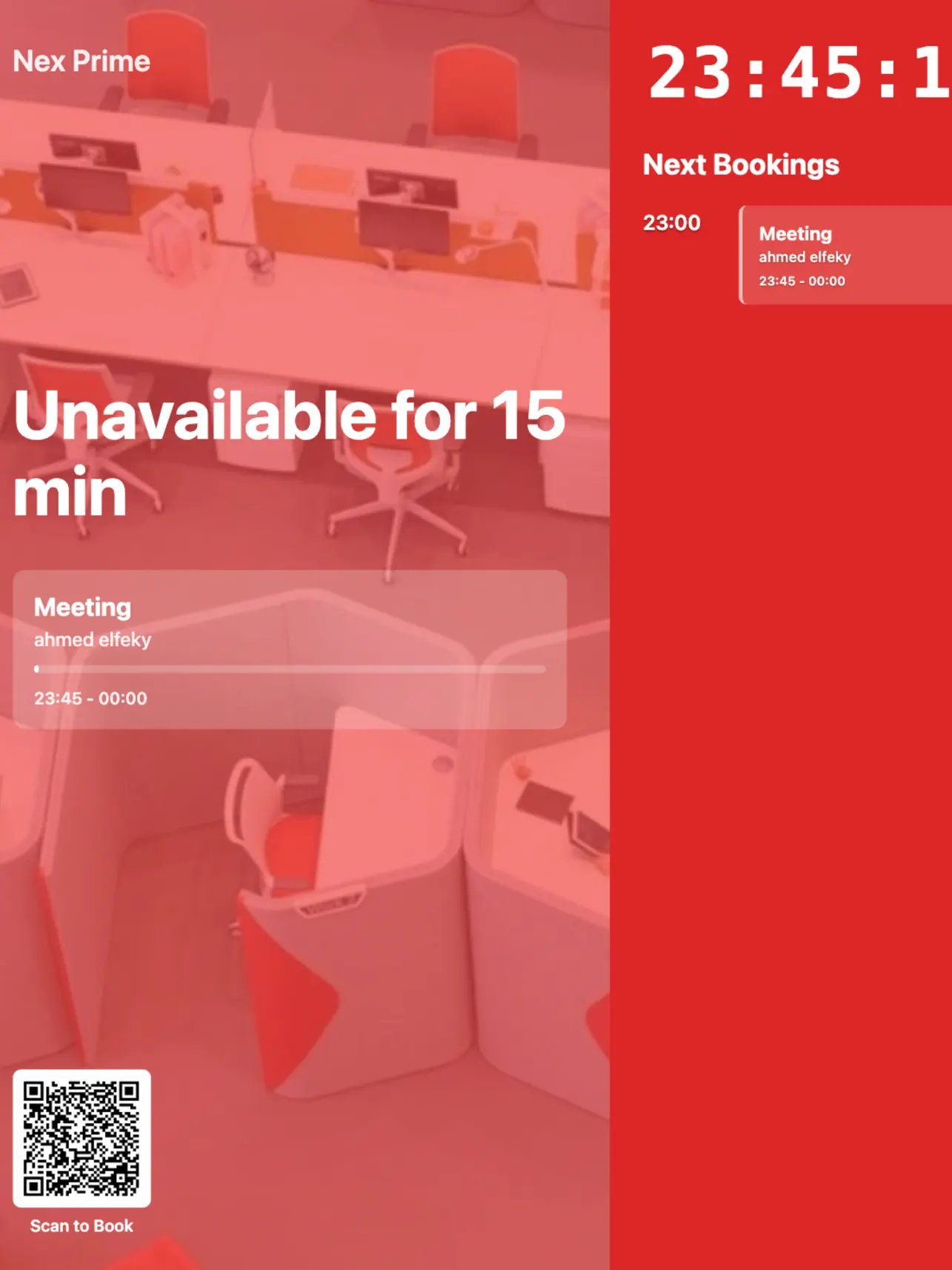
Room display signals room availability by tinting the background color of the tablet.
| **Tablet color** | **Explanation** |
| ---------------- | --------------------------------------------------------------------------------------------------------------- |
| Green | The room is available. The free time until the next booking is longer than the room's minimum booking duration. |
| Yellow | The room becomes available in less than 60 minutes. |
| Red | The room is unavailable for the next 60 minutes. |
The display also shows the current and upcoming bookings, with the booker's full name, booking title, and time.
Room display respects a user's [privacy settings](/docs/admin/customer-management/users/manage-user-account). If a user selects **Administrators** for their **Booking title visibility**, their booking title doesn't appear on the display.
**Available**
6. Lock the tablet so strangers can't close the app or reopen the device: set up [Guided Access](https://support.apple.com/guide/ipad/lock-ipad-to-one-app-ipada16d1374/ipados) on iPad.
## How Room display works
### Availability indicators
Room display signals room availability by tinting the background color of the tablet.
| **Tablet color** | **Explanation** |
| ---------------- | --------------------------------------------------------------------------------------------------------------- |
| Green | The room is available. The free time until the next booking is longer than the room's minimum booking duration. |
| Yellow | The room becomes available in less than 60 minutes. |
| Red | The room is unavailable for the next 60 minutes. |
The display also shows the current and upcoming bookings, with the booker's full name, booking title, and time.
Room display respects a user's [privacy settings](/docs/admin/customer-management/users/manage-user-account). If a user selects **Administrators** for their **Booking title visibility**, their booking title doesn't appear on the display.
**Available**
 **Available soon**
 **Occupied**
 ### Ad-hoc QR bookings
 Room display shows a unique QR code for the room in the bottom-left corner of the screen. Scanning it takes the user to the room's booking calendar in the member web portal or mobile app, where they can book the room instantly.
### Abandoned booking protection
To prevent no-shows, Room display supports a check-in feature for rooms that are completely free, with **Money** and **Credits** pricing disabled.
#### Configure abandoned booking protection
When [creating](/docs/admin/resource-management/resources/set-up-resources#add-rooms) or [editing](/docs/admin/resource-management/resources/set-up-resources#edit-a-room) a free room, enable **Check in** and set:
* **Abandoned threshold**—how long after the booking start Room display waits for a check-in before canceling the booking.
* **Early check in**—how long before the booking start the **Check in** button appears on Room display.
Room display shows a unique QR code for the room in the bottom-left corner of the screen. Scanning it takes the user to the room's booking calendar in the member web portal or mobile app, where they can book the room instantly.
### Abandoned booking protection
To prevent no-shows, Room display supports a check-in feature for rooms that are completely free, with **Money** and **Credits** pricing disabled.
#### Configure abandoned booking protection
When [creating](/docs/admin/resource-management/resources/set-up-resources#add-rooms) or [editing](/docs/admin/resource-management/resources/set-up-resources#edit-a-room) a free room, enable **Check in** and set:
* **Abandoned threshold**—how long after the booking start Room display waits for a check-in before canceling the booking.
* **Early check in**—how long before the booking start the **Check in** button appears on Room display.
 #### Check in on Room display
1. If **Check in** is enabled for a room, then when a user books it, the booking starts in a **Tentative** status.
2. The **Check in** button appears on Room display based on the **Early check in** time, for example 10 minutes before the booking starts.
#### Check in on Room display
1. If **Check in** is enabled for a room, then when a user books it, the booking starts in a **Tentative** status.
2. The **Check in** button appears on Room display based on the **Early check in** time, for example 10 minutes before the booking starts.
 3. If the user taps **Check in**, the booking status changes to **Confirmed** and a confirmation message appears on the screen.
 4. If nobody checks in before the **Abandoned threshold** passes, for example 5 minutes after the booking starts, the booking status changes to **Canceled** and is automatically removed from the calendar, freeing up the room for others.
## Log out of Room display
### Exit Room display
1. Turn off [Guided Access](https://support.apple.com/guide/ipad/lock-ipad-to-one-app-ipada16d1374/ipados) on iPad.
2. Close the app by swiping it up and off the screen.
### Log out from Room display
1. Close Room display by swiping it up and off the screen, then reopen it.
2. Tap **(...)** in the top-right corner, then tap **Log out**.
4. If nobody checks in before the **Abandoned threshold** passes, for example 5 minutes after the booking starts, the booking status changes to **Canceled** and is automatically removed from the calendar, freeing up the room for others.
## Log out of Room display
### Exit Room display
1. Turn off [Guided Access](https://support.apple.com/guide/ipad/lock-ipad-to-one-app-ipada16d1374/ipados) on iPad.
2. Close the app by swiping it up and off the screen.
### Log out from Room display
1. Close Room display by swiping it up and off the screen, then reopen it.
2. Tap **(...)** in the top-right corner, then tap **Log out**.
 ## Troubleshoot Room display
If bookings don't appear on Room display or you can't access it, the tablet might have a weak or unstable internet connection. Reconnect the tablet to Wi-Fi or connect to a different network.
To set up Room display for a room in a specific location, log in with an [administrator account](/docs/admin/administration/administrators/administrators) for that location. [Log out of the app](/docs/admin/resource-management/room-display/set-up-room-display#log-out-from-room-display) and log back in with an administrator account that has access to the correct location.
Make sure you're using the latest version of Room display. Check the App Store for updates, or tap **Update** if it's shown.
[Check your RNTOR subscription](/docs/admin/administration/billing/rntor-subscription) status to make sure it's active and not suspended.
Make sure your tablet meets the [prerequisites](/docs/admin/resource-management/room-display/set-up-room-display#prerequisites) to install Room display.
## FAQs
The recommended and official way to install RNTOR Room Display is through the Apple App Store. Access to the App Store is a [requirement](/docs/admin/resource-management/room-display/set-up-room-display#prerequisites). For the best experience, automatic updates, and reliability, use a tablet that meets all system requirements, including access to the App Store.
## Troubleshoot Room display
If bookings don't appear on Room display or you can't access it, the tablet might have a weak or unstable internet connection. Reconnect the tablet to Wi-Fi or connect to a different network.
To set up Room display for a room in a specific location, log in with an [administrator account](/docs/admin/administration/administrators/administrators) for that location. [Log out of the app](/docs/admin/resource-management/room-display/set-up-room-display#log-out-from-room-display) and log back in with an administrator account that has access to the correct location.
Make sure you're using the latest version of Room display. Check the App Store for updates, or tap **Update** if it's shown.
[Check your RNTOR subscription](/docs/admin/administration/billing/rntor-subscription) status to make sure it's active and not suspended.
Make sure your tablet meets the [prerequisites](/docs/admin/resource-management/room-display/set-up-room-display#prerequisites) to install Room display.
## FAQs
The recommended and official way to install RNTOR Room Display is through the Apple App Store. Access to the App Store is a [requirement](/docs/admin/resource-management/room-display/set-up-room-display#prerequisites). For the best experience, automatic updates, and reliability, use a tablet that meets all system requirements, including access to the App Store.