> ## Documentation Index
> Fetch the complete documentation index at: https://docs.rntor.com/docs/llms.txt
> Use this file to discover all available pages before exploring further.
# Rental applications or immediate sign-ups
> Understand and set up applications or immediate sign-ups for long-term resource rentals
RNTOR provides a comprehensive system to organize long-term rentals of your offices, dedicated desks, and other resources.
* Sign contracts with tenants
* Automate rental payments
* Auto-update resource availability — helping you track occupancy and plan sales.
You can configure each resource to either collect rental applications or allow immediate sign-ups, depending on your business needs.
## Prerequisites
1. In the [settings](/docs/admin/resource-management/resources/set-up-pricing) of each resource available for long-term rentals, enable the **Plans** switch and configure tiers.
2. In each tier, set the sign-up **Type**:
* **Request** — if you need to verify tenants, sign contracts, or perform other checks before confirming a rental.
* **Immediate** — if you want to let customers sign up for office rental and pay immediately without verification.
3. If choosing **Request**, [enable the](/docs/admin/support/tickets) [**Support**](/docs/admin/support/tickets) [page](/docs/admin/support/tickets) and set it to **Public** visibility. Applications arrive and are processed as support tickets.
4. [Integrate the necessary pages into your marketing site](/docs/guides/promotion/integrate-with-your-marketing-website) so potential tenants can browse and apply or sign up instantly.
## How applications for resources work
If a resource has the **Request** sign-up type:
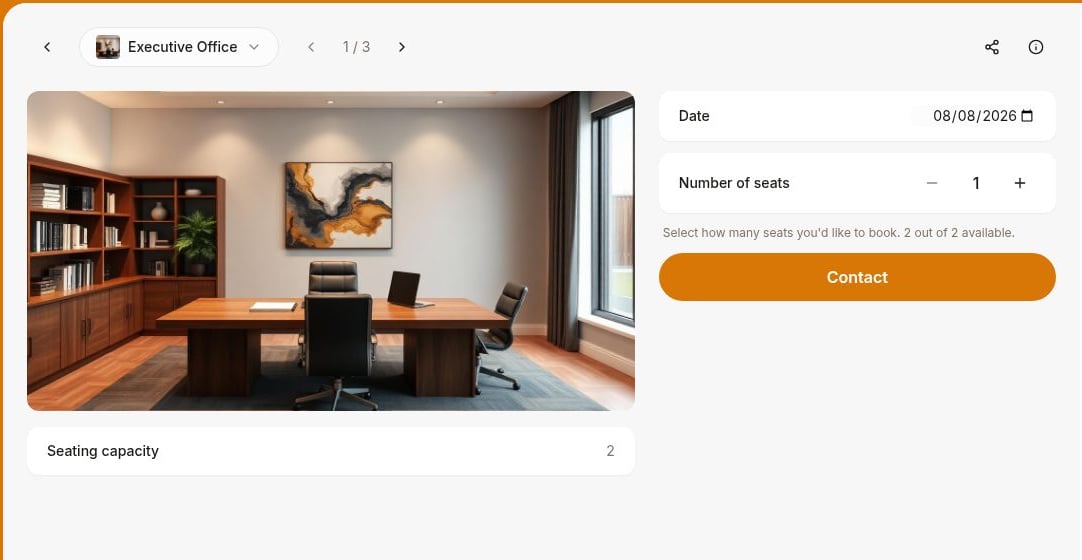
1. Customers browse available resources on the **Rooms, Desks, Offices, Parking,** and **Equipment** pages.
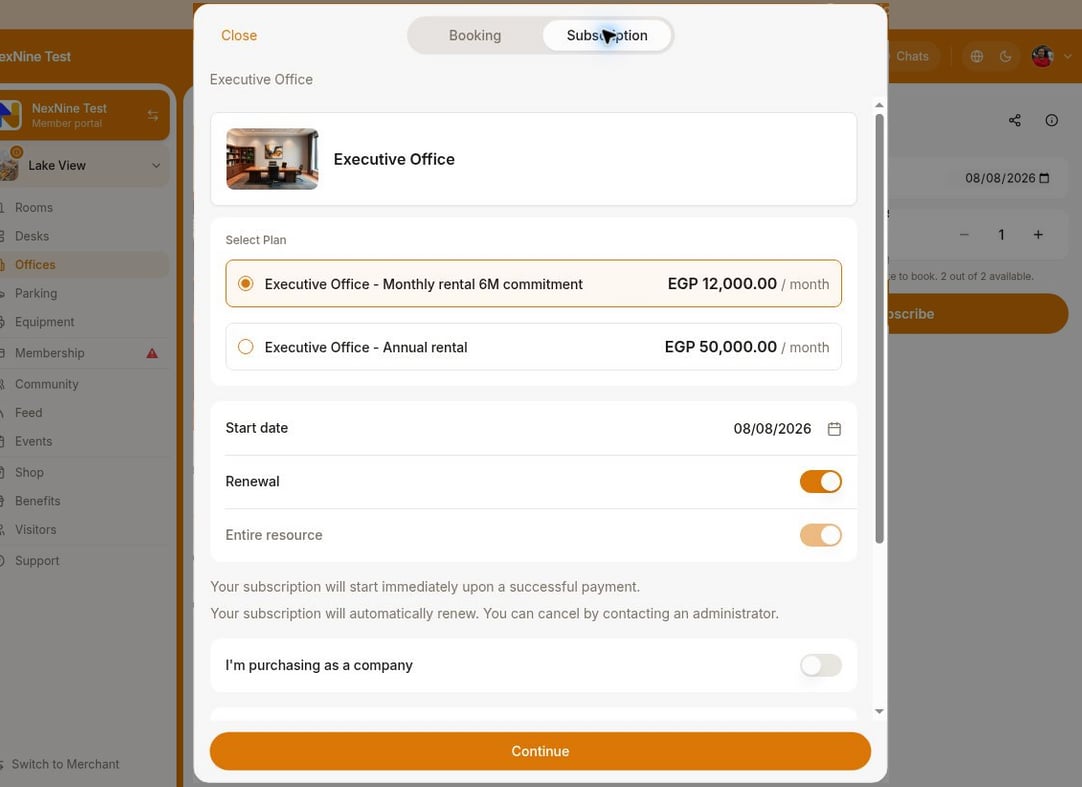
2. Click **Subscribe** on a resource they’re interested in and choose a preferred start date, renewal, tier, and whether they want to rent it as an individual member or as a business.
3. Then click **Apply**.
 4. Each application appears as a new ticket in **Support** > **Tickets**.
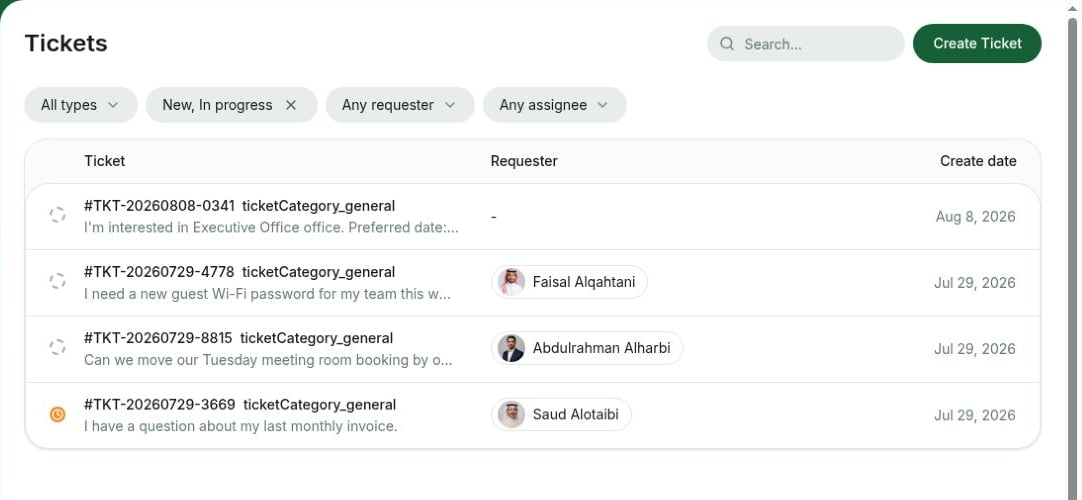 5. Administrators manage the request through the support ticket:
* Communicate with the applicant via ticket comments
* Answer questions, share additional photos
* Arrange a tour
6. If rental is confirmed:
* Click the user's name in the ticket and press **Invite as member** to add them.
* If the tenant is a company, [create a company](/docs/admin/customer-management/companies/set-up-companies) > [add this user and other company members](/docs/admin/customer-management/companies/set-up-companies#add-company-members-and-managers), or ask the user to invite their colleagues.
* [Issue a contract](/docs/admin/billing/contracts/set-up-contracts) if necessary. If you enable the **Create subscription from contract** switch, a subscription will be created automatically. If a contract isn't required, simply [create a subscription](/docs/admin/billing/subscriptions/set-up-subscriptions) for the customer.
* The customer will automatically receive and [pay invoices](/docs/admin/billing/invoices/record-invoice-payments) for the rental.
* The entire resource (e.g., an entire office) or a selected number of seats (e.g., a dedicated desk) is assigned to the customer.
To avoid missing applications, [enable notifications](/docs/admin/administration/your-account/notifications/set-up-notifications) for new support tickets.
## How immediate sign-ups work
If a resource has the **Immediate** sign-up type:
1. New customers browse available resources on the **Rooms, Desks, Offices, Parking,** and **Equipment** pages, and click `Subscribe` when interested.
2. [Complete the sign-up](/docs/admin/billing/plans/immediate-plan-sign-ups) and make the first rental payment.
5. Administrators manage the request through the support ticket:
* Communicate with the applicant via ticket comments
* Answer questions, share additional photos
* Arrange a tour
6. If rental is confirmed:
* Click the user's name in the ticket and press **Invite as member** to add them.
* If the tenant is a company, [create a company](/docs/admin/customer-management/companies/set-up-companies) > [add this user and other company members](/docs/admin/customer-management/companies/set-up-companies#add-company-members-and-managers), or ask the user to invite their colleagues.
* [Issue a contract](/docs/admin/billing/contracts/set-up-contracts) if necessary. If you enable the **Create subscription from contract** switch, a subscription will be created automatically. If a contract isn't required, simply [create a subscription](/docs/admin/billing/subscriptions/set-up-subscriptions) for the customer.
* The customer will automatically receive and [pay invoices](/docs/admin/billing/invoices/record-invoice-payments) for the rental.
* The entire resource (e.g., an entire office) or a selected number of seats (e.g., a dedicated desk) is assigned to the customer.
To avoid missing applications, [enable notifications](/docs/admin/administration/your-account/notifications/set-up-notifications) for new support tickets.
## How immediate sign-ups work
If a resource has the **Immediate** sign-up type:
1. New customers browse available resources on the **Rooms, Desks, Offices, Parking,** and **Equipment** pages, and click `Subscribe` when interested.
2. [Complete the sign-up](/docs/admin/billing/plans/immediate-plan-sign-ups) and make the first rental payment.
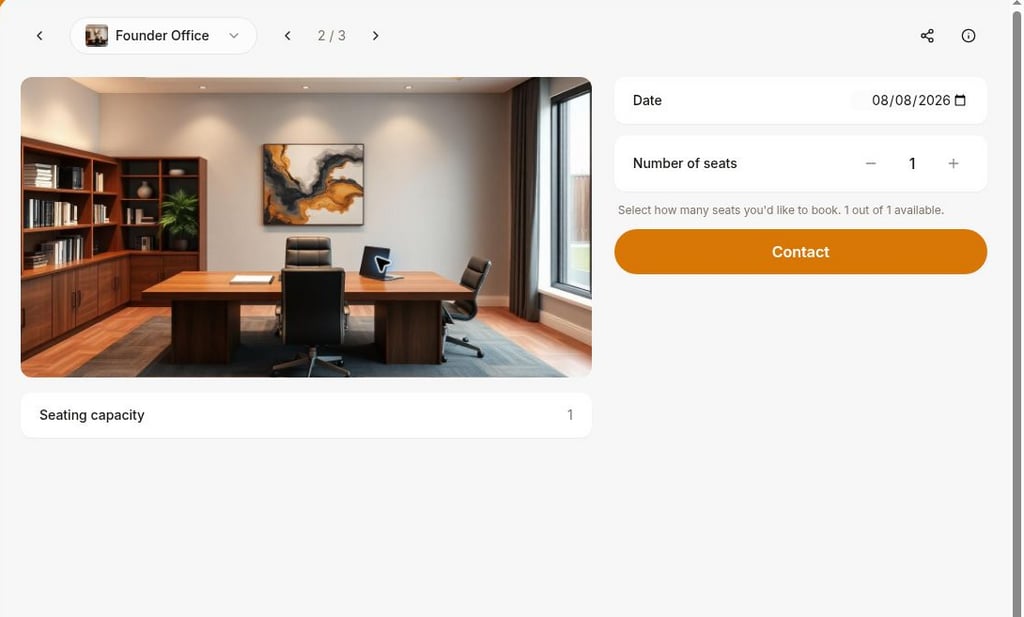 3. Administrators receive a [notification](/docs/admin/administration/your-account/notifications/set-up-notifications) about each new sign-up.
4. A subscription is automatically created for the customer.
* The customer will receive and [pay invoices](/docs/admin/billing/invoices/record-invoice-payments) for rental.
* The entire resource (e.g., an entire office) or a selected number of seats (e.g., a dedicated desk) is assigned to the customer.
**FAQs**
[Create a subscription](/docs/admin/billing/subscriptions/set-up-subscriptions) for the customer with the required dates and add this resource as a product. This will automatically assign the resource to the customer for the selected time period and update its availability.
Customers pay for rentals through a [recurring subscription](/docs/admin/billing/subscriptions/set-up-subscriptions) with automatically issued invoices.
To maintain a waitlist of people who would like to rent an office when it becomes available, you can:
1. Disable the **Entire resource** switch in the current tenant's subscription for this office, and select the total number of seats instead in the **Quantity** field.
2. This will keep the office visible to all customers on the **Offices** page, but label it as **Fully occupied**.
3. Add your sales team's email address or a link to your waitlist form to the office description.
3. Administrators receive a [notification](/docs/admin/administration/your-account/notifications/set-up-notifications) about each new sign-up.
4. A subscription is automatically created for the customer.
* The customer will receive and [pay invoices](/docs/admin/billing/invoices/record-invoice-payments) for rental.
* The entire resource (e.g., an entire office) or a selected number of seats (e.g., a dedicated desk) is assigned to the customer.
**FAQs**
[Create a subscription](/docs/admin/billing/subscriptions/set-up-subscriptions) for the customer with the required dates and add this resource as a product. This will automatically assign the resource to the customer for the selected time period and update its availability.
Customers pay for rentals through a [recurring subscription](/docs/admin/billing/subscriptions/set-up-subscriptions) with automatically issued invoices.
To maintain a waitlist of people who would like to rent an office when it becomes available, you can:
1. Disable the **Entire resource** switch in the current tenant's subscription for this office, and select the total number of seats instead in the **Quantity** field.
2. This will keep the office visible to all customers on the **Offices** page, but label it as **Fully occupied**.
3. Add your sales team's email address or a link to your waitlist form to the office description.