> ## Documentation Index
> Fetch the complete documentation index at: https://docs.rntor.com/docs/llms.txt
> Use this file to discover all available pages before exploring further.
# Branding
> Customize your member portal's light and dark logos, favicon, colors, background, font, style, corners and shadow.
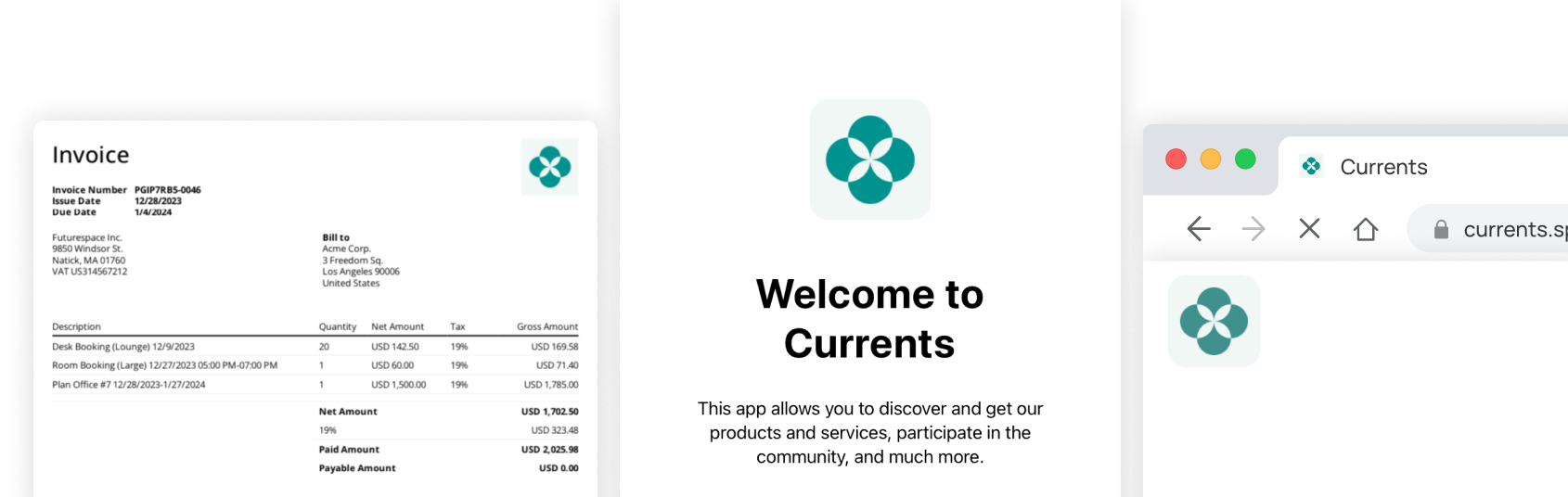
You can customize your [member web portal](/docs/admin/general/member-web-portal/get-started) to match your brand, including its logo, colors, font and style. Your light-mode logo is also used in merchant emails and invoice, credit-note and receipt PDFs.
## Upload your logo and favicon
1. Go to [Rntor](https://app.rntor.com) as an [owner](/docs/admin/administration/administrators/owner).
2. Open **Settings** for your network.
3. Go to **General > Branding**.
4. Upload **Logo light mode**: a wide logo for the portal header, at least 512 px wide. The portal supports SVG or transparent PNG.
Use a PNG logo if it also needs to appear in emails and PDFs. SVG works in the portal, but email and PDF support is currently limited. The light-mode logo is the asset used for those documents and messages.
5. Optionally upload **Logo dark mode**, a version that stays readable on dark portal surfaces. It is used for dark headers, not as a separate email or PDF logo.
6. Upload **Favicon**, a square brand icon. Use SVG, PNG or ICO; 512 × 512 px is recommended.
The favicon is used in browser tabs and compact portal surfaces, including Welcome, the sidebar and footer. Keep the design simple so it remains recognizable at small sizes. The Welcome and compact marks can use the logo when no favicon is available; browser icons do not use the wide logo as a substitute.
 Use **Import from website > Import** to import branding from your saved official business website, with your verified work-email domain as a fallback. It does not replace branding you have customized.
## Set the theme
1. Go to **Settings > General > Branding** and click **Edit** beside **Theme**.
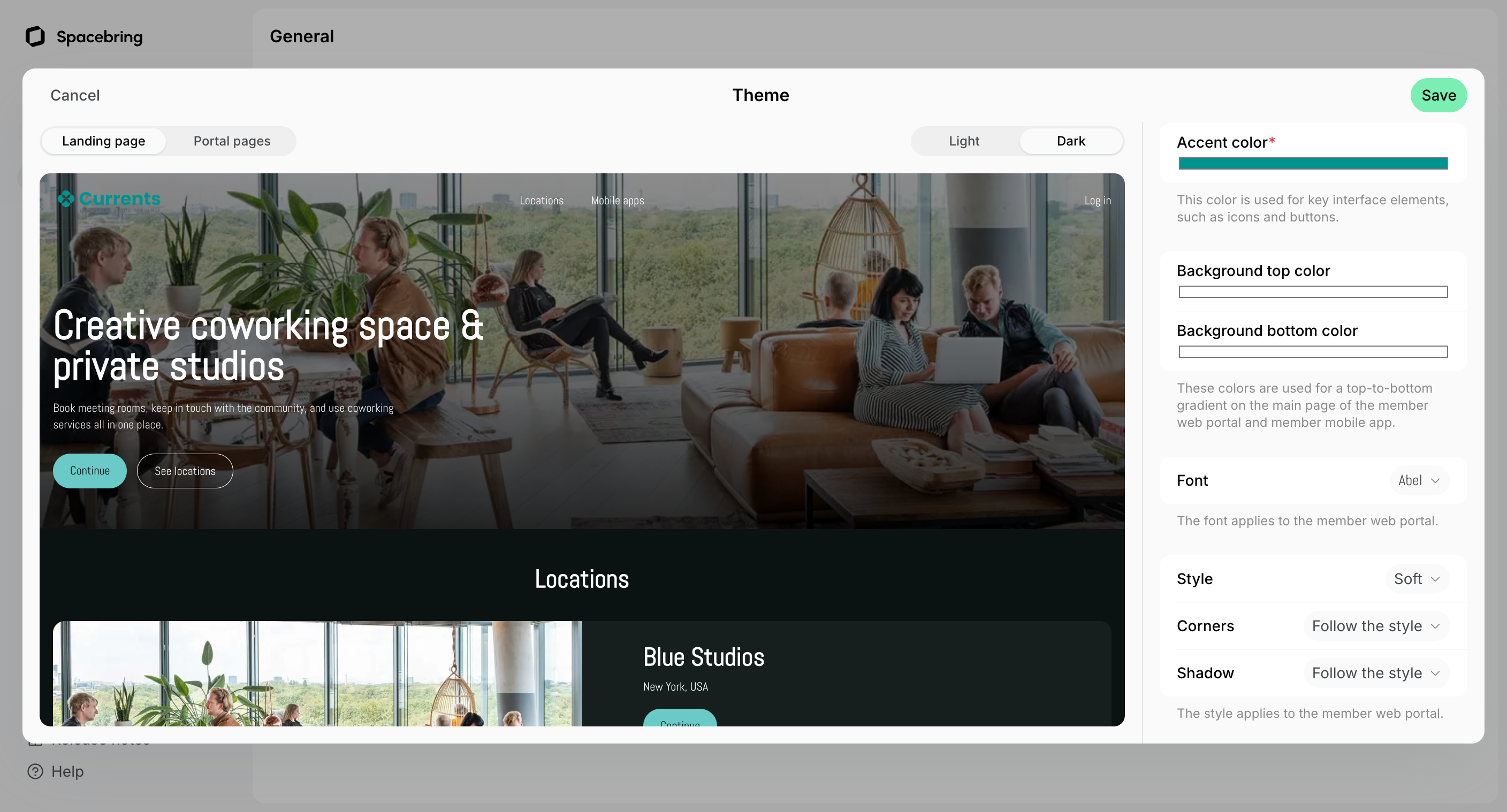
2. Change each setting. Each change appears in the preview immediately.
3. Switch between **Landing page**, **Locations** and **Portal pages**, and between **Light** and **Dark**. Check desktop, tablet and mobile sizes and **EN / AR**.
Use **Import from website > Import** to import branding from your saved official business website, with your verified work-email domain as a fallback. It does not replace branding you have customized.
## Set the theme
1. Go to **Settings > General > Branding** and click **Edit** beside **Theme**.
2. Change each setting. Each change appears in the preview immediately.
3. Switch between **Landing page**, **Locations** and **Portal pages**, and between **Light** and **Dark**. Check desktop, tablet and mobile sizes and **EN / AR**.
 * **Color preset** — choose a ready-made palette to update the accent and background together.
* **Accent color** — the color of buttons, links and selected states throughout the member portal.
* **Background top color** and **Background bottom color** — the background of the landing and locations pages. Matching colors create a solid background; different colors create a top-to-bottom gradient. Light and dark backgrounds are configured separately: check which mode you are editing.
* **Font** — the member portal's text font. Choose **System Default** or a font from the searchable list.
* **Style** — how the member portal presents its interface. Leave it on **None** for the standard appearance.
* **Corners** — how rounded interface elements are. **Follow style** uses the selected style's corners.
* **Shadow** — the depth of cards and panels. **Follow style** uses the selected style's shadow.
4. Click **Save** to apply the changes, or **Cancel** to discard them.
Theme settings apply to the member web portal. They do not currently change merchant email or PDF colors, typography, corners or shadows. The preview is read-only: it cannot create bookings or payments, and changes are not saved until you click Save.
You can also customize the [landing page layout](/docs/admin/general/member-web-portal/customize-landing-page) and serve the portal from your own [custom domain](/docs/admin/general/member-web-portal/custom-domain-for-your-member-web-portal).
* **Color preset** — choose a ready-made palette to update the accent and background together.
* **Accent color** — the color of buttons, links and selected states throughout the member portal.
* **Background top color** and **Background bottom color** — the background of the landing and locations pages. Matching colors create a solid background; different colors create a top-to-bottom gradient. Light and dark backgrounds are configured separately: check which mode you are editing.
* **Font** — the member portal's text font. Choose **System Default** or a font from the searchable list.
* **Style** — how the member portal presents its interface. Leave it on **None** for the standard appearance.
* **Corners** — how rounded interface elements are. **Follow style** uses the selected style's corners.
* **Shadow** — the depth of cards and panels. **Follow style** uses the selected style's shadow.
4. Click **Save** to apply the changes, or **Cancel** to discard them.
Theme settings apply to the member web portal. They do not currently change merchant email or PDF colors, typography, corners or shadows. The preview is read-only: it cannot create bookings or payments, and changes are not saved until you click Save.
You can also customize the [landing page layout](/docs/admin/general/member-web-portal/customize-landing-page) and serve the portal from your own [custom domain](/docs/admin/general/member-web-portal/custom-domain-for-your-member-web-portal).