> ## Documentation Index
> Fetch the complete documentation index at: https://docs.rntor.com/docs/llms.txt
> Use this file to discover all available pages before exploring further.
# Remove users
Administrators can remove any user from their view and, by removing them, manage these users' roles. Based on the [user role](/docs/admin/customer-management/users/user-roles), the process of removing a user happens on different pages.
## Remove a member
If the user is no longer your [member](/docs/admin/customer-management/users/members) and you need to remove them from the **Customers** page, follow these steps:
1. Go to the **Customers** page in the necessary location and click on the necessary user to open their profile.
2. Press the `…` menu top right and select `Remove`, then confirm your choice.
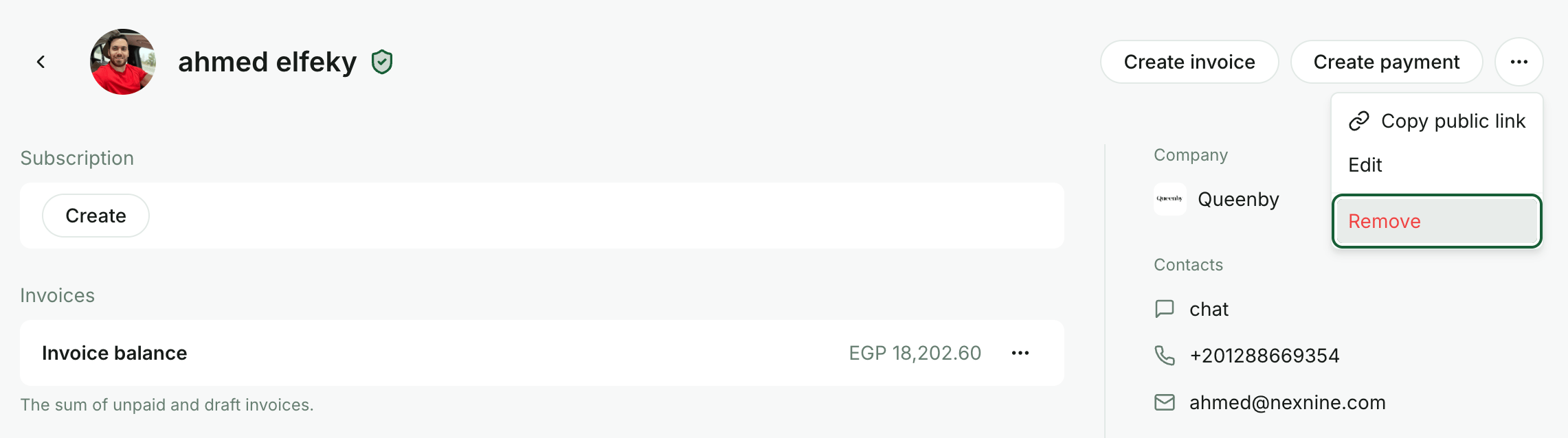 These steps do not delete the user's account and only make them a [nonmember](/docs/admin/customer-management/users/nonmembers) at this location. Only the user themselves can fully delete their account, as described on the [Manage user account](/docs/admin/customer-management/users/manage-user-account) page.
### What happens when you remove a user from the Customers page
* The user becomes a nonmember at this location and appears for administrators on the **Customers → Nonmembers** page.
* The user has the [nonmember's rights](/docs/admin/customer-management/users/nonmembers) at this location.
* If the user was an administrator or manager at this location, those rights are removed.
* The user's active subscription is ended or deactivated.
* The user's [default payment method](/docs/admin/billing/payments/payment-gateway) remains attached for future charges if needed.
* The history of the user's credits, payments, invoices, bookings, and activities is preserved for administrators.
* Administrators can [reinvite or restore the user to customers](/docs/admin/customer-management/users/nonmembers) at any time.
## Auto-remove members
RNTOR enables you to automate the offboarding of individual users or companies at a location.
Administrators enable the *Auto-remove members* property, which allows them to auto-remove members from the **Customers** page once their subscription ends.
### Configure "Auto-remove members" property
1. Administrators go to **Location settings → Billing** page → **Subscriptions** tab.
2. Manage the *Auto-remove members* switch:
* If **enabled**, members automatically become nonmembers when their subscription expires.
* If **disabled**, members don't become nonmembers when their subscription expires. They are still considered your members and are listed on the **Customers** page.
This setting does not affect administrators. Merchant Owners and Super Admins are never auto-removed.
With the *Auto-remove members* switch enabled, only members whose subscriptions end on the specified date are automatically removed from the **Customers** page. If an administrator cancels a subscription, they must also manually remove the member.
### How members are removed
With the *Auto-remove members* switch enabled, individual members or companies become [nonmembers](/docs/admin/customer-management/users/nonmembers) when their subscription expires at this location. The expiration date depends on the *End date* set inside the subscription. Administrators can set the expiration date when [creating](/docs/admin/billing/subscriptions/set-up-subscriptions) or [editing](/docs/admin/billing/subscriptions/edit-a-subscription) the subscription.
### Notes
When a **company subscription** expires, the company and its members **without personal subscriptions** become nonmembers at this location.
However, if a user's **personal subscription** expires but they belong to a **company with an active subscription** at the same location, the user will remain a member.
## Delete a nonmember
Administrators can delete nonmembers from the location by following these steps:
1. Log in to RNTOR.
2. Go to the **Customers** page in the necessary location.
3. Select the **Nonmembers** option in the drop-down list.
4. Switch from **Companies** to **Users** section, then click on the necessary user to open their profile.
5. Press the `…` menu top right and select `Delete`, then confirm your choice.
These steps do not delete the user's account and only make them a [nonmember](/docs/admin/customer-management/users/nonmembers) at this location. Only the user themselves can fully delete their account, as described on the [Manage user account](/docs/admin/customer-management/users/manage-user-account) page.
### What happens when you remove a user from the Customers page
* The user becomes a nonmember at this location and appears for administrators on the **Customers → Nonmembers** page.
* The user has the [nonmember's rights](/docs/admin/customer-management/users/nonmembers) at this location.
* If the user was an administrator or manager at this location, those rights are removed.
* The user's active subscription is ended or deactivated.
* The user's [default payment method](/docs/admin/billing/payments/payment-gateway) remains attached for future charges if needed.
* The history of the user's credits, payments, invoices, bookings, and activities is preserved for administrators.
* Administrators can [reinvite or restore the user to customers](/docs/admin/customer-management/users/nonmembers) at any time.
## Auto-remove members
RNTOR enables you to automate the offboarding of individual users or companies at a location.
Administrators enable the *Auto-remove members* property, which allows them to auto-remove members from the **Customers** page once their subscription ends.
### Configure "Auto-remove members" property
1. Administrators go to **Location settings → Billing** page → **Subscriptions** tab.
2. Manage the *Auto-remove members* switch:
* If **enabled**, members automatically become nonmembers when their subscription expires.
* If **disabled**, members don't become nonmembers when their subscription expires. They are still considered your members and are listed on the **Customers** page.
This setting does not affect administrators. Merchant Owners and Super Admins are never auto-removed.
With the *Auto-remove members* switch enabled, only members whose subscriptions end on the specified date are automatically removed from the **Customers** page. If an administrator cancels a subscription, they must also manually remove the member.
### How members are removed
With the *Auto-remove members* switch enabled, individual members or companies become [nonmembers](/docs/admin/customer-management/users/nonmembers) when their subscription expires at this location. The expiration date depends on the *End date* set inside the subscription. Administrators can set the expiration date when [creating](/docs/admin/billing/subscriptions/set-up-subscriptions) or [editing](/docs/admin/billing/subscriptions/edit-a-subscription) the subscription.
### Notes
When a **company subscription** expires, the company and its members **without personal subscriptions** become nonmembers at this location.
However, if a user's **personal subscription** expires but they belong to a **company with an active subscription** at the same location, the user will remain a member.
## Delete a nonmember
Administrators can delete nonmembers from the location by following these steps:
1. Log in to RNTOR.
2. Go to the **Customers** page in the necessary location.
3. Select the **Nonmembers** option in the drop-down list.
4. Switch from **Companies** to **Users** section, then click on the necessary user to open their profile.
5. Press the `…` menu top right and select `Delete`, then confirm your choice.
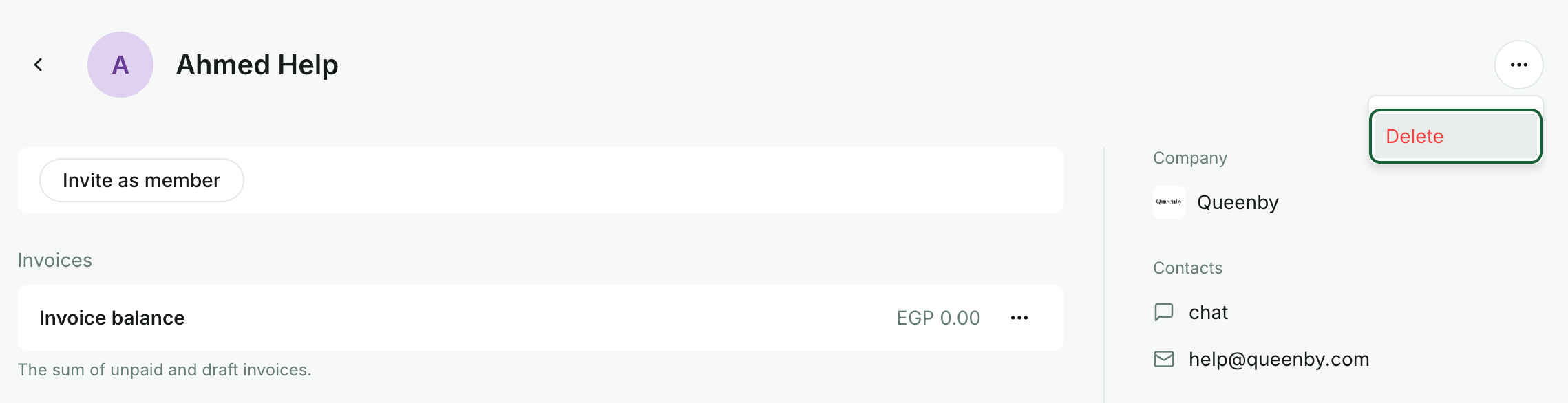 If a nonmember is deleted, they can still have access, but they will no longer appear on the nonmembers' list and the administrator won't be able to view their past data or reinvite them to the **Customers**. However, if the user performs any action such as making a booking, payment, or sending a chat message, etc., they will become a nonmember again.
## Reinvite a user
RNTOR stores the information of all nonmembers who have ever interacted with your location in the member web portal or mobile app, or used to be a member before. Administrators can easily invite nonmembers to the location so they become members again.
You can manage only those users and companies that are already registered in the member web portal or mobile app, and appear on the **Customers → Nonmembers** tab in RNTOR.
To make a user who appears among nonmembers your member immediately without retyping their information, do the following:
1. Navigate to **Customers** → menu `…` top right → **Nonmembers** tab.
2. Select the user whom you want to make a member and press `Invite as member`.
If a nonmember is deleted, they can still have access, but they will no longer appear on the nonmembers' list and the administrator won't be able to view their past data or reinvite them to the **Customers**. However, if the user performs any action such as making a booking, payment, or sending a chat message, etc., they will become a nonmember again.
## Reinvite a user
RNTOR stores the information of all nonmembers who have ever interacted with your location in the member web portal or mobile app, or used to be a member before. Administrators can easily invite nonmembers to the location so they become members again.
You can manage only those users and companies that are already registered in the member web portal or mobile app, and appear on the **Customers → Nonmembers** tab in RNTOR.
To make a user who appears among nonmembers your member immediately without retyping their information, do the following:
1. Navigate to **Customers** → menu `…` top right → **Nonmembers** tab.
2. Select the user whom you want to make a member and press `Invite as member`.
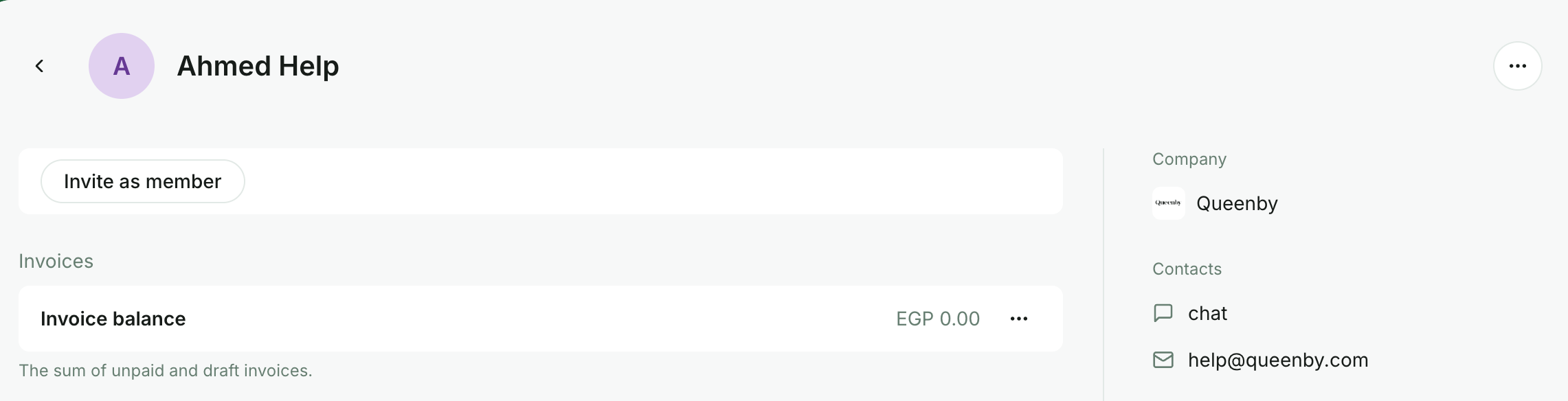 Once invited, the user receives the email invitation and gains access as a member. The administrators can add the user to the company, create a subscription, and manage other member properties.