> ## Documentation Index
> Fetch the complete documentation index at: https://docs.rntor.com/docs/llms.txt
> Use this file to discover all available pages before exploring further.
# Nonmembers
## Who is a nonmember
A **nonmember** is a customer at your location who is not part of the regular community and only occasionally interacts with the space. Nonmembers are also any former members who were removed from **Customers**. They do not have the same access to facilities, services, and benefits as members.
A nonmember has the same profile structure as a member — invoices, payment methods, money balance, credits, day passes, internal notes, billing details, and an activity timeline — but lives under the **Nonmembers** filter on the **Customers** page.
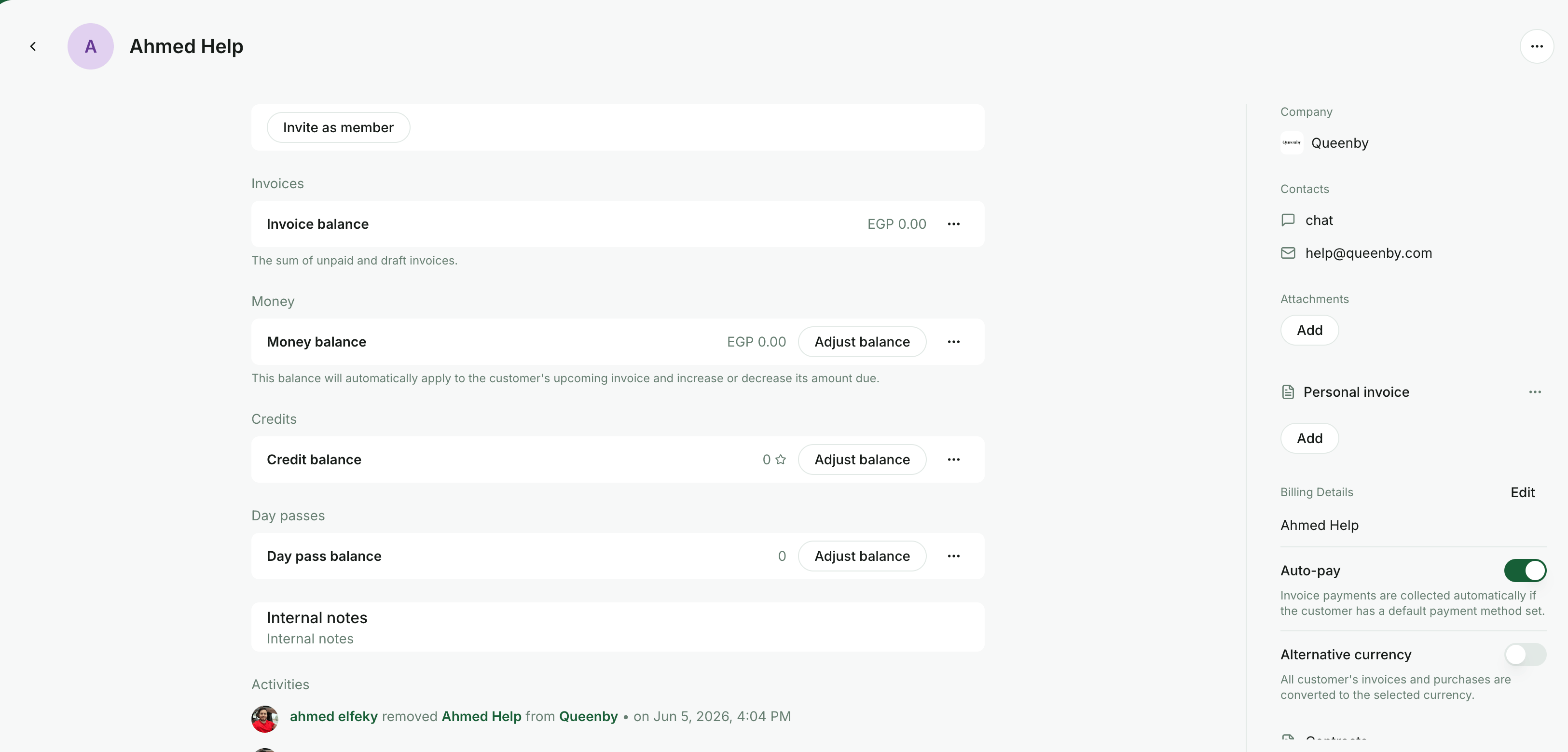 Screenshot placeholder — replace with the latest RNTOR nonmember profile screenshot.
Users typically become nonmembers after doing one of the following:
* Creating a paid or free booking on the **Rooms**, **Desks**, **Parking**, or **Offices** pages
* Submitting a successful payment
* Ordering a product on the **Shop**
* Joining an event
A user who only starts a payment, booking, or order — but does not complete it — does not become a nonmember.
## Add a nonmember
Administrators can add a nonmember manually to issue them an invoice or book on their behalf.
### From the Customers page
Use this flow when you need to issue an invoice to a nonmember for something other than a booking.
1. Go to the **Customers** page in the location.
2. Press the menu (`...`) in the top right and select **Add nonmember**.
Screenshot placeholder — replace with the latest RNTOR nonmember profile screenshot.
Users typically become nonmembers after doing one of the following:
* Creating a paid or free booking on the **Rooms**, **Desks**, **Parking**, or **Offices** pages
* Submitting a successful payment
* Ordering a product on the **Shop**
* Joining an event
A user who only starts a payment, booking, or order — but does not complete it — does not become a nonmember.
## Add a nonmember
Administrators can add a nonmember manually to issue them an invoice or book on their behalf.
### From the Customers page
Use this flow when you need to issue an invoice to a nonmember for something other than a booking.
1. Go to the **Customers** page in the location.
2. Press the menu (`...`) in the top right and select **Add nonmember**.
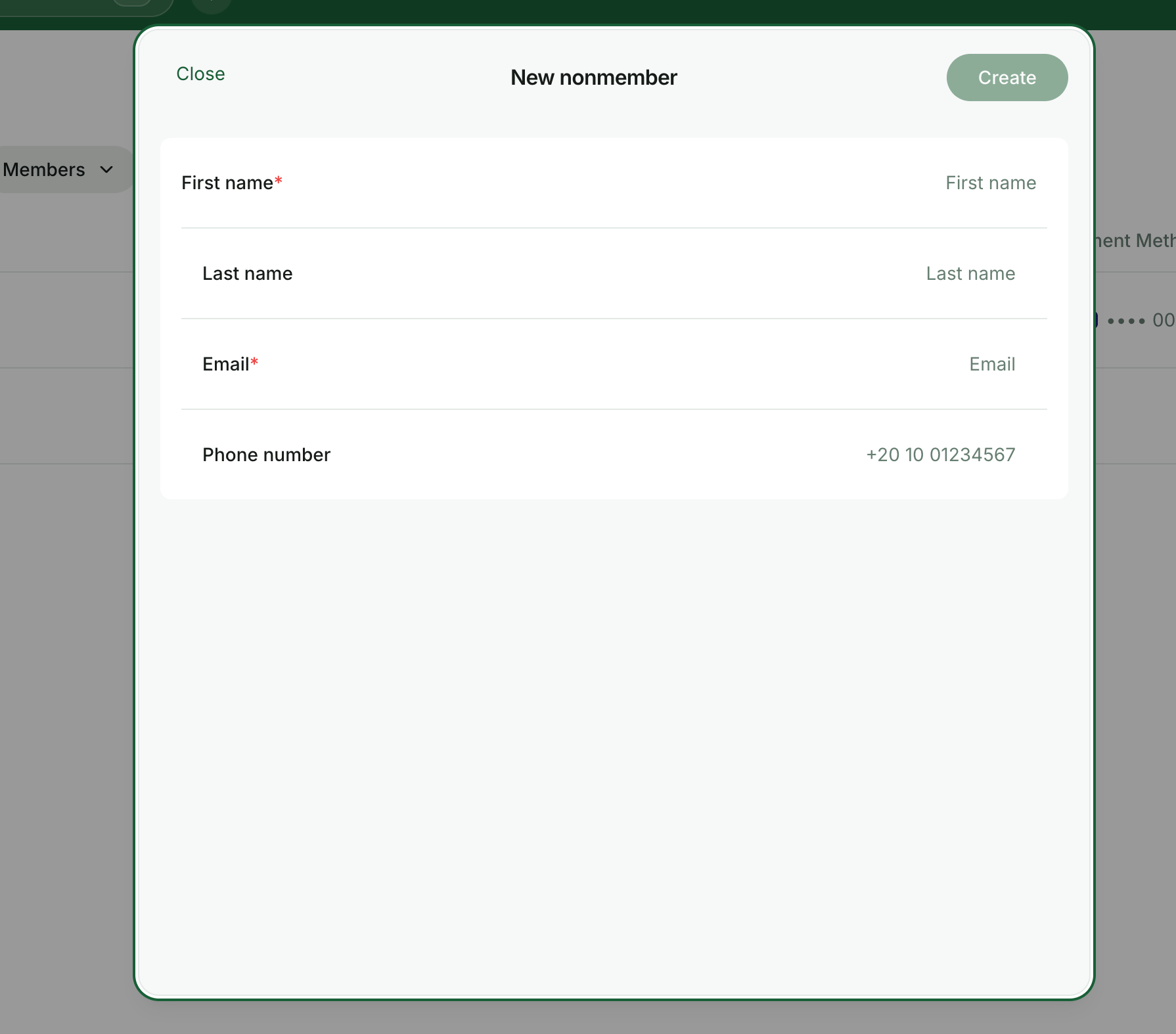 3. Fill in the customer's **first name**, **last name**, **email**, and **phone number** (optional).
4. Press `Done`. The profile is created and listed under the **Nonmembers** filter on the **Customers** page.
To issue an invoice to the new nonmember:
1. Open their profile and go to the **Billing** tab.
2. [Create and issue a one-off invoice](/docs/admin/billing/invoices/create-an-invoice).
3. The customer receives the invoice by email and can pay it online.
### From the Contacts page
When walk-ins leave their contact details through the **Reception** flow, you can add them as a nonmember in one step instead of re-entering their information.
1. Go to **Service → Visitors → Contacts**.
2. Open the contact to see their details.
3. Press **Add as a nonmember**. A nonmember profile is created from the contact.
4. To **book on their behalf**, go to **Resources** and select them in the **Booker** field.
5. To **issue an invoice**, open their new nonmember profile and go to **Billing**.
### From booking creation
If you need to make a booking for a brand-new person, you can create the nonmember directly from the booking sheet:
1. Go to **Resources → Rooms**, **Desks**, **Parking**, or **Offices** and select the resource the nonmember wants to book.
2. In the **Booker** dropdown, scroll to the bottom and pick the **New nonmember** option.
3. Fill in the customer's **first name**, **last name**, **email**, and **phone number** (optional).
4. Press `Done`. The profile is created and listed under the **Nonmembers** filter on the **Customers** page.
To issue an invoice to the new nonmember:
1. Open their profile and go to the **Billing** tab.
2. [Create and issue a one-off invoice](/docs/admin/billing/invoices/create-an-invoice).
3. The customer receives the invoice by email and can pay it online.
### From the Contacts page
When walk-ins leave their contact details through the **Reception** flow, you can add them as a nonmember in one step instead of re-entering their information.
1. Go to **Service → Visitors → Contacts**.
2. Open the contact to see their details.
3. Press **Add as a nonmember**. A nonmember profile is created from the contact.
4. To **book on their behalf**, go to **Resources** and select them in the **Booker** field.
5. To **issue an invoice**, open their new nonmember profile and go to **Billing**.
### From booking creation
If you need to make a booking for a brand-new person, you can create the nonmember directly from the booking sheet:
1. Go to **Resources → Rooms**, **Desks**, **Parking**, or **Offices** and select the resource the nonmember wants to book.
2. In the **Booker** dropdown, scroll to the bottom and pick the **New nonmember** option.
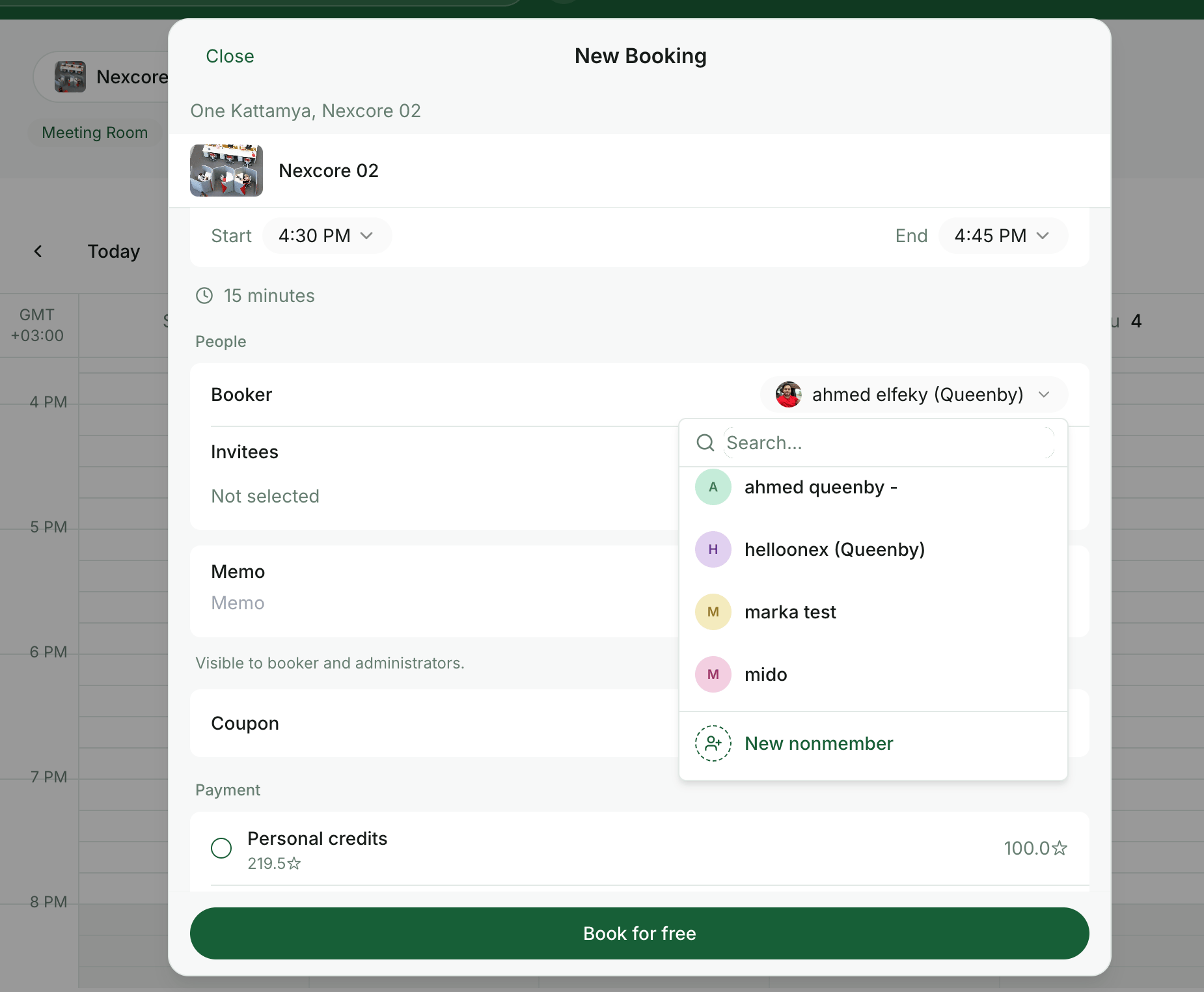 3. Enter the customer's **first name**, **last name**, **email**, and **phone number** (optional), then press `Create`. A nonmember profile is created and selected as the booker automatically.
4. Finish the booking as usual. To charge the customer, [issue an invoice](/docs/admin/billing/invoices/create-an-invoice) from their profile's **Billing** tab.
We recommend letting customers complete their own bookings or payments. Add them as a nonmember when you need to accept bank-debit payments, or when the customer cannot complete the action themselves.
## What a nonmember can do
* View and interact with pages and content marked as **Public** (or visible to **Network members** if they are a member at another location)
* Receive and pay invoices
* Sign up for plans
* View their invoices and payments
* Add and edit their billing details
Each location has its own list of nonmembers.
## Manage nonmembers
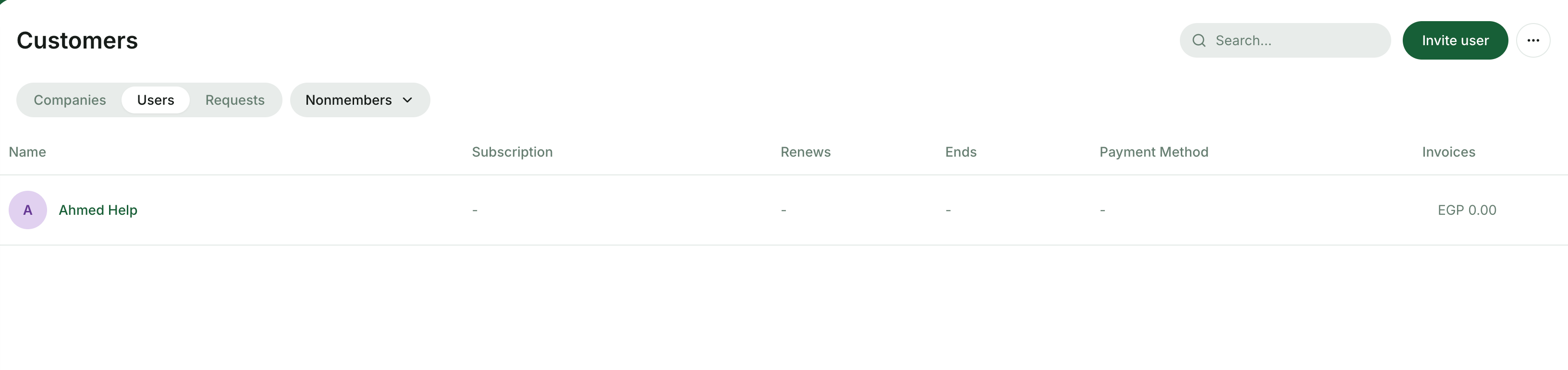
To find nonmembers, go to the **Customers** page and switch the filter at the top to **Nonmembers**.
3. Enter the customer's **first name**, **last name**, **email**, and **phone number** (optional), then press `Create`. A nonmember profile is created and selected as the booker automatically.
4. Finish the booking as usual. To charge the customer, [issue an invoice](/docs/admin/billing/invoices/create-an-invoice) from their profile's **Billing** tab.
We recommend letting customers complete their own bookings or payments. Add them as a nonmember when you need to accept bank-debit payments, or when the customer cannot complete the action themselves.
## What a nonmember can do
* View and interact with pages and content marked as **Public** (or visible to **Network members** if they are a member at another location)
* Receive and pay invoices
* Sign up for plans
* View their invoices and payments
* Add and edit their billing details
Each location has its own list of nonmembers.
## Manage nonmembers
To find nonmembers, go to the **Customers** page and switch the filter at the top to **Nonmembers**.
 Administrators can see all past activity of a nonmember — bookings, payments, invoices, credits, day passes, and notes — directly on the profile.
From a nonmember profile you can:
* **Remove the nonmember** from the **Customers** page menu (`...`) — see [Remove users](/docs/admin/customer-management/users/remove-users).
* **Restore access as a member** by inviting the user again from the **Customers** page; their profile and history are preserved.
* **Manage their billing information** — payment methods, money balance, credits, day passes, and billing details — from the **Billing** tab.
## FAQ
No. An email address is required to add a nonmember in RNTOR. The email is the unique identifier for the user account and is used to send invoices, receipts, and the login one-time code.
Yes. Open the **Booker** dropdown in any booking sheet and pick **New nonmember** at the bottom of the list. Fill in the customer's details and the nonmember profile is created and selected as the booker in one step.
Yes. A person can be a member at one location and a nonmember at another. Each location has its own list of nonmembers and its own profile data (balances, invoices, notes).
Administrators can see all past activity of a nonmember — bookings, payments, invoices, credits, day passes, and notes — directly on the profile.
From a nonmember profile you can:
* **Remove the nonmember** from the **Customers** page menu (`...`) — see [Remove users](/docs/admin/customer-management/users/remove-users).
* **Restore access as a member** by inviting the user again from the **Customers** page; their profile and history are preserved.
* **Manage their billing information** — payment methods, money balance, credits, day passes, and billing details — from the **Billing** tab.
## FAQ
No. An email address is required to add a nonmember in RNTOR. The email is the unique identifier for the user account and is used to send invoices, receipts, and the login one-time code.
Yes. Open the **Booker** dropdown in any booking sheet and pick **New nonmember** at the bottom of the list. Fill in the customer's details and the nonmember profile is created and selected as the booker in one step.
Yes. A person can be a member at one location and a nonmember at another. Each location has its own list of nonmembers and its own profile data (balances, invoices, notes).