> ## Documentation Index
> Fetch the complete documentation index at: https://docs.rntor.com/docs/llms.txt
> Use this file to discover all available pages before exploring further.
# Control invoice auto-charge
> Manage “Auto-pay” to automatically charge subscription payments to a customer’s default payment method or disable auto-charges for specific customers
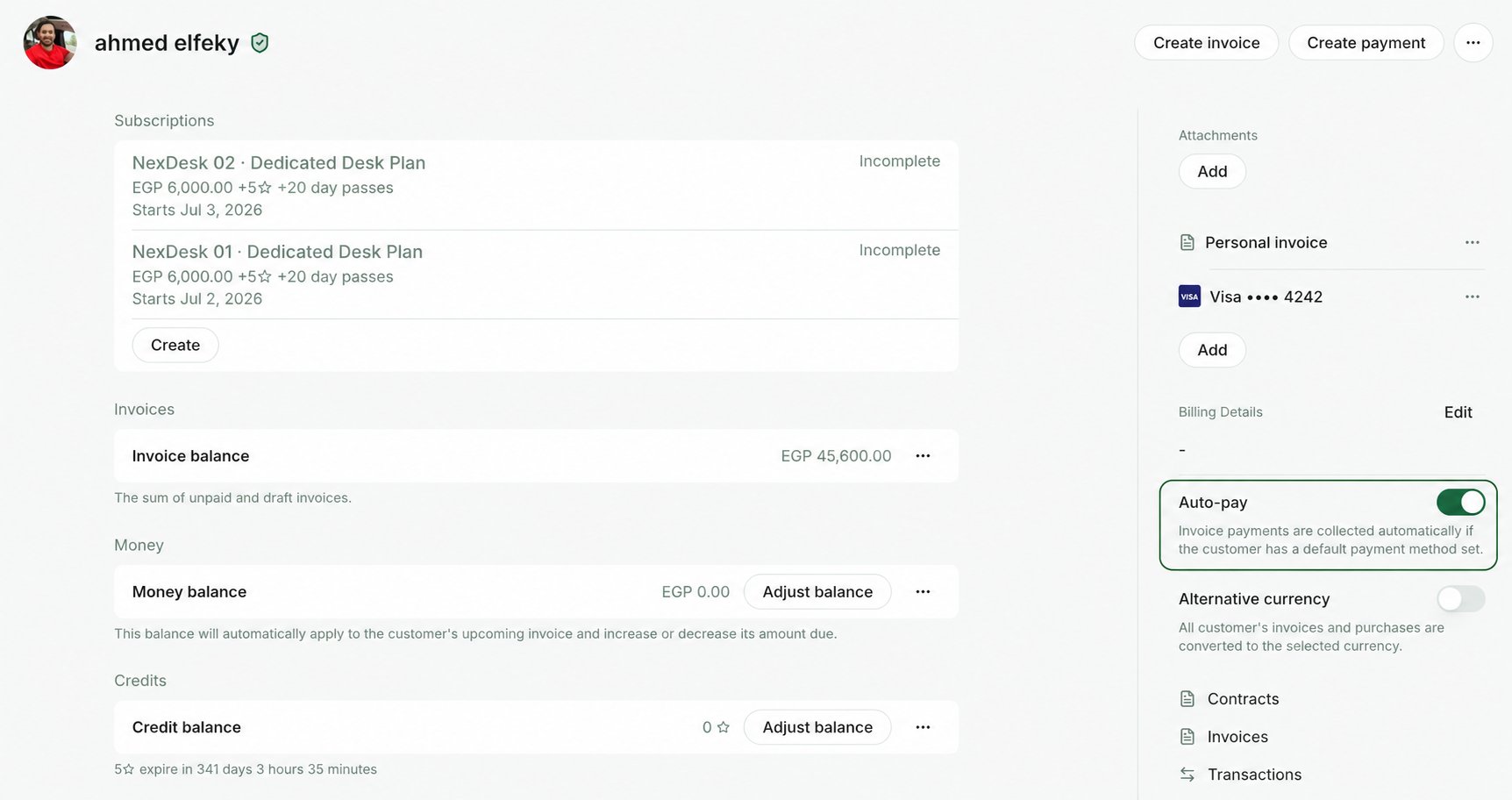
The **Auto-pay** property allows you to collect payments from customers automatically.
With the help of Auto-pay, invoices are charged automatically to the default payment method the customer has on file and paid within seconds. If Auto-pay is turned off, the customer needs to manually pay for each invoice.
## Prerequisites
**Auto-pay** functions if the following conditions are fulfilled:
1. Your location has [**Stripe**](/docs/admin/integrations/payments/stripe/stripe) payment gateway connected. **Other payment gateways** do not currently support automatic invoice charges.
2. A customer has a recurring [**subscription**](/docs/admin/billing/subscriptions/set-up-subscriptions).
3. A customer has a [**default payment method**](/docs/admin/billing/payments/payment-methods).
The customer’s payment method is automatically set as default after the first invoice payment, or can be manually added and set as default.
## Manage Auto-pay
Auto-pay is enabled for each customer by default, without requiring any additional configurations. However, if necessary, you can manage the **Auto-pay** property for a specific user or company:
1. Go to the **Customers** page > open a user or company profile > locate **Auto-pay** on the right-side panel.
 To optimize your revenue, ensure prompt payment, and enhance customer satisfaction, we suggest implementing a policy that encourages the use of Auto-pay.
## FAQ
Automatic payment can fail for several reasons, such as:
* No default payment method was set when the invoice was issued.
* The payment failed due to insufficient funds.
* The transaction was declined for another reason.
You can always manually retry the charge for the invoice once again:
1. Go to the customer profile and ensure they have a [**payment method added**](/docs/admin/billing/payments/payment-methods).
2. Then, open the unpaid invoice and click [**Charge**](/docs/admin/billing/invoices/record-invoice-payments) to retry the payment instantly.
To optimize your revenue, ensure prompt payment, and enhance customer satisfaction, we suggest implementing a policy that encourages the use of Auto-pay.
## FAQ
Automatic payment can fail for several reasons, such as:
* No default payment method was set when the invoice was issued.
* The payment failed due to insufficient funds.
* The transaction was declined for another reason.
You can always manually retry the charge for the invoice once again:
1. Go to the customer profile and ensure they have a [**payment method added**](/docs/admin/billing/payments/payment-methods).
2. Then, open the unpaid invoice and click [**Charge**](/docs/admin/billing/invoices/record-invoice-payments) to retry the payment instantly.