> ## Documentation Index
> Fetch the complete documentation index at: https://docs.rntor.com/docs/llms.txt
> Use this file to discover all available pages before exploring further.
# Applications For Plans
## Set up plan sign-up requests to collect membership applications and verify customers
With sign-up requests, users can apply for membership plans, and you can vet them before creating a subscription.
Plan sign-up requests are ideal for:
* Niche or curated spaces that require personal or professional verification
* Verification-based plans that require ID uploads or supporting documents
* Discounted plans for students, nonprofits, or other groups that need eligibility confirmation.
Plan sign-up requests are available only on [specific plans](/docs/admin/billing/plans/set-up-plans).
For plans that don't require verification, [use the **Immediate** sign-up type](/docs/admin/resource-management/resources/rental-applications-or-immediate-sign-ups) instead.
## Configure plan sign-up requests
1. [Create](/docs/admin/billing/plans/set-up-plans) or [edit](/docs/admin/billing/plans/set-up-plans#edit-or-delete-a-plan) a plan.
2. Enable **Sign-up**.
3. Select **Request** as the sign-up **Type**.
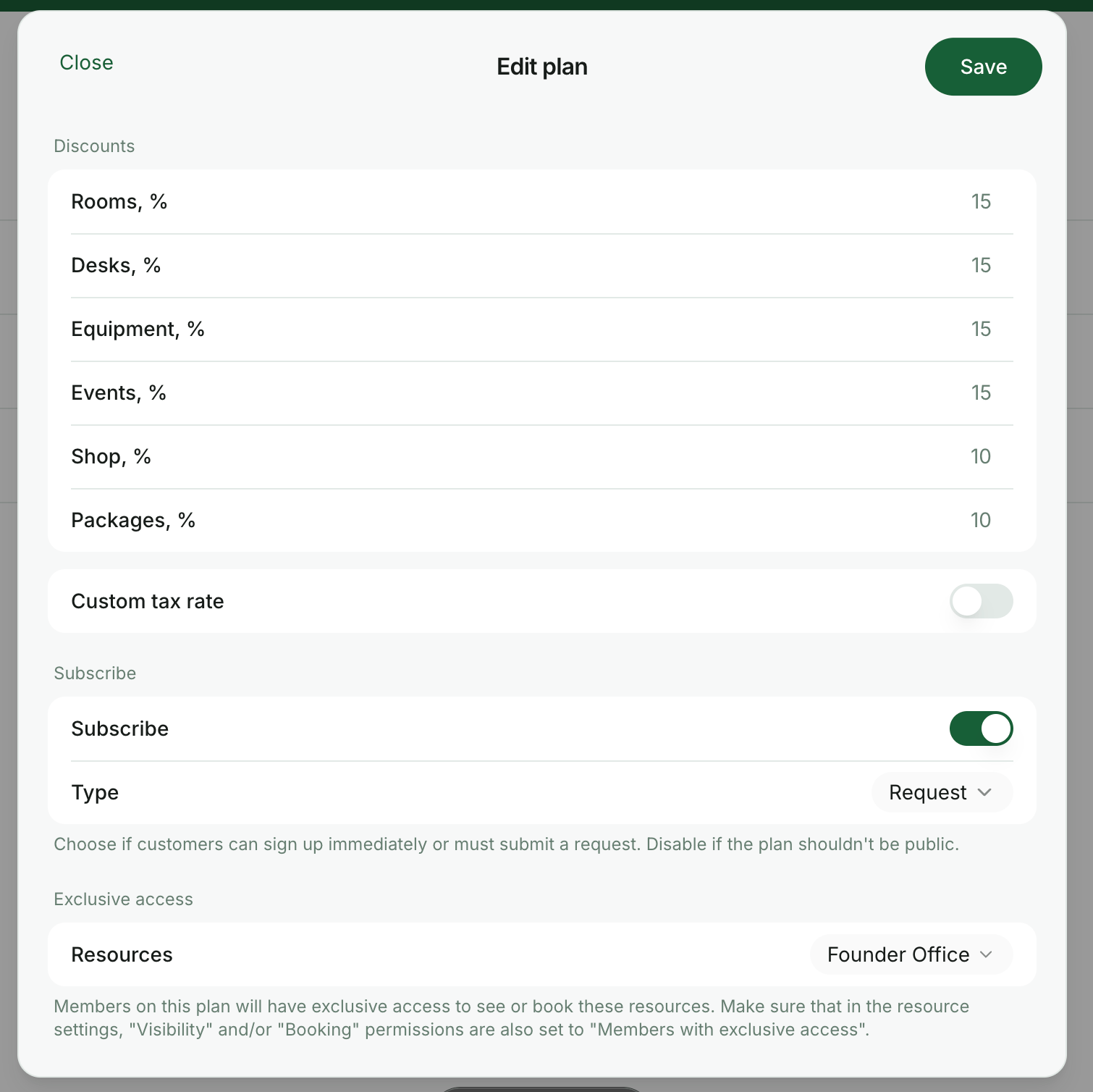 4. [Enable the **Support** page](/docs/admin/support/tickets) and set it to **Public** visibility so users can see administrators’ replies.
If the **Support** page is disabled, the `Apply` button will be greyed out on plans. If the **Support** page is not set to **Public** visibility, users can apply for plans but won’t see administrator responses.
## How users apply for a plan
1. Customers press `Sign up` next to their desired location to view available plans.
4. [Enable the **Support** page](/docs/admin/support/tickets) and set it to **Public** visibility so users can see administrators’ replies.
If the **Support** page is disabled, the `Apply` button will be greyed out on plans. If the **Support** page is not set to **Public** visibility, users can apply for plans but won’t see administrator responses.
## How users apply for a plan
1. Customers press `Sign up` next to their desired location to view available plans.
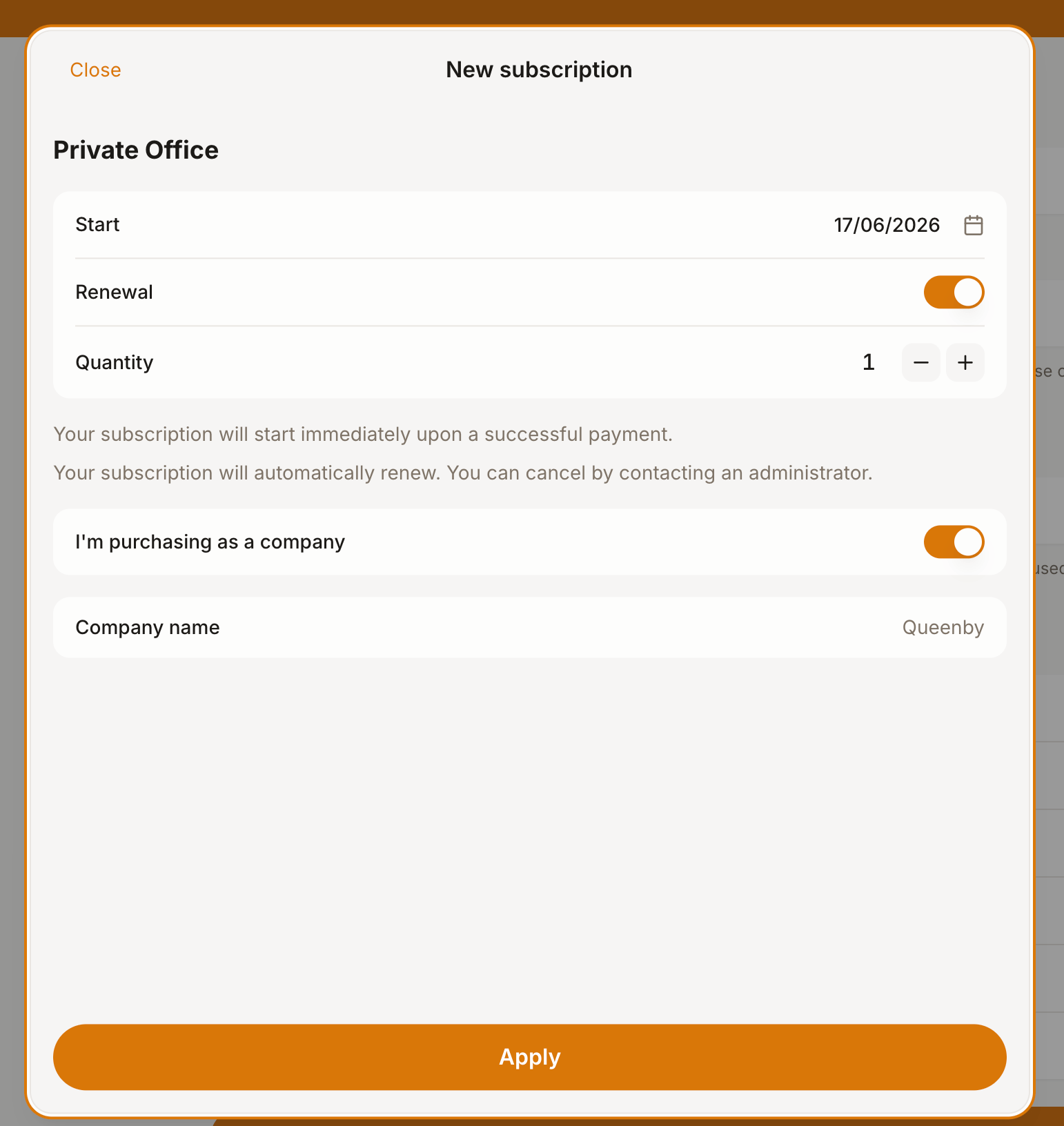
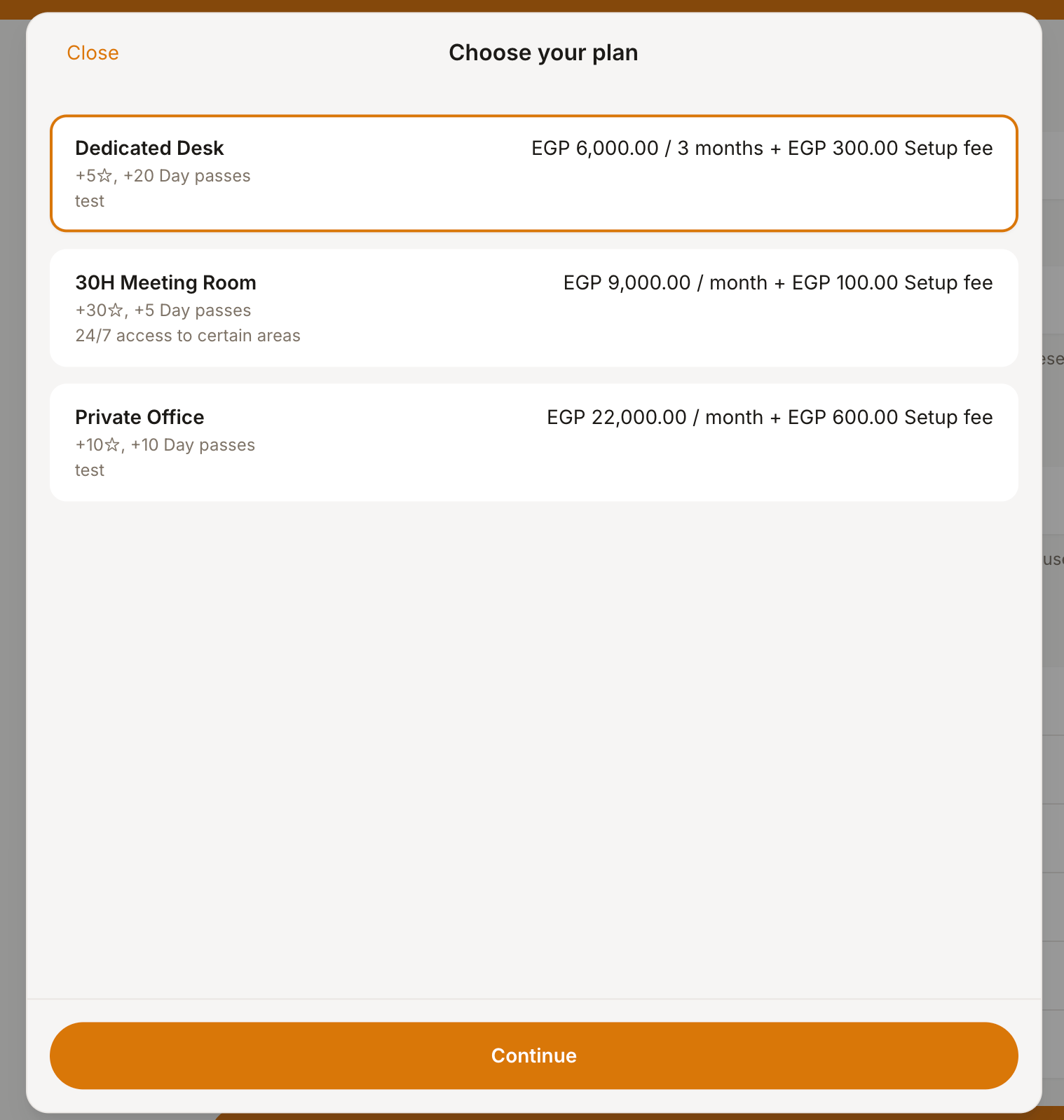 2. Select a plan, set their preferred subscription start date, renewal, quantity, and whether they want to sign up as an individual member or as a business.
3. Press `Apply` to submit their request.
2. Select a plan, set their preferred subscription start date, renewal, quantity, and whether they want to sign up as an individual member or as a business.
3. Press `Apply` to submit their request.
 ## How administrators manage plan sign-up requests
1. Each plan sign-up request appears as a new ticket in **Support** > **Tickets**.
2. Administrators manage the request through the support ticket:
## How administrators manage plan sign-up requests
1. Each plan sign-up request appears as a new ticket in **Support** > **Tickets**.
2. Administrators manage the request through the support ticket:
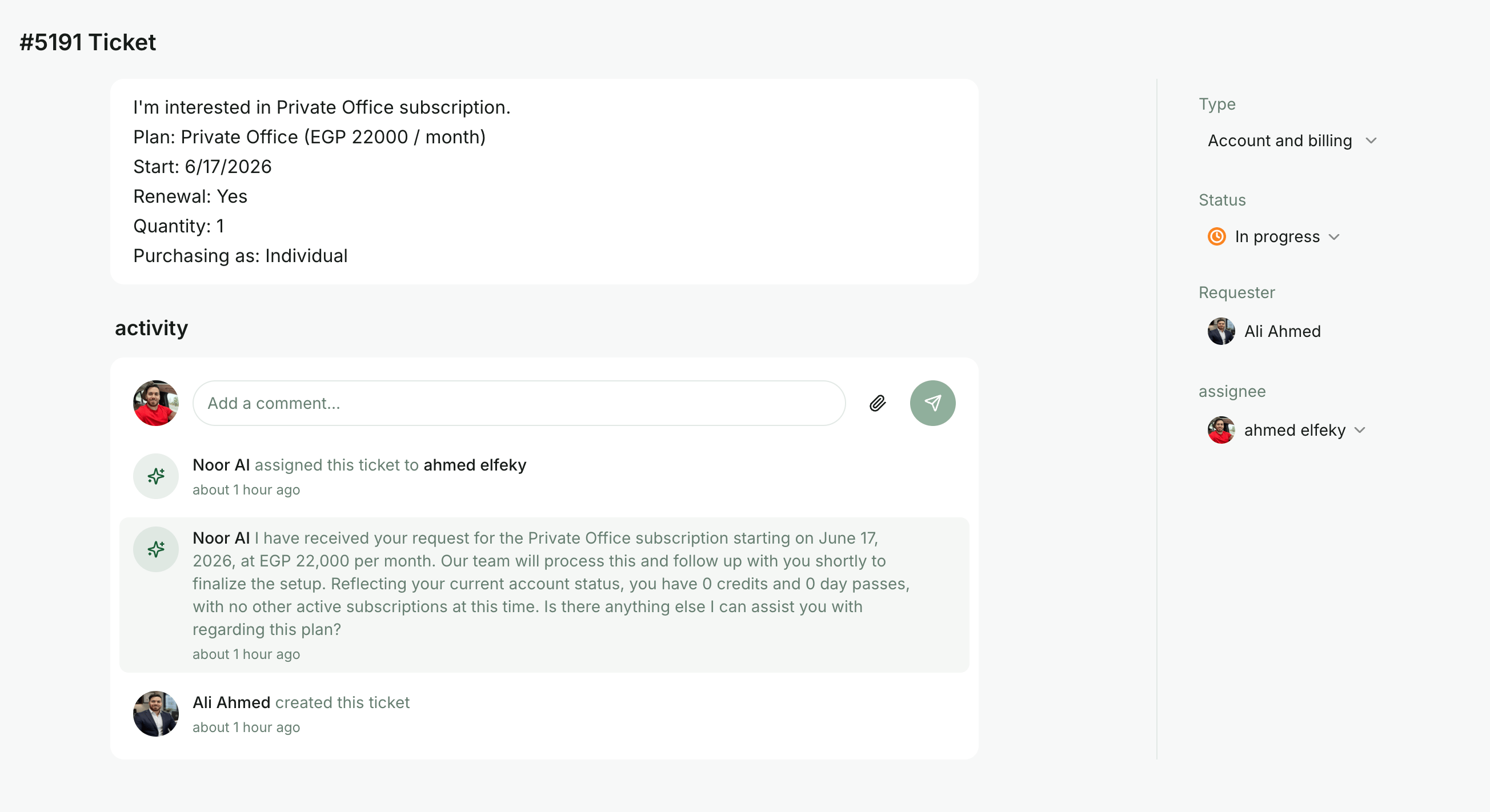 * Communicate with the applicant
* Request verification documents
* Ask follow-up questions
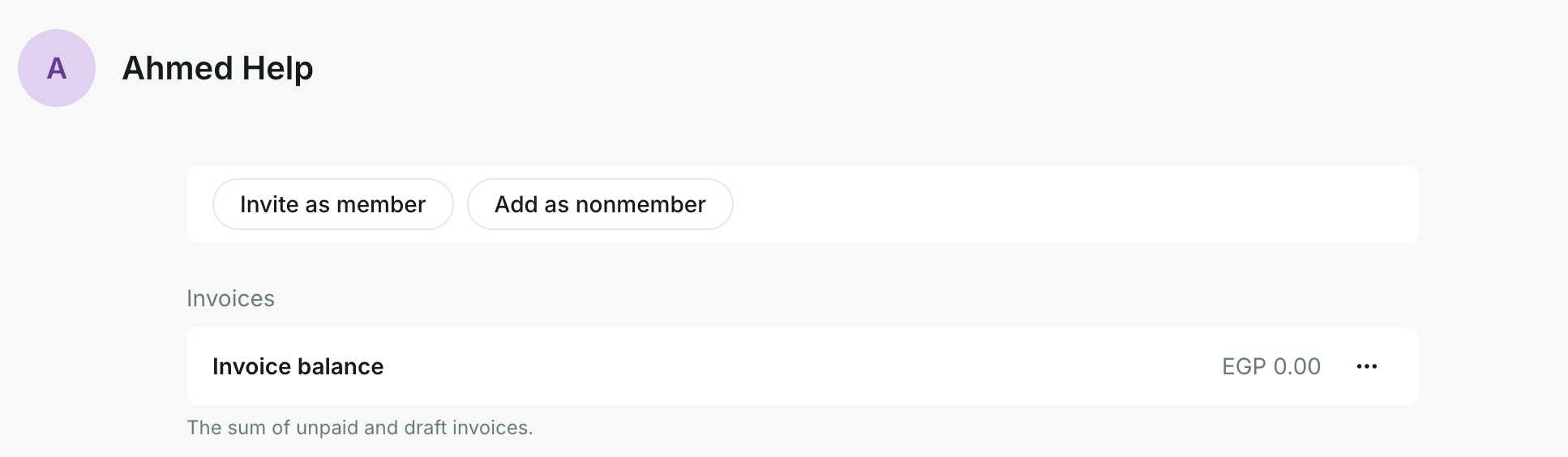
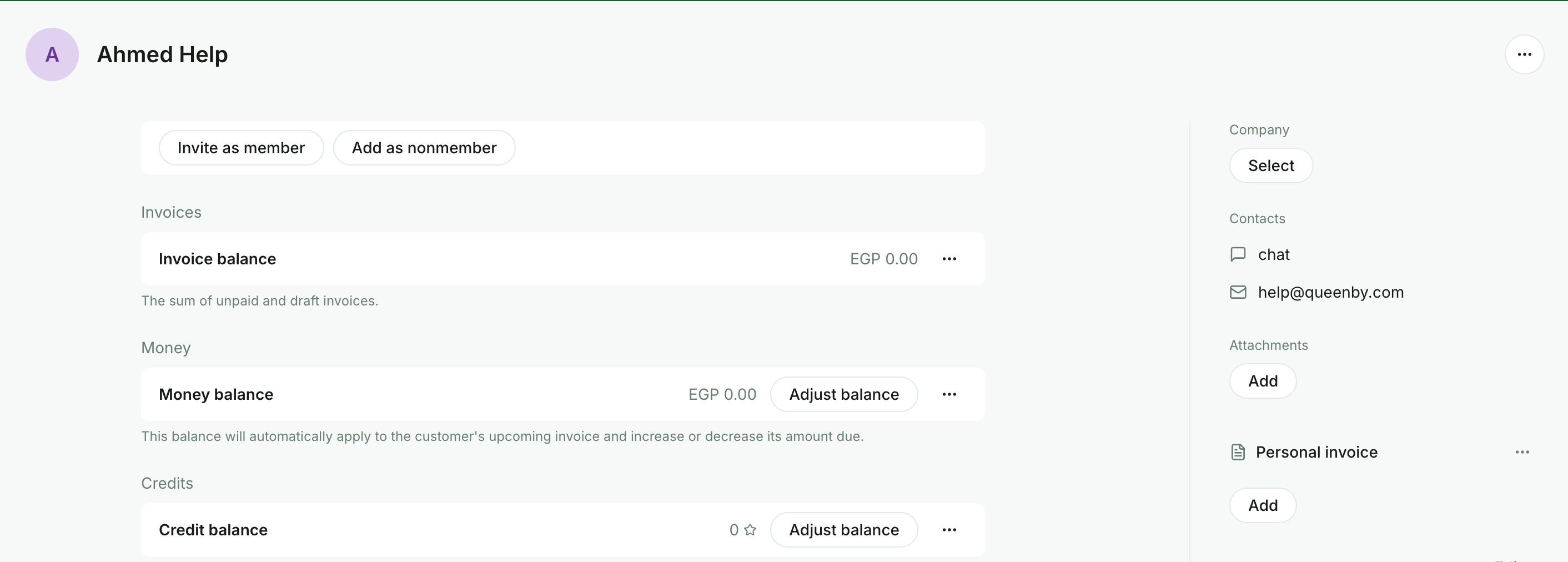
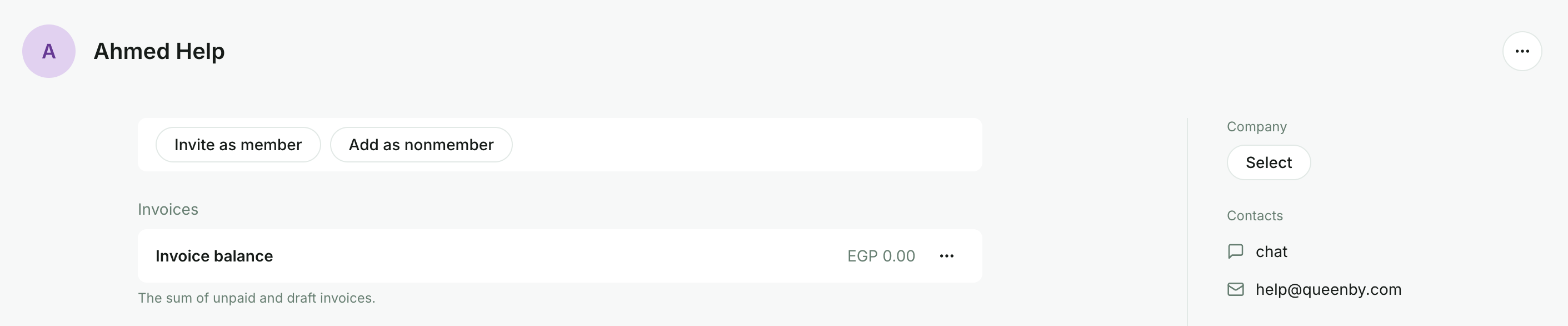
3. If the user is approved, click the user’s name in the ticket and press `Invite as member`.
* Communicate with the applicant
* Request verification documents
* Ask follow-up questions
3. If the user is approved, click the user’s name in the ticket and press `Invite as member`.
 4. [Create a subscription](/docs/admin/billing/subscriptions/set-up-subscriptions) for the requested plan for the customer.
5. If the user requested a company subscription, [create a company](/docs/admin/customer-management/companies/set-up-companies) first > [add this user to the company](/docs/admin/customer-management/companies/company-members-and-managers) as a manager > create a company subscription.
4. [Create a subscription](/docs/admin/billing/subscriptions/set-up-subscriptions) for the requested plan for the customer.
5. If the user requested a company subscription, [create a company](/docs/admin/customer-management/companies/set-up-companies) first > [add this user to the company](/docs/admin/customer-management/companies/company-members-and-managers) as a manager > create a company subscription.
 To avoid missing any notifications about plan sign-up requests, [enable notifications](/docs/admin/administration/your-account/notifications/set-up-notifications) about new support tickets.
## FAQs
When a user applies for a booking or subscription, they are not a member or a nonmember yet. That’s why they don’t appear on the **Customers** page yet.
1. Click the user’s name from the support ticket to open their profile.
2. Click `Invite as member` or `Add as nonmember` at the top right.
To avoid missing any notifications about plan sign-up requests, [enable notifications](/docs/admin/administration/your-account/notifications/set-up-notifications) about new support tickets.
## FAQs
When a user applies for a booking or subscription, they are not a member or a nonmember yet. That’s why they don’t appear on the **Customers** page yet.
1. Click the user’s name from the support ticket to open their profile.
2. Click `Invite as member` or `Add as nonmember` at the top right.