> ## Documentation Index
> Fetch the complete documentation index at: https://docs.rntor.com/docs/llms.txt
> Use this file to discover all available pages before exploring further.
# External
> Record offline payments for bookings with the External payment method and create bookings with the paid or pending status
There may be instances where you'll need to make a booking for a user and accept payment externally. RNTOR supports these situations with the **External** payment method.
The member web portal and mobile app are designed to empower users to make bookings effortlessly on their own without needing administrator assistance. [Promote self-served bookings](/docs/guides/promotion/promote-self-served-bookings) for a more efficient user experience.
## Make bookings with the **External** payment method
The **External** payment method is available only to administrators in RNTOR and only for room, desk, parking space, and equipment bookings.
To make such bookings, administrators do the following:
1. Navigate to **Resources** > select **Rooms, Desks,** **Parking,** or **Equipment** page.
2. Select a resource the user wants to book.
3. Find the customer in the **Booker** field.
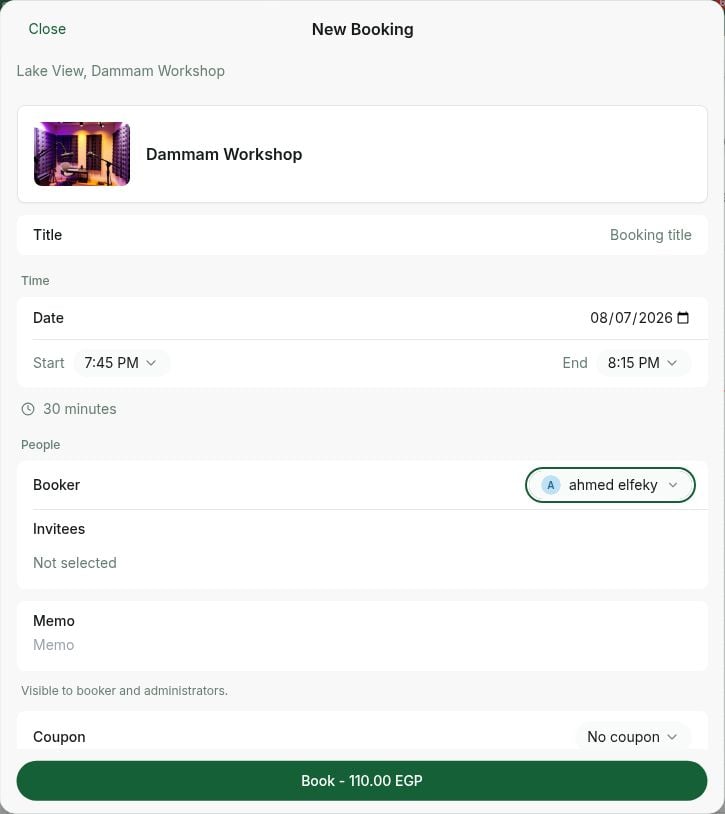 4. If the user is not a member or a nonmember yet, find the **New nonmember** option. Fill in the user details and press **Create**. This will create a [nonmember](/docs/admin/customer-management/users/nonmembers) profile for the user automatically.
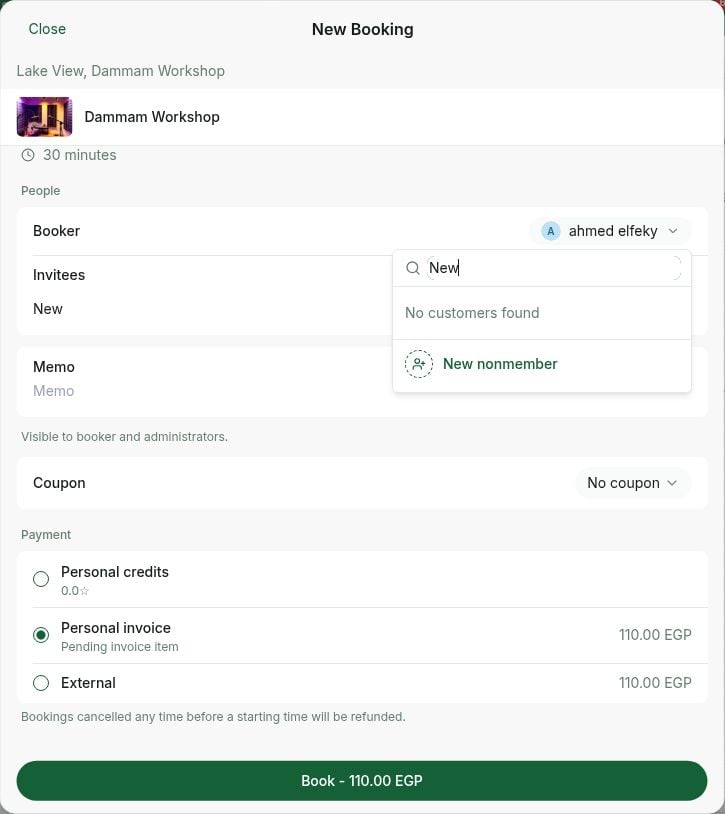 5. Fill out the other booking details.
6. If the user is eligible for any discount, [select a coupon](/docs/admin/billing/discounts/apply-discounts-to-bookings-and-purchases) in the **Coupon** section. The discounted price will be displayed immediately.
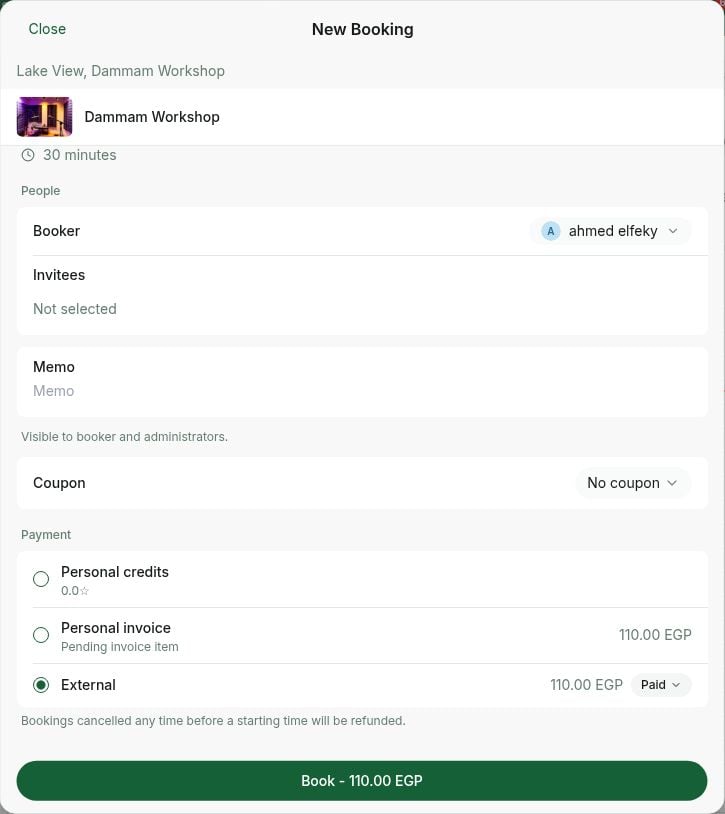
7. Choose the **External** payment method and select a **Status** based on the payment stage:
* **Paid** — the customer has already paid outside of the system.
* **Pending** — the customer hasn't paid yet, but only reserved the booking.
8. Enter the customer's [billing details](/docs/admin/customer-management/billing-details), if they haven't yet. Billing details fields appear depending on the [**Require billing details** setting.](/docs/admin/customer-management/billing-details)
9. Confirm the booking.
5. Fill out the other booking details.
6. If the user is eligible for any discount, [select a coupon](/docs/admin/billing/discounts/apply-discounts-to-bookings-and-purchases) in the **Coupon** section. The discounted price will be displayed immediately.
7. Choose the **External** payment method and select a **Status** based on the payment stage:
* **Paid** — the customer has already paid outside of the system.
* **Pending** — the customer hasn't paid yet, but only reserved the booking.
8. Enter the customer's [billing details](/docs/admin/customer-management/billing-details), if they haven't yet. Billing details fields appear depending on the [**Require billing details** setting.](/docs/admin/customer-management/billing-details)
9. Confirm the booking.
 ### Understand paid external bookings
When you select **Paid** status during creation, RNTOR treats the transaction as finalized and confirmed.
* The booking is secured on the calendar with a solid color. In the **Bookings** list, the status appears as **Confirmed**.
### Understand paid external bookings
When you select **Paid** status during creation, RNTOR treats the transaction as finalized and confirmed.
* The booking is secured on the calendar with a solid color. In the **Bookings** list, the status appears as **Confirmed**.
![Upload the matching RNTOR screenshot (images/billing-payments-external-4.png)]() * The system immediately generates an [invoice](/docs/admin/billing/invoices/download-an-invoice) and [receipt](/docs/admin/billing/payments/receipts) for the customer.
* The customer receives a [notification](/docs/member/account/notifications) about the booking created for them and can view this booking on their **Account** page.
### Manage pending external bookings
If you select "Pending," the booking is created with **Tentative** status, allowing you to hold the resource while waiting for payment.
* You can differentiate pending bookings on the **Rooms** calendar and the **Bookings** list to track outstanding payments.
* The system immediately generates an [invoice](/docs/admin/billing/invoices/download-an-invoice) and [receipt](/docs/admin/billing/payments/receipts) for the customer.
* The customer receives a [notification](/docs/member/account/notifications) about the booking created for them and can view this booking on their **Account** page.
### Manage pending external bookings
If you select "Pending," the booking is created with **Tentative** status, allowing you to hold the resource while waiting for payment.
* You can differentiate pending bookings on the **Rooms** calendar and the **Bookings** list to track outstanding payments.
![Upload the matching RNTOR screenshot (images/billing-payments-external-5.png)]() * Once you receive the payment (or if the customer fails to pay), update the status:
* Open the booking > in the **Payment** section, change **Status** to **Paid** or "Canceled."
* Once you receive the payment (or if the customer fails to pay), update the status:
* Open the booking > in the **Payment** section, change **Status** to **Paid** or "Canceled."
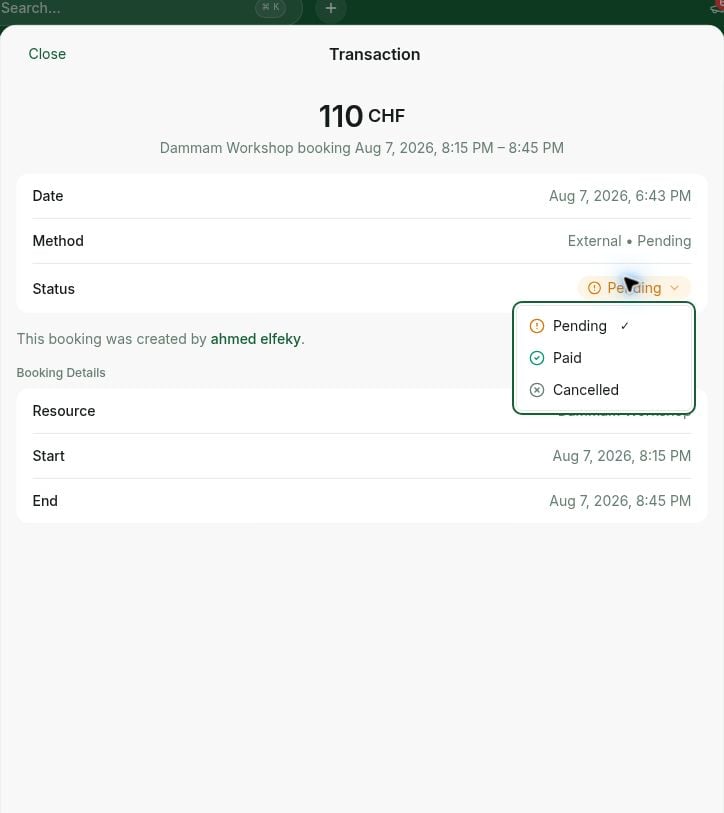 * **If Paid**: The booking is automatically confirmed, and an invoice and receipt are generated.
* **If Canceled**: The transaction and booking are marked as canceled and automatically removed from the calendar.
## How external bookings reflect in Analytics
Bookings made with the **External** payment method are included in the **Invoices**, **Payments**, **Rooms**, **Desks**, **Equipment**, and **Parking** dashboards in **Analytics**. [Explore Analytics](/docs/admin/analytics-reports/dashboards)
The **Invoices**, **Invoice items**, **Transactions**, and **Bookings** [reports](/docs/admin/analytics-reports/reports) also include these bookings, reflecting their payment type as **External**, and payment status as **Paid** or **Pending**.
* **If Paid**: The booking is automatically confirmed, and an invoice and receipt are generated.
* **If Canceled**: The transaction and booking are marked as canceled and automatically removed from the calendar.
## How external bookings reflect in Analytics
Bookings made with the **External** payment method are included in the **Invoices**, **Payments**, **Rooms**, **Desks**, **Equipment**, and **Parking** dashboards in **Analytics**. [Explore Analytics](/docs/admin/analytics-reports/dashboards)
The **Invoices**, **Invoice items**, **Transactions**, and **Bookings** [reports](/docs/admin/analytics-reports/reports) also include these bookings, reflecting their payment type as **External**, and payment status as **Paid** or **Pending**.
![Upload the matching RNTOR screenshot (images/billing-payments-external-7.png)]()