> ## Documentation Index
> Fetch the complete documentation index at: https://docs.rntor.com/docs/llms.txt
> Use this file to discover all available pages before exploring further.
# Upcoming invoices
> Learn how to manage a customer's upcoming subscription invoice, add extra charges, apply discounts, record advance payments or issue it early
Learn how to manage a customer's upcoming subscription invoice, add extra charges, apply discounts, record advance payments or issue it early.
For customers with active subscriptions, an upcoming invoice appears in their profile. It is a preview of the invoice for the next subscription period.
The upcoming invoice includes:
* Subscription items for the next period, such as plans or resource rentals.
* Purchases made with the [**Invoice payment method**](/docs/admin/billing/payments/pay-with-invoice), if they are configured to be added to subscription invoices.
Administrators can manage and modify the upcoming invoice before it is issued.
## Access upcoming invoice
1. Go to the **Customers** page.
2. Select a company or user.
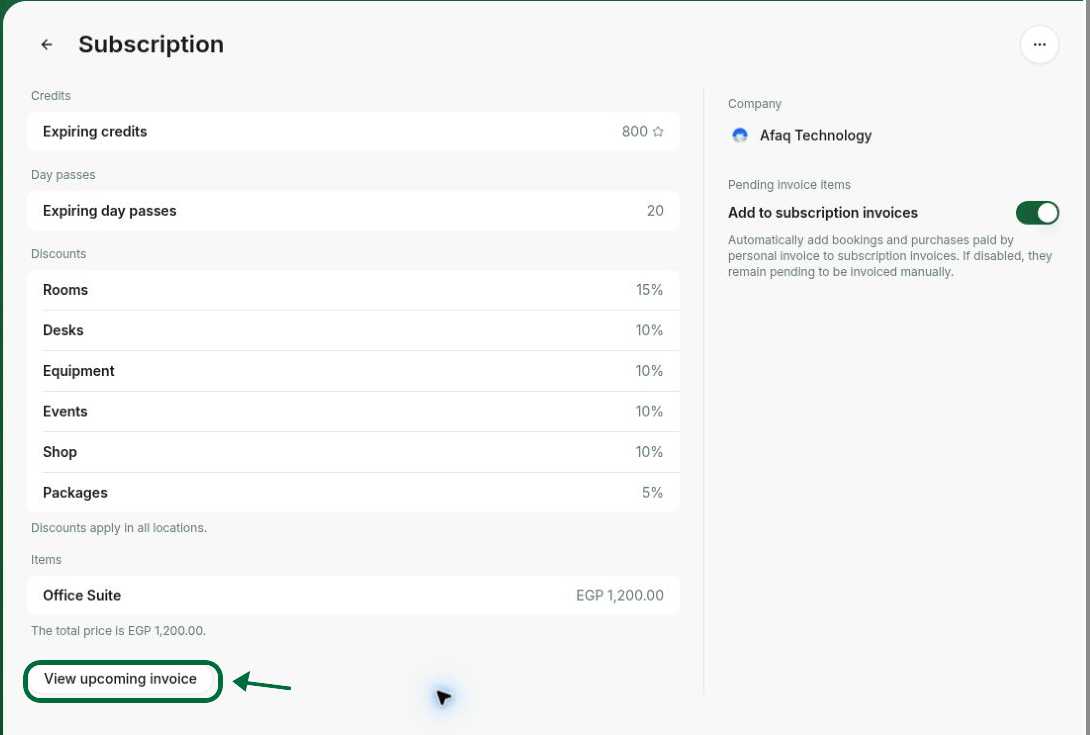
3. Click on the subscription and press **View upcoming invoice**.
 ## Add extra one-time charges
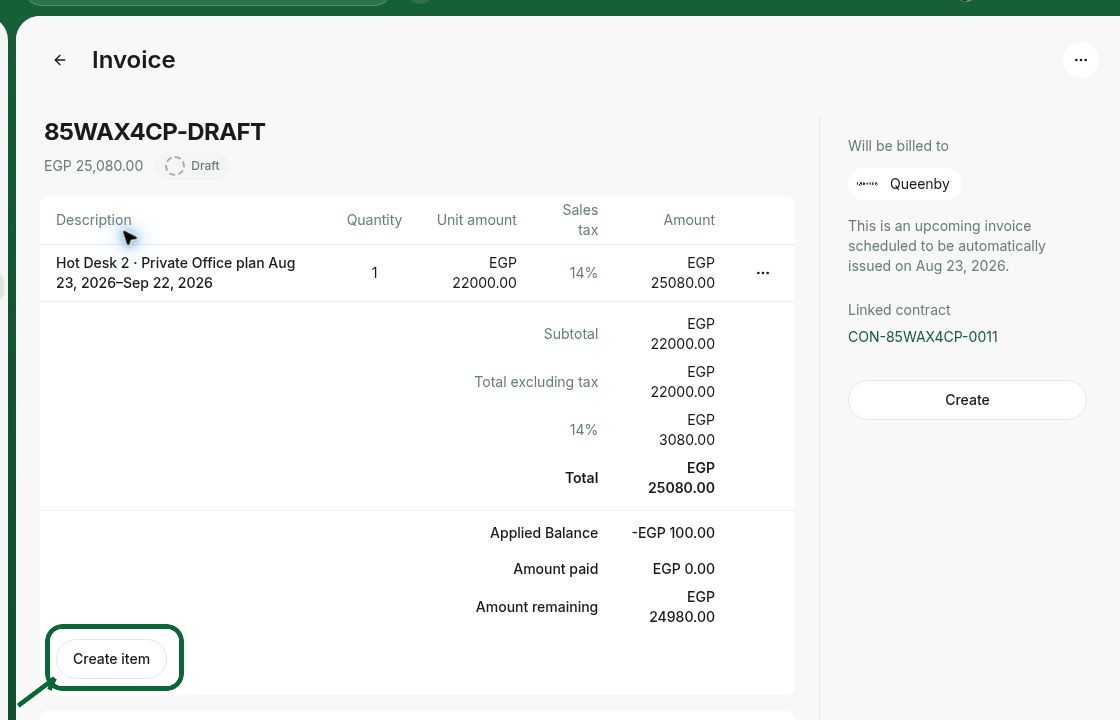
1. Open the **Upcoming invoice** and click **Create item**.
2. Add a **Custom** item or select one of your [**pre-created one-off services**](/docs/guides/catalog-of-reusable-fees).
## Add extra one-time charges
1. Open the **Upcoming invoice** and click **Create item**.
2. Add a **Custom** item or select one of your [**pre-created one-off services**](/docs/guides/catalog-of-reusable-fees).
 ## Modify or remove invoice items
To change items that originate from the customer's subscription, such as a plan or resource rental, you must modify the subscription itself:
1. [**Edit the customer's subscription**](/docs/admin/billing/subscriptions/edit-a-subscription) directly in their profile.
2. Modify or remove subscription items.
3. See the **Upcoming invoice** immediately reflect the changes.
### Other invoice items
* Items added by [**Pay with invoice**](/docs/admin/billing/payments/pay-with-invoice) can be removed, but not modified.
* Other non-subscription items can be edited or removed directly in the upcoming invoice.
## Apply a discount or credit
### Apply a discount
1. [**Create a coupon**](/docs/admin/billing/discounts/coupons-and-promo-codes) for **Subscription items** with the required discount amount or percentage.
2. Edit the customer's subscription and [**apply the coupon**](/docs/admin/billing/discounts/apply-discounts-to-bookings-and-purchases) to the relevant subscription item.
3. See the upcoming invoice reflecting the discount.
## Modify or remove invoice items
To change items that originate from the customer's subscription, such as a plan or resource rental, you must modify the subscription itself:
1. [**Edit the customer's subscription**](/docs/admin/billing/subscriptions/edit-a-subscription) directly in their profile.
2. Modify or remove subscription items.
3. See the **Upcoming invoice** immediately reflect the changes.
### Other invoice items
* Items added by [**Pay with invoice**](/docs/admin/billing/payments/pay-with-invoice) can be removed, but not modified.
* Other non-subscription items can be edited or removed directly in the upcoming invoice.
## Apply a discount or credit
### Apply a discount
1. [**Create a coupon**](/docs/admin/billing/discounts/coupons-and-promo-codes) for **Subscription items** with the required discount amount or percentage.
2. Edit the customer's subscription and [**apply the coupon**](/docs/admin/billing/discounts/apply-discounts-to-bookings-and-purchases) to the relevant subscription item.
3. See the upcoming invoice reflecting the discount.
 ### Apply a balance to reduce invoice total
You may need to apply a balance if:
* The customer overpaid or underpaid a previous invoice.
* You want to apply a refund, discount, or credit to the next invoice total.
To apply a balance:
1. Go to the customer's profile.
2. Adjust the [**Money balance**](/docs/admin/billing/invoices/customer-money-balance).
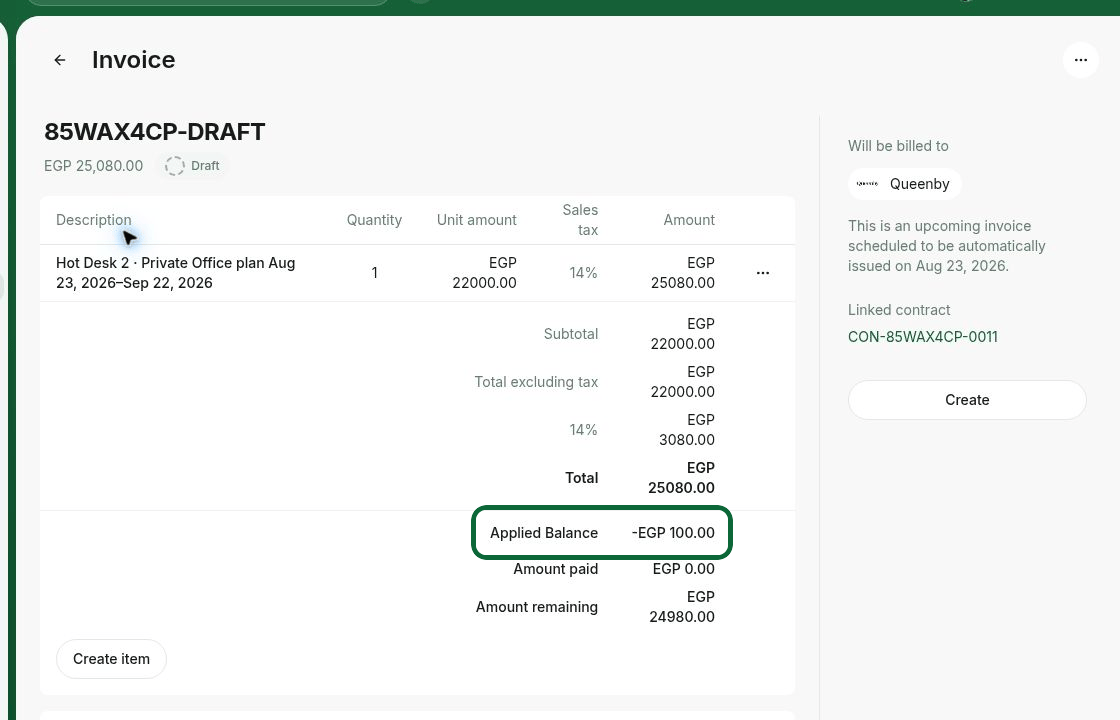
3. See the upcoming invoice reflecting the applied balance. It will be applied automatically when the invoice is issued.
### Apply a balance to reduce invoice total
You may need to apply a balance if:
* The customer overpaid or underpaid a previous invoice.
* You want to apply a refund, discount, or credit to the next invoice total.
To apply a balance:
1. Go to the customer's profile.
2. Adjust the [**Money balance**](/docs/admin/billing/invoices/customer-money-balance).
3. See the upcoming invoice reflecting the applied balance. It will be applied automatically when the invoice is issued.
 ## Issue upcoming invoice earlier
By default, the upcoming invoice is automatically issued:
* On the subscription renewal date, or
* A set number of days before renewal if you enabled [**Advance invoicing**](/docs/admin/billing/subscriptions/advance-invoicing).
If you need to issue it earlier:
1. Open the **Upcoming invoice**.
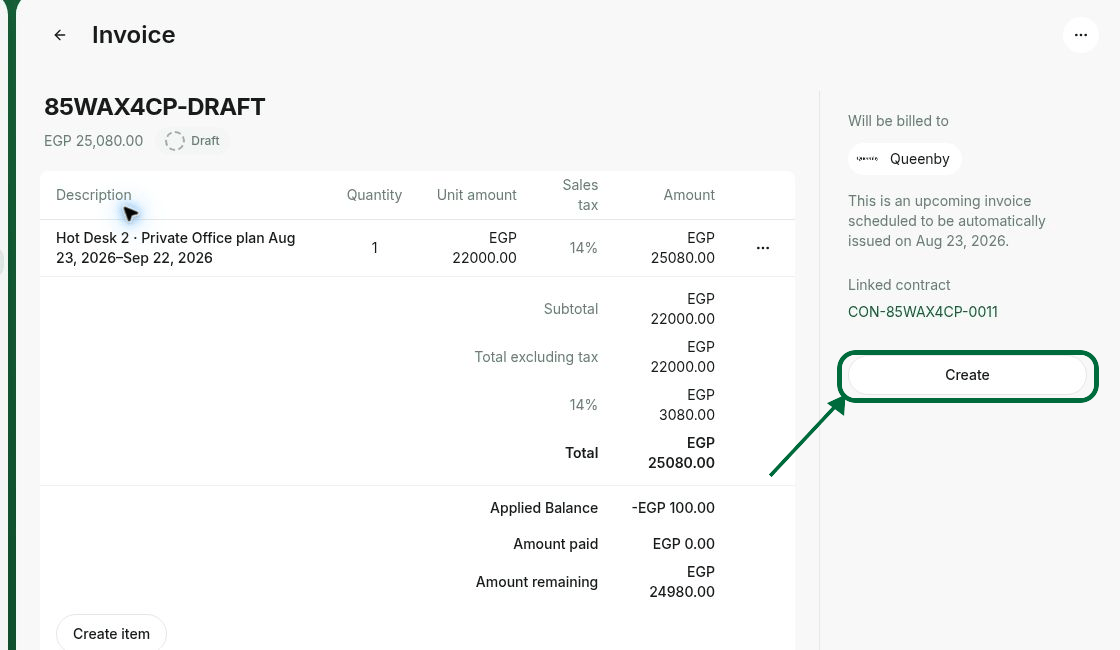
2. Click **Create** to generate a draft.
3. Edit the draft if needed, for example, adjust the **Payment due date**.
4. Click **Issue** or **Issue and charge**.
## Issue upcoming invoice earlier
By default, the upcoming invoice is automatically issued:
* On the subscription renewal date, or
* A set number of days before renewal if you enabled [**Advance invoicing**](/docs/admin/billing/subscriptions/advance-invoicing).
If you need to issue it earlier:
1. Open the **Upcoming invoice**.
2. Click **Create** to generate a draft.
3. Edit the draft if needed, for example, adjust the **Payment due date**.
4. Click **Issue** or **Issue and charge**.
 ## Record a customer's payment for the upcoming invoice
You have two options depending on your accounting workflow.
### Issue now and record payment
1. Open the **Upcoming invoice**.
2. Click **Create**, then **Issue**.
3. In the **Payments** section, [**record the customer's payment**](/docs/admin/billing/invoices/record-invoice-payments).
### Add the payment to apply on issuance date
If the invoice must be issued in the correct accounting period:
1. Go to the customer's profile.
2. Press **Adjust balance** near the **Money balance** and [**add a payment**](/docs/admin/billing/invoices/customer-money-balance).
3. The upcoming invoice will reflect the applied balance and will be issued on the scheduled date with 0 amount remaining to pay.
## Prevent upcoming invoice issuance
There are several ways to prevent the next subscription invoice from being issued, depending on your situation.
### Pause payment collection
If the customer temporarily doesn't need to pay or pauses their subscription:
1. Open the customer's subscription.
2. [**Pause payment collection**](/docs/admin/billing/subscriptions/control-invoice-issuance) in it.
3. Choose to generate their subscription invoice as a draft or immediately void it.
4. Optionally, set a [**Resume date**](/docs/admin/billing/subscriptions/control-invoice-issuance).
### Delete a single upcoming invoice
If you need to completely and immediately delete the upcoming invoice, and the **Pause payment collection** solution doesn't work for you:
1. Open the **Upcoming invoice**.
2. Click **Create** to generate a draft.
3. Then, click **(...)** in the top-right corner and select **Delete**.
## Record a customer's payment for the upcoming invoice
You have two options depending on your accounting workflow.
### Issue now and record payment
1. Open the **Upcoming invoice**.
2. Click **Create**, then **Issue**.
3. In the **Payments** section, [**record the customer's payment**](/docs/admin/billing/invoices/record-invoice-payments).
### Add the payment to apply on issuance date
If the invoice must be issued in the correct accounting period:
1. Go to the customer's profile.
2. Press **Adjust balance** near the **Money balance** and [**add a payment**](/docs/admin/billing/invoices/customer-money-balance).
3. The upcoming invoice will reflect the applied balance and will be issued on the scheduled date with 0 amount remaining to pay.
## Prevent upcoming invoice issuance
There are several ways to prevent the next subscription invoice from being issued, depending on your situation.
### Pause payment collection
If the customer temporarily doesn't need to pay or pauses their subscription:
1. Open the customer's subscription.
2. [**Pause payment collection**](/docs/admin/billing/subscriptions/control-invoice-issuance) in it.
3. Choose to generate their subscription invoice as a draft or immediately void it.
4. Optionally, set a [**Resume date**](/docs/admin/billing/subscriptions/control-invoice-issuance).
### Delete a single upcoming invoice
If you need to completely and immediately delete the upcoming invoice, and the **Pause payment collection** solution doesn't work for you:
1. Open the **Upcoming invoice**.
2. Click **Create** to generate a draft.
3. Then, click **(...)** in the top-right corner and select **Delete**.
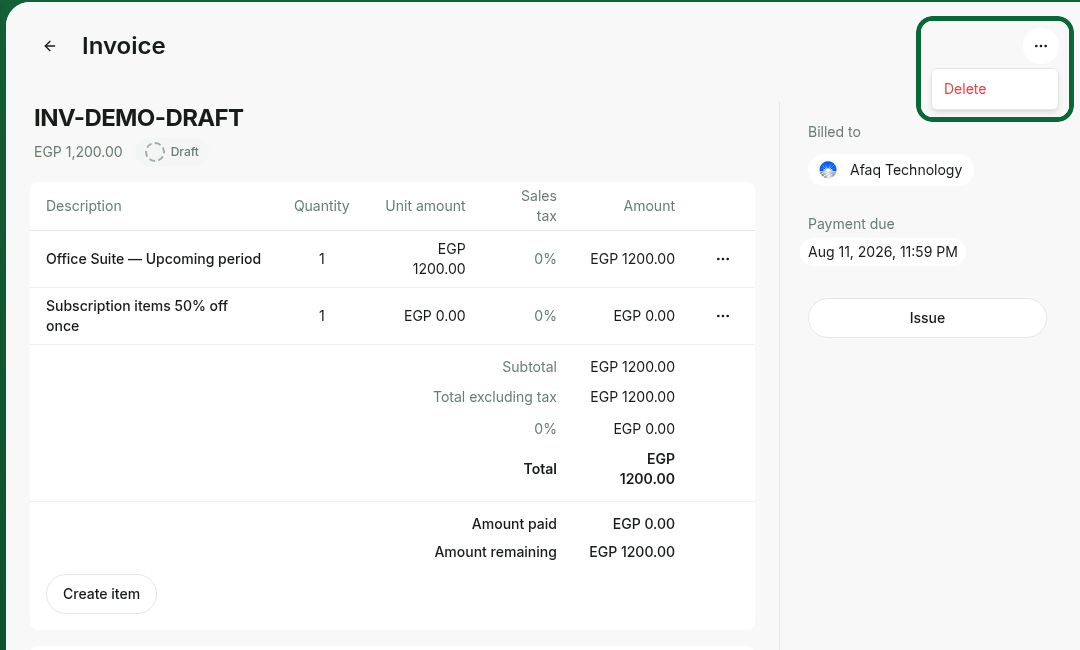 Completely deleting an upcoming invoice is irreversible and less recommended.
Consider applying a [**100% discount**](/docs/admin/billing/discounts/coupons-and-promo-codes) or a [**full amount credit**](/docs/admin/billing/invoices/customer-money-balance) instead of completely deleting or voiding the upcoming invoice. This will generate the invoice with a 0 total while keeping a record of the adjustment.
### Stop all further invoices
If the customer is canceling their subscription and should not receive any further invoices:
1. Go to the customer's profile.
2. Open their subscription.
3. Either:
* [**Schedule an end date**](/docs/admin/billing/subscriptions/cancel-a-subscription), or
* [**Cancel the subscription**](/docs/admin/billing/subscriptions/cancel-a-subscription) immediately.
If the subscription is in its final cycle, no upcoming invoice is generated.
## FAQs
1. The invoice was already issued. If an administrator has manually issued the upcoming invoice, it will no longer appear as an upcoming invoice. Instead, such invoices are moved to the **Invoices** page in the customer's profile.
2. If the current subscription period is final, no future invoices are generated.
Yes. If you want the system to generate the upcoming invoice automatically, but not automatically charge the customer's payment method, and let them submit a payment by themselves:
1. Open the customer's profile.
2. [**Disable Auto-pay**](/docs/admin/billing/subscriptions/control-invoice-auto-charge) in the right-hand panel.
The invoice will still be generated, but the customer will have to submit payment manually.
On the other hand, you may need to prevent automatic invoice issuance if:
* A customer pauses their membership.
* A customer temporarily does not need to pay.
To stop automatic invoice issuance:
1. Open the customer's subscription.
2. [**Pause payment collection**](/docs/admin/billing/subscriptions/control-invoice-issuance) in it.
3. Choose to generate the invoice as a draft so you can manually issue it, or select to immediately void it.
4. You can also set a **Resume date** so future invoices are automatically issued again.
Yes. Members and [**company managers**](/docs/admin/customer-management/companies/company-members-and-managers) can check their upcoming invoice as follows:
1. Go to the **Membership** page.
2. Open **Billing** in the personal or company section.
3. Press on the **Upcoming invoice**.
Completely deleting an upcoming invoice is irreversible and less recommended.
Consider applying a [**100% discount**](/docs/admin/billing/discounts/coupons-and-promo-codes) or a [**full amount credit**](/docs/admin/billing/invoices/customer-money-balance) instead of completely deleting or voiding the upcoming invoice. This will generate the invoice with a 0 total while keeping a record of the adjustment.
### Stop all further invoices
If the customer is canceling their subscription and should not receive any further invoices:
1. Go to the customer's profile.
2. Open their subscription.
3. Either:
* [**Schedule an end date**](/docs/admin/billing/subscriptions/cancel-a-subscription), or
* [**Cancel the subscription**](/docs/admin/billing/subscriptions/cancel-a-subscription) immediately.
If the subscription is in its final cycle, no upcoming invoice is generated.
## FAQs
1. The invoice was already issued. If an administrator has manually issued the upcoming invoice, it will no longer appear as an upcoming invoice. Instead, such invoices are moved to the **Invoices** page in the customer's profile.
2. If the current subscription period is final, no future invoices are generated.
Yes. If you want the system to generate the upcoming invoice automatically, but not automatically charge the customer's payment method, and let them submit a payment by themselves:
1. Open the customer's profile.
2. [**Disable Auto-pay**](/docs/admin/billing/subscriptions/control-invoice-auto-charge) in the right-hand panel.
The invoice will still be generated, but the customer will have to submit payment manually.
On the other hand, you may need to prevent automatic invoice issuance if:
* A customer pauses their membership.
* A customer temporarily does not need to pay.
To stop automatic invoice issuance:
1. Open the customer's subscription.
2. [**Pause payment collection**](/docs/admin/billing/subscriptions/control-invoice-issuance) in it.
3. Choose to generate the invoice as a draft so you can manually issue it, or select to immediately void it.
4. You can also set a **Resume date** so future invoices are automatically issued again.
Yes. Members and [**company managers**](/docs/admin/customer-management/companies/company-members-and-managers) can check their upcoming invoice as follows:
1. Go to the **Membership** page.
2. Open **Billing** in the personal or company section.
3. Press on the **Upcoming invoice**.
 The system will generate a new **Upcoming invoice**. It will not repeat items that were already billed.
For example, if January's invoice is issued in December and the customer later makes additional purchases using the [**Invoice payment method**](/docs/admin/billing/payments/pay-with-invoice), one more upcoming invoice will be generated and include only those new payments.
The system will generate a new **Upcoming invoice**. It will not repeat items that were already billed.
For example, if January's invoice is issued in December and the customer later makes additional purchases using the [**Invoice payment method**](/docs/admin/billing/payments/pay-with-invoice), one more upcoming invoice will be generated and include only those new payments.