> ## Documentation Index
> Fetch the complete documentation index at: https://docs.rntor.com/docs/llms.txt
> Use this file to discover all available pages before exploring further.
# Invoice due date
> Configure default invoice payment deadlines for your location, or customize due dates for individual draft invoices
Configure default invoice payment deadlines for your location, or customize due dates for individual draft invoices.
RNTOR allows you to set the number of days from the invoice issue date by which payment is due for each location.
## Set a default payment due value
To set the default **Payment due** property, open RNTOR and follow these steps:
1. Navigate to the **Location settings** page by pressing the **(...)** menu near the location name > **Billing > Invoices** tab.
2. Specify the necessary number of days in the **Payment due** section.
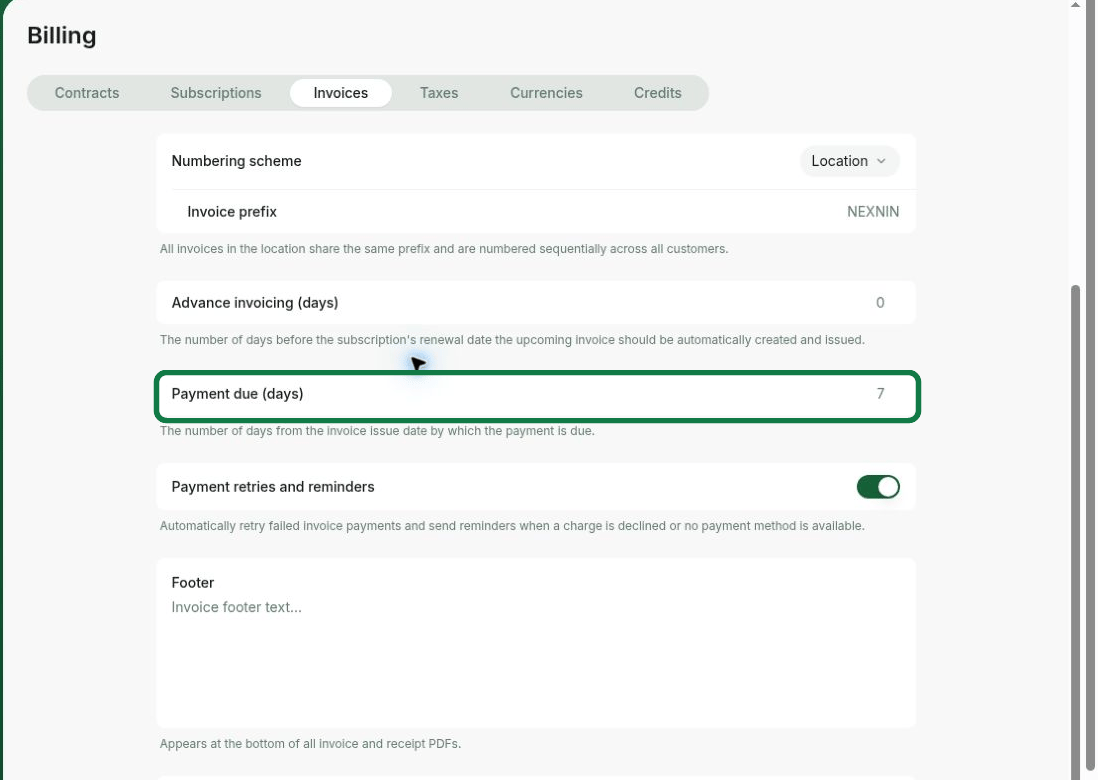 You can set a different **Payment due** property for each location.
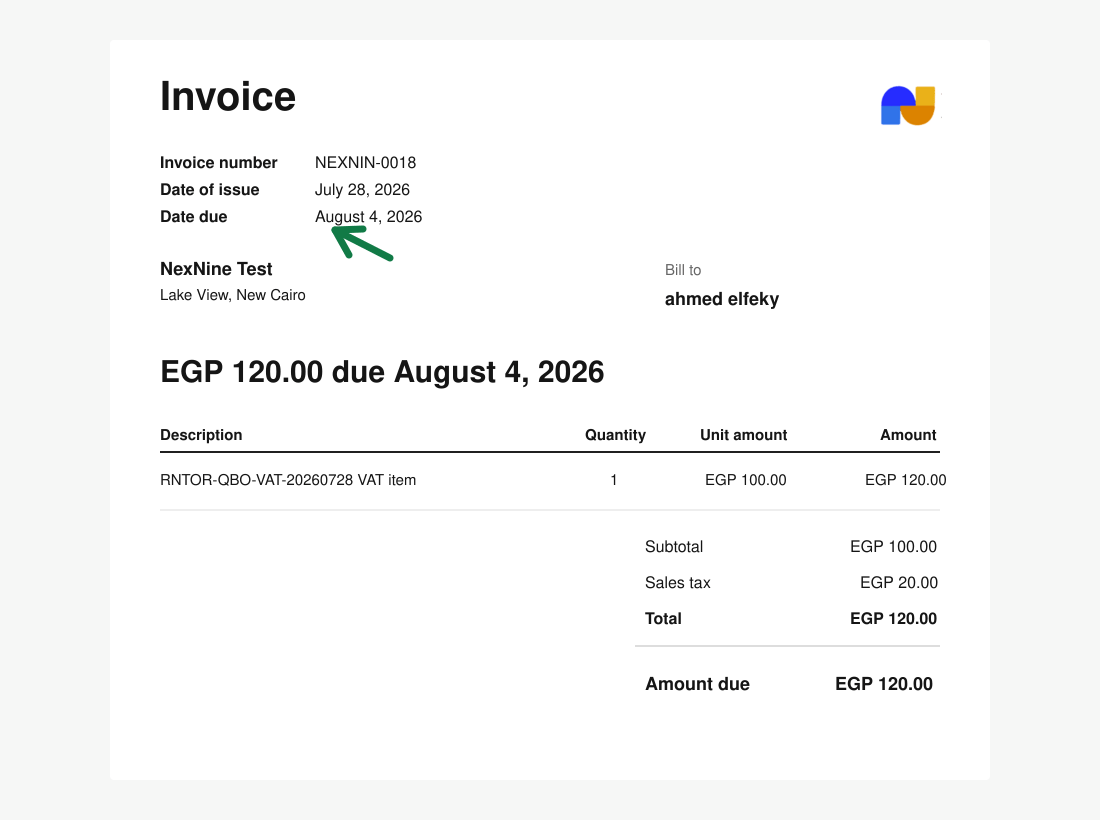
RNTOR will automatically calculate the invoice due date when generating the invoice. The invoice payment **Date due** will appear at the top of the invoice PDF.
You can set a different **Payment due** property for each location.
RNTOR will automatically calculate the invoice due date when generating the invoice. The invoice payment **Date due** will appear at the top of the invoice PDF.
 ## Customize the payment due value for the invoice
If necessary, administrators can customize the **Date due** for individual invoices in the **Draft** status. Apart from the default payment due value, there are two more types that administrators can choose from:
* **In number of days** — allows you to set the number of days from the invoice issue date by which the payment is due.
* **On date** — allows you to set the specific date when the invoice is due.
To customize the payment due value for a specific invoice:
1. Go to **RNTOR > Customers** > open the user or company > click on the subscription > press [**View upcoming invoice**](/docs/admin/billing/invoices/upcoming-invoices) or [**create a one-off invoice**](/docs/admin/billing/invoices/issue-invoices).
2. In the **Due type** section, select the necessary type:
a. If you select the **In number of days** option, specify the number of days in the **Payment due** section.
b. If you select the **On date** option, choose the date from the calendar in the **Due date** section.
## Customize the payment due value for the invoice
If necessary, administrators can customize the **Date due** for individual invoices in the **Draft** status. Apart from the default payment due value, there are two more types that administrators can choose from:
* **In number of days** — allows you to set the number of days from the invoice issue date by which the payment is due.
* **On date** — allows you to set the specific date when the invoice is due.
To customize the payment due value for a specific invoice:
1. Go to **RNTOR > Customers** > open the user or company > click on the subscription > press [**View upcoming invoice**](/docs/admin/billing/invoices/upcoming-invoices) or [**create a one-off invoice**](/docs/admin/billing/invoices/issue-invoices).
2. In the **Due type** section, select the necessary type:
a. If you select the **In number of days** option, specify the number of days in the **Payment due** section.
b. If you select the **On date** option, choose the date from the calendar in the **Due date** section.
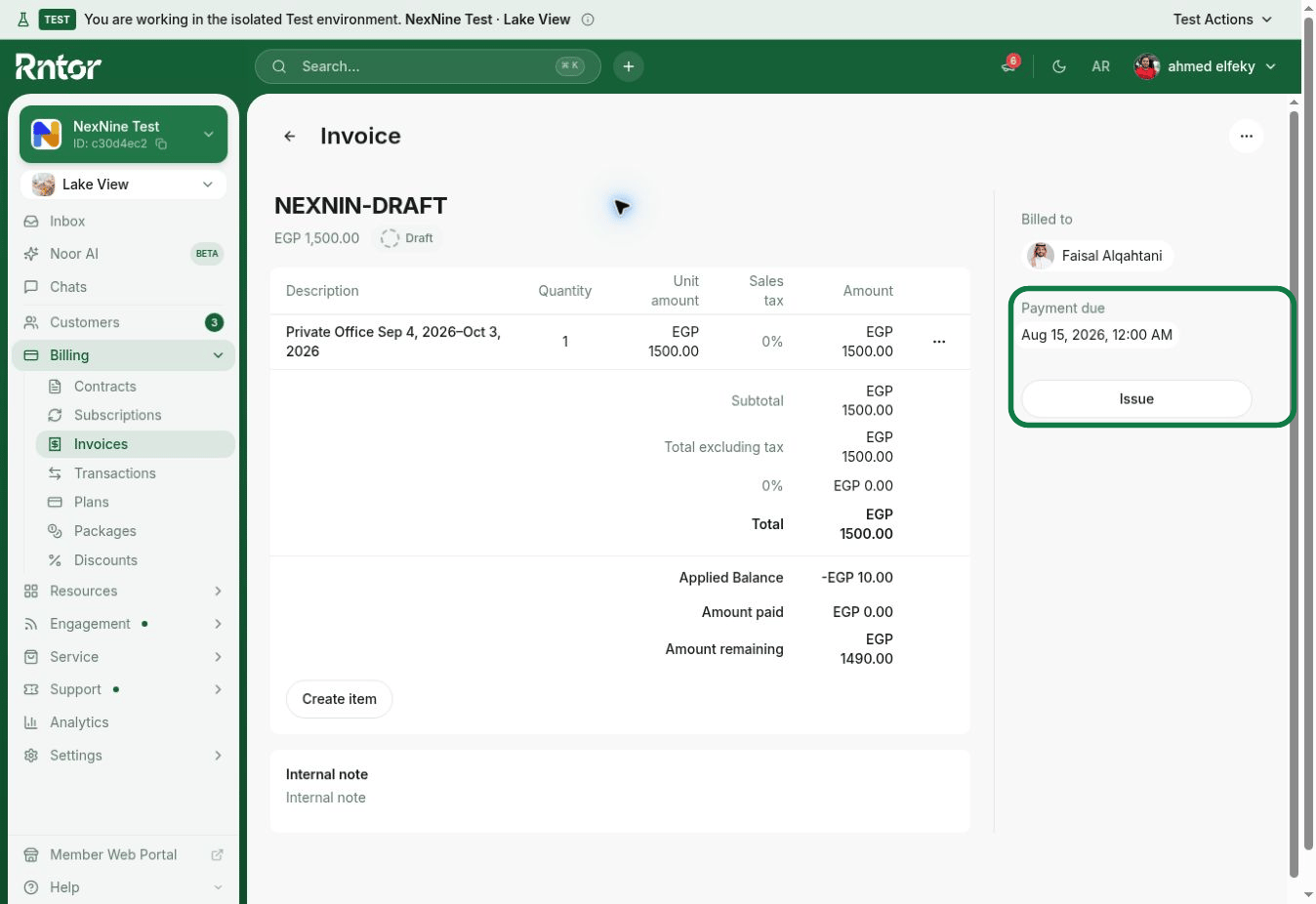 3. Press **Issue**. If a user or company has added a default payment method, then you’ll see the **Issue and charge** button and can charge the full invoice amount right away.
## Best practices
* Administrators may need to adjust the payment due date for one-time invoices for small payments, such as a deposit or additional services.
* If it’s necessary to set a different payment due date for the upcoming invoice for one or a couple of users, administrators can set a custom payment due date only for those users instead of changing the **Payment due** property for the whole location.
* When [**creating a subscription**](/docs/admin/billing/subscriptions/set-up-subscriptions) for the user, the administrator can set a custom payment due date for the upcoming invoice if necessary.
3. Press **Issue**. If a user or company has added a default payment method, then you’ll see the **Issue and charge** button and can charge the full invoice amount right away.
## Best practices
* Administrators may need to adjust the payment due date for one-time invoices for small payments, such as a deposit or additional services.
* If it’s necessary to set a different payment due date for the upcoming invoice for one or a couple of users, administrators can set a custom payment due date only for those users instead of changing the **Payment due** property for the whole location.
* When [**creating a subscription**](/docs/admin/billing/subscriptions/set-up-subscriptions) for the user, the administrator can set a custom payment due date for the upcoming invoice if necessary.