> ## Documentation Index
> Fetch the complete documentation index at: https://docs.rntor.com/docs/llms.txt
> Use this file to discover all available pages before exploring further.
# Notifications
> Configure which admin notifications you receive, enable them as push and email, and track everything in your Inbox
Receive real-time notifications about new bookings, sign-ups, invoices payments, and other users' actions and location updates that may require your attention. Choose how you prefer to get them, and keep track of everything that needs your attention in one place.
## Configure notification preferences
Admin notifications fall into two main categories:
* Activities related to other users' accounts
* Integration errors and disconnections
Administrators can enable and disable notifications they prefer to receive as follows:
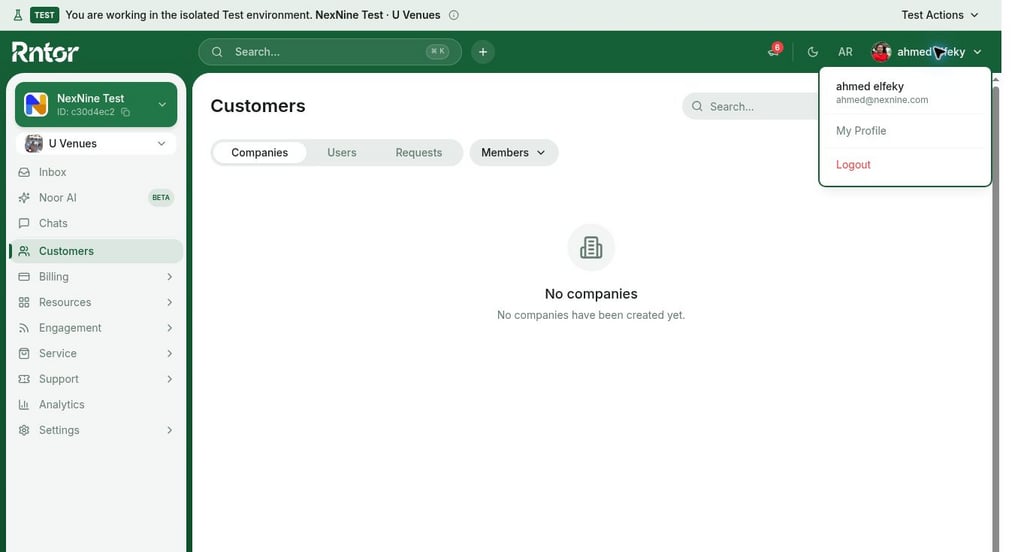
1. Tap the **(...)** menu next to the network name in the top-left corner, then go to **Account**.
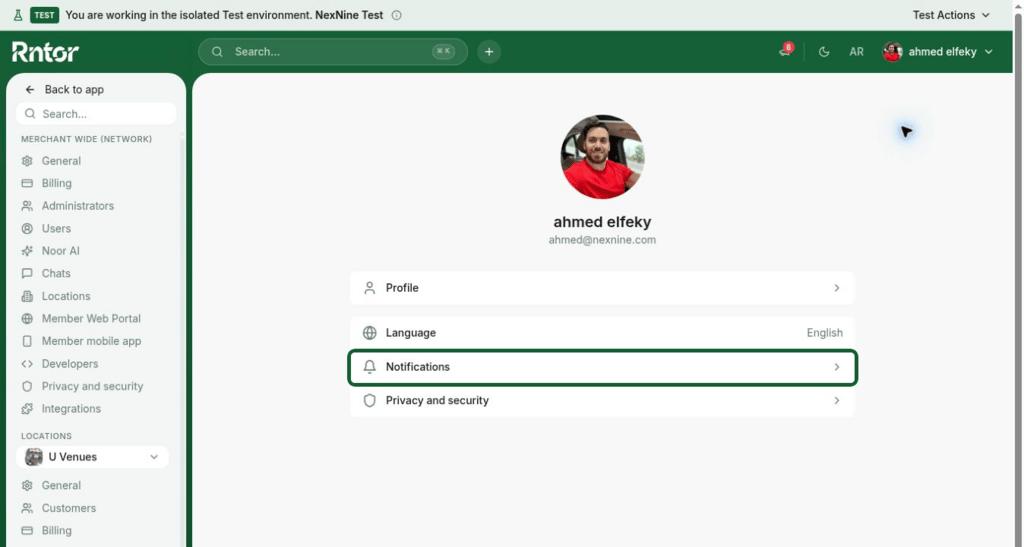
 2. Go to **Notifications**.
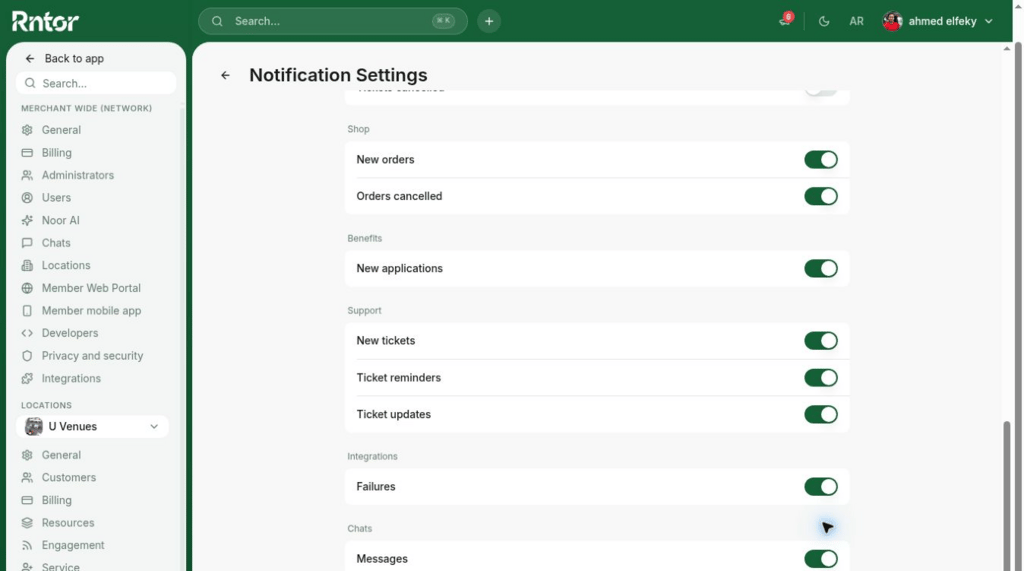
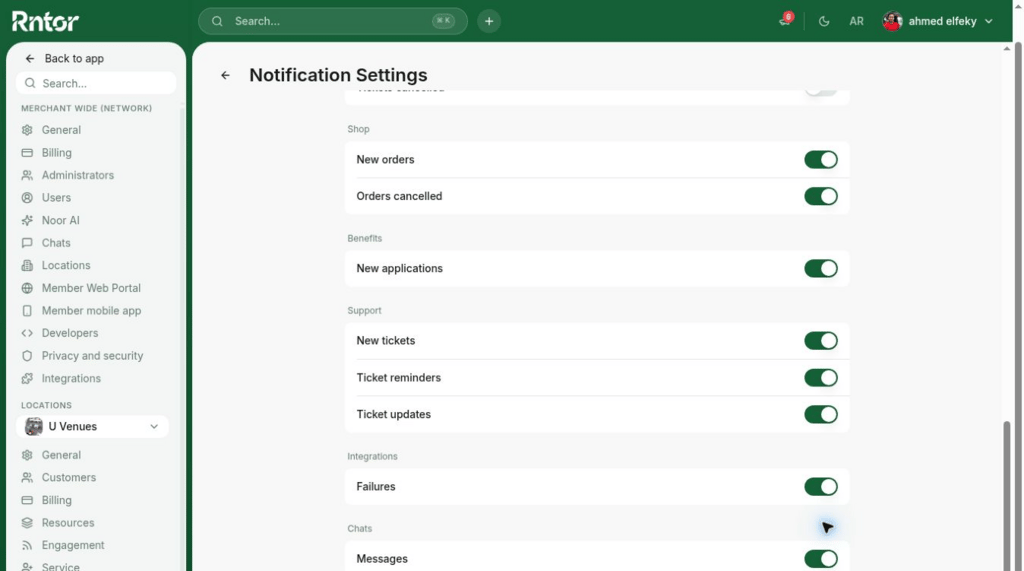
 3. Toggle the switches for the notifications you want to receive:
| **Notification category** | **Notifications included** |
| :------------------------ | :---------------------------------------------------------------------------------------------------------------------------------------------------------------------------------------------------- |
| Customers | Activities that require administrators actions on the **Customers** page:
3. Toggle the switches for the notifications you want to receive:
| **Notification category** | **Notifications included** |
| :------------------------ | :---------------------------------------------------------------------------------------------------------------------------------------------------------------------------------------------------- |
| Customers | Activities that require administrators actions on the **Customers** page: - New requests to join
- Company members removed
- Users reported
- User accounts deleted
|
| Contracts | - New contracts signed by all parties
|
| Subscriptions | |
| Invoices | - Payments succeeded
- Payments failed
|
| Packages | |
| Resources | - New bookings created by the selected users
- Bookings canceled
|
| Visitors | - New contacts left on Reception
|
| Feed | - New posts and comments under the post you created or commented on
|
| Events | - New attendees
- Tickets canceled
|
| Shop | - New orders
- Orders canceled
|
| Benefits | - New applications submitted
|
| Support | - New tickets
- Reminders about new tickets that await action
- Updates on tickets assigned to you or commented by you
|
| Integrations | - Failures of the integration connections
|
| Chats | |
For bookings, administrators can also choose whose bookings trigger notifications:
* Administrators
* Location members
* Network members
* Nonmembers
Nonmembers' and invoice activity notifications are enabled by default.
Administrators receive notifications only about user activities they can manage according to their [permissions](/docs/admin/administration/administrators/permissions).
## Enable push and email notifications
Administrators receive enabled notifications through two channels:
* **Push notifications** — turned on by default; you only need to grant permission on your device or browser.
* **Email** — optional; turn it on to also receive notifications by email.
### Push notifications
By default, RNTOR sends all enabled admin notifications as push notifications to the admin web portal and admin mobile app. To receive them, you must grant notification permission on your device or browser.
#### Desktop (admin web portal)
Administrators must grant notification permissions for RNTOR in their browser settings. Follow the guidelines for your browser:
* [Instructions for Google Chrome](https://support.google.com/chrome/answer/3220216?hl=en)
* [Instructions for Safari browser](https://support.apple.com/guide/iphone/change-notification-settings-iph7c3d96bab/17.0/ios/17.0#:~:text=Receive%20Web%20Push%20notifications%20from%20web%20apps)
 Keep your browser updated to the latest version for a seamless push notification experience. You can also add RNTOR to your home screen as a progressive web app for quick access and enable push notifications directly from there.
#### Phone (admin mobile app)
To receive push notifications on your smartphone:
1. Download the admin mobile app to your device from [App Store](https://rntor.com) or [Google Play](https://rntor.com).
2. When you log in for the first time, allow push notifications in the pop-up window.
3. If you didn't see the prompt, go to the **Account > Notifications** page and tap **Push notifications**. This redirects you to configure push notifications in your device settings.
Keep your browser updated to the latest version for a seamless push notification experience. You can also add RNTOR to your home screen as a progressive web app for quick access and enable push notifications directly from there.
#### Phone (admin mobile app)
To receive push notifications on your smartphone:
1. Download the admin mobile app to your device from [App Store](https://rntor.com) or [Google Play](https://rntor.com).
2. When you log in for the first time, allow push notifications in the pop-up window.
3. If you didn't see the prompt, go to the **Account > Notifications** page and tap **Push notifications**. This redirects you to configure push notifications in your device settings.
 Keep the admin mobile app updated to the latest version for a seamless notification experience.
### Email notifications
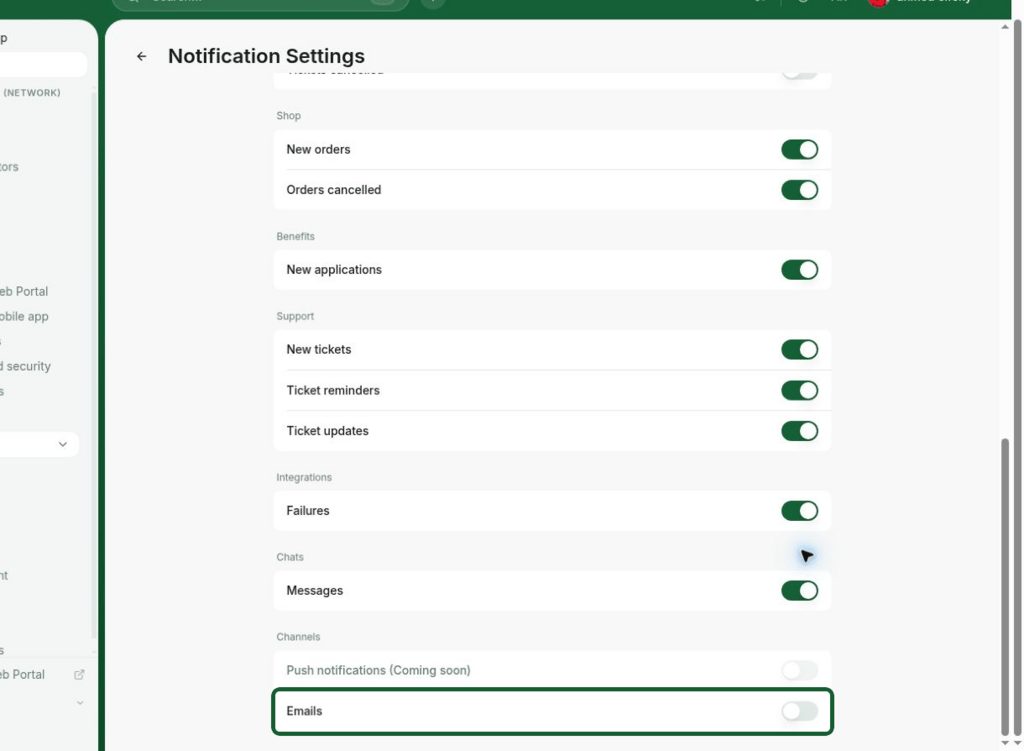
In addition to push notifications, you can choose to receive all enabled notifications by email. Go to the **Account > Notifications** page and enable the **Emails** switch at the bottom.
Keep the admin mobile app updated to the latest version for a seamless notification experience.
### Email notifications
In addition to push notifications, you can choose to receive all enabled notifications by email. Go to the **Account > Notifications** page and enable the **Emails** switch at the bottom.
 If an administrator logs out or disables push notifications in their browser or device, RNTOR cannot deliver push notifications to them. If email notifications are enabled, they will receive notifications by email instead.
## Track notifications in your Inbox
Enabled admin notifications appear in RNTOR on the **Inbox** page — your main page to stay up-to-date with everything happening in your admin and member portals.
The **Inbox** was previously called **Notifications**. It's the same feature under a new name and interface. All the same notifications still appear here and work exactly as before.
If an administrator logs out or disables push notifications in their browser or device, RNTOR cannot deliver push notifications to them. If email notifications are enabled, they will receive notifications by email instead.
## Track notifications in your Inbox
Enabled admin notifications appear in RNTOR on the **Inbox** page — your main page to stay up-to-date with everything happening in your admin and member portals.
The **Inbox** was previously called **Notifications**. It's the same feature under a new name and interface. All the same notifications still appear here and work exactly as before.
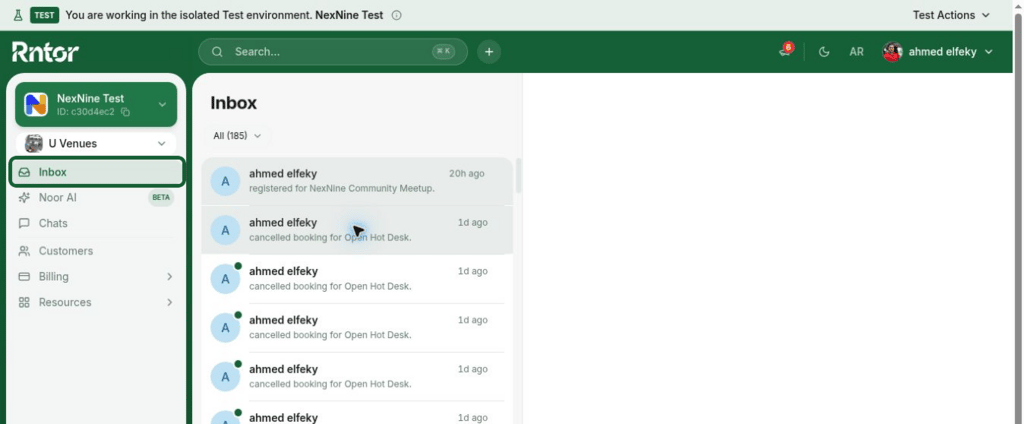 * Each notification shows the name of the user or company, a description of their action, and the RNTOR service they interacted with (a resource, a plan, a product, and so on).
* Click a notification to open the related item — a booking, an invoice, and so on — and manage it as needed.
Administrators receive notifications only about other users' bookings and actions. You won't receive notifications about your own actions.
**FAQs**
1. Check your notification settings:
* Click the **(...)** menu next to your network name on the left-side panel.
* Go to **Account > Notifications**.
* Ensure that notifications for the specific user activity and user group you're interested in are enabled.
2. If you're not receiving push notifications, check in your device or browser settings that you've allowed receiving notifications from RNTOR:
* For admin mobile app: follow guidelines by [Google](https://support.google.com/android/answer/9079661) or [Apple](https://support.apple.com/en-us/120681), depending on your device.
* For admin web portal: add RNTOR to your home screen as a progressive web app and [allow push notifications via your browser](/docs/admin/administration/your-account/notifications/set-up-notifications#push-notifications).
3. If you are not receiving email notifications, go to the **Account > Notifications** page and enable the **Emails** switch at the bottom.
There are two ways to set sending notifications to a certain email address.
If the employee whose email address you want to notify is an administrator of your space:
1. [Invite them as an administrator](/docs/admin/customer-management/users/members#invite-a-member) to RNTOR.
2. [Set their administrator permissions](/docs/admin/administration/administrators/permissions), as needed, if your RNTOR plan allows for this feature.
3. Ask them to log in to RNTOR, navigate to the [**Account > Notifications**](/docs/admin/administration/your-account/notifications/set-up-notifications) page, enable the desired notifications, and then toggle on the **Emails** switch at the bottom of the page.
If you prefer not to invite the email address as an administrator to RNTOR, you can set up an automation using Zapier:
1. Create a [Zapier](https://zapier.com/app/assets/zaps) automation designed to send emails.
2. In the **Trigger** step, select RNTOR and choose the specific user activity event you wish to send notifications about.
3. In the **Action** step, select your preferred email application (e.g., Gmail, Outlook) and enter the dedicated email address where you want to receive notifications.
Once set up, this Zapier automation will automatically send an email notification to the specified address every time the chosen user activity occurs in RNTOR.
* Each notification shows the name of the user or company, a description of their action, and the RNTOR service they interacted with (a resource, a plan, a product, and so on).
* Click a notification to open the related item — a booking, an invoice, and so on — and manage it as needed.
Administrators receive notifications only about other users' bookings and actions. You won't receive notifications about your own actions.
**FAQs**
1. Check your notification settings:
* Click the **(...)** menu next to your network name on the left-side panel.
* Go to **Account > Notifications**.
* Ensure that notifications for the specific user activity and user group you're interested in are enabled.
2. If you're not receiving push notifications, check in your device or browser settings that you've allowed receiving notifications from RNTOR:
* For admin mobile app: follow guidelines by [Google](https://support.google.com/android/answer/9079661) or [Apple](https://support.apple.com/en-us/120681), depending on your device.
* For admin web portal: add RNTOR to your home screen as a progressive web app and [allow push notifications via your browser](/docs/admin/administration/your-account/notifications/set-up-notifications#push-notifications).
3. If you are not receiving email notifications, go to the **Account > Notifications** page and enable the **Emails** switch at the bottom.
There are two ways to set sending notifications to a certain email address.
If the employee whose email address you want to notify is an administrator of your space:
1. [Invite them as an administrator](/docs/admin/customer-management/users/members#invite-a-member) to RNTOR.
2. [Set their administrator permissions](/docs/admin/administration/administrators/permissions), as needed, if your RNTOR plan allows for this feature.
3. Ask them to log in to RNTOR, navigate to the [**Account > Notifications**](/docs/admin/administration/your-account/notifications/set-up-notifications) page, enable the desired notifications, and then toggle on the **Emails** switch at the bottom of the page.
If you prefer not to invite the email address as an administrator to RNTOR, you can set up an automation using Zapier:
1. Create a [Zapier](https://zapier.com/app/assets/zaps) automation designed to send emails.
2. In the **Trigger** step, select RNTOR and choose the specific user activity event you wish to send notifications about.
3. In the **Action** step, select your preferred email application (e.g., Gmail, Outlook) and enter the dedicated email address where you want to receive notifications.
Once set up, this Zapier automation will automatically send an email notification to the specified address every time the chosen user activity occurs in RNTOR.